Excel 401k Calculator: Project Retirement Savings with Excel
Learn to build and use an excel 401k calculator to project retirement savings. Discover inputs, a robust future value formula, scenario testing for planning, and practical tips.


Why an Excel 401k Calculator is a Practical Tool
According to XLS Library, a well-crafted Excel 401k calculator puts retirement planning into your own hands. It demystifies long-range outcomes by translating a few key inputs into a clear forecast. This is especially powerful for aspiring and professional Excel users who want a transparent, editable model they can share with financial advisors or teammates. An Excel-based calculator avoids expensive software and lock-in, letting you explore what-if scenarios on your own schedule. You can tailor assumptions—like annual return, contribution growth, and starting balance—and instantly see how changes ripple across decades. In short, it’s an accessible, flexible way to test plans and sharpen your financial intuition.
Beyond the mechanics, using Excel cultivates a habit of data-driven decision-making. You’ll build confidence by validating each assumption and recording the logic behind projections. For many, a simple, customizable calculator also serves as a teaching tool—for yourself, colleagues, or clients—showing how small adjustments today can influence retirement readiness years later.
How the Calculator Works: Inputs and Core Formula
At its core, the calculator models two components of growth: the existing balance growing at a return rate, and growing annual contributions that add to the balance each year. The primary variables are: current balance (P), annual contribution (PMT), annual return rate (r), contribution growth rate (g), and projection years (n). The typical future value (FV) formula used is:
FV = P * (1 + r)^n + PMT * [((1 + r)^n - (1 + g)^n) / (r - g)]
Where r and g are expressed as decimals (e.g., 7% = 0.07 and 2% = 0.02). If r equals g, the calculator uses the special case FV = P*(1+r)^n + PMTn(1+r)^(n-1). This keeps the math stable when growth and return rates align. In practice, you’ll input P, PMT, r, g, and n, then the model outputs a single projected FV. In XLS Library’s framework, this approach emphasizes transparency and reproducibility—you can audit every step and adjust inputs to see the impact in real time.
Building Your Calculator: Step-by-Step Setup in Excel
To create a clean, auditable Excel 401k calculator, start by laying out your inputs and outputs neatly:
- Set up input cells with clear labels: Initial Balance (P), Annual Contribution (PMT), Return Rate (r), Contribution Growth Rate (g), Projection Years (n). Use numeric validation and show units (e.g., $ and %).
- Define named ranges for each input to simplify formulas and improve readability. For example: P, PMT, r, g, n.
- Enter the FV formula in a dedicated output cell, using the named ranges: =PPOWER(1+r, n) + PMT( (POWER(1+r, n) - POWER(1+g, n)) / (r - g) ).
- Implement the r and g conversions: r = GrowthRate/100, g = ContributionGrowthRate/100, so the formulas remain stable if you later adjust units.
- Add error handling and rounding: use ROUND(FV, 2) to present currency values with two decimals. Create a small dashboard that displays FV and key inputs.
- Optional: build a separate sheet for scenario testing and compare outcomes side by side. This keeps the main calculator clean while enabling breadth of exploration.
Scenarios to Explore: Baseline, Optimistic, and Conservative
Once your calculator is in place, you can explore several scenarios to understand risk and opportunity:
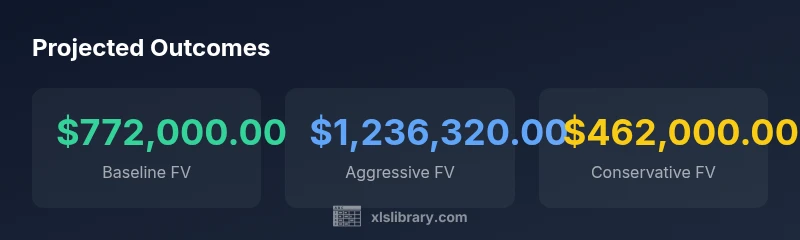
- Baseline: Input a moderate return (e.g., 7%), modest growth in contributions (2%), and a typical 30-year horizon. This yields a reasonable projection under common market conditions.
- Optimistic: Increase r to 9% and/or g to 3%, and/or n to 35 years. This highlights how favorable market performance and rising contributions can compound significantly over time.
- Conservative: Lower r to 4% and/or g to 1%, comparing against a shorter horizon (e.g., 25 years). This helps you plan for slower growth or potential market volatility.
To compare scenarios, duplicate the input sheet and adjust one variable at a time, then visualize results with simple charts (FV by year or year-over-year growth). The exercise teaches sensitivity and helps you set realistic expectations.
Common Pitfalls and How to Avoid Them
Even a well-built Excel 401k calculator can mislead if assumptions aren’t handled carefully. Common pitfalls include:
- Forgetting to convert percentages to decimals (e.g., 7% as 0.07) before applying the formula.
- Using a fixed contribution amount when actual contributions rise over time; failing to model growth g leads to a static projection.
- Ignoring the impact of fees, employer matches, and tax considerations that affect net returns. The calculator should be treated as a planning tool, not a guaranteed forecast.
- Not anchoring inputs to a clear time frame; inconsistent horizons can cause misleading comparisons.
- Overlooking the need to save multiple versions of the model, which makes it hard to track changes and rationale.
Tip: keep assumptions documented in a dedicated sheet or note, and ensure your formulas reference named ranges so changes propagate automatically.
Practical Tips for Using Your Projections
When you start using your Excel-based calculator for real planning, keep these tips in mind:
- Save versions frequently and annotate what changed in each version for fast reviews later.
- Use charts to visualize FV over time, and consider adding a year-by-year table to spot turning points.
- Include a separate line for employer matches if known, either as an additional PMT or a separate “match” stream.
- Always test with both optimistic and pessimistic inputs to understand the range of possible outcomes.
- Review your assumptions annually and adjust for life changes, inflation expectations, or updated plan details.
Key Considerations for Adoption and Sharing
A well-documented Excel 401k calculator serves not only as a personal planning tool but also as a sharing platform with financial advisors or HR teams. Include a clear description of the model’s assumptions, a data dictionary for inputs, and an auditable trail showing how each projection was derived. This transparency helps others understand the reasoning and facilitates better-informed discussions about retirement strategies.