Projects Management Excel Template: A Practical Guide
Design a robust projects management excel template to plan, track, and report on tasks, timelines, and resources. Practical setup, formulas, and dashboards with XLS Library guidance.


Build a practical projects management excel template to plan, track, and report on tasks, timelines, and resources. This guide covers core structure, essential formulas, and lightweight dashboards you can customize for any project size. By following the steps, teams gain a repeatable framework that promotes clarity, accountability, and on-time delivery.
Why a projects management excel template matters
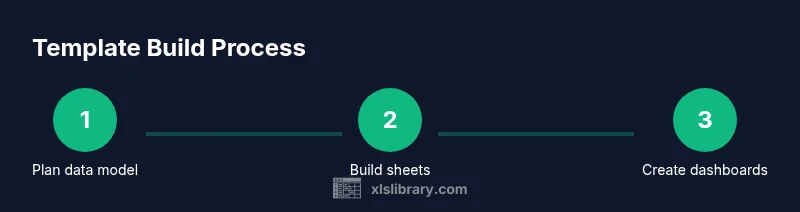
In today’s project-driven environments, teams rely on a single source of truth to coordinate tasks, deadlines, and resources. A well-crafted projects management excel template makes this possible without a full-fledged PM software. It centralizes task lists, milestones, owners, and budgets in a familiar spreadsheet interface, reducing the number of status meetings and helping stakeholders see progress at a glance. When you start with a clean data model and consistent conventions, you unlock faster reporting, easier auditing, and better scenario planning. The versatility of Excel means you can tailor views for executives, PMs, or team members, while preserving compatibility and portability. For many teams, templates provide a practical bridge between ad-hoc tracking and formal project governance, enabling you to scale from a few tasks to dozens of workstreams. As XLS Library notes, the right template should be both simple enough to be adopted quickly and powerful enough to support growth. The balance between clarity in daily use and depth for forecasting is essential. If you’re starting from scratch, plan your data model first, then layer in sheets, formulas, and dashboards for a complete, maintainable solution that remains usable over time. According to XLS Library, a well-structured approach reduces chaos and speeds up decision-making, especially when projects scale.
Core features of a robust template
A solid projects management excel template should cover the life cycle of a project from start to finish. Key sheets include a Task Sheet with columns for ID, Description, Owner, Start Date, End Date, Status, and Priority; a Timeline view for dependencies; and a Resource Matrix to balance workload. A Budget and Costs sheet tracks planned versus actuals, with a Risks log to capture threats and mitigations. A Dashboard aggregates metrics like completion percent, upcoming milestones, and variances. Use data validation to enforce consistent statuses, and conditional formatting to flag overdue tasks or overallocated resources. Leverage formulas such as SUMIF, COUNTIF, XLOOKUP, and simple IF logic to keep calculations transparent. Ensure you can export to PDF or share with teammates, while preserving data integrity. A well-constructed template also supports storytelling with visuals, so stakeholders grasp progress at a glance.
Data architecture and sheet layout
Design a predictable layout that scales. A typical template starts with an Overview sheet, followed by dedicated sheets for Tasks, Timeline, Resources, Budget, Risks, and Communications. An Archive sheet captures completed projects for historical analysis. Each sheet should reference a consistent data model with named ranges, consistent column headers, and clear ownership. Establish relationships between sheets using unique IDs (e.g., Task ID) so you can pull data into the Dashboard and Timeline without duplicating entries. Keep formatting uniform across sheets to reduce cognitive load and make audits straightforward. This structure supports both ad-hoc reporting and formal governance, while remaining accessible to users who are familiar with Excel but not PM software.
Customization steps for your team
Every team has its own workflow. Start by defining your core fields (Task ID, Owner, Start/End, Status) and the set of statuses that reflect your process. Add or remove columns to match your reality, but keep a stable data model so dashboards remain reliable. Create a starter drop-down list for Status, Priority, and Phase, and apply data validation to prevent typos. Personalize the Dashboard to highlight the metrics your stakeholders care about (e.g., burn rate, milestone health, resource utilization). Document who owns each field and how often data should be updated. Finally, build a simple governance rule: every change to the template must be versioned and communicated to the team. This ensures consistency as you scale up projects.
Starter blueprint you can copy
A practical starter blueprint includes 8 sheets with the following headers:
- Overview: Project name, sponsor, start date, end date, current status, overall health
- Tasks: Task ID, Description, Owner, Start Date, End Date, Status, Priority, % Complete
- Timeline: Gantt-style bars, critical path indicator
- Resources: Resource, Role, Max Capacity, Assigned Hours
- Budget: Planned, Actual, Variance, Notes
- Risks: Risk ID, Description, Likelihood, Impact, Owner, Mitigation
- Communications: Date, Channel, Audience, Summary
- Dashboard: KPIs with charts and conditional formatting
This starter blueprint provides a reliable foundation for a scalable projects management excel template.
Best practices for data quality
To keep data trustworthy, establish naming conventions, use data validation, and maintain version control. Regularly audit formulas and cross-sheet references. Use named ranges for robust formulas and document assumptions in a dedicated sheet. Keep a data-entry protocol to minimize errors, and require periodic reviews of the template by a dedicated owner. Clear governance reduces drift as teams grow.
Dashboards and reporting integration
Link data across sheets to produce a coherent dashboard. Use PivotTables or dynamic array formulas to summarize tasks by status, owner, or priority. Charts such as Gantt-style bars, stacked bar charts for resource usage, and line charts for budget trends communicate status quickly. Ensure dashboards refresh automatically as data changes, and consider creating a lightweight PDF export for executive updates.
Adoption and change management
Roll out the template with a short training session and a one-page user guide. Provide a sample project as a hands-on exercise to demonstrate how the template captures real-world data. Set up a channel for feedback and schedule periodic improvements. A well-supported rollout encourages consistent use and reduces resistance to change.
Maintenance and scaling for growing teams
As projects multiply, periodically archive completed work to keep templates lean. Regularly review and prune unused columns, update data validation lists, and revalidate dashboards. If your organization expands, consider co-hosting templates in a shared repository and assign a governance owner to maintain standards.
Tools & Materials
- Computer or laptop with Excel or compatible spreadsheet software(Ensure it can run formulas, charts, and basic scripting if needed.)
- Template starter file or blank workbook(Use a clean workbook to avoid legacy data conflicts.)
- Sample project dataset(Include tasks, dates, owners, and a few budget items for testing.)
- Backup storage (cloud or local)(Regular backups prevent data loss during updates.)
- Color palette and fonts for consistency(Choose a simple palette to keep dashboards readable.)
- Documentation template (one-pager)(Capture usage rules, owners, and update cadence.)
- Printer or PDF export capability(Useful for executive briefings and offline review.)
Steps
Estimated time: 2-3 hours for initial setup (adjust as needed)
- 1
Define data model and sheet structure
Decide which sheets to include (Overview, Tasks, Timeline, Resources, Budget, Risks, Communications, Archive) and map relationships between them using unique IDs. Establish naming conventions to ensure consistency across the workbook.
Tip: Sketch the data model on paper first, then translate to Excel columns. - 2
Create the Task Sheet with essential columns
Set up a Task Sheet with Task ID, Description, Owner, Start Date, End Date, Status, Priority, and % Complete. Use a table format for easy filtering and expansion.
Tip: Convert to a named range (e.g., tbl_Tasks) to simplify formulas later. - 3
Set up statuses and data validation
Create fixed lists for Status (e.g., Not Started, In Progress, Completed), Priority, and Phase. Apply data validation to prevent inconsistent entries.
Tip: Keep a central Lists sheet to manage dropdown values in one place. - 4
Build the Timeline/Gantt view
Add a Timeline column or a dedicated Gantt view that visually maps tasks against dates. Link to Start/End dates and compute duration. Use conditional formatting to highlight critical paths.
Tip: Use formula-driven bars to stay lightweight and dynamic. - 5
Configure the Dashboard and KPIs
Create a Dashboard sheet that aggregates key metrics like completion, upcoming milestones, budget variance, and resource utilization. Use charts and conditional formatting for quick insight.
Tip: Keep 1-2 high-impact visuals and avoid information overload. - 6
Test with sample data and iterate
Populate the workbook with sample data, test cross-sheet references, and ensure dashboards reflect changes instantly. Iterate based on stakeholder feedback.
Tip: Have a teammate validate the workflow from data entry to reporting.
People Also Ask
What is a projects management excel template?
A predefined workbook that helps plan, track, and report on project tasks, timelines, owners, and budgets. It provides a structured approach without relying on dedicated PM software.
A PM Excel template is a ready-made workbook to organize your project data and report progress easily.
Which sheets should be included in the template?
Key sheets typically include Overview, Tasks, Timeline, Resources, Budget, Risks, and Communications. An Archive sheet is helpful for historical analysis.
Core sheets are Overview, Tasks, Timeline, Resources, Budget, Risks, and Communications, plus Archive if needed.
Can Excel handle complex project management?
Yes, for many teams a well-designed template in Excel can handle complex project tracking, especially with dashboards and robust formulas. For very large, multi-team programs, consider governance and maybe add-on tools later.
Excel can manage many projects, but you may need governance and later tools for very large programs.
How do I share the template with a team?
Store the workbook in a shared location, set appropriate access permissions, and implement a simple versioning rule. Encourage teams to use the same template to maintain consistency.
Share via a cloud drive with clear permissions and a versioning rule.
Is Excel better than a dedicated PM tool for small teams?
For small teams, Excel templates are inexpensive and flexible. They work well for basic to moderately complex projects; larger teams may prefer a dedicated PM tool for collaboration and real-time work.
Excel is great for smaller teams; bigger teams might need a dedicated PM tool.
How do I ensure data integrity in the template?
Use data validation, named ranges, consistent column headers, and regular data reviews. Document data entry rules and maintain a change log within the workbook.
Data validation and clear rules keep your data clean and reliable.
Watch Video
The Essentials
- Define a stable data model before building sheets
- Keep the initial template simple and scalable
- Link data to dashboards for quick insight
- Governance and versioning protect data quality