Excel How to Make a Chart: Step-by-Step Guide
Learn how to create insightful charts in Excel with a clear, step-by-step approach. Prepare data, choose chart types, insert visuals, and customize formatting to communicate your data effectively.


Goal: Learn how to create a clear, publication-ready chart in Excel. You'll select data, choose an appropriate chart type, insert the chart, and customize titles, axes, and legend. Key requirements: a clean data range in Excel, a version that supports charts (Excel 2016+), and basic formatting familiarity. By the end, you'll have a polished visual ready for reports.
Quick start: How charts improve decision-making
Charts turn raw data into clear visual stories. According to XLS Library, well-designed charts help analysts, managers, and team members grasp trends quickly and communicate them with confidence. In this guide, we’ll explore why charts matter, what data will support robust visuals, and how to choose a chart type that matches your narrative. We’ll also outline a practical workflow you can apply to sales dashboards, financial summaries, or project trackers. By the end, you’ll be able to produce a chart that highlights key insights and supports data-driven decisions.
Beyond aesthetics, a chart is a storytelling device. A well-crafted visual clarifies what numbers imply, where patterns emerge, and how your audience should respond. The XLS Library team emphasizes starting with a clear objective, whether you want to compare categories, show trends, or illustrate composition. In practice, this means planning the chart’s purpose before touching Excel, so the final graphic serves a concrete business decision.
Data readiness: clean data for reliable charts
Before you insert a chart, ensure your data is clean and well-structured. This means using a single header row, consistent data types in each column, and no blank rows within the data range you plan to chart. If your data sits in a table, Excel will automatically extend the chart as you add new rows. The XLS Library team emphasizes starting from a clean table: remove duplicates, fix typos, and ensure numeric columns contain numbers rather than text. Also consider adding a data validation rule to prevent invalid entries. With a solid data foundation, your chart will reflect accurate trends instead of noisy noise.
Chart types at a glance: column, line, bar, pie, and more
Excel offers many chart types, each suited for different storytelling needs. Column charts highlight category comparisons over time; line charts reveal trends and seasonality; bar charts excel at horizontal comparisons; pie charts illustrate parts of a whole, while area charts emphasize cumulative values. For dashboards, consider combo charts to compare different metrics on the same axis. Remember to align chart type with your data's story rather than defaulting to a familiar option. Consistency across charts improves readability in reports.
Step-by-step: create a chart from your data
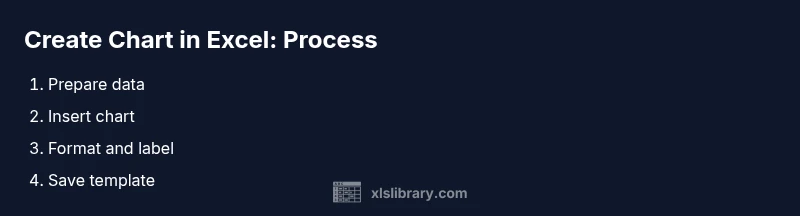
- Select your data range, including headers, ensuring there are no blank lines within the range. 2) Go to Insert > Chart, and pick a chart category that matches your data narrative. 3) Choose a specific chart type and insert it. 4) Add descriptive titles and axis labels, and include a legend if multiple series are present. 5) Format colors, fonts, and gridlines for readability. 6) If your data grows, convert the range to a Table to keep the chart in sync with new data. The step-by-step approach keeps the process repeatable across worksheets.
Polish and customization: formatting, titles, axes, legends
A chart’s clarity rests on precise labeling and clean formatting. Use a concise chart title that states the takeaway, label both axes with units where appropriate, and ensure the legend is easy to read. Apply a consistent color palette and avoid over-styled fonts. Enable data labels sparingly for key values, and consider gridline adjustments to reduce visual noise. If you publish the chart in a report, export it as an image or vector graphic to preserve quality.
Troubleshooting and validation
If a chart looks incorrect, re-check the underlying data: are numbers stored as text? Are there hidden rows or filters affecting the range? Confirm you picked the correct chart type for the data and that the axis scales reflect your measurements. The XLS Library analysis shows that charts lose impact when axis labels are misleading or when color meaning is ambiguous. Validate results by cross-checking with the raw table, and test with a colleague to ensure the message is clear.
Advanced tips and automation
For power users, leverage Excel features to streamline chart creation. Use dynamic named ranges or convert your data into an Excel Table so charts grow with data. Explore chart templates to preserve formatting across projects. Consider linking charts to pivot tables for interactive dashboards, and use slicers to filter data in real time. Keyboard shortcuts can speed up the process: press Alt+N+V to insert a chart quickly, then use Ctrl+1 to open formatting options.
Real-world examples: dashboards and reports
In practice, a well-designed dashboard blends multiple charts to tell a data-driven story. For example, a sales dashboard might combine a column chart of monthly revenue, a line chart showing year-over-year growth, and a stacked bar chart illustrating category performance. Each chart should have a clear title, consistent color codes, and the ability to drill into underlying data. Practicing with sample datasets helps you understand the narrative each chart conveys.
Authority sources
To deepen your understanding of charting and data visualization best practices, consult professional references such as official Excel documentation and data visualization guidelines from reputable organizations. For practical steps, see Microsoft’s official Office support and Learn pages. For broader guidelines on visual communication, refer to established standards from recognized institutions.
Tools & Materials
- Computer with Excel installed(Office 365/2021+; ensure charting features available)
- Clean data range with headers(Data should be numeric where needed and free of blanks within the range)
- Sample workbook or dataset(Helpful for practice)
- Chart type reference sheet(Optional cheat sheet for chart types)
- Internet access to reference sources(To view authority sources and updates)
Steps
Estimated time: 30-45 minutes
- 1
Select your data range
Highlight the data including headers, ensuring there are no blank lines within the range. This helps Excel determine categories and values clearly.
Tip: Use Ctrl+Shift+End to quickly extend the range. - 2
Insert the chart
Navigate to Insert > Charts, pick a chart category, and select a specific chart. Start with a recommended chart to see a quick preview.
Tip: Preview several chart types to compare how they convey your data story. - 3
Choose the right chart type
Match the chart type to your data narrative: columns for categories, lines for trends, bars for comparisons, pies for parts of a whole.
Tip: If unsure, choose Recommended Charts to see built-in options tailored to your data. - 4
Add chart elements
Add a descriptive title, label the axes, and include a legend if multiple series are present.
Tip: Keep axis labels concise and avoid redundant legend entries. - 5
Format for readability
Adjust colors, fonts, and gridlines for legibility. Use a consistent theme across related charts.
Tip: Check color contrast for accessibility; avoid relying on color alone to convey meaning. - 6
Make the chart dynamic
If data changes, ensure the chart updates automatically by using a named range or converting to a Table.
Tip: Tables auto-expand; this keeps charts aligned with new data without manual edits.
People Also Ask
How do I create a chart in Excel?
Select your data range, click Insert > Chart, choose a type, and customize with titles and axis labels.
To create a chart, select your data, insert a chart, and customize it with titles and labels.
What chart type should I choose?
Match the chart to your data story: use column or bar for comparisons, line for trends, and pie for parts of a whole.
Choose the chart type based on what you want to show, like trends or parts of a whole.
How can I update a chart when data changes?
If your data is in a Table or a dynamic named range, the chart will expand automatically as you add rows.
Use a table so charts update automatically when you add data.
Why is my chart not displaying correctly?
Check data types, ensure no blank rows inside the data range, and verify that the correct chart type was chosen.
If the chart looks off, check the data and the chart type.
Can I reuse chart formatting in other worksheets?
Yes, save the current chart as a template and apply it to new datasets.
You can save your chart as a template for future use.
Is Excel able to create dashboards with charts?
Absolutely. You can combine multiple charts into dashboards with slicers and linked data ranges.
Yes, you can build dashboards with several charts and filters.
Watch Video
The Essentials
- Prepare a clean data range before charting.
- Choose the right chart type to fit your data story.
- Label axes clearly with units when applicable.
- Format for readability and accessibility.
- Keep charts up-to-date as data changes.