Annual CAGR Formula in Excel: A Practical Growth Guide
Learn to calculate annual CAGR in Excel with a reliable formula, step-by-step examples, and tips for accuracy, interpretation, and scalable modeling.


You will learn how to compute the annual compound growth rate (CAGR) in Excel using a clean, reliable formula. Start with your beginning value, ending value, and the number of periods, then apply the power function to get the rate. This quick, repeatable method works for revenue, population growth, or any asset that compounds over time.
What CAGR is and why it matters in Excel
The annual compound growth rate (CAGR) is the rate that would take an investment from its beginning value to its ending value if it grew at a steady rate each period. In Excel, CAGR is a powerful tool because it smooths irregular year-to-year changes into one consistent rate, which aids forecasting, budgeting, and comparison across projects. According to XLS Library, many users confuse simple average growth with CAGR, which can lead to misleading conclusions. The XLS Library team found that when analysts adopt CAGR correctly, they gain clearer insight into long-term trends, particularly for revenue, customers, or any metric that compounds over time. When you work with Excel, CAGR gives you a defensible measure of performance that’s easy to communicate to stakeholders. It also scales across different timeframes, whether you’re analyzing annual, quarterly, or monthly data converted to an annual rate. This makes CAGR a cornerstone of practical data mastery in Excel.
In practice, CAGR helps you answer questions like: Did our revenue grow consistently across five years? How does a new product line perform relative to the prior baseline? Is a marketing initiative delivering sustained growth, or did it produce only a temporary spike? By translating growth into a single percentage, CAGR supports apples-to-apples comparisons and scenario planning. For Excel beginners, CAGR may feel abstract at first, but with the right setup and a stable data structure, you’ll get repeatable results that you can copy across worksheets and dashboards.
Core formula and data layout
At its core, CAGR is defined by the formula: CAGR = (Ending / Beginning)^(1 / Periods) - 1. In Excel terms, you’ll often refer to cells containing Beginning Value, Ending Value, and the Number of Periods, and you’ll apply the POWER function or the exponent operator to compute the growth rate. A simple, classic example helps solidify intuition. Suppose Beginning is 1000, Ending is 1600, and Periods is 5 years. The ratio Ending/Beginning is 1.6. The fifth root of 1.6 is approximately 1.0986, and subtracting 1 yields about 0.0986, or ~9.86% CAGR.
For an Excel-friendly data layout, place Beginning in B2, Ending in C2, and Periods in D2. The visible formula in E2 would be:
=(C2/B2)^(1/D2)-1
Formatting the result as a percentage with two decimals completes the basic setup. This block lays the groundwork for scalable, error-free CAGR modeling across multiple rows of data.
Step-by-step setup in Excel
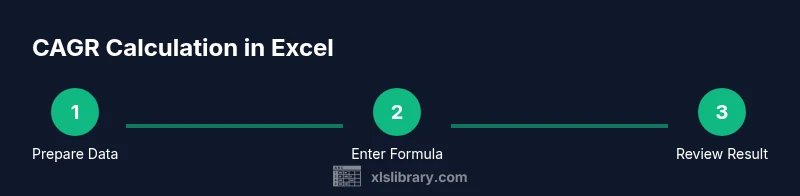
The following steps walk you through a practical, repeatable workflow to compute CAGR in Excel. Each step is designed to be performed in a single pass, so you can copy the pattern to new rows or tables.
- Create a clean data area with labeled columns for Beginning, Ending, Periods, and CAGR. This reduces errors and makes formulas readable. 2) Input your data for one period (e.g., 1000 as Beginning, 1600 as Ending, 5 as Periods). 3) In the CAGR cell, enter the formula that computes the growth rate using the Ending, Beginning, and Periods references. 4) Format the CAGR cell as a percentage with 2 decimals for readability. 5) Copy the CAGR formula down if you have multiple rows of data. 6) Add a quick sanity check by comparing Ending/Beginning to 1 plus CAGR times Periods. 7) Save a reusable template with named ranges for Beginning, Ending, and Periods to streamline future analyses.
Tips: use named ranges to improve readability and reduce copy-paste errors. Consider absolute references for the reference cells if you’ll fill across columns. The key is to keep data structure consistent so you can scale your workbook without reworking formulas.
In the XLS Library’s experience, a well-organized data model reduces mistakes and speeds up your analysis when you’re building dashboards that display CAGR alongside other growth metrics.
Handling irregular periods and compounding frequency
Not all scenarios use annual periods; some data come monthly, quarterly, or irregular intervals. To compare growth across different frequencies, you must standardize to an annual rate first. If you have a monthly CAGR and want to convert to an annual rate, you use the formula: Annual CAGR = (1 + Monthly CAGR)^(12) - 1. Conversely, if you know the annual CAGR and want a monthly equivalent, Monthly CAGR ≈ (1 + Annual CAGR)^(1/12) - 1. Excel supports these conversions with the same POWER-based logic you used for the basic CAGR.
When periods are irregular, you can still compute CAGR by using the exact number of compounding periods between the Beginning and Ending values. The cleanest approach is to keep a Periods column that reflects the true number of compounding intervals. This ensures your CAGR reflects the real path of growth rather than a simplified average. In practice, consistent period definitions help prevent skewed results and facilitate accurate cross-year comparisons.
Common mistakes and how to avoid them
Excel users often trip over a few small errors that produce misleading CAGR results. A frequent mistake is mixing up Beginning and Ending values or miscounting the number of periods. Another pitfall is forgetting to format the result as a percentage, which makes interpretation harder. Circular references or absolute vs. relative references when copying formulas can also lead to inaccuracies.
To avoid these issues, double-check the data layout before writing the formula. Use named ranges for Beginning, Ending, and Periods so formulas remain readable when you insert more rows. Validate your results with a quick sanity check: compare Ending/Beginning to 1 + CAGR multiplied by Periods. If the numbers don’t align, re-check the data and ensure the periods count is correct. The more you automate data validation, the fewer mistakes you’ll encounter in practice.
From a data governance perspective, document your inputs and the exact version of the CAGR formula you used. This makes it easier for teammates to reproduce results, audit the workbook later, and extend the model to new scenarios as your analysis matures.
Visualizing CAGR with charts and dashboards
A good CAGR model shines when you visualize it. A line chart showing Beginning, Ending, and the CAGR line over time helps stakeholders grasp the growth trajectory at a glance. Sparkline indicators in a compact grid can provide quick reference in dashboards. When you build dashboards, consider a small table with conditional formatting that flags negative CAGR or unusually high values, signaling potential data issues or exceptional events.
Excel’s recommended practice is to pair CAGR figures with supporting context: time horizon, frequency, and the data source. This transparency boosts trust and makes your workbook suitable for reports or executive summaries. If you plan to share the workbook broadly, protect the sheet or cells that contain the core inputs to prevent accidental changes that could compromise the CAGR calculation.
In this regard, the XLS Library emphasizes building reproducible CAGR templates. A well-structured workbook reduces the cognitive load on readers and helps ensure your growth story is communicated clearly.
Advanced topics: dynamic models and sensitivity analysis
Beyond a single CAGR figure, you can build dynamic models that respond to changes in Beginning, Ending, or Periods. Using Data Tables or scenario manager, you can see how CAGR shifts under different inputs. Dynamic named ranges allow the same formula to be copied across multiple rows while keeping references intact. For more sophisticated analyses, you can link CAGR to charts that reflect performance under multiple scenarios, enabling a more robust forecast.
If you’re comparing multiple projects, ensure you maintain consistent baselines and period definitions. When you present to stakeholders, clearly label each scenario and provide a short interpretation so the numbers aren’t misread. The result is a scalable, reliable CAGR framework that supports informed decision-making across teams.
Practical checklist to finalize your CAGR model
Before you wrap up, run through a concise checklist to ensure your CAGR workbook is solid: verify your data integrity, confirm period counts, ensure the formula is consistent across all rows, format results as percentages, and include brief notes explaining any assumptions. Add a short data validation rule to catch obvious input errors (e.g., negative Beginning values or zero periods). Finally, save a template with an example dataset so you can reuse the same structure for future growth analyses. This disciplined approach aligns with best practices promoted by XLS Library and helps you maintain accuracy as your models scale.
Quick tips for robust CAGR modeling
- Use named ranges for Beginning, Ending, and Periods to improve clarity and prevent mistakes.
- Always format CAGR as a percentage with a sensible number of decimals (usually 2).
- Include a sanity check to compare Ending/Beginning with 1 + CAGR; if they diverge, re-check your data.
- For irregular periods, count exact intervals rather than assuming 1 per year to preserve accuracy.
- Save your work as a template to streamline future CAGR calculations.
- When sharing, provide context on the data source and time horizon to avoid misinterpretation.
Tools & Materials
- Microsoft Excel (latest version)(Office suite installed with Excel; ensure access to POWER function)
- Data: Beginning value, Ending value, and number of periods(Example: Beginning = 1000, Ending = 1600, Periods = 5)
- Optional: Data table for multiple scenarios(Useful for sensitivity analysis and side-by-side comparisons)
- Formatting preferences(Custom number formatting to display as percentage with 2 decimals)
- Notes for data provenance(Document sources and assumptions for reproducibility)
Steps
Estimated time: 15-25 minutes
- 1
Prepare the data layout
Set up a clean worksheet with labeled columns: Beginning, Ending, Periods, and CAGR. This ensures your references are consistent and easy to audit. Use a dedicated area or table so you can extend it later without breaking formulas.
Tip: Use a table (Insert > Table) to auto-fill formulas when you add new rows. - 2
Enter Beginning, Ending, and Periods
Populate the first row with your data: Beginning value (e.g., 1000), Ending value (e.g., 1600), and Periods (e.g., 5). Keep the same data types (numbers) across the row.
Tip: Keep the currency or unit consistent to avoid misinterpretation later. - 3
Apply the CAGR formula
In the CAGR cell, enter the formula: `=(Ending/Beginning)^(1/Periods)-1` using the corresponding cell references. Ensure parentheses are correct so Excel evaluates the exponent first.
Tip: Press F4 to lock references if you plan to copy the formula across rows. - 4
Format as percentage
Format the CAGR cell as a percentage with 2 decimals to improve readability. This makes the growth rate immediately interpretable.
Tip: If you see a negative value, review data for declines or miscounts in periods. - 5
Validate with a quick check
Compute Ending/Beginning and compare to 1 + CAGR * Periods. They should be in the same ballpark; large discrepancies indicate data or formula issues.
Tip: Add a third column showing Ending/Beginning for quick comparisons. - 6
Extend to multiple scenarios
Copy the row to create new scenarios or use a Data Table for multiple Ending or Beginning values. This helps you compare potential growth paths side by side.
Tip: Consider protected sheets to prevent accidental edits to core inputs. - 7
Create a reusable template
Convert your setup into a template with named ranges and a reusable CAGR calculation. This enables rapid modeling for new datasets without starting from scratch.
Tip: Document assumptions and include a brief user guide within the template.
People Also Ask
What is CAGR and when should I use it in Excel?
CAGR is the constant annual growth rate that takes a beginning value to an ending value over a specified number of periods. It’s useful for smoothing irregular growth and comparing long-term performance across projects. In Excel, CAGR is calculated with a POWER-based formula and can be applied to any data that compounds over time.
CAGR is the steady yearly growth rate between two values; use it in Excel to compare long-term performance reliably.
How do I handle varying time periods in CAGR calculations?
If periods aren’t strictly annual, adapt the formula to reflect the actual number of compounding intervals. Convert all data to a consistent annual basis when reporting, or adjust the exponent to match the true period count. Excel’s exponent operator makes these adjustments straightforward.
Use the correct period count and convert to annual if needed to keep comparisons valid.
Can CAGR be negative, and what does it mean?
Yes. A negative CAGR indicates a decline over the period. It’s a meaningful signal in forecasting and risk assessment. Check data quality if the negative result seems unexpected, and ensure the period count aligns with the actual timing.
A negative CAGR means growth didn’t occur; review data to confirm accuracy.
Is there a built-in CAGR function in Excel?
Excel does not have a dedicated CAGR function in all versions, but you can compute CAGR with the standard formula using ENDING, BEGINNING, and PERIODS. This approach works consistently across Excel releases and is easy to audit.
There isn’t a universal CAGR function; use the standard formula with Ending, Beginning, and Periods.
How can I verify my CAGR results quickly?
Cross-check CAGR by calculating Ending/Beginning and comparing it to (1 + CAGR)^(Periods). If results diverge, re-check the input data and period count. A quick secondary check helps catch data or formula errors.
Do a quick Ending over Beginning check to confirm the CAGR math matches the data.
What should I do to present CAGR in a dashboard?
Combine CAGR with time-series charts, trendlines, and a brief note on assumptions. Use clear labels and consistent scales so viewers can interpret the rate without confusion. Consider adding a scenario table for what-if analyses.
Pair CAGR with charts and notes for a clear, insightful dashboard.
Watch Video
The Essentials
- Define Beginning, Ending, and Periods clearly.
- Use the CAGR formula
(Ending/Beginning)^(1/Periods)-1precisely. - Format results as a percent for quick interpretation.
- Validate results with a simple sanity check.
- Build a reusable CAGR template for future analyses.