Excel Distance Between Two Addresses: A Practical How-To
Learn how to compute the distance between two addresses in Excel using geocoding and the haversine formula. This step-by-step guide covers methods, Power Query workflows, and practical tips for accurate results.


Excel can compute the distance between two addresses by geocoding each address to latitude and longitude, then applying the haversine formula to compute the great-circle distance. This can be done with built-in functions, Power Query, or external geocoding APIs. You’ll need a clean address list, access to a geocoding service, and a plan for parsing coordinates.
Why distance between addresses matters in Excel
According to XLS Library, mastering distance calculations in Excel unlocks practical routing, planning, and budgeting benefits for projects ranging from logistics to field sales. When you can quantify how far two locations are, you gain a tangible, data-driven basis for site selection, delivery scheduling, and travel-time budgeting. This section explores why distance calculations belong in an Excel toolkit and how they complement other data tasks like data cleaning and mapping. By the end, you’ll understand the core concepts and the common paths people take to get reliable distances without leaving the spreadsheet environment.
Core methods to compute distance between addresses in Excel
There are several viable paths to compute distance between addresses in Excel, each with trade-offs. The most common are: 1) geocoding addresses to latitude/longitude and using a math formula (usually haversine) to compute distance, 2) leveraging Power Query to fetch coordinates and perform the calculation in a controlled data workflow, and 3) using external APIs that return distances directly or coordinates that you then process in Excel. Your choice depends on data size, budget, and how automated you want the workflow to be. Throughout this guide, we compare these approaches and share practical steps so you can pick the right method for your needs.
Method A: Geocoding addresses with an API and haversine in Excel
Geocoding is the process of converting a text address into geographic coordinates (latitude and longitude). In Excel, you can call a geocoding API from a worksheet function or Power Query to retrieve coordinates for each address. Once you have lat/long for both addresses, you apply the haversine formula to compute the great-circle distance. This method is flexible and scales reasonably well for moderate data sizes, but it requires an API key and careful handling of rate limits and response formats.
Method B: End-to-end workflow with Power Query
Power Query (Get & Transform) enables an end-to-end workflow: import addresses, call a geocoding service, parse results, and compute distances all inside the Power Query editor. You can then load the final results into Excel tables for analysis and dashboards. This approach is robust for ongoing data refreshes and can be connected to other data sources, making it ideal for teams that regularly update address lists.
Step-by-step example workbook layout
A well-organized workbook reduces errors and makes automation easier. Suggested layout:
- Sheet1: Addresses (A: Address1, B: Address2)
- Sheet1: Coordinates (C: Lat1, D: Lon1, E: Lat2, F: Lon2)
- Sheet1: Distances (G: Distance_km, H: Distance_miles)
- Sheet1: Settings (API key, units, default endpoints)
This layout supports a clean, repeatable workflow and makes it straightforward to reuse the same formulas for new address pairs. When you set up the structure, you can copy formulas down for new rows and refresh coordinates from the geocoding service as needed.
Data quality and normalization for accurate distances
Accurate distance calculations depend on clean, consistent addresses and reliable coordinates. Normalize addresses (e.g., trim extra spaces, standardize punctuation), and verify that each row has both addresses. If a geocoding result is missing or ambiguous, flag the row for manual review rather than silently discarding it. Maintaining a separate log for failed lookups helps you audit and improve the process over time.
Handling units and edge cases (great-circle distance vs driving distance)
The haversine approach yields great-circle distance, which is the straight-line distance over the earth’s surface. Driving distance, route distance, or travel time require routing data and an API that returns distance along a road network. If you need driving distance, you’ll typically call a maps API that computes route distance and return values in your preferred unit (km or miles). Decide early which distance type fits your business question to avoid confusion later.
Troubleshooting common errors and performance tips
If you see nulls or mismatched coordinates, verify your geocoding API endpoint, ensure you parse API responses correctly, and check for rate limits. For large datasets, batch requests and use Power Query to cache results rather than re-geocoding every time. When implementing haversine in Excel, ensure angles are in radians and coordinates are decimal degrees; a small misstep here causes large distance errors.
Authoritative sources and further reading
For deeper understanding of geocoding, geometry, and Excel data workflows, consult official documentation and trusted publications. Helpful sources include Microsoft Learn for Power Query and Excel formulas, the U.S. Census geospatial resources, and reputable mapping documentation. These references provide broader context and validation for the techniques outlined in this guide.
Tools & Materials
- Microsoft Excel (Office 365 or Excel 2019+)(Needed for formulas, Power Query, and data connections)
- Power Query / Get & Transform(Built-in in modern Excel; enables end-to-end data processing)
- Geocoding API key (optional but recommended)(Used to fetch latitude/longitude for addresses)
- Internet connection(Required to query geocoding services)
- Sample address workbook (A:B columns for two addresses per row)(Provide two address columns per row and a clean dataset)
- Latitude/Longitude parsing template(Include formulas or Power Query steps to extract lat/long from API results)
Steps
Estimated time: 45-90 minutes
- 1
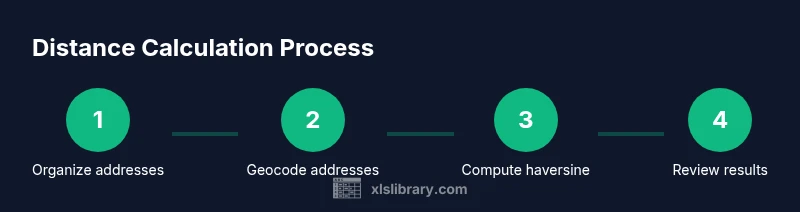
Organize addresses
Place Address1 and Address2 in adjacent columns, ensuring each row aligns by the same pair. Remove leading/trailing spaces and standardize formatting to improve geocoding results.
Tip: Use TRIM and CLEAN in Excel to sanitize the text before geocoding. - 2
Choose a geocoding approach
Decide between an API-based geocoder or a Power Query-based workflow. An API key enables automatic lookups, while Power Query can batch requests and keep everything inside Excel.
Tip: If you’re new to APIs, start with a trial API and test a small set of addresses first. - 3
Fetch coordinates for each address
Call the geocoding service for Address1 and Address2 and store results as Lat1/Lon1 and Lat2/Lon2. Ensure the response is parsed correctly to avoid misplacing values.
Tip: Validate a few sample lookups manually to confirm the coordinates are reasonable. - 4
Parse the API response
If using a raw API response, extract numeric latitude and longitude fields and place them in dedicated columns. Handle errors gracefully so rows with missing data are flagged.
Tip: Create a small helper column that flags non-numeric coordinates. - 5
Apply the haversine formula
Compute distance using haversine in a dedicated column, converting degrees to radians as needed. The formula yields the great-circle distance between the two coordinates.
Tip: Keep a separate named range for your lat/long values to simplify formula maintenance. - 6
Convert to the desired units
If you need miles instead of kilometers, multiply by 0.621371. Decide on a consistent unit format and display both if needed.
Tip: Round distances to a sensible precision (e.g., 2 decimals) for readability. - 7
Validate results
Spot-check a handful of rows against a known reference or a map to confirm that the distances look reasonable. Investigate outliers or failed lookups.
Tip: Plot a few address pairs on a map to visually verify distances. - 8
Automate with Power Query
If you intend to refresh data regularly, implement a Power Query workflow that fetches coordinates and computes distances, then loads results into an Excel table for analysis.
Tip: Use error-handling steps in Power Query to gracefully skip bad rows instead of breaking the entire query. - 9
Save as a reusable template
Package the workbook with formulas, Power Query steps, and sample data so you can reuse it for new address lists. Document the inputs and expected outputs clearly.
Tip: Include a readme sheet that explains how to refresh data and where to input new addresses.
People Also Ask
Do I need an Internet connection to geocode addresses in Excel?
Yes. Geocoding typically relies on online APIs. If you aren’t connected, coordinates cannot be fetched in real time. You can batch geocode beforehand, then work offline with the saved coordinates.
Yes, an internet connection is needed for geocoding. You can geocode in advance and work offline once coordinates are saved.
Can I calculate driving distance directly in Excel?
Driving distance requires routing data from a maps service, not just coordinates. You can fetch route distances via an API and display them in Excel, but the basic haversine method yields straight-line distance.
Driving distance needs a routing service. The haversine method gives straight-line distance between coordinates.
What units can I use for distance?
Distances are typically computed in kilometers or miles. Convert as needed by applying a multiplier, and keep units consistent across your workbook.
Use kilometers or miles, and convert consistently as needed.
Is this method scalable for large datasets?
Yes, but large datasets may require batching and caching coordinates to stay within API limits and memory constraints. Power Query helps manage refreshes efficiently.
It scales with batching and caching; Power Query helps manage repeated refreshes.
Do I need to know programming to implement this?
No. You can implement geocoding and haversine calculations using Excel formulas and Power Query with no coding required. Advanced users can customize Power Query scripts for automation.
No programming required; Excel formulas and Power Query cover most needs.
What should I do if a geocoding result is ambiguous or missing?
Flag problematic rows for manual review and consider refining input data or using a higher-precision geocoding endpoint. Maintain a log of failed lookups for quality control.
Flag ambiguous results and review them manually; keep a log of failures.
Can I reuse this workflow for more than two addresses?
Yes. The approach scales to multiple address pairs by applying the same geocoding and haversine formulas across all rows and optionally batching API calls.
Absolutely; it scales by applying the same steps across all rows.
Watch Video
The Essentials
- Geocoding + haversine yields distance between addresses in Excel.
- Power Query enables end-to-end automation for refreshing coordinates.
- Validate coordinates and document units to ensure trust in results.
- Plan for edge cases and API limits to maintain stability.
- Save a reusable template for scalable address-distance work.