Excel Wildcards in Formulas: Master * and ?
Learn how the excel like wildcard characters *, ?, and ~ work in Excel formulas. This comparison-guided guide covers basic to advanced patterns, escaping, and best practices for reliable data matching with COUNTIF, VLOOKUP, XLOOKUP, and more.


In Excel, wildcard characters are * for any number of characters, ? for a single character, and ~ to escape these symbols. They’re used inside criteria strings in functions like COUNTIF, SUMIF, VLOOKUP, and XLOOKUP. Unlike SQL’s LIKE, Excel wildcards are applied per-criteria and can be combined with logical patterns; proper escaping and consistent usage are key for reliability.
What does excel like wildcard mean in practice?
The term excel like wildcard describes how Excel employs wildcard characters within text criteria to match patterns in data sets. It is not a formal operator named LIKE as in SQL; instead, Excel uses special characters embedded in strings that functions interpret during evaluation. According to XLS Library, learning how to apply these characters consistently reduces manual filtering time and improves lookup accuracy. The concept of an excel like wildcard is deceptively simple: you replace the portion of a text you don’t know with * or a single character with ?, then refine results with escaping when needed. Practically, this means you can write criteria like "A*" to find any entry starting with A, or "?" to search for a single-character pattern within a column. Mastery comes from recognizing when wildcards are appropriate, how to escape them, and how to combine multiple criteria for robust data queries.
In this guide, we compare basic to advanced wildcard usage, explain the most common pitfalls, and show how to validate results. The XLS Library team emphasizes that a disciplined approach to pattern design is more valuable than clever one-off formulas. By building a small set of reliable patterns and documenting them, you’ll reduce errors and speed up routine tasks.
For aspiring and professional Excel users, wildcards are not just tricks; they are foundational tools for data mastery. This article uses practical examples and reproducible patterns to help you apply wildcards with confidence across real-world data scenarios.
bold
-
- Wildcards simplify complex text matching
-
- They integrate with core Excel functions like COUNTIF, SUMIF, VLOOKUP, and XLOOKUP
-
- Escaping is essential for literal symbols and localization scenarios
-
- Helper columns and dynamic formulas improve reliability for large datasets
Comparison
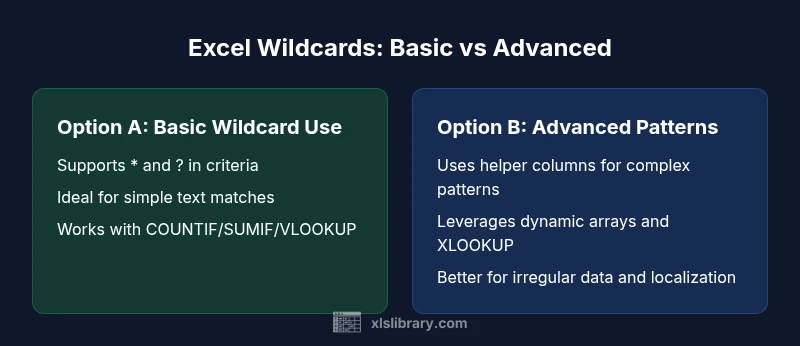
| Feature | Option A: Basic wildcard usage in built-in criteria | Option B: Advanced patterns with helper columns and multiple criteria |
|---|---|---|
| Wildcard characters | Supports * (any number of characters) and ? (single character) | Supports * and ? with helper columns and composite criteria |
| Best use case | Quick filtering and simple lookups in smaller datasets | Robust pattern matching for irregular data and multi-criteria filters |
| Escape mechanism | Use ~ to escape * or ? within strings | Escaping is often handled via concatenation or separate helper logic |
| Primary functions involved | COUNTIF, SUMIF, VLOOKUP, XLOOKUP | COUNTIFS, SUMIFS, and more with multiple criteria |
| Limitations | Case sensitivity varies by function; some nuances exist | Pattern complexity can lead to maintenance challenges |
| Performance | Generally fast on small ranges | Can slow with large datasets; helper columns help |
Benefits
- Faster text matching with simple patterns
- Widely supported in core functions
- Easy to learn for basic tasks
- Improves data cleaning and lookup reliability
- Can be combined to form powerful criteria
What's Bad
- Escaping can be tricky and easy to forget
- Not all functions support wildcards equally
- Patterns can cause false positives if too broad
- Localization or non-breaking spaces can break matches
Excel wildcard mastery is essential for efficient data filtering and lookups.
Master * and ? with careful escaping to unlock flexible patterns. Use helper columns for complex patterns and test on representative data to ensure reliability.
People Also Ask
What are the basic wildcard characters in Excel?
The basic Excel wildcards are * (matches any number of characters) and ? (matches a single character). The tilde ~ escapes these symbols when you need to search for literal * or ?. These characters are used inside criteria strings for many Excel functions including COUNTIF, SUMIF, and VLOOKUP.
Use * for broad matches and ? for single-character matching. Remember to escape with ~ when you need the literal symbols.
Can wildcards be used with VLOOKUP?
Yes. VLOOKUP can use wildcards in the lookup_value string. Patterns like "A*" will match any value starting with A. Ensure you search the correct column and consider exact vs approximate match settings.
Yes, VLOOKUP supports wildcards in its lookup value. Use patterns like A* to find items starting with A.
How do I escape a literal * or ? in formulas?
To search for a literal * or ?, precede the symbol with a tilde (~). For example, criteria "~*" searches for a literal asterisk rather than any characters. This escaping is essential when your data contains the wildcard characters themselves.
Escape wildcards with ~, e.g., "~*" searches for an actual asterisk.
Do wildcards work in Excel Online the same as desktop?
Yes. Wildcards in Excel Online operate similarly to the desktop version for core functions like COUNTIF, SUMIF, and VLOOKUP. Some advanced behaviors may vary with new features, but the foundational wildcard rules remain the same.
Wildcards behave the same in Excel Online for core tasks.
Are wildcards supported in all Excel functions?
Most criterion-based functions support wildcards, but not every Excel function uses them. Text functions that don’t evaluate criteria patterns may not interpret * or ? as wildcards. When in doubt, test with small datasets.
Not every function uses wildcards—use them where criteria are evaluated.
What best practices help when working with large datasets?
Limit the data ranges you reference to avoid unnecessary recalculation, use helper columns to pre-parse patterns, document patterns for maintenance, and consider Power Query for complex filtering on big datasets.
For large data, keep ranges tight and use helper columns to simplify formulas.
The Essentials
- Practice COUNTIF and VLOOKUP with wildcards
- Escape literal wildcards using ~ to avoid misfires
- Use helper columns for complex patterns
- Test patterns on sample data before large-scale use
- Document wildcard rules for future maintenance