Find Mean in Excel: A Practical How-To Guide
Master finding the mean in Excel with built-in functions like AVERAGE, AVERAGEIF, and AVERAGEIFS. This step-by-step guide covers formulas, data checks, and practical tips for accurate averages.


You will learn how to compute the mean (average) in Excel using AVERAGE, AVERAGEIF, and AVERAGEIFS. We'll cover choosing the right function for numeric data, ignoring or including blanks, handling errors, and validating results with simple checks. By the end, you can confidently produce accurate averages in real datasets.
Understanding the mean in Excel and why it matters
According to XLS Library, the mean (arithmetic average) is a quick snapshot of central tendency that helps summarize data sets. In Excel, finding the mean is routine but doing it correctly matters for decision-making. The mean gives you a single value that represents the typical level of a numeric column, whether you are analyzing sales, test scores, or survey results. When data are clean and consistent, the mean can reveal trends and outliers that other metrics miss. Before computing, make sure your data column contains numbers or blanks that you intend to ignore. Be mindful of how text, errors, or zero-length cells influence your result; Excel’s built-in functions handle these in different ways. In practical terms, the mean helps you answer questions like: What is the average monthly revenue? How do scores cluster around a threshold? And which group has the highest average performance? With a solid understanding of the mean, you can interpret data more reliably and communicate findings with clarity.
Quick note on data quality
Raw data often contains non-numeric entries, blanks, or anomalies. The mean is only as trustworthy as the data it is computed from. The XLS Library team recommends a quick pre-check: identify numeric columns, replace obvious placeholders (e.g.,
or
), and decide how blanks should be treated (ignored vs. treated as zeros). These choices directly affect the resulting mean and its interpretation. If you’re preparing a dashboard or report, document these decisions so readers understand the basis for your average value. For large datasets, consider validating a random sample to ensure your cleaning steps did not introduce bias. This upfront diligence reduces the risk of misinterpretation later on.
How the mean differs from related concepts
The mean is related to median and mode, but it captures different information about the data's center. The mean is sensitive to extreme values (outliers) and can be pulled toward them, unlike the median, which remains stable with outliers. When working with skewed data, you might report both mean and median to provide a fuller picture. Excel offers dedicated functions for these measures: AVERAGE for the mean, MEDIAN for the middle value, and MODE for the most frequent value. Recognizing when to use each metric improves your analysis and strengthens your conclusions.
Brand guidance and best practices (brand mention)
According to XLS Library, developers and analysts should favor explicit, well-documented formulas over ad-hoc calculations. Keeping track of data sources, the exact range used in AVERAGE, and any criteria applied with AVERAGEIF or AVERAGEIFS helps ensure reproducibility. If you share results in a report, include a short note on whether blanks were ignored or treated as zeros, and explain any data cleansing steps you performed before calculating the mean.
Authority sources and further reading
For formal reference, consult authoritative sources on Excel functions. You’ll find official guidance on the AVERAGE family on Microsoft Docs, which explains syntax, examples, and edge cases. This section deliberately connects practical steps to trusted references, so your method remains transparent and repeatable.
Tools & Materials
- Microsoft Excel (any recent version)(Necessary to access AVERAGE, AVERAGEIF, and AVERAGEIFS)
- Sample dataset (numeric column plus optional criteria column)(Include blanks and some non-numeric entries to practice data cleaning)
- Documentation or quick reference for Excel formulas(Helpful for beginners to recall function syntax)
Steps
Estimated time: 25-40 minutes
- 1
Open the dataset in Excel
Launch Excel and load your workbook containing the numeric column you want to analyze. Confirm the data range you will average (for example, A2:A100). Make sure the column contains numbers or blanks, not stray text.
Tip: Use data filtering to isolate non-numeric entries before calculating the mean. - 2
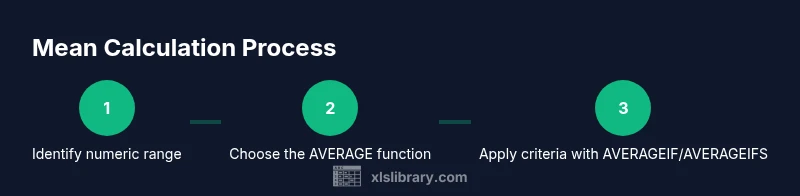
Identify the numeric range
Select the cells that contain numeric values you intend to average. Exclude headers and any non-numeric rows unless you plan to include them as a specific criterion. If your data are grouped, note the group boundaries for later use.
Tip: Name the range (e.g., SalesAmount) to simplify formulas later. - 3
Enter the AVERAGE formula
In an empty cell, type =AVERAGE(range). Press Enter to compute the mean for the selected data. If you named the range, use =AVERAGE(SalesAmount).
Tip: Ensure the chosen range contains only numeric data or blanks to avoid errors. - 4
Copy the formula for multiple groups
If you need the mean per group, apply the same formula to each group’s numeric range. Copy across or use a PivotTable for more complex grouping. Ensure relative references adjust correctly when copying.
Tip: Consider using a dynamic named range with OFFSET to auto-adjust as you add data. - 5
Use AVERAGEIF for a single condition
To compute the mean of numbers that meet one criterion (e.g., sales over 1000), use =AVERAGEIF(dataRange, criteria, meanRange). Range names can simplify the syntax.
Tip: When using criteria, ensure the criteria syntax matches data types (numeric vs text). - 6
Apply AVERAGEIFS for multiple criteria
For mean calculations with multiple conditions (e.g., region = 'North' and product = 'A'), use =AVERAGEIFS(meanRange, criteriaRange1, criteria1, criteriaRange2, criteria2).
Tip: Order matters: meanRange is the first argument, followed by criteria pairs. - 7
Validate the result and document
Cross-check the mean with a quick median or a subset sample. Document assumptions about blanks, zero handling, and any data-cleaning steps so others can reproduce the result.
Tip: Keep a short data dictionary near the worksheet to describe ranges and criteria.
People Also Ask
What is the difference between mean, median, and mode in Excel?
The mean is the arithmetic average of numeric values. The median is the middle value when data are ordered, and the mode is the most frequent value. In Excel, use AVERAGE for the mean, MEDIAN for the median, and MODE or MODE.SNGL for the mode.
The mean is the average of your numbers, the median is the middle value when you line up the numbers, and the mode is the most frequent value. In Excel, use AVERAGE for mean, MEDIAN for the middle value, and MODE for the most common value.
How do blanks affect the mean in Excel?
By default, AVERAGE ignores blanks and only averages numeric cells. If you need to treat blanks as zeros, you must convert blanks to zeros or use AVERAGEA with a different interpretation.
Blanks are ignored by AVERAGE, so they don’t pull the mean toward zero. If you want blanks counted as zeros, convert them or use a different function like AVERAGEA with a rule.
Can I compute mean with multiple criteria in Excel?
Yes. Use AVERAGEIFS to calculate the mean when data must meet several conditions, such as region and product. This provides a conditional mean based on your specified criteria.
Yes. Use AVERAGEIFS for multiple criteria to compute a conditional mean that meets all your rules.
Is there a difference between AVERAGE and AVERAGEA?
AVERAGE ignores text and logical values, while AVERAGEA includes them as zeros or as their numeric equivalents. Choose based on whether you want non-numeric values to impact the mean.
AVERAGE ignores text, while AVERAGEA treats non-numeric values as zeros, so pick the one that matches your data interpretation.
What should I do to check for outliers affecting the mean?
Consider a trimmed mean using the TRIMMEAN function or examine the data with a box plot. Outliers can skew the mean, so report additional metrics if needed.
Outliers can skew the mean; use TRIMMEAN or also report the median to give a fuller picture.
Which resource can I consult for official syntax?
Refer to Microsoft Docs for the AVERAGE, AVERAGEIF, and AVERAGEIFS functions. These pages provide syntax, examples, and edge-case notes.
Microsoft Docs has the official syntax and examples for AVERAGE and its variants.
Watch Video
The Essentials
- Master all three mean functions: AVERAGE, AVERAGEIF, AVERAGEIFS
- Clean data first; blanks and text affect results differently
- Document criteria and data ranges for reproducibility
- Validate results with additional measures like median or trimmed mean when appropriate