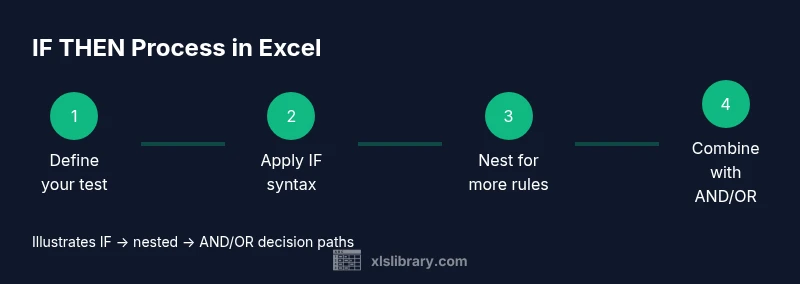
IF Then in Excel: Practical How-To Guide
Learn how to use the IF function in Excel to perform conditional logic. This practical guide covers syntax, nesting, AND/OR combinations, error handling with IFERROR, and real-world examples for budgets, grades, and data labeling.


With Excel, you implement conditional logic using IF. The basic syntax is IF(logical_test, value_if_true, value_if_false). This quick answer outlines nesting, combining with AND/OR, and common pitfalls so you can apply IF to budgeting, forecasting, and data validation with confidence.
Understanding IF: Basic syntax and semantics
The IF function is Excel’s gateway to conditional logic. Its most basic form is =IF(logical_test, value_if_true, value_if_false). The logical_test is any expression that returns TRUE or FALSE, such as A2>100 or B3="Yes". If the test is true, Excel returns value_if_true; otherwise it returns value_if_false. You can return numbers, text, dates, or even another formula as the results. For practitioners, mastering the subtlety of quotes around text, the correct use of commas for argument separation, and the handling of blank cells are foundational skills. According to XLS Library, getting these basics right reduces downstream errors when you build larger conditional models. Start simple to build intuition, then layer in more complex logic as needed.
- Text results must be wrapped in quotes, e.g., "Pass".
- Numbers should be unquoted so Excel treats them as numeric values.
- When a true/false result would be identical for many rows, consider using a named range to simplify maintenance.
- Always validate your logical_test by testing with a few sample inputs before dragging formulas across a worksheet.
Nesting basics: stacking IF statements to handle multiple outcomes
Nesting IF statements means using an IF as the value_if_true or value_if_false of another IF. This is how you handle more than two outcomes. A classic example assigns a letter grade based on a numeric score: =IF(A2>=90, "A", IF(A2>=80, "B", IF(A2>=70, "C", "D"))). Nesting can quickly become unwieldy; readability drops as you add more layers. In many real-world sheets, you’ll reach a point where the IFS function (available in newer Excel versions) provides a cleaner alternative for multiple conditions. Regardless of approach, stop and simplify when possible to keep formulas easy to audit.
- Use indentation and line breaks in the formula bar to improve readability.
- For many conditions, consider IFS or SWITCH to avoid deep nesting.
- Document your logic with comments in adjacent cells or a separate note.
Logical tests with AND/OR: combining conditions for precision
IF on its own checks a single condition, but real datasets usually require multiple criteria. You can extend IF with the AND and OR functions: =IF(AND(A2>0, B2>0), "OK", "Review"). AND requires all conditions to be TRUE, while OR requires any one of them to be TRUE. This combination is powerful for data validation, project tracking, and budgeting. When using text results, ensure proper quoting and consider wrapping the whole formula with IFERROR to handle unexpected data gracefully. As you become comfortable, you’ll start mixing these patterns to build robust decision rules.
- AND and OR return logical values that IF can evaluate.
- Prefer short, descriptive return values to aid later reviews.
- Always test edge cases, such as blank cells or non-numeric inputs.
Handling errors: IFERROR and safe computations
Errors are common when formulas depend on external data or division by zero. Wrap formulas with IFERROR to provide graceful fallbacks, e.g., =IFERROR(A2/B2, "N/A"). This keeps worksheets tidy and avoids #DIV/0! surprises in reports. IFERROR is especially handy when combined with IF to present clean messages or to route failed calculations to a separate audit column. Remember that IFERROR catches any error in its expression, so ensure your true/false results are meaningful and consistent.
- Use a specific fallback value that users understand.
- Do not overuse IFERROR; isolate genuine errors to keep debugging straightforward.
- Combine IFERROR with ISNUMBER or ISTEXT to handle mixed data types gracefully.
Real-world examples: budgets, grades, and labels
Let’s translate common tasks into formulas:
- Budget threshold: =IF(B2>1000, "Over budget", "Within budget")
- Grade assignment: =IF(A2>=90, "A", IF(A2>=80, "B", IF(A2>=70, "C", "D")))
- Data labeling: =IF(ISBLANK(C2), "Missing", IF(C2>50, "Pass", "Fail"))
These examples show how IF can drive decision-making in finance, education, and data quality. To keep models scalable, prefer helper columns for intermediate steps and document your logic with comments or a dedicated guide sheet. More advanced users can explore IFS or SWITCH for many conditions while maintaining clarity.
Troubleshooting common pitfalls and debugging tips
Formulas may fail for subtle reasons. Here are quick checks:
- Ensure proper argument separators for your locale (comma vs. semicolon).
- Verify that text values are enclosed in quotes and that numbers aren’t.
- Check for trailing spaces or non-printing characters in source data that could alter logical tests.
- Use the formula auditing tools (Trace Precedents/Dependents) to understand how IF references flow through the sheet.
- Break complex formulas into smaller pieces in helper columns to isolate issues.
Debugging is as much about understanding data structure as it is about syntax; take a methodical approach and you’ll reduce rework.
Best practices: readability, performance, and future-proofing
As you scale IF-based logic, adopt a few best practices:
- Favor readability: name ranges or use a single helper column to compute an intermediate result, then reference it in IF.
- Prefer IFS or SWITCH for many conditions to maintain clarity.
- Use consistent return values to simplify downstream formulas and dashboards.
- Keep a changelog of major rule changes so teammates can follow the decision logic over time.
- Test formulas against edge cases and document assumptions in a companion sheet.
By structuring logic clearly and using modern alternatives when appropriate, you’ll future-proof your Excel models and reduce maintenance time.
Authority sources and further reading
To deepen your understanding, consult established references. Microsoft Learn provides official guidance on IF usage and examples. The Microsoft Support site includes practical troubleshooting and locale considerations. For learner-friendly explanations and additional examples, reputable sites such as Excel tutorials and data analysis primers offer complementary perspectives. Reference any external sources to validate complex patterns and expand your toolkit.
Tools & Materials
- Microsoft Excel (365/2021 or newer)(Ensure you have recent updates for performance and functions like IFS/SWITCH.)
- Sample workbook with test data(Include numeric, text, and date columns to test various IF scenarios.)
- Keyboard and basic formulas cheat sheet(Helpful for quick reference when building nested IFs.)
- Optional: Excel on the web(Useful for quick sharing and testing formulas without installed software.)
Steps
Estimated time: Estimated total time: 20-40 minutes
- 1
Open workbook and locate target cell
Open the workbook containing the data and identify the column where the conditional result should appear. Select the first cell in the output column to prepare for entering the formula. This is your starting point for testing the IF logic.
Tip: Tip: Use F2 to edit a cell and Ctrl+Enter to fill multiple cells with the same formula. - 2
Enter the basic IF formula
In the chosen cell, type the basic IF formula: =IF(logical_test, value_if_true, value_if_false). Replace logical_test with your condition (e.g., A2>100). Provide simple return values for true and false cases.
Tip: Tip: Start with a simple condition to confirm the structure before adding complexity. - 3
Copy the formula down the column
Drag the fill handle (bottom-right corner) down to apply the formula to adjacent rows. Excel will adjust references automatically (A2 becomes A3, etc.).
Tip: Tip: Use Ctrl+D to fill down a selected range quickly. - 4
Test with real data and edge cases
Check the results for typical data, blank cells, and unusual values (text in numeric fields). This confirms the formula behaves as expected across the dataset.
Tip: Tip: Create a small test tab with known inputs for quick verification. - 5
Nest IF for multiple outcomes
To handle more than two outcomes, nest another IF inside the false or true result (e.g., =IF(A2>=90, 'A', IF(A2>=80, 'B', 'C'))). This expands decision branches without creating separate columns.
Tip: Tip: Keep nesting to a manageable depth; consider IFS for readability when you have many conditions. - 6
Combine IF with AND/OR for precision
Use AND or OR to test multiple conditions in a single IF: =IF(AND(A2>0, B2>0), 'OK', 'Review'). This pattern is valuable for validation rules and conditional formatting triggers.
Tip: Tip: Break complex expressions into named ranges to improve clarity. - 7
Add error handling with IFERROR
Wrap formulas with IFERROR to catch errors and return a friendly message: =IFERROR(A2/B2, 'Error'). This prevents ugly error messages from appearing in reports.
Tip: Tip: Use a specific fallback value that communicates the issue to end users. - 8
Audit and optimize the logic
Review formulas for readability, identify duplicated logic, and consider replacing long nested IFs with IFS/SWITCH where appropriate. Use a separate sheet to document decision rules.
Tip: Tip: Use the Formula Auditing tools to trace precedents and dependents.
People Also Ask
What is the syntax of the IF function in Excel?
The IF function uses three arguments: logical_test, value_if_true, and value_if_false. If the test is TRUE, Excel returns value_if_true; otherwise it returns value_if_false. Text results must be in quotes, while numbers should be unquoted.
The IF function has three parts: a test, a result for true, and a result for false. If the test passes, you get the true result, otherwise the false result.
How can I nest IF statements effectively?
Nesting IFs means placing one IF inside another to handle multiple outcomes. Start with a simple two-tier example, then expand. For many conditions, consider using IFS or SWITCH for clarity.
Nest IFs by putting another IF inside the value_if_true or value_if_false, but keep readability in mind and consider IFS for many conditions.
What is the difference between IF and IFS or SWITCH?
IF evaluates a single condition and returns one of two results. IFS and SWITCH handle multiple conditions more cleanly, reducing nesting and improving readability in complex rules.
IF handles one test; IFS and SWITCH help when you have many tests and aim for cleaner formulas.
How do I handle errors in an IF formula?
IFERROR traps any error from a formula and returns a specified value, such as a message or placeholder. It’s especially useful in divisions or lookups where data may be incomplete.
IFERROR catches errors in a formula and provides a friendly fallback value.
Can IF be used with dates and text in results?
Yes. You can return text in quotes or a date value, and use comparisons on dates. Ensure date formats are consistent and that your data types match the expected outcomes.
IF can work with dates and text; just keep formats consistent and test with sample data.
Watch Video
The Essentials
- Write IF with clear logical tests and readable returns
- Nest IFs to model multiple outcomes when needed
- Combine IF with AND/OR for precise conditions
- Use IFERROR to gracefully handle errors
- Explore IFS/SWITCH for many conditions and better readability