How to fix an Excel formula: a practical guide
Learn a practical approach to troubleshoot and fix Excel formulas. From error types to auditing tools, this XLS Library guide covers syntax, references, data types, and robust error handling to keep spreadsheets accurate.


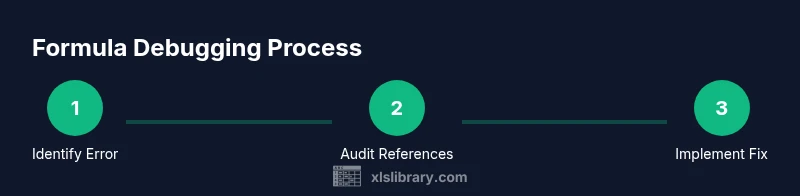
You will learn a reliable debugging workflow to fix Excel formulas: identify the error type, verify syntax and references, validate data types, audit with Excel tools, and apply robust error handling for resilience. This quick guide shows practical steps you can apply in any workbook.
Why fixing Excel formulas matters
In data-driven work, accurate formulas are the difference between insight and confusion. A single miswritten function or a broken reference can cascade into wrong totals, misinterpreted trends, and costly decisions. The XLS Library team emphasizes that a systematic debugging mindset saves time and reduces risk. When you fix formulas, you improve trust in your spreadsheets, support faster decision making, and elevate your overall data mastery. Think of formula fixes as an ongoing practice, not a one-off chore. By building a repeatable process, you can handle complex workbooks with confidence and clarity, even as data scales and new teams collaborate.
Understand the error types you encounter
Excel uses error codes to signal problems. Common ones include #DIV/0!, which appears when you divide by zero; #NAME?, which means Excel can’t recognize a function or named range; #REF!, which happens when a cell reference is invalid after a deletion or move; #VALUE!, which signals a data type mismatch or incorrect argument type; and #N/A, which indicates a lookup didn’t find a match. Recognizing the pattern helps you pick a targeted fix rather than a broad guess. The impact of each error depends on context: a simple division by zero is different from a broken cross-sheet reference in a large model. Tools like Evaluate Formula and Error Checking can help you trace the root cause.
Reproduce the issue reliably to isolate the fault
Start by recreating the scenario that produces the error. Note the exact cell or range, the input values, and the surrounding formulas. Copy the offending formula into a new sheet and test with controlled inputs. Reproducing consistently helps you distinguish a one-off anomaly from a persistent issue in your data or logic. If your workbook uses dynamic references (like OFFSET or INDIRECT), duplicate the relevant data set and watch how results change as inputs shift. A predictable reproduction path is a powerful foundation for a precise fix.
Check syntax and function names carefully
Even small typos can derail a formula. Verify the function name spelling, the number and order of arguments, and the use of commas versus semicolons depending on your regional settings. If you’re not sure about a function, consult the built-in function wizard or a trusted reference. When working with nested functions, isolate each layer to confirm its value before combining them. A well-formed syntax check often reveals the simplest oversight, saving you from more complex debugging later.
Inspect cell references and ranges for accuracy
Misplaced or shifted references are a frequent source of errors. Inspect whether references are relative, absolute, or mixed (A1 vs $A$1). Confirm that ranges cover the intended rows and columns and that you didn’t inadvertently include header rows or empty cells. Use the F2 key to edit a cell and watch the highlight show which cells participate. Adjusting references to reflect the correct anchors often resolves many issues without changing the logic.
Validate data types and data cleanliness
Mismatched data types (text where numbers are expected) cause #VALUE! and related errors. Ensure numbers are stored as numbers (not text), dates are real date values, and lookups compare the same data type. Use VALUE(), DATEVALUE(), or DATE functions to coerce types when necessary. Clean data by trimming spaces, removing non-printable characters, and standardizing formats. When in doubt, test the same input with a simplified version of the formula to confirm behavior with a controlled dataset.
Use formula auditing tools to map dependencies
Excel offers powerful auditing features: Trace Precedents shows cells that feed into the active formula, Trace Dependents reveals cells that depend on it, and Evaluate Formula lets you step through computation to see intermediate results. Use these tools to visually map how data flows through your model. When encountering a multi-sheet formula, review references across sheets. If a step yields unexpected results, revisit prior steps to confirm inputs are correct. This visual approach minimizes blind guessing.
Fix with robust alternatives and error handling
Where appropriate, replace fragile constructs with more robust patterns. Wrap risky calculations in IFERROR or IFNA to provide a safe fallback, or use ISNUMBER and similar predicates to guard operations. For lookup formulas, prefer XLOOKUP with a defined default value over older methods, which reduces spillover errors. When fixing, aim for a solution that clearly communicates failures and preserves the rest of the model’s logic. Replace hard-coded magic numbers with named ranges for readability and maintainability.
Examples: common fixes for VLOOKUP, INDEX/MATCH, and XLOOKUP
VLOOKUP often fails when the lookup column isn’t the first column. A fix uses INDEX/MATCH with a precise column index, or switch to XLOOKUP for a simpler syntax: =XLOOKUP(lookup_value, lookup_array, return_array, [not_found]). For VLOOKUP, handle missing results with IFNA: =IFNA(VLOOKUP(A2, data_table, 3, FALSE), "Not found"). INDEX/MATCH can be robust when the lookup column isn’t leftmost: =INDEX(return_column, MATCH(lookup_value, lookup_column, 0)). These patterns provide resilience against mis-specified ranges and dynamic data.
Guard formulas against future errors with good practices
Adopt principled practices: use named ranges, adopt consistent data formats, enable data validation to prevent invalid inputs, and document the logic behind formulas. Maintain a changelog for structural fixes and ensure workbook protection is applied where appropriate to prevent unintended edits. Consider splitting complex formulas into helper cells or steps, then combine results in a final formula. Regularly audit critical formulas, especially after data updates or structural changes in the workbook.
Authority sources and further reading
- Authority sources are listed below to extend learning and verification. These references provide authoritative guidance on formula syntax, error handling, and best practices for Excel users at all levels.
Final practical tips for ongoing Excel formula mastery
Develop muscle memory for common error patterns and keep a small reference sheet handy for function syntax and typical pitfalls. Practice on sample workbooks before applying fixes to production files. By incorporating ongoing checks into your workflow, you’ll reduce errors and speed up data-driven decisions. The XLS Library team believes a disciplined debugging routine is a cornerstone of professional Excel work.
Tools & Materials
- Microsoft Excel (Office 365 / Office 2021 or later)(Windows or macOS; ensure automatic updates are enabled)
- Sample workbook with typical formula errors(Include at least 3 scenarios: division by zero, missing data, and mismatched data types)
- Formula auditing cheat sheet(One-page reference for common functions and error types)
- Notes app or document for documenting fixes(Capture what changed and why for future reference)
- Access to trusted online references(Useful when you need official syntax or examples)
Steps
Estimated time: 60-90 minutes
- 1
Reproduce the issue
Capture exact inputs, outputs, and the context of the error. Create a copy of the worksheet to experiment without affecting the original data. Document the inputs that cause the error and the expected outcome to guide your debugging.
Tip: Keep a separate log of the inputs that trigger the error for quick reference. - 2
Check syntax and names
Confirm function names are spelled correctly, commas vs semicolons match your locale, and the number of arguments is correct. Use the Insert Function dialog to verify argument order if needed.
Tip: If a function is unfamiliar, test with a simple example to verify behavior. - 3
Inspect references
Highlight each reference to see which cells feed into the formula. Ensure relative and absolute references are correctly anchored. Watch for references that moved when rows or columns were inserted or deleted.
Tip: Temporarily replace cell references with known values to isolate behavior. - 4
Validate data types
Check that numeric inputs are numbers, dates are true date values, and text that should be numbers is converted. Use VALUE, DATEVALUE, or TEXT-to-numeric conversion as needed.
Tip: Use ISNUMBER to test a cell's data type before performing arithmetic. - 5
Audit with built-in tools
Use Trace Precedents to see inputs, Trace Dependents to understand impact, and Evaluate Formula to walk through calculations step by step. These tools reveal where logic diverges from expectations.
Tip: Run Evaluate Formula incrementally to spot the exact step that produces an unexpected result. - 6
Apply robust error handling
Replace fragile outputs with IFERROR/IFNA where appropriate, or guard operations with explicit checks. Consider using XLOOKUP with a default value for clean lookups.
Tip: Avoid masking issues with excessive IFERROR; balance reliability with visibility into real problems. - 7
Test with representative data
After changes, test with a mix of edge cases and typical data. Ensure the formula behaves as expected under normal and extreme inputs.
Tip: Create a separate test sheet to run regression checks after edits. - 8
Document changes
Record what was fixed, why the fix works, and any assumptions. Clear documentation helps future users understand the logic and reduces subsequent errors.
Tip: Link to data sources and references used during debugging. - 9
Review collaboratively
If possible, have a colleague review the fix. A second set of eyes can catch assumptions you missed and improve formula robustness.
Tip: Schedule a quick peer review for critical formulas in shared workbooks.
People Also Ask
Why does my formula show #VALUE! and how can I fix it?
#VALUE! usually means a data-type mismatch or an invalid argument. Check that inputs are the expected type (numbers, dates, text) and convert data if necessary. Simplify nested functions to identify which argument triggers the error.
That error often means a type mismatch. Check input types and simplify the formula to locate the problematic argument.
How can I identify which cells influence a particular formula?
Use Trace Precedents to see all inputs feeding the formula and Trace Dependents to see where results are used. Evaluate Formula lets you step through each calculation stage for clarity.
Trace Precedents shows inputs; Dependents shows where results go; Evaluate Formula walks through steps.
What is the best way to prevent formula errors in shared workbooks?
Use data validation, consistent data formats, and named ranges. Consider wrapping risky calculations with IFERROR to provide clear defaults, and document logic to aid future edits.
Prevent errors with validation, consistent formats, and clear documentation. Use IFERROR for graceful fallbacks.
When should I switch from VLOOKUP to INDEX/MATCH or XLOOKUP?
VLOOKUP is simple but limited by its leftmost column requirement. INDEX/MATCH and XLOOKUP offer flexibility, especially with dynamic ranges and two-way lookups. Use XLOOKUP for a straightforward, robust approach when available.
Use XLOOKUP for simpler, more robust lookups; INDEX/MATCH is valuable when data layout needs flexibility.
How do I fix #REF! errors after deleting cells?
#REF! indicates a broken reference. Rebuild the affected references, use absolute anchoring where appropriate, and consider using named ranges to avoid breaking changes.
A #REF! means a broken reference. Rebuild or anchor references and use named ranges to prevent future breaks.
Watch Video
The Essentials
- Identify error type before acting.
- Verify syntax and references first.
- Audit dependencies to locate root causes.
- Guard with robust error handling, not just masking.
- Document fixes for future maintainers.