How to Get Start of Month in Excel
A complete, step-by-step guide to calculating the start of the month for any date in Excel. Learn reliable formulas, apply to ranges, and build monthly dashboards with confidence.


You will learn how to reliably calculate the start of the month for any given date in Excel. This guide covers simple formulas, dynamic date references, and practical examples for dashboards and reports. By the end, you’ll be able to generate the first day of each month with confidence, using built-in functions like DATE, YEAR, MONTH, and EOMONTH.
What 'start of month' means in Excel
In Excel, the start of the month is simply the date anchored on the first day of the month for any given date. This is a fundamental technique for grouping data into monthly periods, building monthly dashboards, and performing time-based analytics. When you take a date like 2026-03-07 and convert it to the first day of its month, you get 2026-03-01. This operation is particularly useful when you want to summarize sales by month, create monthly buckets, or align date fields in charts and pivot tables. According to XLS Library, understanding this concept early on reduces the risk of misaligned reports and makes later steps like rolling sums and month-over-month comparisons much smoother. The goal is not to transform the date into an arbitrary string; you are producing a true Excel date that you can sort, filter, and format. The techniques described here work in Excel on Windows and macOS, and are robust across common regional date formats. With the right formulas, you can make your monthly analysis feel effortless rather than a chore.
Core formulas to compute the start of the month
There are a couple of reliable ways to obtain the first day of a month from a date in Excel. The simplest is:
- =DATE(YEAR(A2), MONTH(A2), 1)
This returns a date whose year and month come from A2 and whose day is fixed to 1. If A2 is 2026-03-07, the result is 2026-03-01.
Another robust method uses EOMONTH:
- =EOMONTH(A2,-1) + 1
This works even if A2 is at the end of February in leap years; EOMONTH(A2,-1) returns the last day of the previous month, and adding 1 yields the first day of the current month.
For a dynamic, today-based approach you can combine TODAY():
- =DATE(YEAR(TODAY()), MONTH(TODAY()), 1)
These formulas produce real date values that you can format as desired. The XLS Library analysis shows that using DATE along with YEAR and MONTH is straightforward for most dashboards, while EOMONTH is great when you already rely on end-of-month logic elsewhere. Pick the approach that best fits your data model and the consistency of your date inputs.
Start of Month with TODAY for dynamic dashboards
Dynamic dashboards benefit from formulas that update automatically as the day changes. By using TODAY() in your start-of-month calculation, your reports always reference the current month without manual intervention. A typical setup places the formula in a header row or a dedicated date helper column, then references the result across charts, pivot tables, and conditional formatting rules. If you manage multiple dashboards, consider creating a named formula like StartOfMonth that returns =DATE(YEAR(TODAY()), MONTH(TODAY()), 1). This single reference point helps keep visuals in sync as you navigate month-to-month data.
Comparison of techniques: EOMONTH vs DATE vs EDATE
Each method has its strengths. The DATE/YEAR/MONTH combo is highly readable and makes it easy to audit. The EOMONTH approach is particularly robust when your workflow already includes end-of-month calculations, because EOMONTH returns month-end dates and you offset by 1 to land on the first. The EDATE function can also help when you need to offset months by a fixed number and then reset to day 1, but it’s typically used for adding or subtracting months rather than pinpointing the first day.
In practice, most dashboards favor the simple =DATE(YEAR(source), MONTH(source), 1) for its clarity and reliability, while more complex models may draw on EOMONTH(-1)+1 to align with month-end logic.
Step-by-step example: Start of month for a single date
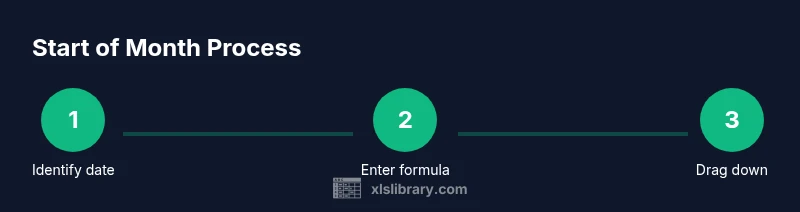
Let’s walk through a concrete example. Suppose cell B2 contains 18-Jul-2026. Enter in C2: =DATE(YEAR(B2), MONTH(B2), 1). Format C2 as a date if needed to display 01-Jul-2026. If you want to label the result with the month name, you can use TEXT(C2, "mmmm yyyy"), which yields "July 2026" for display while preserving the underlying date value. Drag the fill handle from C2 down to apply the same logic to additional dates in column B. This process keeps every date aligned to its month start, which is essential for consistent grouping in charts and pivot tables.
Applying to a range of dates
When you have a list of dates in A2:A20, you can apply the start-of-month formula in B2 and fill down. A robust pattern is:
- In B2: =DATE(YEAR(A2), MONTH(A2), 1)
- Copy down to B3:B20 with a simple drag or double-click the fill handle.
If dates come from a data source that sometimes stores values as text, convert with DATEVALUE first, or wrap the formula to handle errors with IFERROR to keep your sheet tidy. For example: =IFERROR(DATE(YEAR(DATEVALUE(A2)), MONTH(DATEVALUE(A2)), 1), ""). This ensures your analysis remains stable even with imperfect inputs.
Working with text dates and regional settings
Some data sources store dates as text, which can break date-based calculations. Before computing the start of the month, convert strings to real dates using DATEVALUE or by using a date-parsing technique that matches your locale. If your system uses a different regional format (for instance, day-month-year vs month-day-year), you may need to adjust the input or use TEXT to enforce a consistent display. Always verify that your input cells are recognized as dates in Excel (check the alignment, and use the DATE function to reconstruct dates if necessary).
Common pitfalls and how to avoid
- Pitfall: Mixing dates and text leads to incorrect results. Fix: convert with DATEVALUE or ensure input columns are formatted as Date.
- Pitfall: Dragging formulas across non-date cells returns errors. Fix: guard with IFERROR and test with sample dates.
- Pitfall: Time components embedded in dates cause off-by-one errors. Fix: use INT to strip time or format the cell to date only.
- Pitfall: Month-end logic conflicts with custom fiscal calendars. Fix: document your calendar and choose the strategy that aligns with reporting needs.
Real-world use cases: dashboards and reports
Start-of-month calculations are a backbone of monthly dashboards. In sales dashboards, you can group transactions by the first day of the month to show monthly revenue, average order value, and growth YoY. In project tracking, month-start dates help align milestones and burndown charts. In budgeting, monthly expense summaries rely on consistent month anchors to compare actual vs plan. When building pivot tables, pre-creating a StartOfMonth column enables clean row fields and straightforward grouping. The practical payoff is faster, less error-prone reporting and clearer trend analysis across time periods.
Authority sources
- Microsoft Learn: Excel date functions and start-of-month calculations: https://learn.microsoft.com/en-us/office/troubleshoot/excel
- Microsoft Support: Excel help and resources: https://support.microsoft.com/en-us/office
- Microsoft Docs: Excel date formulas overview: https://docs.microsoft.com/en-us/office/excel
Tools & Materials
- Microsoft Excel(Excel 2016+ or Excel for Microsoft 365)
- Sample date dataset(Dates formatted as date values)
- Regional date format knowledge(Helpful for dd/mm/yyyy vs mm/dd/yyyy)
- Formula reference sheet(Optional cheat sheet for common date formulas)
Steps
Estimated time: 20-30 minutes
- 1
Identify the date cell
Choose the cell that contains the date you want to anchor to the month start. Check the data type to confirm it’s a date value, not text. This ensures the formulas you apply will calculate correctly.
Tip: Use a sample date to test the formula before applying it broadly. - 2
Enter the start-of-month formula
In a adjacent cell, enter =DATE(YEAR(A2),MONTH(A2),1) where A2 is your date cell. This returns the first day of the month for the date in A2.
Tip: If you plan to copy this down, keep A2 as a relative reference. - 3
Copy the formula down the column
Drag the fill handle down to apply the formula to a range of dates. This creates a parallel column with start-of-month dates for each original date.
Tip: Double-click the fill handle to auto-fill as far as there are dates in the adjacent column. - 4
Try the EOMONTH alternative
As an alternative, use =EOMONTH(A2,-1) + 1 to anchor to the first day of the month, especially when you already work with month-end calculations.
Tip: This path is handy if you need to align with end-of-month logic in other formulas. - 5
Create a today-based start of month
To keep dashboards current, use =DATE(YEAR(TODAY()),MONTH(TODAY()),1) so the start-of-month updates automatically with the system date.
Tip: Use this in headers or dynamic charts for live monthly views. - 6
Format for display
Format the resulting cells as Date to ensure the first day of the month is shown properly (e.g., 01-Jul-2026).
Tip: Choose a display format that matches your report style.
People Also Ask
What is the simplest formula to get the start of month in Excel?
The simplest approach is =DATE(YEAR(A2), MONTH(A2), 1). This returns the first day of the month for the date in A2. You can copy the formula down to apply it to a range.
Use =DATE(YEAR(A2), MONTH(A2), 1) to get the start of the month for each date in column A.
How do I apply this to a whole column of dates?
Enter the formula in the first cell of the output column and use the fill handle to copy it down the rest of the column. Excel will adjust A2 to A3, A4, and so on automatically.
Just drag the fill handle down to cover all dates you’re analyzing.
What if dates are stored as text?
Convert text dates to real dates with DATEVALUE or use VALUE to coerce numeric representations. Then apply the start-of-month formula on the converted dates.
Convert dates first, then calculate the first day of the month.
Can I use this in charts and pivot tables?
Yes. Create a StartOfMonth column using the formula and use it as the axis or row label in charts and as a grouping field in pivot tables.
Create a month-start helper column for clean grouping in visuals.
What’s the difference between DATE+YEAR+MONTH and EOMONTH?
DATE+YEAR+MONTH is simple and transparent, while EOMONTH(-1)+1 is robust when you work with end-of-month logic. Both yield the first day of the month when used correctly.
Two solid methods; pick the one that fits your data model.
Watch Video
The Essentials
- Anchor dates to the first day of the month with DATE/YEAR/MONTH.
- Choose between DATE/YEAR/MONTH and EOMONTH based on workflow.
- Apply to ranges by filling down or using absolute references.
- Ensure inputs are real dates, not text strings.
- Test month changes across year boundaries to verify accuracy.