How to Use the Excel IF Formula: Step-by-Step Guide
Learn how to use the Excel IF formula to test conditions, nest logic, and handle errors. This practical XLS Library guide covers basic syntax, AND/OR tests, IFS and SWITCH alternatives, and real-world examples for confident data decisions.


The Excel IF formula tests a condition and returns a value based on whether the condition is true or false. Start with the basic syntax, then nest IFs, combine with AND/OR, and add error handling to make your rules robust. This quick answer previews what you'll learn in detail.
What the IF function does and when to use it
The IF function is a fundamental building block for making data-driven decisions in Excel. It evaluates a condition (the logical_test) and returns one value if the condition is true and another if it is false. This simple pattern is powerful for categorizing data, flagging items, or branching formulas without needing a macro. In many real-world tasks, a single IF can replace a long manual checklist or guesswork by providing consistent, auditable results. According to XLS Library, understanding how to structure this logical test and choose appropriate true/false outputs is the first step toward mastering conditional calculations. As you practice, you’ll see how small tweaks to the condition can unlock new automation possibilities and save time on repetitive data work.
Basic syntax and a first example
The basic syntax of the IF function is =IF(logical_test, value_if_true, value_if_false). The logical_test is a comparison that returns TRUE or FALSE, such as A2>10 or B2=
Tools & Materials
- Excel-enabled computer(Windows or macOS with a supported Office/Microsoft 365 version.)
- Sample workbook(Include a worksheet with numeric and text data for testing various conditions.)
- Data sheet or notebook(Useful for jotting down rule ideas before committing formulas.)
- Pen and notepad(Great for sketching rule trees or nested IF structures.)
Steps
Estimated time: 20-40 minutes
- 1
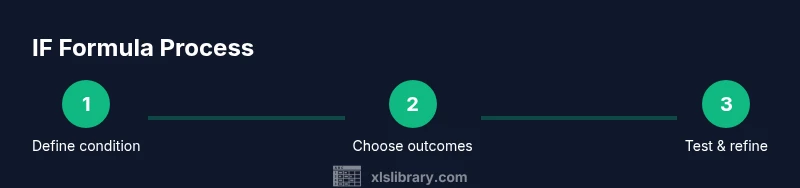
Identify the condition and outcomes
Determine the exact condition you want to test (the logic). Decide what values you should return when the condition is TRUE and when it is FALSE. A clear plan prevents messy formulas and makes debugging easier.
Tip: Write the condition in plain language first, then translate it into Excel syntax. - 2
Write the basic IF formula
Enter the simplest form: =IF(logical_test, value_if_true, value_if_false). Use cell references rather than hard-coded values where possible to keep formulas dynamic.
Tip: Test with at least two data points to verify both TRUE and FALSE outcomes. - 3
Add a second outcome with nesting
If you need more than two outcomes, nest another IF in the value_if_false part. This creates multiple branches expressed as IF(logical_test, value_true, IF(another_test, value_if_true2, value_if_false2)).
Tip: Keep track of each branch’s condition to avoid overlap or gaps. - 4
Test with diverse data
Run the formula against a range of data values, including edge cases (e.g., minimum and maximum expected inputs, blanks, text). This ensures the logic behaves as expected in real sheets.
Tip: Use a helper column to document test cases and expected results. - 5
Incorporate AND/OR for multiple conditions
When more than one condition must be true (AND) or when any one of several conditions is true (OR), wrap them in a logical operator inside logical_test: e.g., =IF(AND(A2>0,B2<100),"OK","Check").
Tip: Place the most selective conditions early to optimize calculation. - 6
Explore IFS and SWITCH as alternatives
For many branches, IFS (Excel 2016+) or SWITCH (Office 365) can replace nested IFs with clearer syntax. These functions evaluate conditions in order and return the first match or a default value.
Tip: Use IFS/SWITCH when readability and maintenance matter most. - 7
Add error handling with IFERROR
If divisions or lookups could fail, wrap the formula with IFERROR to return a friendly message instead of an error. Example: =IFERROR(A2/B2, "Error in calculation").
Tip: Place the error handler outside the core logic to avoid masking genuine issues. - 8
Copy and anchor when applying to ranges
When applying the same logic down a column, copy the formula and adjust references appropriately. Use absolute references ($A$1) where you intend a constant reference while allowing others to adjust.
Tip: Double-check that the anchor points reflect which parts should stay fixed. - 9
Document and audit your formulas
Add comments or a separate documentation sheet that explains each IF structure. This helps teammates understand the rules and makes future edits safer.
Tip: Keep a short description of each branch and its business meaning nearby.
People Also Ask
What is the IF function in Excel?
The IF function tests a condition and returns specified values based on TRUE or FALSE. It enables simple branching in your worksheets and can be extended with nesting and logical operators for more complex decisions.
The IF function tests a condition and gives you different results depending on whether it’s true or false.
How do I nest IF statements safely?
To nest, place another IF in the value_if_false (or true) portion of the outer IF. Keep track of each condition, avoid blank inputs, and test with several data points to prevent logic gaps.
Nest IF statements by adding another IF inside the false or true result, and test with multiple data points.
When should I use IFS or SWITCH instead of nested IF?
IFS and SWITCH offer cleaner syntax for many branches. IFS evaluates conditions in order and returns the first true match; SWITCH selects a result based on a single value, which can simplify logic when you’re mapping categories.
Use IFS or SWITCH when you have many branches; they’re easier to read and maintain.
How can I handle errors in IF formulas?
Wrap your formula with IFERROR (or IFNA for specific errors) to return a friendly message rather than showing an error. This improves user experience and keeps dashboards clean.
Add IFERROR around your calculation to show a clean message if something goes wrong.
Can IF be applied to an entire column efficiently?
Yes. Use fill-down or drag the formula, and consider structured references or tables to automatically apply logic to new rows. Be mindful of calculation performance with very large datasets.
You can copy the formula down a column or turn your data into a table so new rows get the formula automatically.
What are common mistakes with IF formulas?
Common mistakes include mismatched parentheses, mixing data types, failing to handle blanks, and over-nesting. Always validate with representative data and consider alternative functions for long rules.
Watch for missing or extra parentheses and data types, and test with different inputs.
The Essentials
- Master the basic IF syntax for quick decisions
- Nest IFs carefully to handle multiple outcomes
- Use AND/OR to combine conditions efficiently
- Switch to IFS or SWITCH to improve readability
- Incorporate IFERROR to manage runtime errors
- Document your logic to aid future audits