Loan payment schedules in Excel: a practical guide
Learn to build a robust loan payment schedule in Excel using PMT, IPMT, and PPMT. Create an amortization table, handle extra payments, and run scenarios to compare outcomes.


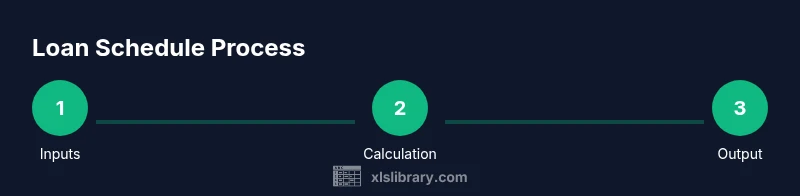
You will create a loan payment schedule in excel that automatically updates balances when you adjust interest, term, or payment amount. This guide covers inputs, essential formulas like PMT, IPMT, and PPMT, and how to verify accuracy. By the end, you’ll have a reusable template for any loan type. According to XLS Library, an Excel-based schedule improves clarity, reduces manual errors, and makes scenario planning straightforward.
Why this Excel-based loan payment schedule matters
According to XLS Library, using Excel to manage a loan payment schedule helps you see cash flows clearly, adjust variables, and avoid manual errors. When you automate the math, you can instantly compare scenarios—what happens if you pay extra each month, or if the interest rate shifts. A well-structured schedule also supports reproducible reporting for lenders or personal budgets. In this section we explain why Excel is a solid platform for amortization, what a good template looks like, and how to plan input fields so your model stays readable and adaptable. You’ll learn to separate inputs from calculations, keep historical versions, and preserve an audit trail for future updates.
Core concepts and terms you should know
Before building rows and columns, understand the vocabulary that drives the model. Key terms include principal (the loan amount borrowed), interest rate (annual rate), term (duration of the loan), amortization (the schedule of payments that pays interest and principal over time), and balance (outstanding principal after each payment). In Excel you’ll link these inputs to your formulas so a single change updates the entire table. This section also introduces common functions like PMT (payment for a loan), IPMT (interest portion), and PPMT (principal portion). Grasping these ideas helps you structure the sheet for accuracy and future adjustments. Plan for optional features like extra payments or payment timing, which affect cash flow and interest cost over time.
Setting up your worksheet structure for clarity
Start by creating a clean workbook with a dedicated Inputs sheet and a separate Amortization sheet. Use a clear header row and freeze the top row so you can scroll without losing context. Name key ranges for inputs (principal, rate, term) so formulas stay readable. Consider a small summary section on the Inputs sheet that shows monthly payment, total interest, and total payments. A well-organized structure makes it easier to audit, reuse templates for different loans, and share results with teammates or clients without confusion.
Input cells and data validation for reliability
Place inputs on a compact, dedicated area and use data validation to minimize errors. For example, constrain the interest rate to a reasonable range and require the term to be a positive number. Use a drop-down for payment frequency if you support biweekly or monthly payments. Create named ranges like P principal, R rate, N periods, and F frequency to keep formulas readable. Add comments or notes explaining each input so anyone adopting the template understands the expectations and units. A strong input layer is the backbone of a robust schedule.
Core formulas: PMT, IPMT, PPMT
The PMT function calculates the fixed periodic payment. IPMT returns the interest portion of a payment, while PPMT returns the principal portion. In a typical monthly schedule, set the rate input to the monthly rate (annual rate divided by 12) and the periods to the term in months. Example formulas (simplified): PMT(monthlyRate, totalPeriods, -principal) gives your monthly payment. IPMT(monthlyRate, period, totalPeriods, -principal) and PPMT(monthlyRate, period, totalPeriods, -principal) split that payment into interest and principal for each period. These functions drive the entire amortization table and should be consistent across all rows to ensure accuracy.
Building the amortization table step by step
Create a table with columns for Payment #, Payment amount, Interest, Principal, and Balance. Initialize Balance with the principal amount. For each row, compute Interest as IPMT, Principal as PPMT, and update Balance by subtracting Principal. Use a running total of payments to verify that the sum matches the total payments in your schedule. Apply conditional formatting to highlight negative balances or rounding artifacts and ensure the final balance reaches zero if the loan is fully paid. When done, you’ll have a clear year-by-year view of cash flows.
Handling extra payments and prepaid principal
Support extra payments by adding an Extra Payment column and adjusting the Principal portion accordingly. You can implement logic to apply extra payments to the principal first or to the next scheduled payment, depending on your lender's rules. Link the extra payment to the balance so it reduces future interest. Document how extra amounts affect the amortization curve and show a separate summary row that reflects total interest savings. This flexibility is essential for personal budgeting or loan comparisons.
Scenarios: changing rate, term, or payment amount
Leverage scenario analysis to compare outcomes under different conditions. Create control cells for rate, term, and payment amount and link them to the amortization formulas. Use data tables or dynamic charts to visualize how changes affect total interest and payoff date. This is where Excel really shines for planning—you can explore dozens of alternatives quickly and choose the best strategy for your financial goals.
Verifying accuracy and auditing your results
Run sanity checks to verify accuracy: confirm that the sum of all principal payments equals the initial principal (accounting for rounding), ensure the final balance is near zero, and review that each period’s interest never exceeds the monthly payment. Use a separate audit column to catch common mistakes, such as misreferenced cells or incorrect rate conversions. Keeping a compact audit trail helps you troubleshoot and explain the model to others.
Tips for error-proofing your template
Adopt best practices like using named ranges, consistent cell formats, and protected formulas to avoid accidental edits. Lock the input area while leaving the calculation area editable for scenario testing. Add a documentation tab that explains assumptions, units, and how to customize the template. Finally, save a versioned template so you can roll back changes if a scenario produces unexpected results.
Real-world examples and templates you can adapt
Many lenders and individuals use Excel templates to compare loan options side by side. In practice, you’ll often see templates that include a summary dashboard with key metrics, a detailed amortization table, and a notes section for terms and conditions. Adapt a generic template by plugging in real data for principal, rate, and term, then adjust your approach for fixed-rate loans, adjustable-rate mortgages, or balloon payments. The goal is a reusable framework, not a one-off calculation.
Next steps and maintenance for your schedule
Save your workbook in a dedicated templates folder and create a quick-start guide for new users. Regularly review inputs for accuracy, especially when loan terms change or a payment plan evolves. Share the model with stakeholders using a clean, print-friendly view and consider exporting a PDF summary for reports. Maintenance is easier when you keep your formulas transparent and your inputs clearly separated from calculations.
Tools & Materials
- Excel software (Windows or macOS)(Office 365 or latest standalone version recommended)
- Loan input parameters (principal, annual interest rate, term in years)(Enter numeric values; use percent for rates and decimals for principal)
- Amortization template skeleton (pre-built sheet with headers)(Include Inputs and Amortization sheets with named ranges)
- Named ranges for inputs (P, R, N, F)(Improve formula readability and robustness)
- Data validation rules for inputs(Limit rate, term, and payments to realistic ranges)
- Backup strategy (versioned copies, cloud storage)(Protect against data loss)
- Printer/setup for hard copies(Set print areas and page breaks for reports)
Steps
Estimated time: 30-60 minutes
- 1
Create a dedicated workbook and sheets
Open a new Excel workbook and add two main sheets: Inputs for parameters and Amortization for the schedule. Rename and color-code tabs for quick navigation. This separation keeps inputs stable while calculations flow in the schedule.
Tip: Use a descriptive sheet name and freeze the top row for easy scrolling. - 2
Define input fields with named ranges
On the Inputs sheet, create named ranges for Principal, Rate, Term, and Frequency. Use consistent units (e.g., annual rate as a decimal, monthly periods for a 12-month year). Linking formulas to named ranges makes the model easier to read and audit.
Tip: Document units next to each input so future users don’t guess. - 3
Set up the amortization table header
In the Amortization sheet, create headers: Payment#, Payment, Interest, Principal, Balance. Initialize Balance with the Principal value and prepare the first row to reference the input names.
Tip: Keep headers simple and aligned to avoid mis-referencing. - 4
Compute the monthly payment using PMT
In the first row under Payment, use PMT with the monthly rate, total periods, and principal. Ensure the principal is entered as a negative value to reflect money leaving your account.
Tip: Check that you use the correct sign convention to avoid sign errors. - 5
Split each payment into Interest and Principal
Fill the Interest column with IPMT and the Principal column with PPMT for each period. Link these to the Balance calculation so the balance decreases correctly over time.
Tip: Drag formulas with absolute and relative references carefully. - 6
Update balance after each payment
Set Balance for the next row as Prior Balance minus the Principal portion. This creates a rolling payoff schedule that ends near zero.
Tip: Round balances to the nearest cent to reduce drift over many periods. - 7
Incorporate extra payments (optional)
Add an Extra Payment column and adjust the Principal portion accordingly. Decide whether extra payments apply to the current period or future periods based on your loan terms.
Tip: Document policy on applying extra payments for future audits. - 8
Add scenario controls
Introduce cells to adjust rate, term, or payment amount. Link them to your formulas so you can instantly compare outcomes.
Tip: Use a data table or simple slider controls for quick scenario changes. - 9
Create a summary view
Add a compact dashboard showing total payments, total interest, and payoff date. Link visuals to the Amortization sheet to keep everything in sync.
Tip: Keep the summary readable at-a-glance for stakeholders. - 10
Test with a sample loan
Enter a test principal, rate, and term to verify that the outputs align with expected values. Try a rate change and confirm the balance updates correctly.
Tip: Document test cases so future users can reproduce results.
People Also Ask
What is the PMT function and what does it do?
PMT calculates the fixed periodic payment for a loan given rate, periods, and principal. It does not separate interest and principal, which is handled by IPMT and PPMT. Using PMT as the starting point ensures your cash flow remains consistent across the schedule.
PMT tells you the regular payment amount; IPMT and PPMT split that payment into interest and principal.
Can I use Excel on both Mac and Windows for this template?
Yes. Excel for Mac and Windows share the same core functions like PMT, IPMT, and PPMT. Some interface details differ, so test formulas on both platforms and adjust as needed.
Absolutely. This works on both Mac and Windows, just test a few formulas on your device.
How do I handle variable rates or adjustable-rate loans?
For variable rates, link the rate input to the amortization formulas and consider reading rate updates at set intervals. You can build a separate table to model rate changes and use IF or CHOOSE functions to switch between scenarios.
If rates change, update the rate input and re-calculate the schedule to see the impact.
What checks should I run to ensure accuracy?
Cross-check that total principal equals the original loan amount, the final balance is near zero, and each period’s interest is consistent with the rate. Round to the nearest cent to prevent drift.
Double-check sums, ensure the payoff ends correctly, and round cents to stay precise.
Is this approach suitable for student loans or other types of debt?
Yes. The structure applies to many loan types, including student loans and personal loans. For student loans, include grace periods if applicable and adjust the payment timing accordingly.
The same setup works for student loans; adjust timing and grace periods as needed.
Watch Video
The Essentials
- Create a clean, dual-sheet structure (Inputs and Amortization).
- Link all calculations to named inputs for easy updates.
- Verify with a test loan and simple rate changes.
- Use extra payments and scenario controls to explore options.