Why Do Excel Formulas Stop Working? Practical Troubleshooting Guide
Urgent guide to troubleshooting why do excel formulas stopped working with practical steps, checks, and prevention tips from XLS Library. Learn fast fixes to restore accuracy and reliability.


Most likely, your Excel formulas stopped working due to broken references, calculation mode set to manual, or external links that no longer resolve. Quickly test by pressing F9 to force a recalculation, ensuring calculation is set to automatic, and checking for #REF!, #VALUE!, or #NAME? errors. If issues persist, review relative vs absolute references and recent workbook changes. XLS Library recommends a methodical approach.
Why Excel Formulas Stop Working
When a formula suddenly returns errors or outdated results, the cause is rarely mysterious. In many cases, the question becomes: why do excel formulas stopped working, and what should I check first? According to XLS Library, the most common culprits are calculation mode, broken cell references, external links that no longer resolve, and recent changes to the workbook where formulas live. This section explains how these factors interact and why a systematic approach shortens diagnosis time. By understanding the symptoms and patterns, you can distinguish between a quick recalculation glitch and a fundamental formulation or data-connection problem.
Common Causes You Should Check First
Start with the low-hanging fruit. Many formula failures are simple to fix if you check these points:
- Calculation mode: If set to manual, formulas won’t recalculate unless you trigger it.
- Broken references: Deleted rows/columns or moved ranges can turn valid formulas into errors.
- External links and data connections: Links to closed workbooks or moved data sources can break dependencies.
- Named ranges: Renamed or deleted names leave formulas with invalid references.
- Sheet-level changes: Protected sheets or hidden rows can alter evaluation context.
- Add-ins and volatile functions: Certain add-ins or functions like INDIRECT or OFFSET can trigger unexpected recalculations.
Identify which category fits your situation, then apply targeted fixes.
Step-by-Step Quick Checks to Run Now
Follow these fast checks to get a read on what’s broken:
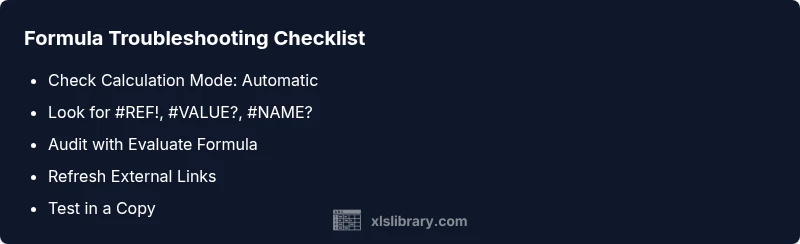
- Recalculate: Press F9 to force a workbook-level recalculation. If necessary, trigger a full recalculation with Ctrl+Alt+Shift+F9.
- Check Calculation Options: Ensure Calculation is set to automatic under Formulas > Calculation Options.
- Inspect the error type: Read any error value (e.g., #REF!, #VALUE!, #NAME?) to guide the diagnosis.
- Review references: Confirm that cell references point to the intended ranges and that relative vs absolute references match your intent.
- Verify external links: If your workbook pulls data from another file, confirm the source is accessible and links are up to date.
- Test in a clean context: Copy the formula to a new sheet or workbook to see if it still fails. If it works there, the issue is local to the original workbook.
If this doesn’t fix the problem, proceed to auditing tools for deeper insight.
Using Formula Auditing Tools to Diagnose
Excel provides built-in auditors that reveal how a formula evaluates:
- Evaluate Formula: Step through a formula to see intermediate results.
- Trace Precedents/Dependents: Visualize which cells influence or are influenced by the formula.
- Error Checking: Let Excel flag common issues and suggest fixes.
Use these tools in combination to pinpoint the exact component causing failures, especially with complex formulas or dynamic arrays. Also consider recalculating in a copy to avoid risking live data.
Fixes for Common Errors: #REF!, #VALUE!, #NAME? and More
Each error type points to a different root cause:
- #REF!: A referenced cell was deleted or moved. Restore the range or rewrite the formula with the correct references.
- #VALUE!: Mismatch of data types or incorrect function usage. Check argument types and ensure arrays, ranges, and scalars align.
- #NAME?: A function or named range isn’t recognized. Verify spelling, add-ins, and defined names.
- Circular references: Revisit formulas that refer back to themselves and break out of the loop.
- Inconsistent data types: Convert text numbers to numbers or format cells consistently.
Address the root cause and then re-test the formula in a controlled environment.
Data Connections and External Sources that Break Formulas
Formulas that pull data from external workbooks or Power Query can break if the source file moves, is renamed, or becomes unavailable. Remedies include:
- Re-establish links: Update broken external links, refresh data connections, or replace sources with accessible data.
- Break links carefully: When feasible, convert external dependencies to static values or local references for critical calculations.
- Data model sanity check: If using Power Pivot or data models, ensure measures and relationships are intact.
These connections should be documented and version-controlled to avoid surprises.
Best Practices to Prevent Future Breakage
Proactive habits save time:
- Use relative and absolute references consistently and document their intent in comments.
- Maintain a clear naming convention for ranges and constants.
- Keep a changelog for any edits to formulas or data sources.
- Create a separate testing workbook to trial risky changes before applying them to production spreadsheets.
- Enable version history in your storage service and regularly back up workbooks.
With disciplined practices, you’ll reduce the likelihood of future formula failures and recover faster when issues occur.
Steps
Estimated time: 60-90 minutes
- 1
Identify symptoms and recent changes
Note the error messages and the cells involved. List any recent workbook edits, moved sheets, or data source changes that could affect formulas.
Tip: Create a quick backup before making changes. - 2
Check calculation mode
Open Formulas > Calculation Options and ensure Automatic is selected. If it was Manual, switch and recalculate.
Tip: If many formulas depend on volatile functions, test impact in a copy first. - 3
Force recalculation
Recalculate the workbook with F9, then with Ctrl+Alt+Shift+F9 to rebuild all links and data connections.
Tip: Strongly consider using a test copy for large workbooks. - 4
Review references
Verify that formulas reference the intended cells with the correct relative/absolute context. Adjust as needed.
Tip: Prefer absolute references for constants and named ranges for clarity. - 5
Check external links and data sources
Inspect Edit Links (if present) and refresh or update sources. Ensure files are accessible.
Tip: Document each external connection to aid future troubleshooting. - 6
Audit with built-in tools
Use Evaluate Formula and Trace Precedents/Dependents to identify evaluation paths and pinpoint root causes.
Tip: Work in a copy when using auditing tools on complex formulas.
Diagnosis: Formulas return errors or stop updating after workbook changes
Possible Causes
- highCalculation mode set to manual
- highExternal links or data connections broken
- highCell or range references moved/deleted
- mediumIncompatible add-ins or volatile functions causing recalculation issues
Fixes
- easySwitch to automatic calculation and force a recalculation (Ctrl+Alt+F9)
- easyUpdate or restore external links and refresh connections
- easyRepair broken references by adjusting formulas or restoring ranges
- mediumCheck for circular references and disable problematic add-ins
People Also Ask
What are the most common reasons Excel formulas stop working?
Most failures come from calculation mode, broken references, external links, or recent workbook edits that alter the evaluation context. Errors like #REF!, #VALUE!, and #NAME? guide the diagnosis.
Common reasons include calculation mode, broken references, external links, and recent workbook edits. Look for error codes to guide fixes.
How do I fix #REF! errors quickly?
#REF! means a referenced cell was deleted or moved. Restore the range or rewrite the formula to point to valid cells.
A #REF! error means a cell was moved or deleted. Repoint the formula to valid cells and test.
Can external links cause formulas to stop working?
Yes. If the source workbook is moved, renamed, or inaccessible, formulas relying on those links can fail. Refresh or replace the data source as needed.
External links can break if the source file isn’t accessible. Refresh or replace the data source to restore formulas.
What’s the best practice to prevent formulas from breaking?
Adopt consistent references, document changes, maintain version history, and test risky edits in a copy before applying to live workbooks.
Prevent breakages by keeping consistent references, documenting changes, and testing edits in copies first.
How do I use Evaluate Formula to debug?
Evaluate Formula steps through a calculation, showing intermediate results. It helps identify exactly where the logic diverges.
Use Evaluate Formula to step through calculations and find where the logic goes wrong.
Watch Video
The Essentials
- Start with easy checks: calculation mode and references.
- Use formula auditing tools to locate the issue fast.
- Fix external links before overhauling formulas.
- Document changes and maintain backups for safety.
- Test fixes in a copy to prevent data loss.