AI for Excel: A Practical Guide to Using AI in Spreadsheets
Learn practical, step-by-step methods to use AI in Excel for data cleaning, automation, formulas, and dashboards. This educational guide covers prerequisites, workflows, prompts, governance, and learning paths to empower Excel users with AI-driven efficiency.


This guide shows you how to use AI in Excel to automate tasks, clean data, and generate insights. You’ll follow a practical, task-focused workflow that leverages built-in AI features and prompt-based guidance. Prerequisites include a modern Excel with AI capabilities, a sample dataset, and access to AI-enabled tools. By the end, you’ll streamline routines and validate outputs with confidence. a i for excel
What AI for Excel means
AI for Excel refers to using artificial intelligence features and AI-assisted workflows to enhance spreadsheet workbooks. In practice, it helps automate repetitive tasks, clean and standardize data, generate insights, and propose formulas or visualizations. For professionals exploring a i for excel, this means moving beyond manual trial-and-error toward prompts that guide Excel to do heavy lifting. According to XLS Library, AI-enabled capabilities can reduce manual drudgery and accelerate decision-making by surfacing patterns you might miss in large datasets. The XLS Library team found that teams who blend AI prompts with solid Excel practices deliver faster onboarding and more consistent results across projects. In this section, we’ll begin with a practical mental model for integrating AI into everyday workflows, with a focus on transparency, reproducibility, and governance. Expect concrete examples, common prompts, and guardrails you can apply immediately.
Prerequisites for getting started
Before you begin, ensure you have the right tools. A modern Excel 365 with AI features or Copilot in Excel, a dataset to experiment on, and a basic familiarity with Excel operations. Sign in with a corporate or personal account that supports AI-enabled features. Have a notebook or prompts template ready to guide your interactions, and set expectations for data privacy and governance. If you’re just testing, start with a small, non-sensitive sample to learn the workflow. The goal is not perfection in the first run, but a repeatable process you can refine. This section lays the groundwork for a repeatable, safe, and auditable AI-enhanced workflow.
The core AI features you can leverage in Excel
Excel’s AI capabilities fall into several practical areas: AI-assisted insights, auto-generated formulas, data-cleaning prompts, and natural language queries. You can ask the AI to summarize data trends, suggest pivot table layouts, or propose a clean-up plan for inconsistent entries. While AI can speed up tasks, your role remains to verify, adjust, and validate results. Start with simple prompts like “Summarize quarterly sales by region” and escalate to more complex prompts that include column names, data types, and expected outputs. The key is to blend AI suggestions with your domain knowledge and governance rules. This balance helps you avoid over-reliance on automated outputs while extracting meaningful business insights.
Data quality: The foundation for AI in Excel
AI works best when data is well-curated. Begin by standardizing date formats, correcting typos, and ensuring numerical columns contain true numbers rather than text. Remove duplicates and fill missing values using defensible defaults or AI-suggested imputations, then validate results with a quick sanity check. Guardrails are essential: track changes, annotate prompts, and keep a copy of the original data for audit purposes. As you normalize data, document decisions so AI outputs are reproducible. In short, your AI results reflect the quality of your data; invest time here to reap the benefits later in analysis, forecasting, and automations.
Step-by-step example: Cleaning data with AI
In a typical sales dataset, you might have misspelled categories, inconsistent date formats, and missing region values. Step 1: prepare small cleanses by listing columns to fix and the intended formats. Step 2: prompt AI to normalize the data: “Standardize product names, fill missing regions with ‘Unknown’, convert dates to YYYY-MM-DD.” Step 3: review AI suggestions and apply the changes in a copy of the sheet. Step 4: run a quick validation to ensure no unintended changes occurred. Step 5: save a version with a changelog. Step 6: document what you changed and why for future audits. This workflow emphasizes a safe, incremental approach while leveraging a i for excel to accelerate quality improvements.
Automating repetitive tasks with AI-generated prompts and macros
AI can draft macro-like instructions from natural language prompts and then you can refine the results inside the VBA or Office Scripts environment. For example, prompt the AI to “update all date entries to standard format and fill missing values in column C,” then translate the output into a reusable macro. Always test the script on a copy of your workbook first, and keep a changelog of each automation you add. Security considerations include limiting macro scope, validating input data, and avoiding sensitive data exposure. This approach helps you convert one-off AI guidance into repeatable automation, saving time while maintaining control over changes.
Generating formulas and insights with AI
AI can propose formulas and logic blocks based on your description of the task. Provide clear prompts such as “calculate year-over-year growth per region” or “extract top 5 customers by revenue and plot a trendline.” The AI will return candidate formulas or stepwise instructions you can adapt. The strength of this approach lies in rapid experimentation: you can generate multiple formula options, compare results, and select the most robust solution. Always verify results with known data points and edge cases, and annotate formulas so teammates understand intent and constraints.
Building AI-powered dashboards with smart visuals
AI-assisted insights can guide dashboard design by recommending metrics, visual types, and layout arrangements. Start by asking for a concise set of KPI definitions and then request visuals that summarize those KPIs. AI can suggest chart types (e.g., column, line, heatmap) based on data distribution and business questions. Pair AI-generated visuals with slicers and dynamic ranges to create responsive dashboards. Maintain discipline by validating each chart against the underlying data and documenting any assumptions embedded in prompts. This collaboration between AI and Excel visuals can lead to clearer storytelling and faster decision-making.
Governance, privacy, and security when using AI in Excel
Using AI with sensitive data requires governance. Limit data exposed to AI where possible, use de-identified samples for exploration, and avoid sending confidential information through external AI services. Establish data-use policies, keep a log of prompts, and review AI outputs for bias or errors before sharing with stakeholders. Consider organizational controls such as versioning, access rights, and a peer-review process for AI-driven changes. The goal is to balance productivity gains with responsible data handling, ensuring compliance and user trust while exploring ai capabilities in excel.
Common pitfalls and how to avoid them
If you rely blindly on AI suggestions, you risk overlooking edge cases or introducing bias. Always verify outputs with known benchmarks, and treat AI as a co-pilot rather than a final authority. Narrow prompts reduce ambiguity, and start with small, focused tasks before scaling up. Track changes and maintain version history so you can revert if a prompt leads to unintended results. Finally, avoid overextending AI beyond its strengths—data cleaning, pattern discovery, and formula drafting are good, but complex governance or strategic decisions still require human oversight.
Practical case studies and real-world tips
Real-world teams use ai for excel to accelerate data prep, generate rapid insights, and maintain governance. In practice, you would start with a pilot in a low-risk workbook, document the prompts used, compare AI outputs against a trusted baseline, and then expand to broader datasets. These practices help you build confidence and demonstrate value to stakeholders. Remember, the most successful implementations combine solid Excel technique with disciplined AI prompts and clear documentation. The learning loop is iterative: prompt, validate, adjust, and scale.
Roadmap: your path to adopting AI for Excel in your organization
To adopt ai for excel at scale, begin with a clear objective and a small, focused pilot project. Create a governance plan that defines who can prompt AI, how outputs are validated, and how changes are documented. Build a reusable library of prompts and macros, and integrate AI steps into your standard operating procedures. Over time, expand to more datasets, more complex automations, and more dashboards. With steady iteration and strong governance, your team can realize significant gains in speed, accuracy, and insight. The XLS Library team recommends starting with a one-page AI adoption plan and a 90-day pilot to demonstrate value.
Tools & Materials
- Computer or device with internet access(Stable connection recommended for AI-enabled features)
- Microsoft 365 with AI features (Copilot in Excel)(Ensure your plan includes AI capabilities and sign-in is active)
- Excel 365 desktop or web app(Latest update recommended for best AI support)
- Sample dataset (CSV or XLSX)(At least 1-2 columns with numeric and text data)
- Prompts template or notebook(Optional — helps standardize prompts across tasks)
- Privacy and governance guidelines(Optional — for handling sensitive data)
Steps
Estimated time: 60-120 minutes
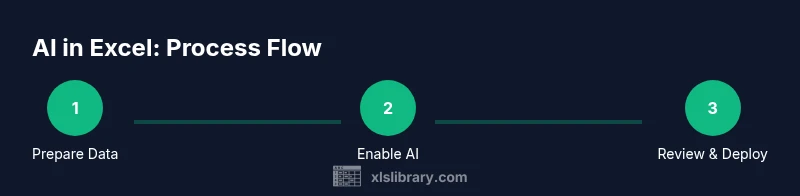
- 1
Prepare data for AI use
Organize your dataset by standardizing formats, fixing obvious errors, and consolidating similar categories. This creates a reliable input so AI prompts produce meaningful results. Take a snapshot of the original data for auditability.
Tip: Keep a clean copy of the raw data to compare against AI-driven changes. - 2
Enable AI features in Excel
Ensure AI capabilities are activated in your Excel environment and you have signed in to the appropriate AI-enabled service. Test with a small sample to confirm responsiveness before tackling larger datasets.
Tip: Check your organization’s policy on data and AI usage before enabling features. - 3
Define a concrete prompt
Draft a specific prompt that includes column names, desired outputs, and any constraints. For example, request “Summarize sales by region and identify top 5 products” with exact column references.
Tip: Avoid vague prompts; precision drives better results. - 4
Review AI results in Excel
Inspect AI outputs, verify against known values, and note any anomalies. If needed, refine prompts and re-run. Keep changes scoped to a copy workbook.
Tip: Document each review step to support traceability. - 5
Create automation with AI-generated macros
Translate successful AI-driven steps into reusable macros or Office Scripts. Test on a duplicate workbook and gradually apply to broader files.
Tip: Limit macro scope and add error handling for robustness. - 6
Document and validate outcomes
Record what was changed, why, and how AI contributed. Maintain version history and create a short validation report for stakeholders.
Tip: Include before/after comparisons and any assumptions.
People Also Ask
What is AI for Excel?
AI for Excel describes using AI features to enhance spreadsheets, including automated data cleaning, prompt-driven insights, and formula suggestions. It helps you work faster while maintaining accuracy through human oversight.
AI in Excel helps you do smarter, faster workbook work with AI suggestions, but you still review and validate the results.
Do I need Copilot to use AI in Excel?
Copilot or similar AI-enabled features are common ways to access AI in Excel. If your setup lacks Copilot, you can still use AI-assisted ideas and prompts through available AI tools or built-in AI capabilities depending on your license.
Copilot is one way to access AI, but there are other AI-assisted features in Excel depending on your plan.
Can AI replace data cleaning entirely?
AI can speed up data cleaning but should not replace human judgment. Use AI to suggest fixes and then verify with checks and domain knowledge to avoid unseen biases.
AI can help, but you should still validate the results yourself.
Is my data safe when using AI in Excel?
Data safety depends on your tools and policies. Use de-identified samples for exploration, apply governance, and avoid sharing confidential or regulated data through external AI services.
Data safety depends on how you use AI; follow your organization's guidelines and keep sensitive data secure.
How can AI help with formulas in Excel?
AI can draft candidate formulas based on your problem description and data structure. You then adapt and validate the formulas to ensure they fit the task perfectly.
AI suggests formulas; you tailor and test them to ensure they work with your data.
What are the limits of AI in Excel?
AI is powerful for pattern discovery and automation but may misinterpret context or make subtle errors. Always verify outputs and maintain human oversight for critical decisions.
AI is helpful but not perfect; always review, especially for business-critical tasks.
Watch Video
The Essentials
- Automate routine Excel tasks with AI prompts
- Prioritize data quality before AI use
- Validate AI outputs with human checks
- Document prompts and changes for auditability
- Scale AI adoption with a governance plan