Can Excel Countdown Days: Master Your Dates
Learn how to count down days in Excel using simple date formulas, dynamic labels, and optional business-day counts. This practical guide shows step-by-step methods to create an auto-updating countdown for deadlines, events, and reminders.


Can Excel countdown days? Yes. Excel can countdown days toward a target date by subtracting a date from TODAY() and returning the number of days. You can format the result as a simple day count or combine with text, emojis, or conditional formatting to create a dynamic countdown that updates automatically each day.
Why countdown days matters in Excel
Countdowns are a common workflow in projects, events, and personal planning. In Excel, a countdown helps teams stay aligned and individuals stay on schedule. A dynamic days-left counter reduces manual tracking and minimizes missed deadlines. According to XLS Library, mastering date arithmetic unlocks practical time-management tools you can reuse across many spreadsheets. This approach translates into clear, actionable dashboards, with live updates as dates approach. Whether you’re coordinating a product launch, tracking grant deadlines, or planning a vacation, a reliable countdown keeps attention on what matters most. By learning a few core functions and formatting tricks, you create a reusable blueprint that scales from a single sheet to an entire workbook.
The concept is simple: a target date minus today’s date yields the days remaining. The challenge is presenting the result in a readable, flexible way that adapts to different scenarios and locales. In this article, you’ll see practical examples, common pitfalls, and tips to tailor countdowns for calendar days, business days, and custom calendars.
Fundamental formulas for day countdown
The core technique in Excel is straightforward arithmetic: subtract today from your target date. A dedicated cell holds the target date (formatted as a date), and another cell computes the days left with a formula like =targetDate - TODAY(). If you want to emphasize complete days only, =DATEDIF(TODAY(), targetDate, "d") is a robust alternative that handles time components gracefully. For past dates, you can handle negative results with IF statements, e.g., =IF(daysLeft<0, "Event passed", daysLeft). If you expect only non-negative values, you can wrap with MAX(daysLeft, 0) to show zero instead of negatives. This section demonstrates concrete examples using A2 for the target date and B2 for the days-left calculation.
Working with target dates and date formats
Date reliability starts with consistent input. Enter the target date in a cell with the date format recognized by your locale (e.g., 2026-12-31 or 12/31/2026). Use data validation to prevent non-date entries in the target cell. When displaying the countdown, consider creating a named range (e.g., targetDate) so formulas remain readable across sheets. If your workbook travels across locales, keep ISO date formats (YYYY-MM-DD) for data exchange and use the TEXT function to render friendly labels, such as =TEXT(daysLeft, "0 \u0025 days") or CONCAT("Days left: ", daysLeft).
Handling time components and precise moments
If you want to show hours or minutes in addition to days, formulas must account for time fractions. A common pattern is =INT(targetDate - NOW()) to return whole days, and =ROUND((targetDate - NOW())*24, 0) to show hours remaining. When you need sub-day precision, combine days with remaining hours in a single cell using TEXT and arithmetic, e.g., =TEXT(targetDate - NOW(), "d \d\a\y\s H \h"), which yields a compact countdown like 5 days 4 hours. Be mindful of time zones and workbook regional settings that affect date parsing.
Dynamic labels and formatting: making it readable
Readable countdowns combine numbers with text, color, and layout. Use CONCAT or TEXT to create phrases like "5 days until 2026-12-31". Apply conditional formatting to highlight imminent deadlines (e.g., red when daysLeft <= 7, amber when <= 14). You can also add icons or emoji to convey urgency visually. A well-formatted countdown sits at the top of a dashboard, with adjacent charts showing progress toward milestones and a mini calendar for quick context.
Build a reusable countdown template
Start by creating a single countdown template that you can copy across sheets. Use a named targetDate cell, a daysLeft calculation, and a dynamic label cell. Separate inputs (targetDate) from outputs (daysLeft and label) to simplify maintenance. Convert the template into a small Excel table so you can drag it to additional rows or columns without breaking formulas. Document the template with a short description in a comment or a hidden sheet to keep it approachable for others.
Use cases: deadlines, events, reminders
Common scenarios include project deadlines, event planning, and personal goals. For a project deadline, count days left to a milestone and display progress in a separate chart. For events, show a public-facing countdown on dashboards, teams can be reminded as days shrink. For reminders, pair the countdown with a calendar export so you’ll receive a notification as the date approaches. The more you tailor the inputs and outputs to your audience, the more valuable the countdown becomes.
Automating updates with alerts and conditional formatting
Automatic updates come from Excel’s volatile time functions (TODAY and NOW) that refresh when the workbook recalculates. Use conditional formatting to draw attention to imminent dates and avoid manual re-scripting. Create a small rule that changes the font color or cell background when daysLeft is within a critical window (e.g., 0–7 days). If you publish the sheet to others, protect formulas that compute daysLeft to prevent accidental edits and maintain consistency across users.
Troubleshooting common issues and pitfalls
Date errors are the most frequent pain point. If daysLeft shows #VALUE!, re-check that targetDate is a real date and that your workbook uses the same date system. Regional settings can flip day/month order; standardize on ISO dates when possible. If you see negative values, confirm whether you want a past-date indicator or a zero-cap. Ensure calculations are not inadvertently set to manual calculation. Finally, when sharing workbooks, verify that external links are not breaking the countdown.
Advanced: counting business days or custom calendars
For business-day countdowns, replace or augment the simple difference with NETWORKDAYS(TODAY(), targetDate, holidays). This accounts for weekends and holidays. Provide a list of holiday dates in a named range so the function can exclude them automatically. This approach is ideal for project planning, payroll cutoffs, and service-level agreements where calendar days don’t reflect actual workdays.
Quick-start template example
A compact blueprint for a countdown workbook includes a targetDate cell (A2), daysLeft (B2) =DATEDIF(TODAY(), A2, "d"), and a label (C2) =CONCAT("Days left: ", B2, " until ", TEXT(A2, "yyyy-MM-dd")). Add conditional formatting to B2 for urgency. Copy this row to create multiple countdowns. Save as a template to reuse in new projects with minimal setup.
Tools & Materials
- Target date input cell(Enter as a date (e.g., 2026-12-31).)
- Today/todays date reference(Use TODAY() in a formula to keep the countdown current.)
- Workbook with date settings(Ensure regional date format compatibility; ISO format is recommended for cross-border sheets.)
- Holidays (optional)(A vertical list of holiday dates used with NETWORKDAYS.)
- Named ranges (optional)(Creatively named ranges like targetDate improve readability and reusability.)
- Optional: Icons or emoji for labels(Enhance readability in dashboards.)
Steps
Estimated time: 25-40 minutes
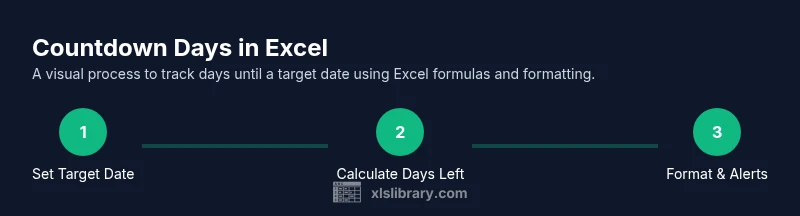
- 1
Set up the target date
Enter your target date in a dedicated cell and format it as a date. This is the anchor for your countdown.
Tip: Use a named range (e.g., targetDate) for clarity and reuse. - 2
Create the days-left calculation
In a neighboring cell, input a formula that computes days left, e.g., =DATEDIF(TODAY(), targetDate, "d").
Tip: Prefer DATEDIF for robust behavior with time components. - 3
Display a readable label
Combine the numeric result with text: =CONCAT("Days left: ", daysLeft, " (until ", TEXT(targetDate, "yyyy-MM-dd"), ")").
Tip: TEXT formats the date consistently across locales. - 4
Add an optional hours component
If you need finer granularity, compute hours with =ROUND((targetDate - NOW())*24, 0) and join with the days-left.
Tip: Remember NOW() includes the current time, so days left could be 0 even if hours remain. - 5
Apply conditional formatting
Highlight the countdown when daysLeft is critical (e.g., <= 7 days) using a color scale or rules.
Tip: Keep formatting simple to avoid distracting readers. - 6
Create a reusable template
Turn your countdown into a small template with inputs (targetDate) and outputs (daysLeft/label) so you can copy to other sheets.
Tip: Document assumptions in a comment or separate sheet for teammates. - 7
Extend to business days
If you need business days, use NETWORKDAYS(TODAY(), targetDate, holidays) to exclude weekends/holidays.
Tip: Maintain a separate holiday list for accuracy. - 8
Test edge cases
Test with a past date, a future date, and dates near weekends/holidays to ensure correct behavior.
Tip: Check how the sheet behaves with leap years and locale changes. - 9
Share and maintain
Share the template with teammates and set permissions to protect formulas if needed.
Tip: Provide a short usage guide to prevent accidental edits.
People Also Ask
How do I count calendar days versus business days?
Calendar days are counted with simple date subtraction or DATEDIF, while business days use NETWORKDAYS with an optional holidays range. Choose based on whether weekends/holidays should be excluded from your countdown.
Use simple date math for calendar days, or NETWORKDAYS with holidays for business days.
How can I display both days and hours left?
You can calculate days with =DATEDIF(TODAY(), targetDate, "d") and hours with =ROUND((targetDate - NOW())*24, 0). Combine them with TEXT to create a clear label like '5 days 12 hours left'.
Compute days and hours separately, then join them in a readable label.
What if the target date has already passed?
Decide how you want to handle past dates. You can display a message like 'Event passed' or show a negative count if your workflow requires historical tracking.
Decide on a past-date policy; either show a message or show negative days.
Can I have multiple countdowns in one workbook?
Yes. Use a shared targetDate cell for each countdown or create a table with separate target dates. Ensure formulas reference the correct targetDate, and consider a small template to avoid errors when copying.
Absolutely—set up a template and reference the correct date for each countdown.
How do I make the countdown auto-update when opening the workbook?
Excel re-evaluates formulas when the workbook recalculates. Ensure calculation mode is set to automatic and avoid volatile references that slow down larger workbooks.
Automatic calculation keeps counts fresh whenever the file opens.
Is there a built-in feature for countdown in Excel?
There is no single countdown feature; instead, you build it with date arithmetic (TODAY(), NOW(), DATEDIF()) and formatting. This approach is flexible and can be extended into dashboards and templates.
There isn’t a one-click countdown feature; it’s built with date formulas.
Watch Video
The Essentials
- Count days with targetDate - TODAY() or DATEDIF.
- Use TEXT for readable labels and conditional formatting for urgency.
- Build a reusable template to scale countdowns across sheets.
- Consider NETWORKDAYS for business-day countdowns with holidays.
- Test edge cases to ensure reliability across locales.