Excel Email Alerts: Practical How-To for Reminders
Learn how to configure Excel to send email alerts and reminders using Power Automate, VBA, or SMTP. This practical guide covers prerequisites, workflows, testing, security, and maintenance for reliable, scalable reminders.


Yes. You can receive email alerts from Excel by combining data-driven rules with automation tools like Power Automate or VBA, plus an email client such as Outlook. This guide shows practical steps, required tools, and safety tips to set up reliable reminders straight from your spreadsheets that work across Windows and Office 365 environments.
What email alerts from Excel can do for you
Email alerts from Excel are a powerful way to keep teams aligned and ensure deadlines don’t slip through the cracks. With the right setup, you can automatically send reminders when a date is near, when a value crosses a threshold, or when a row is updated. The beauty of this approach is that you can trigger messages without constantly checking your workbook, freeing you to focus on analysis and decision making. In practice, you might notify project owners about upcoming milestones, alert sales reps when a forecast target is met, or remind stakeholders when budget cells require attention. This capability is especially valuable in collaborative environments where multiple people rely on up-to-date data from a central sheet. The XLS Library team notes that when implemented responsibly, automated email reminders reduce manual follow-ups and help teams stay accountable, while keeping data secure and auditable.
Prerequisites and setup basics
Before you begin, confirm your environment supports email automation from Excel. You’ll typically need a modern version of Excel (Office 365 or Office 2019+), an email client or service (Outlook is common, but SMTP options exist), and a plan that includes Power Automate or access to VBA macro capabilities. Ensure the workbook is stored in a connected location (OneDrive or SharePoint) if you plan to trigger flows from outside your local machine. You should also establish a testing mailbox to avoid sending real reminders during development. The XLS Library analysis suggests starting with a small, isolated workbook and a single trigger to validate the end-to-end flow before scaling to multiple users or datasets.
Core approaches: Power Automate, VBA, and connected SMTP
There are three mainstream paths to sending email alerts from Excel:
- Power Automate: Create a flow that triggers on a workbook update or on a scheduled refresh, then sends an email via Outlook or another mail service. This approach is scalable, auditable, and easy to monitor.
- VBA: Write a macro that runs within Excel to compose and send emails directly through Outlook or via SMTP. This method provides tight integration with workbook logic but requires careful handling of security prompts and macro enablement.
- Direct SMTP: Use a script or add-in to connect to an SMTP server and send mail without relying on Outlook. This can be flexible but may demand more network and security configuration.
Each method has trade-offs in terms of complexity, reliability, and governance. The best choice often depends on your organization’s tooling, IT policies, and how frequently you need to send reminders. The XLS Library team recommends starting with Power Automate for most teams, then consider VBA or SMTP if you need tighter workbook integration or custom mail routing.
Using Power Automate to send email alerts from Excel
Power Automate lets you wire Excel data to email workflows with minimal coding. Start by storing the workbook in OneDrive or SharePoint, then create a flow that watches the file for changes or a specific condition (for example, a date in column C equals today). The flow can format a message, attach a row, and send it to one or more recipients via Outlook or a connected mail service. To keep notifications relevant, use filters to reduce noise and consider a test mailbox during development. Maintain version control by documenting triggers, conditions, and recipients to ensure future changes don’t break the automation.
Setting up a VBA-based alert system
A VBA approach taps directly into Excel’s event model. You can use events like Worksheet_Change or Workbook_Open to check for specific conditions and then create an Outlook.MailItem to send a message. This method provides fast, local execution and works well in environments with strict cloud dependencies. Important considerations include enabling macros securely, handling security prompts from Outlook, and avoiding infinite loops by temporarily disabling events during mail sending. For reliability, implement a guard column in the sheet with a unique flag (e.g., “SEND”) to prevent duplicate emails on repeated saves.
Using SMTP with Excel: sending mail via script
SMTP-based sending bypasses Outlook and can be useful if your organization relies on a centralized mail relay. A typical approach involves a small script or add-in that authenticates to an SMTP server and composes messages using data from Excel. This method requires careful handling of credentials, server settings, and TLS configurations. Use environment variables or a secure vault for credentials, never hard-code them in the workbook. If you’re new to SMTP from Excel, start with a restricted test account and monitor delivery reports to tune the server settings and avoid spam-like behavior.
Designing reliable alert criteria and triggers in Excel
Define precise, testable conditions to trigger emails. Use helper columns to evaluate rules (e.g., daysUntilDue <= 3, status = "Open", priority = "High"). Centralize logic in a named range or a separate sheet to simplify maintenance. Consider debouncing logic to prevent duplicate messages when the workbook is opened multiple times. Document the exact conditions in a README within the workbook so future users understand the intent and scope of each alert.
Testing strategies and validation
Testing is essential to avoid sending imperfect reminders. Start with a dry run: log messages to a test table instead of sending emails, verify content and recipients, and confirm timing logic. Validate edge cases like weekend behavior, holidays, and time zone differences if recipients are distributed globally. Use unit tests for VBA logic where possible, and for Power Automate, leverage run history and actuator tests. A staged rollout helps catch issues without affecting production processes.
Security and privacy considerations
Email automation touches contact data and potentially sensitive project details. Limit recipient lists to authorized addresses, implement role-based access to the workbook, and enable auditing where possible. If using external services, ensure data is transmitted over TLS and that you comply with organizational policies and applicable regulations. Regularly review permissions, rotate credentials, and maintain a documented data handling policy to minimize risk.
Error handling and retries: ensure deliveries don’t fail silently
Anticipate delivery failures with robust error handling. For Power Automate, configure failure paths and notify an admin when a mailbox rejects messages. In VBA or SMTP scripts, implement try-catch blocks and retry logic with exponential backoff. Keep a local or remote log of attempts and outcomes, including timestamps, recipient addresses, and error codes. Clear failure notifications help you recover quickly and maintain trust in the alert system.
Maintenance, documentation, and governance
Treat email alert workflows as living components. Maintain a changelog, update recipient lists, and include examples of expected messages in your documentation. Schedule periodic reviews (quarterly or after process changes) to ensure alerts remain relevant. Implement a governance approach that includes ownership, version control, and change approval to prevent drift and ensure compliance with IT standards.
Scaling up: multi-recipient and schedule-based alerts
As your needs grow, extend workflows to multiple recipients or dynamic groups. Consider centralized recipient management through a sheet-based directory or an external contact source. Implement scheduling to align emails with business hours and reduce disruption. For large-scale deployments, move to a centralized automation platform (like Power Automate) with governance and monitoring to handle hundreds of alerts efficiently while preserving performance and reliability.
],
toolsMaterials":{"items":[{
name":"Outlook or SMTP-capable email client","required":true,
note":"Set up sending address and credentials"},{
name":"Power Automate account","required":true,
note":"Office 365 plan or equivalent"},{
name":"Excel workbook with macros enabled","required":true,
note":"Contains test data and alert rules"},{
name":"Access to SMTP server or email relay","required":false,
note":"Only if using SMTP path"},{
name":"Test mailbox and documentation","required":false,
note":"Helpful for safe testing"}]},
stepByStep":{"steps":[{
number":1,
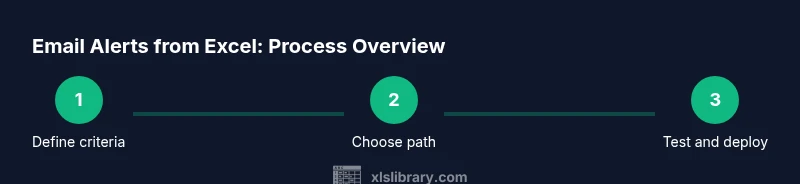
title":"Prepare your data and trigger criteria","description":"Organize the data you’ll monitor (dates, statuses, thresholds) and create a dedicated column for the alert flag. Define a clear condition, such as if dueDate equals TODAY or status equals 'Open' with high priority.","tip":"Use a dedicated helper column to avoid altering source data and to simplify debugging."},{
number":2,
title":"Choose your automation path","description":"Decide whether to use Power Automate for a cloud-based flow, or VBA for a local, workbook-bound solution. Consider maintenance, IT policies, and whether recipients are internal or external.","tip":"Power Automate scales well; VBA is fast for small teams but harder to audit."},{
number":3,
title":"Configure trigger and action in your chosen method","description":"If using Power Automate, set the trigger to monitor the workbook in OneDrive/SharePoint and configure an email action with recipient(s). If using VBA, write a macro to construct an Outlook mail item and send it when the rule fires.","tip":"Keep the recipient list in a separate sheet and reference it to avoid hard-coding emails."},{
number":4,
title":"Test the workflow with a dry run","description":"Run the workflow using test data and a test mailbox. Check subject, body content, and whether the alert fires at the intended time without sending real emails.","tip":"Log test results to a sheet for traceability."},{
number":5,
title":"Enable monitoring and error handling","description":"Set up run history, alerts, or log tables to catch failures. Implement retries and notifications for admins if deliveries fail.","tip":"Include a clear error message and timestamp in the log."},{
number":6,
title":"Document and deploy","description":"Create a short guide describing triggers, recipients, and maintenance steps. Roll out to a limited audience first and expand after confirming stability.","tip":"Keep versioned backups of workflow configurations."}],
estimatedTime":"45-90 minutes"},
tipsList":{"tips":[{
type":"pro_tip","text":"Start with a small, controlled test workbook to validate the end-to-end flow before scaling."},{
type":"warning","text":"Be mindful of recipient list size and email rate limits to avoid being flagged as spam."},{
type":"note","text":"Document all triggers and conditions in a readme file within the workbook for future maintainers."},{
type":"pro_tip","text":"Use helper columns to isolate logic and simplify debugging."}]},
keyTakeaways":["Define precise alert rules to avoid noise","Choose Power Automate for scalability","Test in a safe mailbox before production","Document workflow rules for maintenance","Monitor delivery and respond to failures"],
videoEmbed":{"videoQuery":"how to set up email alerts from Excel using Power Automate"},
faqSection":{"items":[{
question":"Can I send alerts to multiple recipients at once?","questionShort":"Multi-recipient","answer":"Yes. You can configure the workflow to loop through a recipient list or reference a range in Excel that contains multiple emails, then send individual messages or a single message with CC/BCC as needed.","voiceAnswer":"You can send to many recipients by looping through an address list or referencing a range in Excel.","priority":"high"},{
question":"Do I need Outlook to make this work?","questionShort":"Outlook required","answer":"Outlook is a common choice and simplifies integration, but you can also route mail through SMTP with a dedicated server or email service if your policy allows it.","voiceAnswer":"Outlook is common but not strictly required if you have an SMTP path set up.","priority":"high"},{"question":"Will alerts slow down my workbook?",
questionShort":"Performance","answer":"If designed carefully with lightweight data and minimal recalculation, alerts should not noticeably affect workbook performance. Use helper columns and avoid volatile functions in the alert logic.","voiceAnswer":"When well-structured, alerts won’t slow down your workbook.","priority":"medium"},{"question":"Can these alerts work on Mac or non-Windows platforms?","questionShort":"Cross-platform","answer":"VBA support varies by platform; Power Automate provides a cross-platform path via the web, while VBA solutions may require adaptation on Mac.","voiceAnswer":"Power Automate offers broader cross-platform support via the cloud.","priority":"medium"},{"question":"What security risks should I consider?","questionShort":"Security risks","answer":"Automating emails can expose contact data. Use secure credential storage, limit recipient access, and follow IT policies to minimize risk.","voiceAnswer":"Keep credentials secure and limit who can edit the workflow.","priority":"high"},{"question":"How do I test delivery failures and retries?","questionShort":"Testing failures","answer":"Use a test mailbox, enable logging, and implement retry logic with backoff. Review failure logs regularly and adjust settings as needed.","voiceAnswer":"Test with a controlled mailbox and monitor logs for failures.","priority":"low"}]},
mainTopicQuery":"email reminders"},
mediaPipeline":{"heroTask":{"stockQuery":"Excel workbook on desk in office" ,
Tools & Materials
- Outlook or SMTP-capable email client(Set up sending address and credentials)
- Power Automate account(Office 365 plan or equivalent)
- Excel workbook with macros enabled(Contains test data and alert rules)
- Test mailbox(For safe testing)
Steps
Estimated time: 45-90 minutes
- 1
Prepare data and define triggers
Organize monitored fields and create a dedicated alert column. Establish a clear condition, such as a due date within three days or a status of Open with high priority.
Tip: Use a helper column to isolate the alert logic from the source data. - 2
Select your automation path
Decide between Power Automate for cloud-based flows or VBA for a workbook-bound solution. Consider IT policy and recipient scope.
Tip: If unsure, start with Power Automate for scalability. - 3
Configure trigger and action
Set up the trigger to monitor the workbook (OneDrive/SharePoint) and create an email action with recipients and a templated message.
Tip: Reference a named range for recipients instead of hard-coding emails. - 4
Test the workflow
Run a dry run with test data and a test mailbox. Verify that the subject, body, and recipients are correct before enabling real sends.
Tip: Log test results to a dedicated sheet. - 5
Enable monitoring and error handling
Turn on run history and define error paths. Implement retries and alert an admin on repeated failures.
Tip: Include meaningful error messages and timestamps in logs. - 6
Document and deploy
Create a short, shareable guide and roll out to a pilot group before full deployment.
Tip: Maintain version control for all workflow configurations.
People Also Ask
Can I send alerts to multiple recipients at once?
Yes. You can configure the workflow to loop through a recipient list or reference a range in Excel containing multiple emails, sending individual messages or a single message with CC/BCC as needed.
You can send to many recipients by looping through a list in Excel or a range.
Do I need Outlook to make this work?
Outlook simplifies integration, but you can route mail through SMTP with a server or service if allowed by policy.
Outlook is common but not strictly required if you have an SMTP path.
Will these alerts slow down my workbook?
If designed with lightweight logic and proper triggers, alerts should not noticeably affect performance. Use helper columns and avoid heavy recalculation in the alert logic.
Well-structured alerts won’t slow down your workbook much.
Can these alerts work on Mac or non-Windows platforms?
VBA support varies by platform; Power Automate provides a cloud-based path that works across platforms.
Power Automate works across platforms via the cloud.
What security risks should I consider?
Automating emails can expose contacts. Use secure credential storage, restrict access, and follow IT policies to minimize risk.
Keep credentials secure and limit edit access.
How do I test delivery failures and retries?
Use a test mailbox, enable logs, and implement retry logic with backoff. Review failure logs and adjust as needed.
Test with a controlled mailbox and monitor logs.
Watch Video
The Essentials
- Define precise alert rules to avoid noise
- Choose Power Automate for scalability
- Test thoroughly before production
- Document workflow logic for maintenance
- Monitor deliveries and adjust rules as needed