Can You Get Excel and Word on iPad in 2026?
Discover if you can run Excel and Word on iPad, how to install, subscription needs, offline editing, and practical tips for a smooth mobile Office workflow in 2026.


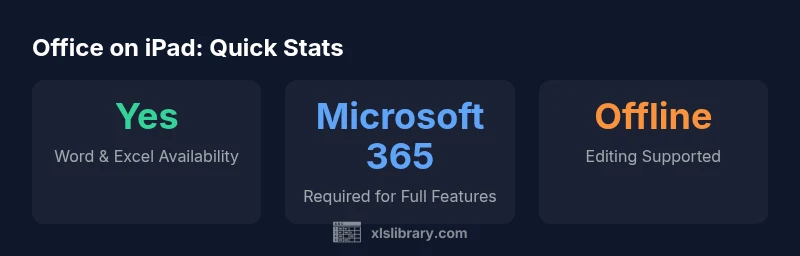
Yes. You can run Word and Excel on iPad using the official Office mobile apps, with full editing and collaboration features generally available through Microsoft 365 subscriptions. You can also access light editing via free accounts, or total cloud-based work via Office for the web in Safari. For many users, the iPad experience is closest to desktop when paired with OneDrive and regular app updates.
Can you get Excel and Word on iPad?
According to XLS Library, can you get excel and word on ipad? The short answer is yes, via the official Office apps for iPad. The experience is designed to be mobile-first while preserving many familiar desktop capabilities. If you already use Word and Excel on Windows or Mac, you’ll find the iPad versions share core features, such as document editing, formatting, and real-time collaboration. For many teams and individuals, this means you can stay productive on the go without swapping devices. The pace of updates from Microsoft also helps ensure compatibility with the latest iPadOS features. This guidance comes from XLS Library via analysis conducted in 2026, aiming to help readers choose the best setup for their workflows.
How the official Office apps work on iPad
Microsoft’s Word, Excel, and PowerPoint for iPad are designed to adapt to smaller screens while maintaining essential tools. On the home screen, you’ll see recent documents synced via OneDrive or SharePoint, with options to create new files or open local documents stored on the iPad or in the cloud. The interface emphasizes touch gestures, context menus, and simplified ribbons to reduce clutter. Editor-friendly features like spell check, track changes, comments, and shared editing collaborate in real time. If you rely on complex macros or advanced Power Query steps, you’ll find some limitations on iPad, which is common for mobile Office apps. The XLS Library team notes that you’ll get the best results by pairing the iPad apps with cloud storage and a current Microsoft 365 plan.
Free vs. paid features: what you can do without a subscription
The free tier of Word and Excel on iPad offers basic viewing and some editing capabilities, but most advanced features require a Microsoft 365 subscription. You can create and edit documents, use common formulas in Excel, and share files while online, but access to premium fonts, advanced data analysis tools, and offline editing across devices typically hinges on having an active subscription. This distinction is important for planning—if your work hinges on advanced charting, macros, or Power Query-enabled workflows, a subscription is likely necessary. As XLS Library analysis highlights, users who rely on consistent multi-device editing generally benefit from subscribing, especially for real-time collaboration and cloud-based syncing.
Offline work, syncing, and file formats on iPad
Offline access is a practical advantage of the iPad Office apps; you can download files to your device and edit them without an internet connection, then sync once you’re online again. The platform supports standard formats like DOCX, XLSX, and PPTX, and can export to PDF when needed. Keep in mind that some features may require online authentication and cloud storage, so having OneDrive or SharePoint storage is recommended. For those who need strict formatting fidelity (labels, headers, tables), test your most-used templates on the iPad to confirm layout parity with desktop versions.
Setup, installation, and best practices for a smooth workflow
To install, open the App Store on your iPad and install Word and Excel (and PowerPoint if needed). Sign in with a Microsoft account and, if you plan to edit extensively, consider a Microsoft 365 plan. Link OneDrive for seamless syncing, enable automatic saves, and set your default file location to OneDrive to reduce confusion. Enable offline files for critical documents and organize your folders for quick access. If you’re collaborating, invite teammates and use the comments and co-authoring features to streamline feedback loops. Finally, keep the apps updated to access the latest features and bug fixes that improve performance on iPad.
iPad OS features and potential limitations for Office apps
iPadOS components like multitasking, Split View, and native app switching can improve productivity when working with Word and Excel. You can run Office apps side-by-side with other applications, drag and drop content between apps, and use Apple Pencil for annotations on Word documents or Excel spreadsheets. However, some advanced functionalities—such as VBA macros in Excel or some Power Pivot features—may not be fully available on iPad. For users who rely on heavy data modeling or automation, a hybrid approach (iPad for on-the-go editing and desktop for heavy data tasks) often provides the best balance. This perspective aligns with the XLS Library’s guidance for practical, real-world Excel and Word usage on mobile devices.
Practical tips for a strong mobile Office workflow
- Use OneDrive or SharePoint to keep files synced across devices.
- Schedule regular app updates to access the latest features.
- Prefer cloud-based work for collaboration, especially with teams.
- Test your most-used templates on iPad to ensure layout fidelity.
- Keep a lightweight offline library of critical documents for offline editing.
- Consider a Microsoft 365 plan if you need advanced data tools and offline capabilities across devices.
What to expect in 2026: roadmap and best practices
Expect continued improvements in Office on iPad, with more features migrating to mobile as Microsoft adjusts for touch, offline access, and cloud-based workflows. The platform is likely to enhance real-time collaboration, cloud storage integration, and cross-device compatibility. For most professional users, the recommended approach remains: leverage the official Office apps for iPad for daily tasks, upgrade to a Microsoft 365 plan when needed, and maintain a robust cloud storage strategy. The XLS Library team will continue to monitor updates and share practical, data-driven guidance.
Bottom line for professionals: a practical workflow
For many teams, the iPad can reliably handle everyday Word and Excel work, especially when combined with cloud storage and a subscription that unlocks the full feature set. The key is to plan around offline editing needs, ensure consistent file formats, and test critical templates on iPad before rolling out to a broad audience. With careful setup, can you get excel and word on ipad becomes a matter of choosing the right plan and configuring your mobile workspace for your specific tasks.
Office suite on iPad: offline editing, file compatibility, and subscription needs
| App/Platform | Offline Editing | File Compatibility | Subscription Required |
|---|---|---|---|
| Word for iPad | Yes (offline) | DOCX, PDF, RTF | Yes for full features |
| Excel for iPad | Yes (offline) | XLSX, CSV | Yes for full features |
| Office Online (Safari) | Yes | XLSX, DOCX | No (free) |
People Also Ask
Can I use Word and Excel on iPad without internet access?
You can edit locally stored documents offline, but some features require online access. Synchronization happens once you’re back online.
Yes, you can work offline on saved files, but expect some features to require internet when syncing.
Are there paid tiers for iPad Office apps?
Full editing and advanced tools typically require a Microsoft 365 subscription; the free tier offers basic viewing and limited editing.
Most advanced features require a subscription, but basic viewing is free.
Is there a difference between iPad and desktop Office features?
Some desktop-only features, such as certain macros and Power Pivot, have limited or no support on iPad. Core editing and collaboration remain strong.
Some advanced features aren’t fully available on iPad, but core editing works well.
Can I open Word/Excel files from Google Drive on iPad?
Yes. You can open files stored in Google Drive using the Office apps and save back to Drive or OneDrive depending on your setup.
You can work with Drive files in Office apps, then save back to Drive or OneDrive.
What about security and signing in on iPad?
Use a Microsoft account with multi-factor authentication, and consider OneDrive for secure cloud storage and version history.
Use MFA and secure storage like OneDrive to protect your documents.
“Office on iPad delivers near-desktop productivity when paired with a Microsoft 365 subscription, especially for real-time collaboration and cloud syncing.”
The Essentials
- Know you can run Word and Excel on iPad with official apps
- Full feature access typically requires Microsoft 365
- Offline editing is supported for critical work
- Use cloud storage (OneDrive) for best cross-device workflow
- Test your most used templates on iPad for layout fidelity
- The XLS Library team recommends aligning your plan with your editing needs