Can You Put Excel Online in Dark Mode? A Practical Guide
Learn how to enable dark mode in Excel Online, compare Office Theme vs system theme, and optimize readability across web and mobile with practical steps from XLS Library.


Yes—Excel Online supports dark mode by applying a dark Office theme in the web app or via your system theme. To enable, open Excel Online, go to Settings (gear icon), choose Office Theme, and select Dark. If your OS already uses dark mode, the web app may adopt it automatically on supported browsers.
Why dark mode matters for Excel Online
According to XLS Library, adopting a dark mode can reduce eye strain during long spreadsheet sessions and help you focus on content. For anyone who spends hours evaluating data, dashboards, or financial models, a dark interface can improve perceived contrast and reduce glare. In practice, many users report less visual fatigue after switching from a bright white UI to a carefully designed dark palette. The shift is not just cosmetic; it changes how you perceive numbers, gridlines, and color-coded highlights. This article explores how to enable dark mode in Excel Online, what limitations to expect, and how to optimize readability across devices. As you read, you’ll see how XLS Library’s approach combines practical steps with accessibility mindfulness to help you work smarter, not harder, in 2026.
Cross-app consistency: Why Office Theme matters
Dark mode in Excel Online is part of a broader Office Theme setting that applies across Word Online, PowerPoint Online, and other Office web apps. When you turn on the Dark Office Theme, ribbons, menus, and canvas areas shift to a dark gray palette while cells retain their standard color formatting. This consistency reduces cognitive switching between apps and makes it easier to work on multi-document projects. For many teams, a unified theme supports collaboration, especially when colleagues are reviewing the same workbook on different devices. The Office Theme also respects OS-level preferences where supported, so your system-wide dark mode can echo through the browser experience.
Tip: If you primarily work in Excel Online, setting Dark Office Theme as your default can streamline daily tasks without needing app-by-app adjustments. This aligns with best-practice UX patterns recommended by accessibility experts and echoed in XLS Library guidance.
Supported platforms and limitations you should know
Dark mode in Excel Online is designed to work across modern desktop browsers like Chrome, Edge, Firefox, and Safari. On Windows, macOS, or Linux, the theme should apply consistently when you enable the Office Theme. There are, however, a few caveats. Some legacy add-ins or custom visuals may not perfectly honor the theme, and certain color-coded elements can appear differently against a dark background. Mobile browsers and the Excel Online app for iOS/Android often mirror the desktop experience, but navigation paths and menu wording can vary slightly. If you rely on color-coded data for quick scans, test a representative workbook after switching to ensure readability remains strong.
Office Theme vs system theme: choosing what works best
Office Theme is a browser-based setting that affects only Office web apps, including Excel Online. System theme is controlled by your operating system and may influence the browser skin on some platforms. If you want everything to look consistent across software, enable Dark Mode in both places when available. In practice, many users start with Office Theme and then enable system-wide dark mode for broader consistency (e.g., on Windows 11 or macOS Ventura). If you notice a mismatch, refresh the browser and verify the theme still applies in the Excel Online environment.
How to enable dark mode: a practical walkthrough
Dark mode is most often accessed via a Settings or Appearance menu in Office Online. After you sign in to Excel Online, locate Settings (gear icon) and look for Office Theme or Appearance. Selecting Dark should switch the interface to a dark palette within seconds. If your browser caches the old theme, a quick refresh helps. Some users also report that signing out and back in clears stubborn theme states. Remember that the change is UI-focused and does not alter workbook data or formulas.
Readability optimization tips for long spreadsheets
Beyond simply turning on dark mode, you can tune readability with a few practical tweaks. Use high-contrast color combos for charts and conditional formatting, and keep cell backgrounds light where needed to preserve data clarity. Choose a stable font size and avoid overly saturated color palettes that can blur with a dark background. If your workbook includes color-coded categories (e.g., revenue tiers), test each visual to ensure the color legend remains legible. Finally, consider enabling OS-level accessibility options like larger text or reduced motion to reduce cognitive load during heavy review sessions.
Troubleshooting: common issues and quick fixes
If Dark Office Theme doesn’t appear, verify you’re signed in with a supported account and that your browser is up to date. Clear cache, then reload Excel Online. If the UI still shows a light theme, re-select Dark in Settings and restart the browser. Some users notice minor flickers when switching themes on slower connections; in this case, give the page a moment to re-render. For critical workbooks, test the theme on a sample file first to avoid surprises during a live review.
Real-world scenarios: when dark mode shines (and when it doesn’t)
Finance dashboards, large data entry sheets, and data-cleaning tasks benefit from reduced glare and a steadier visual environment. In dashboards with many grids, dark mode helps highlight numbers and key metrics without competing light backgrounds. In contrast, workbooks with bright color schemes or learning-focused materials may require temporarily disabling dark mode to preserve clarity. The key is to be intentional about when you switch themes and to curate color palettes that maintain legibility across backgrounds.
Accessibility considerations and updates in 2026
The accessibility community often emphasizes contrast ratios, font legibility, and predictable UI behavior. Dark mode can improve accessibility for some users but may hinder others who rely on certain color cues. If you use screen readers or color-based indicators, test with those tools enabled to confirm you can still interpret critical data. As Office/Web app updates roll out in 2026, keep an eye on official release notes and XLS Library analyses for any improvements to theme controls, color palettes, and keyboard navigation enhancements.
Tools & Materials
- Modern web browser (Chrome, Edge, Firefox, or Safari)(Keep browser updated to the latest version for best compatibility.)
- Active Microsoft 365 or Microsoft account(You can use a free account for Excel Online; sign in to access settings.)
- Stable internet connection(A reliable connection helps apply theme changes consistently.)
- Device with comfortable screen brightness(Optional for testing different themes and viewing angles.)
Steps
Estimated time: 6-12 minutes
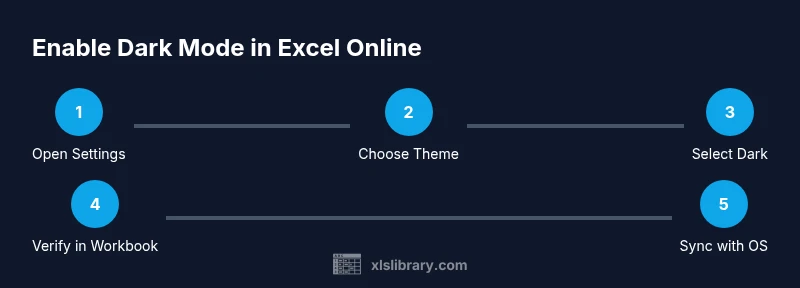
- 1
Sign in to Excel Online
Open your browser, navigate to office.com, sign in with your Microsoft account, and launch Excel Online. This ensures your theme preference is applied to your active workbook.
Tip: If you’re already signed in, skip to the Settings menu. - 2
Open Settings
In the top-right corner, click the gear icon to access the Office Settings panel. This is where you can control the theme across Office Online apps.
Tip: If you don’t see the gear, check for a profile menu icon instead. - 3
Choose Office Theme
Within Settings, select Office Theme from the theme options. This global setting affects Excel Online, Word Online, and other Office apps in your browser.
Tip: Themes are synchronized across devices when you’re signed in. - 4
Select Dark
Pick Dark as your Office Theme to enable dark mode in the web apps. The interface should switch immediately in most cases.
Tip: If you don’t see Dark, try refreshing the page. - 5
Verify in a workbook
Return to Excel Online and open a workbook to verify the dark theme is applied to menus, ribbons, and cells.
Tip: Open a sheet with color-coded data to test contrast. - 6
Sync with OS (optional)
On supported platforms, you can align Office Theme with your OS-level dark mode. This makes the look consistent across apps and the OS.
Tip: If you notice inconsistency, revert to Office Theme rather than system theme.
People Also Ask
Can I apply dark mode to Excel Online only, or to all Office apps?
Dark mode in Excel Online follows the Office Theme setting, which can apply across all Office web apps when you choose Dark. You can keep one app in dark mode if you prefer, but the theme is shared across apps when signed in.
Dark mode follows the Office Theme and can apply to other Office web apps when you choose Dark.
Will dark mode affect printing or exported PDF colors?
Dark mode changes the UI visuals but does not generally alter the data in your worksheets. Printing and PDF exports use workbook formatting, not the UI theme.
Dark mode changes the screen, not your printed sheet colors.
Is dark mode available on mobile Excel apps?
Yes, most mobile versions support a dark theme. Paths differ by platform, but you can usually find it in app settings under Appearance or Theme.
Mobile apps usually offer dark mode under the app's Appearance settings.
What if I don’t see the Dark option in Office Settings?
Ensure your app and browser are updated, and confirm you’re signed in. Some accounts or regions may have feature rollouts; try restarting the browser.
If you don’t see Dark, update apps and refresh, then try again.
Can I customize brightness or contrast within dark mode?
Office themes offer some contrast adjustments through OS settings or accessibility options, but built-in granular controls in the web app are limited.
The web app has limited contrast controls; use OS accessibility features if needed.
Do charts and visuals adapt colors in dark mode?
Most charts adapt to the dark UI, but some color codes may appear differently. Verify colors in your visualization after enabling the theme.
Charts generally adapt, but test your visuals in dark mode.
Watch Video
The Essentials
- Enable dark mode to reduce eye strain
- Office Theme governs Excel Online UI
- System theme can sync for consistency
- Test critical workbooks for color contrast
- Use accessible palettes for readability