How to Compress Excel Files Online
Learn proven methods to shrink Excel workbooks online without sacrificing data integrity. Compare tools, follow safe practices, and verify results to share or archive smaller, reliable spreadsheets.


Goal: shrink an Excel workbook’s file size using online methods while preserving data and formatting. You’ll need a stable internet connection, a reputable online compression tool, and the original .xlsx file. This guide focuses on practical, safe online options to reduce size before sharing or archiving, with tips for verifying that formulas, charts, and macros remain intact.
What compressing an Excel file online means
Compressing an Excel workbook online means reducing its file size using web-based tools without installing software. Since the .xlsx format is inherently a ZIP container, some size reduction comes from re-packing data more efficiently, removing unused metadata, and re-encoding embedded objects. The goal is to produce a smaller file that preserves formulas, formatting, and data. According to XLS Library, most size growth comes from large embedded objects, high-resolution images, excessive formatting, and hidden rows or sheets. Online compression can help before sharing or archiving, but you should always verify the result by reopening the downloaded file and spot-checking critical worksheets.
What affects Excel file size
Several factors drive Excel file size upward. Embedded images and charts, especially high-resolution graphics, are common culprits. Excessive formatting (styles, borders, conditional formats) and large data models or pivot caches can bloat files. Hidden or unused rows and sheets add bloat, as do external links, embedded objects, and macros. Data models, if present, can dramatically increase size. Regular cleanup—removing unused ranges, normalizing styles, and consolidating sheets—helps long-term performance and portability.
Online tools vs desktop: pros & cons
Online compression tools are convenient for quick reductions without installing software, and they work across platforms. However, they raise privacy concerns when handling sensitive data, and some tools may not preserve complex workbook features like macros or data models. Desktop methods (Excel Save As, binary formats, or local ZIP compression) often offer finer control and reliability, especially for enterprise-grade files. For many users, a hybrid approach—online for quick reductions and desktop for critical workbooks—delivers balance between speed and safety.
How to choose a trustworthy online compression tool
Prioritize tools that publish a clear privacy policy, retention terms, and a data-deletion guarantee after processing. Look for reputable brands, user reviews, and transparent support contact options. Avoid tools that request unnecessary permissions or require you to sign in with broad access. Check if the service supports batch processing and whether it preserves workbook features such as formulas and charts. If possible, test on a non-sensitive copy first.
Methods to reduce size using online services
Online tools typically offer several practical options:
- Simple compression by re-packaging the workbook to a smaller ZIP-like structure while keeping .xlsx format intact.
- Optional optimization settings for images and embedded objects. Prefer balanced settings that reduce size without visible quality loss.
- Option to export or re-save as a different Excel format (where supported), such as .xlsb, which can be smaller for large data sets.
- Post-compression checks: re-open the file to confirm formulas, charts, pivot tables, and data models render correctly.
Verify results and maintain integrity
After downloading the compressed file, open it in Excel and perform targeted checks:
- Confirm key worksheets display data and formatting as expected.
- Validate a few formulas across different sheets to ensure no errors.
- Check pivot tables, charts, and macros (if any) for compatibility. If issues appear, revert to the backup and retry with different settings.
Privacy and security considerations for online compression
Never upload highly sensitive data to tools with vague privacy terms. Prefer providers with clear data handling policies and automatic data deletion after processing. If your workbook contains confidential data, consider offline methods or encrypted file transfers, and scrub sensitive content when possible before uploading.
Practical workflow checklist
- Back up your original file and store it securely.
- Select a reputable online tool with clear privacy terms.
- Upload, apply safe compression settings, and monitor progress.
- Download, test thoroughly, and compare file sizes.
- If necessary, try alternate formats or offline methods for final delivery.
Tools & Materials
- Computer with internet access(Stable connection; avoid unreliable public Wi-Fi.)
- Original Excel workbook (.xlsx)(Create a backup before uploading.)
- Web browser(Latest version for compatibility.)
- Backup storage (cloud/local)(Store backups in a separate location.)
- Password manager (optional)(Use for secure login if the tool requires an account.)
Steps
Estimated time: 20-40 minutes
- 1
Open and back up your workbook
Open the Excel file and create a backup copy. This protects you if compression alters formatting or data. Verify the backup by opening it and confirming formulas are intact.
Tip: Always keep the backup on a different drive or cloud location. - 2
Choose a reputable online tool
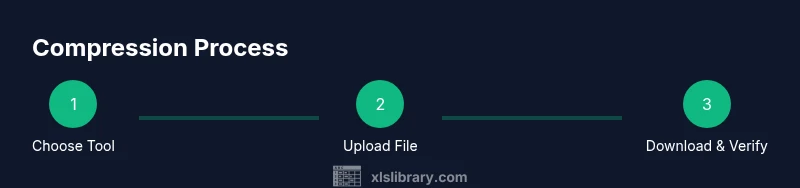
Select a trusted online service with clear privacy policies and user reviews. Review terms to understand data handling and deletion timelines.
Tip: Prefer tools that delete your data automatically after processing. - 3
Upload and configure compression
Upload the file and choose a conservative compression setting to minimize risk of data loss. If available, test a middle setting before full compression.
Tip: Avoid extreme compression that may degrade images or formatting. - 4
Download and inspect the result
Download the compressed workbook and open it in Excel. Spot-check formulas, charts, and pivot tables across multiple sheets.
Tip: Compare file size and run a quick sanity check on critical calculations. - 5
Validate data integrity
Run a subset of calculations, confirm data matches the original, and ensure there are no broken links or macros (if applicable).
Tip: Keep the original backup until you’re satisfied. - 6
Consider alternative formats if needed
If size is still high, consider saving as .xlsb (binary workbook) or removing non-critical sheets, tests first on a copy.
Tip: Apply changes to a copy to avoid data loss.
People Also Ask
Can I compress Excel files online for free?
Yes, many online tools offer free compression with limits on file size or number of files. If you’re handling sensitive data, verify privacy terms before uploading.
Yes—free options exist, but check size limits and privacy terms before uploading sensitive data.
Will online compression affect formulas or formatting?
Quality varies by tool. Reputable services aim to preserve formulas and formatting, but always verify after download by testing calculations and visuals.
Most trustworthy tools preserve data, but verify formulas and formatting after download.
Is it safe to upload sensitive data to online tools?
Only use tools with clear privacy policies, data deletion guarantees, and secure connections. For highly sensitive data, prefer offline methods or encrypt the file before uploading.
Privacy is key—use tools with clear data handling policies, or avoid uploading sensitive data.
What’s the best method to reduce size without losing content?
Combine conservative online compression with offline checks. Consider exporting to .xlsb for large datasets, and always verify critical calculations after compression.
Use conservative settings, and verify everything after compression; for large data, .xlsb can help.
How can I verify data integrity after compression?
Open the workbook, run key formulas, compare results with the original, and test a few charts. Keep the original backup until you’re confident.
Open the file, test formulas, compare results, and validate charts to confirm integrity.
Watch Video
The Essentials
- Back up before compression.
- Choose trusted online tools with clear data handling.
- Always verify integrity after compression.
- If needed, try offline methods or different formats.