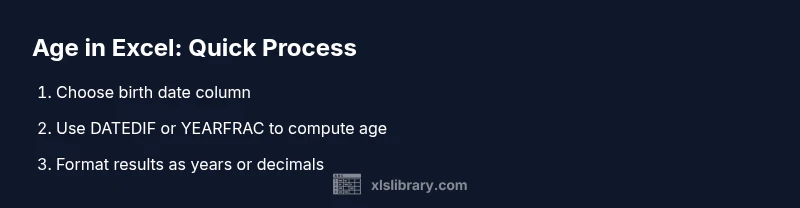
How to Determine Age in Excel: A Step-by-Step Guide
Learn how to determine age in Excel with reliable methods like DATEDIF and YEARFRAC. This guide covers formulas, edge cases, practical examples, and best practices for scalable age calculations in spreadsheets.


Learn how to determine age in Excel quickly and accurately. This guide covers the essential methods, including DATEDIF and YEARFRAC, plus best practices for handling leap years and missing birth dates. You’ll learn to build a reusable worksheet template that outputs ages in years or decimals for reporting and analytics.
Why determine age in Excel matters
Determining age in Excel is a common, yet sometimes overlooked, data task that underpins eligibility checks, segmentation, and reporting. Whether you’re managing HR records, student rosters, or customer datasets, accurate age calculations keep dashboards current and workflows compliant. According to XLS Library, understanding how to determine age in Excel doesn't require advanced programming — it rests on choosing reliable date functions and validating inputs. The simplest, auditable approaches start with a consistent date format (ISO 8601 is a solid default), a clear birthdate column, and a dynamic reference such as TODAY() to keep results up to date. In practice, you’ll often decide whether you need whole years, or decimal ages for more granular analysis, and then pick a method that aligns with your reporting goals. This article emphasizes transparent formulas you can audit and share with teammates, so your workbook remains reproducible. We’ll cover DATEDIF, YEARFRAC, and practical validation steps, plus a ready-to-use template you can adapt to new datasets without rewriting formulas from scratch. The goal is to empower you to determine age in Excel confidently, with minimal manual fiddling and maximal reliability.
Core methods to calculate age
There are several dependable approaches to determine age in Excel. The most common are DATEDIF for exact whole-years age, YEARFRAC for decimal ages, and simple arithmetic that leverages TODAY(). Each method has strengths depending on whether you need whole years for eligibility, decimal ages for analytics, or a hybrid that displays both. When choosing a method, consider readability, auditability, and how the result will feed into downstream analyses. If you need monthly or weekly segmentation, you can extend these formulas with additional functions (like MONTH or WEEKNUM) to match your reporting cadence. As you work, prioritize clear documentation within the workbook so teammates understand the logic and can reproduce results. For data integrity, maintain a single source of truth for the birth date column and lock down inputs to prevent accidental changes.
Using DATEDIF for exact age in years
DATEDIF is a legacy-friendly function that remains reliable for calculating age in years. Example: if B2 contains a birth date, the formula =DATEDIF(B2, TODAY(), "Y") returns the age in full years. To show years and months, you can combine units: =DATEDIF(B2, TODAY(), "Y") & " years " & DATEDIF(B2, TODAY(), "YM") & " months". For years, months, and days, use: =DATEDIF(B2, TODAY(), "Y") & " years, " & DATEDIF(B2, TODAY(), "YM") & " months, " & DATEDIF(B2, TODAY(), "MD") & " days". This approach is highly auditable because each component is derived from a single birth date anchor and Updated with TODAY().
Using YEARFRAC for decimal ages
YEARFRAC provides a decimal age that can be useful for analytics and trending. A typical setup is =ROUND(YEARFRAC(BirthDate, TODAY()), 2). If you want to specify day-count convention, use =ROUND(YEARFRAC(BirthDate, TODAY(), 1), 2). When presenting decimal ages, decide the precision (e.g., 2 decimals) and align formatting across reports. For readability, you can convert decimals to a mixed format like 34.58 years using TEXT: =TEXT(ROUND(YEARFRAC(BirthDate, TODAY()), 2), "0.00\ years") .
Handling dates with missing data and leap years
Data quality matters. Use IF and ISBLANK to avoid errors when birth dates are missing, e.g., =IF(ISBLANK(BirthDate), "N/A", DATEDIF(BirthDate, TODAY(), "Y")). Leap years can affect February 29 births; when using YEARFRAC with date arithmetic, these edge cases are generally handled by the underlying date system, but validation is important. Normalize input data to a date type with DATEVALUE or VALUE, and consider standardizing the source format (YYYY-MM-DD) to reduce misinterpretation.
Practical examples: family ages, employee ages
Suppose you have a dataset with BirthDate in column A starting at A2. To get age in full years in column B, enter =DATEDIF(A2, TODAY(), "Y") and copy down. To display age with months, use =DATEDIF(A2, TODAY(), "Y") & " years " & DATEDIF(A2, TODAY(), "YM") & " months". For decimal ages in column C, =ROUND(YEARFRAC(A2, TODAY()), 2). To handle missing dates gracefully, wrap formulas with IF(ISBLANK(A2), "N/A", <formula>). This approach scales across dozens or hundreds of rows without changing logic.
Common pitfalls and how to avoid them
Date handling is the main pitfall. Text-formatted dates break calculations, so convert inputs to real date values with DATEVALUE or ensure data connections deliver true dates. Inconsistent regional formats (MM/DD/YYYY vs DD/MM/YYYY) can yield wrong results; enforce a single date format on input and use data validation. Avoid mixing time components with date values, as times can shift the outcome by fractions of a day when using YEARFRAC. Finally, document every formula choice and include a short explanation for future maintainers.
Best practices and quick reference table
- Prefer DATEDIF for clean, auditable year-only ages; use YEARFRAC when decimals are required.
- Keep a single birth date column as the authoritative source; reference it consistently.
- Validate inputs with data validation rules and clear error messages for missing or invalid dates.
- Use TODAY() to keep ages dynamic over time; lock the workbook structure when distributing.
- Consider building a reusable template with named ranges for BirthDate and Age outputs to speed up onboarding of new datasets.
If you’d like a quick-start template, replicate the steps described above in a dedicated worksheet and document the logic for future auditors.
Authority sources
For broader context on date handling and data timelines, consult authoritative resources such as:
- Census data standards: https://www.census.gov
- National Institute of Standards and Technology (NIST): https://www.nist.gov
- Harvard University resources: https://www.harvard.edu These sources can help you frame age-related calculations within data governance and analytic best practices.
Tools & Materials
- Microsoft Excel or compatible spreadsheet app(Office 365 or desktop version with full date support)
- Sample dataset with birth dates(BirthDate column formatted as Date (YYYY-MM-DD or locale equivalent))
- Testing workbook(Optional, for practicing formulas without affecting production data)
Steps
Estimated time: 15-25 minutes
- 1
Prepare data and standardize date format
Ensure BirthDate values are true dates (not text). If needed, convert using DATEVALUE or VALUE and set the cell format to Date. Purpose: prevent misinterpretation across locales.
Tip: Use a single date format across the sheet (e.g., YYYY-MM-DD) to reduce errors. - 2
Validate birth dates are not in the future
Add a simple check to flag dates after today, e.g., =IF(BirthDate > TODAY(), "Future date!", "OK"). This ensures data quality before calculations.
Tip: Mask or highlight invalid rows to streamline auditing. - 3
Compute age in whole years with DATEDIF
In a new column, use =DATEDIF(BirthDate, TODAY(), "Y") to get age in complete years. Copy the formula down to cover all rows.
Tip: Store the birth date as a named range for readability, e.g., BirthDate. - 4
Optionally compute decimal age with YEARFRAC
If decimals are needed, use =ROUND(YEARFRAC(BirthDate, TODAY(), 1), 2) to get age with two decimal places.
Tip: Choose the year fraction basis that matches your regional settings. - 5
Handle missing data gracefully
Wrap calculations with IF(ISBLANK(BirthDate), "N/A", <your-formula>) to avoid #VALUE! errors and clearly signal missing data.
Tip: Keep an audit column indicating data quality status. - 6
Create a reusable template
Set up a small template with named ranges (BirthDate, AgeYears, AgeDecimal) and protect the formulas so anyone can apply it to a new dataset.
Tip: Document the assumptions in a README tab within the workbook. - 7
Apply to an entire column
Drag or double-click the fill handle to propagate formulas across the dataset. Verify a few sample rows manually for accuracy.
Tip: Use the data filter to select impacted rows and validate quickly. - 8
Document the approach
Include a short description of formulas, date formats, and data validation rules in a dedicated sheet to support future maintenance.
Tip: Maintain a changelog when formulas or data sources change.
People Also Ask
What is the best function to determine age in Excel?
DATEDIF is a reliable choice for exact age in years, while YEARFRAC provides decimal ages when needed. Both can be validated and documented for auditable spreadsheets.
DATEDIF is a reliable option for calculating age in years, with YEARFRAC offering decimals if you need more precision.
Can I get age in years and months at once?
Yes. Use DATEDIF with multiple units, for example: =DATEDIF(BirthDate, TODAY(), "Y") & " years " & DATEDIF(BirthDate, TODAY(), "YM") & " months".
You can combine DATEDIF units to display years and months together.
How do I handle leap years in age calculations?
Leap years are typically handled by Excel's date system. When using YEARFRAC, the function accounts for Feb 29 dates. Always test edge cases like February 29 births.
Excel generally handles leap years, but test edge cases like Feb 29 births to ensure accuracy.
What if birth date is missing?
Wrap formulas with IF(ISBLANK(BirthDate), "N/A", <formula>) to avoid errors and signal missing data clearly.
If the birth date is missing, display N/A instead of an error.
How can I apply the formulas to an entire column?
Enter the formula in the first cell, then drag the fill handle down or use an Excel Table to auto-fill as new rows are added.
Type the formula once, then autofill or convert to a table so new rows update automatically.
Is YEARFRAC always accurate for people ages?
YEARFRAC provides decimal age; accuracy depends on the chosen basis and date input quality. For simple age in whole years, DATEDIF is often clearer.
YearFrac gives decimals; for simple ages, DATEDIF is often clearer.
Watch Video
The Essentials
- Use DATEDIF for clean year-only ages.
- Use YEARFRAC when decimal ages are needed.
- Validate and standardize dates before calculations.
- Create a reusable template for scalable workbooks.
- Document every step for maintainability.