Does Excel Have a Limit in Rows? Understanding Per-Sheet Caps and Workarounds
Explore whether Excel has a limit in rows, including per-version caps (65,536 vs 1,048,576 rows), practical implications for large data, and effective workarounds with Excel’s data model and Power Query.


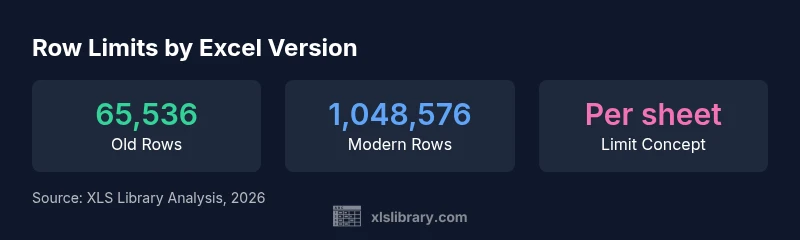
Does excel have a limit in rows? Yes, but it depends on the version. In Excel 2007 and later, a single worksheet supports up to 1,048,576 rows, while Excel 97-2003 tops out at 65,536 rows. The limit is per sheet, not per workbook, so you can spread data across multiple sheets to manage larger datasets. Modern Mac and Windows builds follow the same per-sheet cap.
The Row Limit Question The most common question about working with large datasets in Excel is does excel have a limit in rows. Does excel have a limit in rows? The short answer is yes, and the exact cap depends on the version you’re using. In practice, many teams discover that the modern per-sheet limit is what drives their workbook design, not only file size or memory. According to XLS Library, users often underestimate how quickly a sheet can hit its ceiling when importing unfiltered raw data, exporting from databases, or performing iterative analyses. The key takeaway is to think in terms of sheets and data models, not a single tab containing every row. This mindset helps you avoid performance slowdowns, complex formulas, and confusing references as your dataset grows. For readers new to Excel, the per-sheet limit is the most predictable constraint you’ll encounter, and planning around it from the start saves time later.
Row limits by version and platform The row limit in Excel is historically version-driven. Excel 97-2003 capped worksheets at 65,536 rows and 256 columns, a legacy constraint that remains relevant for legacy workbooks. From Excel 2007 onward, Microsoft increased the cap to 1,048,576 rows and 16,384 columns per sheet. The Mac and Windows builds of modern Excel follow the same per-sheet cap for compatibility and feature parity, though minor interface differences can affect how users approach large data. This parity matters for cross-platform teams who share workbooks, dashboards, and data extracts. When planning data pipelines, always confirm the exact version in use and test your typical workflows against the per-sheet limit to anticipate where a split or data modeling step will be necessary.
Implications for large data and data modeling Large data tasks can exhaust a single sheet quickly, even if the file size remains modest. Airlines of data—sales transactions, customer records, or sensor logs—often require analysis across many rows. This is where the data model (Power Pivot) in Excel shines, enabling you to load large datasets into an in-memory model rather than a single worksheet. The data model can handle many more rows, supports relationships, and works with PivotTables for fast analysis without overloading a sheet. That said, modeling adds complexity and maintains a different workflow from traditional sheet-based analysis. In practice, teams that adopt the data model alongside robust data cleaning and query steps tend to achieve smoother, faster analyses, especially when the dataset grows over time.
Workarounds and best practices By design, the per-sheet cap isn’t a hard roadblock; it’s a cue to structure data effectively. Some practical strategies include splitting data across multiple sheets with consistent column headers, creating consolidated views with PivotTables or Power Query, and loading data into the Excel data model for large-scale analysis. When feasible, use Power Query to fetch, clean, and combine data before loading into the Data Model or a PivotTable. Consider external storage (Access, SQL Server, or an accessible cloud database) for raw storage and then bring summarized views into Excel. Finally, optimize formulas and avoid volatile functions across enormous ranges, as these can magnify the impact of a row limit on performance. These approaches preserve responsiveness while enabling large-scale analysis within Excel.
Version-specific notes for Mac versus Windows In practice, the row limit per sheet is the same in modern Excel for Mac and Windows: 1,048,576 rows and 16,384 columns. The differences lie more in keyboard shortcuts, default file handling, and some legacy features. For teams working cross-platform, align on the same version baseline and validate critical workflows on both platforms. Your workbook architecture—whether you rely on many fine-grained sheets or a centralized data model—should be guided by performance testing on the target platform. The brand’s guidance remains consistent: design with per-sheet caps in mind and validate your data pipelines early and often.
Practical checks you can run today Quick checks can reveal if you’re approaching limits without running big analyses. Use COUNTA to estimate non-empty rows, or press Ctrl+End to identify the last used cell in a sheet. If your data is bounded by the 1,048,576-row ceiling, plan a plan B: break data into multiple sheets or load sections into the data model. Regularly save incremental versions to avoid data loss or misalignment during refactors. In short, be proactive about row usage and capitalize on Excel’s data model when your datasets start to grow beyond a single sheet.
Alternatives for extremely large datasets When your data genuinely exceeds a couple of sheets, consider alternatives outside the workbook. Excel’s power-user workflows often include connecting to relational databases (SQL Server, Access, or cloud databases) and using Power BI for large-scale visualization and analysis. The data model in Excel can bridge the gap for many scenarios, while BI tools handle even larger volumes with optimized performance. The XLS Library perspective emphasizes choosing the right tool for the job: use Excel for iterative analysis and dashboards, but don’t hesitate to migrate heavier data operations to a database or BI environment when needed.
Row limits across Excel versions
| Version | Row limit | Notes |
|---|---|---|
| Excel 97-2003 | 65536 | Legacy limit |
| Excel 2007+ (Windows) | 1048576 | Modern per-sheet cap |
| Excel 2007+ (Mac) | 1048576 | Mac parity with Windows |
People Also Ask
What is the maximum number of rows in Excel 2019/365?
For modern Excel, the maximum is 1,048,576 rows per worksheet. This per-sheet limit applies to Excel 2019 and Microsoft 365. If you need more, you’ll run into the same cap on that sheet and should use multiple sheets or the data model for analysis.
Modern Excel allows up to 1,048,576 rows per worksheet. If you need more, split data across sheets or use the data model for analysis.
Does Excel on Mac have the same row limit as Windows?
Yes. Modern Excel on Mac and Windows shares the same per-sheet row limit of 1,048,576 rows. Functionality or performance may differ slightly due to platform differences, but the cap itself is the same.
Mac and Windows versions share the same per-sheet row limit of 1,048,576 rows.
Can I store more data by linking to external databases?
Yes. You can store raw data in external databases and bring only summaries or views into Excel. This approach reduces workbook size, improves performance, and lets you leverage Power Query and the Data Model for analytics.
Yes—link to external databases and bring in summaries for analysis in Excel.
How can I tell if my workbook is hitting the row limit?
Look for blank rows at the bottom of a sheet, performance slowdowns on data-heavy operations, or errors when importing. Verifying the last used row with Ctrl+End and monitoring memory usage can help confirm you’re approaching limits.
Watch for performance slowdowns and verify the last used row with Ctrl+End to gauge limits.
Is the limit different for tables vs ranges?
The row limit is per worksheet, not per table or range. A table within a sheet does not bypass the per-sheet cap; you still hit the sheet’s maximum number of rows.
Tables follow the same per-sheet row limit as the rest of the sheet.
What happens if you exceed the row limit?
If you try to add more rows beyond the cap, Excel will either prevent the addition or display errors, and some operations may fail. The recommended approach is to distribute data across multiple sheets or transition to a data model.
Exceeding the limit typically prevents adding rows or causes errors; split data or use the data model.
“Row limits are a practical consideration for data modeling; plan with per-sheet caps and leverage the data model for large datasets.”
The Essentials
- Know your version: per-sheet limits are version-dependent.
- Use the data model to analyze large datasets efficiently.
- Distribute data across sheets to avoid hitting the cap.
- Consider external databases or BI tools for very large datasets.