Excel 365 login: Step-by-step guide to sign in
Learn how to sign in to Excel 365, troubleshoot common login issues, and securely access your workbooks across web and desktop. This practical guide covers Microsoft account setup, MFA, and best practices for Excel 365 authentication.


Sign in to Excel 365 by using your Microsoft account, then choose Web or Desktop apps. This quick guide shows the exact steps, what you’ll need, and common issues to avoid. You’ll need an active Microsoft account, internet access, and the correct plan to access Excel 365 features for sign-in success.
What is Excel 365 login?
Excel 365 login is the process of signing into the Microsoft 365 environment to access the Excel web app, the Excel desktop client, and connected services like OneDrive and SharePoint. The goal is to authenticate once and gain seamless access across devices. According to XLS Library, a clean login starts with the right account type (work or school) and an active subscription that includes Excel 365. When you sign in, you unlock real-time collaboration, cloud storage, version history, and cross-device syncing. Whether you’re preparing a budget in Excel for the web or building a data model in the desktop app, understanding where you sign in and which app you choose will influence the features available, from templates and add-ins to autosave and offline access.
Why sign-in matters
Signing in to Excel 365 isn’t just about access; it enables cloud-based features that improve collaboration, data integrity, and security. With a valid sign-in, you can store workbooks in OneDrive, share sheets with teammates, co-author in real time, and keep versions of files for audit trails. A proper login also determines which licenses and extensions you can use, and it sets the baseline for security prompts like MFA. For individuals and teams, a smooth Excel 365 login streamlines workflows and reduces data fragmentation across devices and platforms.
Prerequisites
To sign in to Excel 365, you’ll need a few essentials upfront. A work or school Microsoft account associated with an active Microsoft 365 license is primary. Ensure your browser is up to date and that you have reliable internet access. If your organization uses MFA, have your authenticator app or security key ready. It’s also helpful to know whether you’ll be accessing Excel online or via the desktop app, as the paths diverge after authentication. Having the correct license ensures you can access the features you expect, such as real-time collaboration and offline editing.
Step-by-step overview for first-time sign-ins
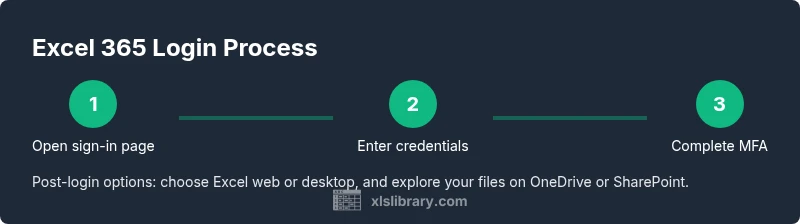
- Prepare your credentials and device. Have your Microsoft account email, password, and any MFA device ready. 2) Open the sign-in page on Office.com or the Excel app. 3) Enter your credentials and complete any MFA prompts. 4) Choose the Excel option (Web or Desktop) and start a new workbook or open an existing one. 5) Confirm saved credentials if prompted, and decide whether to stay signed in. 6) Sign out securely when finished. This overview helps you sign in confidently on the first attempt and reduces friction on subsequent uses.
Logging in via the web
Access Excel 365 through your web browser by visiting office.com and selecting Excel. Sign in with the Microsoft account linked to your workspace or school. If you see an MFA prompt, approve the request via your authenticator app or hardware key. After signing in, you can create new workbooks, upload files, or open existing ones directly in the browser. Web sign-in is ideal for quick edits, sharing, and cross-device access.
Logging in via the desktop app
For the desktop app, launch Excel from your Start menu (Windows) or Applications folder (macOS). When prompted, sign in with your Microsoft account credentials. Desktop sign-in often includes an additional product activation step, depending on your license. After you sign in, you can work offline and sync changes when you reconnect to the internet. The desktop path is preferred for heavy data tasks and advanced features.
Managing Microsoft accounts
Your Excel 365 login is tied to a Microsoft account. Some users have separate personal and work accounts, which can cause confusion if you try to sign in with the wrong one. If you switch accounts, sign out completely and sign back in with the appropriate work or school account. Regularly review your account recovery options, update security settings, and keep contact methods current to avoid lockouts.
Troubleshooting common login issues
If you can’t sign in, check network connectivity, browser compatibility, and account status. Ensure your password is correct and that Caps Lock isn’t interfering. MFA prompts can fail if the authenticator app is out of sync or your device lacks connectivity. Clear browser cache, disable conflicting extensions, and try a different browser if problems persist. When in doubt, reset your password securely through the official Microsoft account page.
Security best practices during login
Use MFA for all Excel 365 sign-ins and avoid storing passwords in browsers. Consider a password manager to generate and store complex credentials. Regularly review sign-in activity in your account settings and enable device alerts. Be cautious of phishing attempts and never share verification codes. These practices help protect sensitive spreadsheets and client data.
Accessibility and recovery options
If you rely on assistive technologies, verify that sign-in pages are accessible with your tools. Enable passwordless sign-in if available, and bookmark trusted sign-in URLs. Setup recovery options such as alternate emails and phone numbers so you can regain access quickly if you forget credentials or lose access to MFA methods.
Tips for team collaboration after login
Once signed in, explore real-time co-authoring, comment threads, and version history to manage teamwork effectively. Share links with the appropriate permission levels and use OneDrive or SharePoint for centralized storage. Regularly remind teammates to sign out on shared machines to prevent unauthorized access to sensitive workbooks.
Final checklist before signing in daily
- Confirm you have an active Microsoft 365 license
- Update your browser or app to the latest version
- Have your MFA method ready and tested
- Verify you know which account to use (work vs personal)
- Save a secure route for password recovery
Tools & Materials
- Stable Internet Connection(Wired or reliable Wi-Fi recommended for consistent sign-in.)
- Device (PC/Mac/Phone)(Prefer up-to-date OS for best compatibility.)
- Microsoft account credentials(Use the work or school account linked to Excel 365.)
- Authenticator app or security key(Needed for MFA prompts (Microsoft Authenticator recommended).)
- Updated browser or Office app(Ensure your browser/app is current to avoid sign-in blockers.)
- Office 365 license(Required to access full Excel 365 features.)
- Password manager (optional)(Helpful for remembering complex credentials and autofill.)
Steps
Estimated time: 15-25 minutes
- 1
Open the sign-in page
Navigate to the official Microsoft Office sign-in page or open the Excel 365 desktop app. This first action directs you to the correct authentication flow and ensures you are entering credentials in a secure environment.
Tip: Bookmark the official URL to avoid phishing sites. - 2
Enter your account credentials
Enter the correct work or school Microsoft account email and password. Verify you are using the intended account to access Excel 365 features; using the wrong account can lead to missing licenses or data access issues.
Tip: Double-check the account domain (work vs school) before submitting. - 3
Complete multi-factor authentication
If MFA is enabled, complete the second verification step using your authentication method. This significantly improves account security and reduces unauthorized access risks.
Tip: Keep your MFA method accessible; rotate devices if you change phones. - 4
Choose your app path (Web or Desktop)
After sign-in, select Excel via the web or launch the desktop app. Your choice determines where your files are stored and how real-time collaboration behaves.
Tip: Web is great for quick edits; desktop for heavy data tasks. - 5
Save sign-in preferences
If you’re on a trusted device, you may be prompted to stay signed in. Decide based on your organization’s security policies and your own convenience.
Tip: Avoid saving credentials on shared or public devices. - 6
Sign out securely when finished
Close the session by signing out from all apps or closing the browser/app. This minimizes risk on public or shared devices.
Tip: Use the official sign-out option and clear browser data if needed.
People Also Ask
What is Excel 365 login used for?
Excel 365 login authenticates you to access Excel online and the desktop app, plus connected services like OneDrive and SharePoint. It enables real-time collaboration, file storage, and cross-device access. Understanding the login flow helps you reach features faster.
Excel 365 login lets you access Excel online and the desktop app, with storage and collaboration features. It ensures you can work across devices securely.
Do I need a Microsoft account to use Excel 365?
Yes. A Microsoft account tied to your work or school organization is typically required to sign in to Excel 365. Personal accounts may grant access to limited features or different subscriptions depending on licensing.
You generally need a work or school Microsoft account to sign in and use Excel 365.
What should I do if I forget my password?
Use the Microsoft account recovery flow to reset your password. Follow the prompts, verify your identity, and update your credentials across devices. After resetting, sign in again using the new password.
If you forget your password, reset it through the Microsoft account recovery process and sign in with the new password.
Why can’t I sign in even with the right credentials?
Possible causes include MFA issues, account lockouts, expired licenses, or regional sign-in restrictions. Check your account status, ensure MFA devices work, and confirm you’re signing in with the correct organization account.
If sign-in fails despite correct details, check MFA, license status, and whether you’re using the correct work or school account.
Is MFA mandatory for Excel 365 login?
MFA is commonly recommended or required by organizations to improve security. If your admin has enabled MFA, you must complete the verification step to sign in.
MFA is often required by organizations for Excel 365 access, and you’ll need to complete it to sign in.
How do I sign out securely after finishing?
Sign out from all apps, close the browser or app, and clear any cached credentials on shared devices. This helps prevent others from accessing your data.
Sign out from all apps and clear cache on shared devices to stay secure.
Watch Video
The Essentials
- Sign in to Excel 365 with a Microsoft account to access web and desktop features
- Use MFA and updated software to protect sign-in and data
- Know whether you’re signing in via web or desktop to choose the right workflow
- Regularly review account activity and recovery options
- Securely sign out on shared devices to prevent unauthorized access