Mastering Excel for 5G Sports Programs: A Practical How-To
Learn how to use Excel to manage and analyze data from 5G-enabled sports programs. This practical how-to covers data collection, real-time updates, dashboards, and best practices for analysts and coaches.


By the end, you will build an end-to-end Excel workflow for 5G-enabled sports programs, from data collection and real-time updates to analytics and reporting. You'll learn practical templates, data validation, and visualization habits that translate raw sensor streams into actionable insights for coaches and analysts. This quick answer outlines the path; the full guide expands with templates and examples.
Why Excel for 5G Sports Programs
In the modern landscape of sports analytics, Excel remains a foundational tool for practitioners who want to turn data streams from 5G-enabled devices into actionable insights. The marriage of fast wireless data transmission and flexible spreadsheet modeling makes it possible to capture live sensor readings, heart-rate metrics, GPS traces, and event logs in a familiar environment. For many teams, an Excel-based workflow reduces the friction of data sharing, enables rapid scenario testing, and supports iterative decision-making during practices and games. According to XLS Library, Excel is particularly valuable when teams are early in their data maturity and need approachable, scalable methods to organize, validate, and visualize new data sources. This article helps aspiring and professional Excel users implement practical workflows that scale with the complexity of a growing sports program.
As you build your workbook, you’ll discover that the real advantage isn’t just the formulas or charts; it’s creating repeatable structures that accommodate real-time feeds. The XLS Library team emphasizes that consistency—through named ranges, data models, and clear governance—empowers analysts to compare players, drills, and events over time. The goal is to turn streams of 5G data into reliable metrics you can trust when making coaching decisions or communicating progress to stakeholders.
For context, we’ll assume access to a standard Excel environment (Office 365 or equivalent) and basic familiarity with tables, formulas, and simple charts. If you’re new to Excel, start with the basics before layering in real-time data connections. For veterans, the guide highlights advanced data modeling and performance considerations necessary for larger datasets.
XLS Library’s analysis shows that teams adopting a structured Excel workflow—covering data ingestion, validation, modeling, and dashboards—tend to reduce cycle time between data collection and decision support. This practical guide stays grounded in proven practices, with templates and examples you can adapt to your sport and data sources. The core idea is to maintain accessibility while delivering robust analytics that support performance improvement.
Key takeaway: Start with a clear objective, a stable data model, and a plan for how live data will be ingested and surfaced in dashboards. This approach helps you avoid common pitfalls like data silos, inconsistent definitions, or chaotic dashboards.
Pro tip from XLS Library: keep your workbook modular so you can swap data sources without reworking formulas everywhere. A well-structured design also makes it easier to share insights with coaches, medical staff, and analysts who rely on your data.
note
Tools & Materials
- Computer or laptop with Excel (Office 365 or equivalent)(Ensure you have 64-bit Excel for larger data models; enable Power Query if available)
- Sensor data feeds from 5G-enabled devices(Prefer CSV exports or API endpoints; plan for regular refresh cycles)
- Sample data templates(Use provided templates for tables, data validation, and dashboards)
- Data validation rules and governance doc(Define data types, allowed values, and naming conventions)
- External data sources(Weather, venue conditions, or opponent metadata to enrich analysis)
Steps
Estimated time: 90-150 minutes
- 1
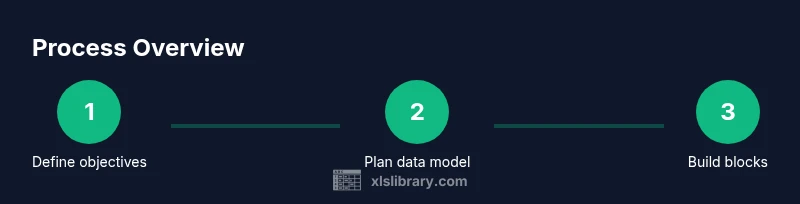
Define objectives
State the specific questions your workbook should answer. Decide which metrics matter (e.g., player load, sprint velocity, event counts) and which stakeholders will use the outputs. Document success criteria and how you will measure them.
Tip: Create a one-page brief listing goals, data sources, and required deliverables before you touch the workbook. - 2
Plan the data model
Sketch a simple data model that captures sensors, events, and players. Decide on primary keys (e.g., player ID, timestamp, device ID) and how tables will relate. Plan for data validation to catch corrupt or missing values at entry.
Tip: Use a star schema where fact tables (events, measurements) connect to dimension tables (players, devices, sessions). - 3
Create core tables
In Excel, build structured tables for raw data, cleaned data, and derived metrics. Use data types, named ranges, and explicit headers. Establish a standardized column order and consistent date-time formats.
Tip: Enable the table feature (Insert > Table) to automatically carry formulas and filters across new records. - 4
Set up data import connections
Connect to real-time or periodic data feeds using Power Query or manual import. Cleanse data during import (trim spaces, normalize units, fix timestamps). Save these steps as a reusable query.
Tip: Test with a sample payload to validate schema compatibility and refresh behavior. - 5
Build calculations and dashboards
Create calculated columns and measures (e.g., moving average, peak load) using robust formulas. Design dashboards with clear visuals, consistent color coding, and interactive filters for coaching contexts.
Tip: Avoid overcomplicating dashboards; prioritize the metrics that drive decisions and ensure readability on mobile devices. - 6
Test, validate, and iterate
Run end-to-end tests with synthetic data, verify results against expectations, and adjust as needed. Gather feedback from coaches and analysts, then iterate the workbook design.
Tip: Document changes and maintain version control to track improvements over time.
People Also Ask
What is the main benefit of using Excel for 5G sports data?
Excel provides a familiar interface to organize, validate, and visualize streaming data from 5G-enabled devices. When structured well, it enables rapid insights without needing complex platforms.
Excel helps you organize and visualize streaming 5G data quickly, turning sensor streams into actionable insights.
Do I need Power Query for real-time data in Excel?
Power Query simplifies data ingestion and cleansing. Real-time streaming can be simulated with frequent refreshes; for true real-time you may need additional data integration tools depending on your setup.
Power Query eases data import and cleansing; real-time streaming may require additional integration beyond Excel alone.
Can large 5G data streams be handled in Excel?
Excel handles sizable datasets well within practical limits when data is modeled efficiently and memory usage is managed. For very large streams, incremental loading and data summaries help maintain performance.
Excel can handle large data if you optimize the model and load data incrementally.
What are best practices for privacy in sports analytics using Excel?
Anonymize personal identifiers, restrict workbook access, and maintain a data governance plan. Use separate sheets for raw data and restricted dashboards to minimize exposure.
anonymize identifiers, limit access, and separate raw data from dashboards.
How long does it take to set up a basic Excel workbook for a 5G sports program?
A basic setup can take about one to two hours, depending on data availability and the complexity of your metrics. A full-featured workflow grows with data sources and dashboards.
Expect roughly one to two hours for a basic setup, more for a full feature workflow.
Watch Video
The Essentials
- Define a focused objective before building the workbook
- Model data with consistent schema and governance
- Ingest data with repeatable, clean import steps
- Build dashboards that highlight actionable insights
- Test and iterate with stakeholder feedback