Excel and AI: Built-in AI vs External Tools — A Practical Comparison
Discover how Excel blends AI with built-in Copilot features and how external AI workflows complement spreadsheets. This objective comparison helps data analysts choose the right approach for Excel and AI workflows.


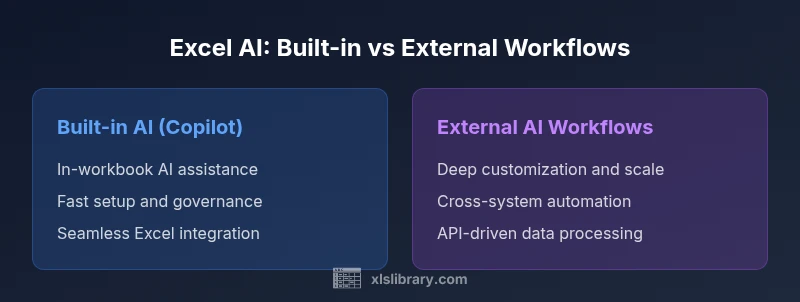
Excel now blends AI with built-in Copilot features, delivering automated insights, formulas, and data cleaning right inside your workbook. External AI workflows can extend capabilities, but require more setup. The XLS Library analysis shows that for speed and governance, built-in AI wins; for deep customization, external AI methods win. Your choice should align with data goals and risk tolerance.
The AI Landscape in Excel
The phrase excel and ai captures a growing reality: AI features embedded in Excel and complementary external AI workflows are reshaping data work. Businesses use AI to automate repetitive tasks, surface insights, and improve accuracy without leaving the spreadsheet. According to XLS Library, the trend toward integrated AI in Excel is part of a broader move to practical data mastery, where analysts turn questions into repeatable, auditable workflows. This landscape is not about replacing skills but augmenting them, enabling users to focus on interpretation and decision-making rather than rote data preparation. As AI evolves, Excel users gain more native options to discover patterns, clean data, and generate plausible interpretations inside the workbook itself.
Built-in AI in Excel: Copilot and Beyond
Excel’s built-in AI, led by Copilot, brings natural language queries, formula ideas, data enrichment, and automated data cleaning directly into worksheets. This makes it easier to generate insights without leaving the spreadsheet, which is especially valuable for quick analyses and standardized reporting. The advantage for excel and ai here is speed and safety: most data stays within the workbook, and governance remains straightforward. The XLS Library team notes that these in-app capabilities fit everyday data tasks, from basic trend spotting to standardizing data formats across teams. For many users, Copilot reduces friction between data exploration and result sharing, turning questions into repeatable steps that teammates can audit.
External AI Workflows: When and How
When teams need deeper customization or more complex analyses, external AI workflows come into play. This path involves connecting Excel to AI models via APIs, scripting, or automation platforms, enabling advanced modeling, language tasks, or domain-specific reasoning. Implementing such a workflow typically requires more setup, including key management, data routing, and governance checks. However, it pays off with flexibility: you can tailor prompts, reuse models across projects, and build end-to-end pipelines that span Excel and other systems. For excel and ai, this approach is valuable for scalable, repeatable processes, especially in data-rich scenarios where standard Excel capabilities alone fall short.
Data Preparation: Cleaning and Shaping with AI
AI-assisted data preparation can dramatically reduce manual wrangling. Built-in AI can suggest clean-up steps, detect anomalies, and harmonize formats within worksheets. External AI workflows widen these capabilities by enabling sophisticated normalization, entity resolution, or multilingual data handling that may be laborious to implement with native features alone. In both cases, the goal is to establish clean, consistent data foundations before deeper analysis. Effective governance practices—like keeping a clear provenance trail and ensuring reproducibility—are essential when you introduce AI into data prep. With excel and ai, you’ll often iterate between cleaning and modeling to refine results.
Formula Generation and Error Reduction
One practical benefit of AI in Excel is on-demand formula generation and error checking. Copilot can propose formulas, explain logic, and suggest alternatives, reducing trial-and-error time. External AI, used through APIs or scripts, can automate more complex calculations, optimization routines, or custom constraints that aren’t readily available as built-in functions. Regardless of path, maintain a guardrail: validate AI-suggested formulas with tests, and document assumptions so teammates understand the underpinning logic. This practice improves reliability and supports team-wide confidence in excel and ai-driven outputs.
Advanced Analytics: Forecasting and Modeling
AI-assisted approaches enable more nuanced forecasting, scenario planning, and model validation. Built-in AI provides quick scenarios and trend analyses within the familiar Excel interface, while external AI can host sophisticated models with larger feature sets and domain-specific variables. For teams seeking scalable models, external AI workflows offer the most flexibility, but they require careful version control and monitoring. The balance, for many users, is to start with in-workbook analytics for quick wins, then extend to external models when the business need justifies the added complexity.
Visualization and Narrative: AI-Driven Dashboards
AI enhances visualization by suggesting relevant charts, auto-generating summaries, and crafting narrative explanations for dashboards. Built-in AI helps owners publish shareable visuals quickly, while external AI can generate natural language summaries or generate alternative visual narratives tailored to different audiences. In excel and ai projects, the emphasis should be on clarity and accessibility: ensure charts are not only technically correct but also interpretable by stakeholders. A well-designed AI-augmented dashboard accelerates understanding and decision-making.
Governance, Security, and Compliance
Introducing AI into Excel raises governance considerations. Built-in AI typically keeps data within the application, simplifying privacy controls and auditability. External AI workflows involve data transfer to third-party services, which necessitates robust data handling policies, consent management, and supplier risk assessments. Regardless of approach, implement access controls, keep sensitive data out of prompts, and maintain transparent documentation of AI usage. In the excel and ai space, strong governance removes friction and aligns AI initiatives with regulatory expectations.
Integration Techniques: Power Query, Office Scripts, Python
Excel’s power tools enable AI capabilities to interoperate across the platform. Power Query can reshape data before AI processing, Office Scripts can automate repetitive AI tasks, and Python (via integrations) unlocks custom modeling capabilities. These techniques empower teams to blend AI with robust data pipelines. When adopting excel and ai strategies, start with simple automations and gradually layer in more complex scripts as needs grow. Remember to test end-to-end flows on representative datasets to catch edge cases.
Performance and Scalability Considerations
AI-based tasks can influence workbook performance, especially on large datasets. Built-in AI tends to be optimized for common workflows, but very large spreadsheets or heavy AI prompts can slow responsiveness. External AI workflows shift the computational load to external services, potentially improving local performance but introducing latency and dependency risks. Plan capacity by evaluating typical workbook sizes, update frequencies, and user concurrency. A phased approach helps ensure smooth performance as your excel and ai adoption expands.
Licensing, Pricing, and Cost of Ownership
Pricing for AI in Excel varies by platform and feature set. Built-in AI features are typically tied to your Microsoft 365 subscription tier, with incremental value from added convenience. External AI usage incurs API or compute costs that scale with usage, so it’s important to estimate demand and implement governance to prevent cost overruns. The goal is to align licensing with expected ROI, balancing immediate productivity gains with longer-term scalability considerations in the context of excel and ai.
Getting Started: A Practical 4-Step Plan
- Map your most common data tasks to AI-enabled options in Excel. 2) Start with built-in Copilot for quick wins and governance. 3) Identify a few high-value use cases that could benefit from external AI integrations. 4) Establish a pilot program with clear success metrics, then scale responsibly. This phased approach keeps risk low while you explore the possibilities of excel and ai.
Real-World Use Cases by Industry
Finance teams leverage AI-assisted modeling and automated reconciliation within Excel, while marketing teams use AI-driven data enrichment for customer insights. Operations teams benefit from AI-guided data cleaning and dashboard storytelling. Across industries, the key is to choose the path—built-in AI or external AI—that best fits the data maturity, risk tolerance, and collaboration needs of the team. In all cases, excel and ai strategies should be designed to support practical decision-making and repeatable workflows.
The Road Ahead: Trends in 2026 for Excel and AI
Expect continued expansion of AI capabilities directly in Excel, with more intuitive prompts, smarter formula suggestions, and richer data storytelling features. External AI integrations will likely become more seamless, enabling broader automation across departments while maintaining governance controls. As these trends unfold, organizations that pair quick-win built-in features with selective external AI investments will maximize impact while managing complexity in the evolving landscape of excel and ai.
Comparison
| Feature | Excel with built-in AI (Copilot) | Excel with external AI workflows |
|---|---|---|
| AI assistance scope | Automated insights, formula ideas, and data cleaning inside workbook | External AI via APIs/SDKs for modeling, language tasks, and custom automation |
| Setup time | Minimal to get started; no coding required for basic tasks | Higher; involves API keys, scripts, and workflow orchestration |
| Governance & data locality | Data stays in Excel; straightforward governance | Data may flow to external services; requires governance controls |
| Flexibility | Strong within the Excel context; limited deep customization | High flexibility with advanced models and custom prompts |
| Cost model | Typically included with subscription; incremental costs minimal | API/compute costs with potential ongoing usage charges |
| Best for | Rapid adoption, quick wins, and safe governance | Complex analyses, bespoke automation, and scale |
| Ease of collaboration | Seamless within Excel; easy to share and audit | Requires cross-tool coordination and versioning |
Benefits
- Fast path to AI-assisted productivity within the workbook
- Lower risk of data leakage since data stays in Excel for built-in AI
- No coding required for basic AI tasks
- Tighter integration with Excel features (tables, charts, formulas)
- Easier to govern and audit in organizational environments
What's Bad
- Limited customization compared to external AI pipelines
- Potential subscription constraints or feature gaps in built-in AI
- Less control over model behavior and prompts
- Performance impact on very large datasets or complex workbooks
Built-in AI inside Excel generally wins on speed and governance; external AI workflows win for customization and scale.
For most teams, start with built-in AI to realize quick gains while maintaining governance. If bespoke models, prompts, or cross-system automation are essential, add external AI workflows and plan a phased rollout.
People Also Ask
What is Copilot in Excel and how does it relate to excel and ai?
Copilot in Excel provides AI-powered assistance inside the workbook, including formula ideas, insights, and data cleaning suggestions. It’s designed for quick wins and safer governance, especially for teams new to AI in spreadsheets.
Copilot in Excel brings AI help inside the workbook for quicker formulas and insights, ideal for getting started with AI in Excel.
Can I use AI in Excel without Copilot or built-in features?
Yes. You can integrate external AI workflows via APIs or scripting to extend Excel’s capabilities. This path offers deeper customization but requires more setup and governance planning.
Yes, you can connect Excel to external AI tools for custom capabilities, though it takes more setup.
Is data safe when using AI features in Excel?
Data safety depends on the path you choose. Built-in AI keeps data within the workbook, while external AI involves data transfer to third-party services. Implement strict privacy policies and minimize sensitive data in prompts.
Data safety depends on how you use AI: built-in AI stays in Excel, external AI may involve data transfer, so apply strict privacy practices.
How do I start integrating external AI with Excel?
Begin with a small pilot that uses a single AI model via API, then expand to more workflows. Document prompts, track results, and ensure governance controls are in place before scaling.
Start small with one AI model, document prompts, and then scale up with governance in place.
What are common AI automation tasks in Excel?
Typical tasks include automated data cleaning, formula generation, trend detection, and dashboard narrative generation. These reduce manual work and help maintain consistency across reports.
Common tasks include cleaning data, generating formulas, and creating insightful dashboards with AI.
Does AI work well on large datasets in Excel?
AI can assist on large datasets, but performance depends on the path chosen. Built-in AI stays within Excel, while external AI may scale differently. Plan for data size, processing needs, and latency when designing workflows.
AI can help with large data, but plan for performance and latency, choosing built-in or external paths accordingly.
The Essentials
- Start with built-in AI for rapid adoption and governance.
- Plan external AI for advanced customization and modeling.
- Assess data locality and privacy before external AI integration.
- Use AI-assisted formulas and data cleaning to reduce manual effort.
- Test with representative datasets and iterate before full-scale rollout.