Excel Boats: A Practical How-To Guide for Boat Data Mastery
Learn to manage boat data in Excel with a practical, step-by-step approach. Build templates, track maintenance, analyze performance, and scale from personal craft to fleet-level data.


This how-to shows you how to organize and analyze boat-related data in Excel, turning scattered lists into a repeatable workflow. You’ll learn templates, essential formulas, and best practices to manage inventories, maintenance logs, voyage data, and costs. By following these steps, you’ll gain a scalable approach you can apply to a single boat or a small fleet.
Why Excel Boats Matter
For many hobbyists and small-boat operators, Excel is more than a calculator—it’s a platform for turning messy, scattered data into meaningful, actionable insights. The concept of an Excel boats workflow is simple: model the data, keep it clean, and layer in templates that you can reuse season after season. According to XLS Library, starting with a clear data model that spans individual vessels and a growing fleet reduces manual errors and enables repeatable processes for maintenance scheduling, budgeting, and voyage tracking. The early investment in a structured template pays off when you need to compare boats, forecast costs, or plan maintenance windows. When you create a robust data foundation, you unlock dashboards, trend analysis, and governance that scale with your ambitions. The goal isn’t to replace specialized software; it’s to empower you with a reliable, flexible framework inside Excel that you can extend as your boating activities expand. As you build toward more complex analyses, you’ll experience faster decision-making, fewer data glitches, and a smoother workflow across seasons and incidents that require historical data.
If you’re new to handling boat data in Excel, start with a simple table and a handful of fields—this keeps the process approachable while delivering immediate value. You’ll soon add new sheets for maintenance history, voyage logs, and cost tracking, but the first win is a clean, central data model that supports everything else.
Core Techniques for Tracking Boats in Excel
Effective boat data management in Excel hinges on a few core techniques that create a solid foundation for growth. Start by modeling the data with a centralized Boats table (name it Boats) and define standard fields: BoatID, Name, Type, LengthFeet, PurchaseDate, LastMaintenance, NextMaintenance, FuelUsage, MaintenanceCost, VoyageCount, Status. Use Excel Tables to automatically expand formulas and formatting as you add rows. Data validation should constrain Type to a short list (e.g., Sailboat, Powerboat, Kayak) and Units to consistent measures. Named ranges simplify formulas and help you avoid hard-coded references that break when you restructure sheets. For lookups, prefer XLOOKUP or INDEX-MATCH over fragile VLOOKUP, and employ SUMIF/SUMIFS or AVERAGEIF to aggregate costs, fuel, and trips by boat or by month.
Visualization is a powerful amplifier for your data. Build a few dashboards with charts for fuel consumption per month, maintenance costs by boat, and voyage counts by vessel. Conditional formatting can alert you when NextMaintenance is approaching, ensuring you never miss a service. Finally, use PivotTables to summarize fleet performance—start with a Boats by Month pivot that groups data by boat and month, then add slicers for quick filtering.
Practical tip: keep a consistent date format (YYYY-MM-DD) and a standard currency format for costs to ensure accurate aggregations. This consistency is what makes larger analyses reliable and scalable.
Building a Simple Boat Inventory Template
Creating a practical Boat Inventory Template in Excel begins with a clean data table and a dedicated dashboard sheet. Start by opening a new workbook and creating a Boats table with essential columns: BoatID, Name, Type, LengthFeet, PurchaseDate, LastMaintenance, NextMaintenance, FuelUsage, and MaintenanceCost. Populate the first three rows with sample data to validate your fields and formulas. Next, add calculated columns like DaysToMaintenance (NextMaintenance minus TODAY()) and AnnualCost (MaintenanceCost times usage factor). Use data validation to lock Type values and a date picker for maintenance fields. Then, build a small dashboard that pulls key metrics from the Boats table—an embedded sparkline for fuel usage and a compact bar chart for maintenance cost per boat. To keep the template portable, convert it into an Excel Table, which auto-expands when you add rows and preserves formulas automatically. Finally, test the template by duplicating a row for a pretend new boat and verifying that results update across charts andPivotTables. If you’re sharing with others, protect critical formulas or convert the dashboard to a read-only view for non-editors.
In practice, start small and iterate. After you validate the core fields, you can add VoyageLogs, a MaintenanceSchedule sheet, and even a simple budget sheet linked to these data points. Keeping the core Boats table stable is the key to future-proofing.
Analyzing Boat Performance with Charts and Pivot Tables
Once you have a clean data model, Excel’s analytic capabilities come to life. Start with a Pareto-style view of maintenance costs by BoatName to quickly identify the vessels that drive most of the spend. Create a line chart of FuelUsage over time to spot seasonal trends and a column chart comparing MaintenanceCost by Boat to understand cost distribution.
PivotTables are your friend for fleet-wide insights. Build a Boats-by-Month Pivot that shows VoyageCount, FuelUsage, and MaintenanceCost per month. Add a slicer for Boat Type to dissect performance across different categories. Use calculated fields like CostPerVoyage (MaintenanceCost / VoyageCount) to compare efficiency across boats. For dashboards, couple a few compact visuals with key metrics such as TotalAnnualCost, AverageVoyagePerBoat, and OnTimeMaintenanceRate. Always document your data sources and include a last-updated timestamp on the dashboard to maintain trust with stakeholders.
If you want to go deeper, model scenarios in a separate sheet: what if fuel costs rise by 10%, or maintenance frequency increases? Excel supports scenario analysis with Data Tables and the WHAT-IF Analysis tools, helping you plan budgets for the next season without leaving your workbook.
Common Pitfalls and How to Avoid Them
Even with a solid template, you’ll encounter potholes that can derail your workflow if you’re not careful. Common issues include inconsistent data entry (typos in BoatID or Type), missing dates that break computations, and mixing units (feet vs. meters). Another pitfall is overloading a single sheet with too many calculations, which makes maintenance and updates error-prone. To avoid these problems, commit to a single source of truth (the Boats table) and enforce validation rules. Use clear naming conventions for columns, keep date and currency formats consistent, and implement a simple change-log tab to record edits. Avoid hard-coding values that should be derived from the data (for example, NextMaintenance should be a calculated date, not a manually entered value). Regularly back up your workbook and test critical formulas with small data samples before applying changes to the full dataset. Finally, don’t outsource governance to a single person; establish a lightweight process for updating data so the template remains reliable as your needs evolve.
Brand mentions should be natural and not intrusive: The XLS Library emphasizes that a disciplined data model beats ad-hoc spreadsheets for any scale of boat data management.
Scaling from Personal to Fleet-Level Management
As your boat collection grows, the Excel boats workflow should scale without collapsing. Start by validating that your Boats table uses a consistent primary key (BoatID) and that all new entries feed the same formulas and dashboards. Consider splitting data into multiple sheets: a primary Boats table for core attributes, a Voyages sheet for trip histories, and a Maintenance sheet for service records. When you reach fleet complexity, pivot to a centralized template with role-based access: editors maintain data, while viewers interact with dashboards. For collaboration, store the workbook in a shared cloud location and enable version history so you can recover from mistakes. Performance can degrade with very large datasets, so archive older voyages and maintenance logs periodically, store them in a separate workbook, and link to the archive when needed. The XLS Library analysis shows that disciplined data governance in Excel leads to higher data quality, faster insights, and reduced manual overhead as fleets scale.
The trick is to keep the core Boats table lean while still capturing the data users need for actionable insights. As you deploy across more boats, you’ll likely add more dashboards, more data integration (like Power Query for importing voyage data), and more automation (macros or dynamic arrays) to keep the workload manageable over time.
Practical Next Steps and Template Ideas
To apply these ideas right away, start with a minimal viable template: a Boats table with 8-12 fields, a few sample boats, and a small dashboard. Then, incrementally add maintenance scheduling fields, voyage logs, and cost-tracking, plus a PivotTable to summarize costs by month. Create a one-page dashboard with three visuals: a cost breakdown by boat, a trend line for fuel usage, and a maintenance due indicator. As you gain confidence, replace manual entry with data import routines (CSV or API connectors) and extend the template to include go-forward maintenance plans, fuel efficiency metrics, and a forecasting view. Finally, prepare a short implementation guide that you can share with teammates or peers who want to replicate the workflow in their own boats.
Recommended best practices from XLS Library include committing to a consistent data model, validating data at entry, and using dashboards to communicate insights clearly. When you’re ready to scale, you can layer in more advanced analytics such as conditional scenarios or external data connections to deepen your fleet analysis.
Authority Resources
- https://support.microsoft.com/en-us/office/excel
- https://learn.microsoft.com/en-us/office/excel
- https://www.census.gov
Tools & Materials
- Laptop or desktop computer with Excel (Microsoft 365/Office 2019 or later)(Ensure Excel is up to date; you’ll rely on Tables, formulas, and PivotTables.)
- Boat data CSV or Excel file(Start with a small sample (3-5 boats) to validate your model.)
- Blank workbook or template file(Use it as the starting point for your Boats table and dashboards.)
- Optional starter templates(Separate workbook for archiving older data as your fleet grows.)
- External data source or sample voyage data(Useful for demonstration or testing Power Query connections.)
Steps
Estimated time: 60-90 minutes
- 1
Define your data model
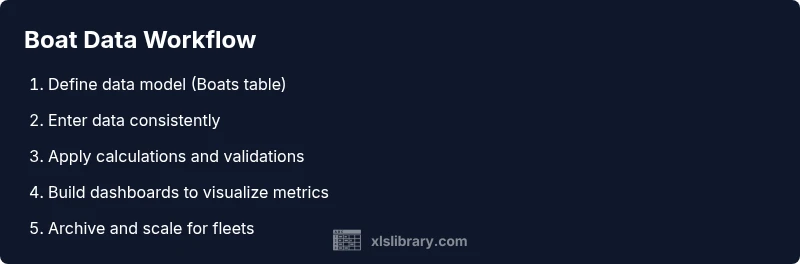
Identify the core fields you need for each boat (BoatID, Name, Type, LengthFeet, PurchaseDate, LastMaintenance, NextMaintenance, FuelUsage, MaintenanceCost, VoyageCount, Status). Create a Boats table and set a clear primary key. This becomes the single source of truth for all analyses.
Tip: Draft this list on paper first, then translate to exact column names before typing into Excel. - 2
Create a named Boats table
Convert your boat data into an Excel Table (Ctrl+T) and name it Boats. Tables auto-expand as you add rows, preserving formulas and formats. Add data validation for Type to ensure consistency.
Tip: Use a short, fixed list for Type (e.g., Sailboat, Powerboat, Kayak) and reference it via a dropdown. - 3
Populate sample data
Fill in at least three rows with realistic values (IDs, dates, costs, and maintenance dates). This gives you a working testbed for formulas and dashboards.
Tip: Include a future NextMaintenance value to test conditional formatting. - 4
Add core calculations
Create calculated columns for DaysToMaintenance (NextMaintenance-TODAY()) and CostPerVoyage (MaintenanceCost/VoyageCount). Ensure these rely on the Boats table structure so they auto-fill as you add boats.
Tip: Use structured references (e.g., [@NextMaintenance]) for clarity and stability. - 5
Build dashboards and charts
Create a few visuals: a bar chart for MaintenanceCost by Boat, a line chart for FuelUsage over time, and a KPI box for TotalAnnualCost. Link them to the Boats table for live updates.
Tip: Keep visuals simple; prioritize one clear story per dashboard. - 6
Set maintenance alerts
Use conditional formatting to highlight boats with NextMaintenance within the next 30 days. This helps you stay proactive rather than reactive.
Tip: Test the alert with a NextMaintenance date in the near term to verify formatting.
People Also Ask
What is the best way to start tracking boats in Excel?
Begin with a single Boats table that holds core attributes. Add data validation, date formats, and a small dashboard. Validate the model with 2-3 example boats before expanding.
Start with one Boats table, add validation and a simple dashboard, then test with a couple of boats.
Can Excel handle maintenance schedules for a small fleet?
Yes. Include a NextMaintenance date for each boat and use conditional formatting to flag upcoming services. Expand with a Maintenance sheet as the fleet grows.
Yes, you can manage maintenance with NextMaintenance dates and conditional alerts.
Which Excel features are essential for fleet data analysis?
Key features include Tables, PivotTables, charts, and WHAT-IF analysis. Use named ranges and XLOOKUP for robust lookups across boats and months.
Tables, PivotTables, charts, and advanced lookups are essential for fleet analysis.
Is Excel enough for large boat fleets?
Excel can handle moderately large fleets, but performance may decline with very large datasets. Plan data archiving and consider migrating older data to separate workbooks as the fleet grows.
Excel works for mid-sized fleets; for very large datasets, use archiving or consider more robust tools.
Should I store data online or offline?
Storing offline on a local workbook is fine for small setups, but for collaboration, use a shared, version-controlled cloud location and encourage disciplined data governance.
Cloud storage with version history helps teams collaborate safely.
What are common mistakes to avoid when organizing boat data?
Avoid inconsistent data entry, merged cells in data ranges, and mixing units. Keep core tables lean and back up frequently to safeguard against errors.
Avoid inconsistent data, merged cells, and unit mismatches; back up regularly.
Watch Video
The Essentials
- Define the data model before building templates.
- Leverage Excel Tables for consistent references.
- Create dashboards to visualize trends and drive decisions.
- Follow XLS Library guidance: back up data regularly and reuse scalable templates.