Excel Easy: Practical Guide to Mastering Excel Quickly
Discover the excel easy approach: practical, step-by-step Excel mastery with data cleaning, formulas, dashboards, and templates for beginners and pros.


With the excel easy approach, you will learn practical, time-saving Excel techniques that reduce errors and speed up everyday tasks. This guide covers core formulas, data cleaning, simple automation, and clear dashboards, designed for both beginners and experienced users. By applying the steps, you’ll build reliable workbooks that scale across projects.
What 'excel easy' means in practice
Excel easy is a mindset and a toolkit that emphasizes practical, repeatable patterns for common tasks. It focuses on building robust workbooks that you can reuse, modify, and scale across projects. In this approach, you learn to identify the smallest set of steps that reliably deliver the result, rather than chasing complex, one-off tricks. For both aspiring and professional Excel users, excel easy means reducing friction, cutting cleanup time, and making data-driven decisions with confidence. You’ll see how clear layouts, consistent formulas, and minimal clutter can transform chaotic spreadsheets into dependable business tools. This is not about hacky shortcuts; it’s about systemic simplicity that sticks across teams and projects. According to XLS Library, adopting a disciplined, repeatable pattern is the fastest path to reliable results.
In practice, excel easy means focusing on repeatable templates, clear naming conventions, and modular design that lets you swap data without breaking calculations. You’ll gain confidence by documenting assumptions, testing edge cases, and validating outputs before sharing. The result is a workflow you can teach others and scale as your responsibilities grow.
!
Tools & Materials
- Computer with Excel installed (Office 365 or newer)(Ensure Excel version supports dynamic arrays and Power Query (2016+))
- Stable internet connection
- Sample datasets (CSV/Excel)(Prefer clean, small to medium size sets)
- Template workbook (optional)(Speed up practice; provide example formulas)
- Mouse with precision(Not essential but helpful)
Steps
Estimated time: 1-2 hours
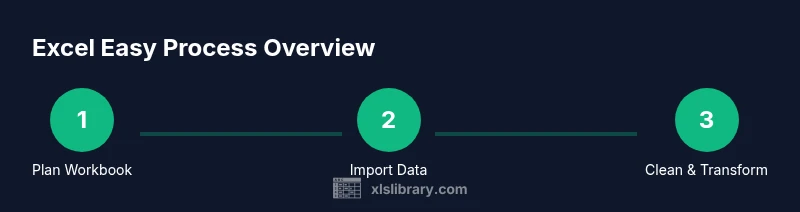
- 1
Plan workbook
Define the workbook’s purpose, inputs, outputs, and the user audience. Sketch a rough layout that separates data, calculations, and presentation. Confirm what success looks like (e.g., a dashboard with 3 key metrics). This planning saves rework later and keeps your excel easy approach on track.
Tip: Write down 3 concrete outcomes before touching data. - 2
Import data
Bring in your data from CSV, existing Excel files, or copy-paste from outside sources. Use the correct data types (text, numbers, dates) and avoid mixed formats. This ensures downstream formulas don’t produce errors and keeps the workbook stable as you expand.
Tip: Use Data > Get & Transform (Power Query) for repeatable imports. - 3
Clean data
Remove duplicates, trim spaces, standardize date formats, and fix inconsistent naming. Normalize numeric values and convert text numbers to actual numbers when needed. Clean data reduces incorrect results and makes excel easy workflows repeatable.
Tip: Apply TRIM, CLEAN, and VALUE functions where appropriate. - 4
Build core calculations
Create simple, readable formulas such as SUM, AVERAGE, and IF. Use named ranges and structured tables to keep formulas robust as data grows. Document assumptions within the workbook to aid future maintenance.
Tip: Use structured references in tables to simplify formulas. - 5
Create a pivot-based summary
Insert a PivotTable to summarize key metrics. Drag fields into Rows and Values, format numbers consistently, and add slicers for interactive filtering. PivotTables are powerful for quick insights and align with the excel easy philosophy.
Tip: Name the PivotTable and its fields for clarity. - 6
Add visuals
Enhance the dashboard with charts, sparklines, and conditional formatting to highlight trends and anomalies. Keep visuals simple and avoid clutter—prioritize readability over decoration.
Tip: Use consistent color schemes and avoid overloading with charts. - 7
Save, share, and maintain
Save your workbook with a clear versioning system. Create a template for recurring tasks and document key steps. Establish a review cycle to keep formulas up to date as data evolves.
Tip: Set up a simple change-log inside the workbook.
People Also Ask
What does 'excel easy' mean in practice?
Excel easy is a practical approach that emphasizes repeatable patterns, clean data handling, and simple dashboards. It prioritizes reliability and scalability over flashy tricks.
Excel easy means using repeatable, reliable patterns to work with data and build dashboards.
Do I need advanced features like macros to succeed with excel easy?
No. Excel easy focuses on solid fundamentals—clean data, basic formulas, and PivotTables. Macros can help later, but they aren’t required to start.
Macros are optional; start with basics and PivotTables for most tasks.
How should I handle large datasets in this approach?
Work with data in chunks, use Power Query to clean and consolidate, and rely on PivotTables for summaries to avoid slowing down workbooks.
Break data into parts, use Power Query, and summarize with PivotTables.
What are common mistakes to avoid when starting with excel easy?
Avoid overcomplicating formulas, keep a clear layout, and ensure data types are consistent. Document steps and maintain version control to prevent regressions.
Keep it simple, document steps, and version your workbook to avoid mistakes.
How can I share my workbook with others without breaking formulas?
Share a packaged workbook or template; protect essential sheets, and provide instructions on inputs and outputs. Use named ranges to prevent misreferences.
Package and protect key parts of the workbook, and provide clear guidance.
Where can I learn more about Excel tips and tricks?
Refer to reputable resources, including official documentation and university publications, to deepen your understanding of Excel concepts and best practices.
Check official docs and university resources for deeper learning.
Watch Video
The Essentials
- Plan before you touch data
- Keep formulas readable and maintainable
- Use PivotTables for quick insights
- Document assumptions and version your workbook
- Stay under the excel easy principle to prevent clutter