Excel for Freelancers: Practical Workflows to Deliver Fast, Accurate Spreadsheets
Discover practical, repeatable Excel workflows for freelancers. Build templates, track time, and deliver client-ready spreadsheets with confidence using proven tips and templates.


Learn how to build fast, reliable Excel workflows for freelancers, including reusable templates, time tracking, and client-ready invoicing. This guide helps you standardize processes, speed up routine tasks, and deliver accurate, professional spreadsheets on every project. By implementing practical templates and clear data practices, you’ll win more clients with consistent results.
Why Excel matters for freelancers
According to XLS Library, Excel remains a foundational tool for freelancers across many industries because it combines flexibility with scalability. For solo consultants, designers, or developers who juggle multiple clients, Excel enables you to standardize every phase of a project—from initial proposals to final invoicing. When you treat Excel like a system rather than a collection of scattered files, you unlock predictable outcomes and consistent client experiences. A well-structured workbook can handle estimates, time tracking, and deliverables with the same care you provide in person."
The real value comes from establishing repeatable patterns. Instead of recreating the wheel for each new client, you reuse templates, formulas, and dashboards. This doesn’t just save time—it reduces errors, improves your professional image, and gives you a defensible process you can explain in client calls. As you scale your freelance practice, those standard practices translate into more hours billed and less time spent debugging spreadsheets."
Core templates every freelancer should build
The backbone of a strong Excel workflow for freelancers is a small, well-structured template library. Start with three core templates: a proposal and estimate workbook, an invoice and payment tracker, and a project timeline with milestones. Each template should be designed to accept client data quickly, enforce consistent formatting, and export clean PDFs or CSVs for handoffs. Build these templates as living documents that you evolve with client feedback and new service lines. A unified template approach not only looks professional but also speeds up onboarding for new clients.
In addition to these core templates, create light-weight data sheets for time tracking, task lists, and resource allocations. Link these sheets with clear named ranges and minimal external dependencies so you can share a single workbook with clients or colleagues without breaking updates. The goal is to reduce the number of different files you manage while increasing consistency across projects."
Data quality and validation to prevent mistakes
Quality control is essential when you’re delivering client work. Use data validation to enforce allowed inputs (for example, currency formats, date ranges, or drop-down lists for status fields). Implement conditional formatting to highlight anomalies—like missing time entries or overdue milestones—before you share a file. Create a simple error-checking routine with a dedicated sheet that runs a quick audit of critical fields (dates, amounts, status). Regular audits save you from costly corrections after delivery and protect your reputation.
Keep your formulas transparent: use named ranges and avoid overly long, opaque formulas. Document any complex logic in a hidden documentation sheet so you can explain it to clients if needed. If you’re dealing with sensitive client data, separate personal information from project data and keep access permissions tight. A little upfront data hygiene pays off with fewer follow-up questions from clients and fewer rework cycles."
Time tracking and invoicing workflows that scale
Effective freelancers track time accurately without creating administrative drag. Start with a dedicated time-tracking sheet linked to project milestones and a simple hourly rate. Use a formula to compute billable amounts automatically, and create an invoice workbook that pulls data from your time sheet and project sheet. Automate client-facing PDFs by exporting filtered views that include only the necessary fields—descriptions, hours, rates, and totals. When a project closes, archive the workbook with a consistent naming convention and move it to a secure client folder.
A practical approach is to design your invoicing template to support different pricing models (hourly, fixed price, retainer). Include a basic memo section that you customize per client, so you always have context for every line item. Remember to track payments and aging separately, so you can follow up promptly when invoices fall behind. A solid time-tracking and invoicing setup saves time on every client engagement and minimizes disputes about scope or effort.
Formulas, shortcuts, and automation that save you hours
Freelancers gain a lot from mastering a concise set of formulas and keyboard shortcuts. Start with essential building blocks: VLOOKUP or XLOOKUP for cross-referencing client data, SUMIF/SUMIFS for aggregating hours by client or project, and IF/IFS for basic decision logic. Combine these with named ranges to keep formulas readable. Learn a handful of keyboard shortcuts for navigation, selection, and quick editing to cut down on mouse work.
To reduce repetitive tasks, design a small automation scaffold: a data-entry sheet feeding a reporting sheet, with dynamic charts, and an automated summary section. Use simple Power Query imports for external data, if needed, and refresh the dashboards with a single click. The aim is to create a toolkit of reliable, reusable formulas and shortcuts that you can deploy across many projects without rethinking each time.
Dashboards and client-facing reports
A clean dashboard is your best ally for communicating progress and results to clients. Build a compact dashboard that shows status, revenue, hours billed, upcoming milestones, and risks. Use slicers or filters to tailor views per client or project. Make sure your dashboard draws from a single source of truth—your project workbook—so numbers stay consistent as you add new data. For freelancers, dashboards are not just visuals; they’re a staffing and scheduling tool that reduces back-and-forth in status meetings.
Keep dashboards lean. Avoid clutter by prioritizing a few key metrics. Provide one-click export options to share a snapshot in emails or client portals. A well-crafted dashboard makes you look organized and capable, reassuring clients that you’re in control of the engagement and its outcomes. When you show tangible progress, you’re more likely to secure repeat work and referrals.
Data security and collaborative sharing for client work
Security matters when client data is involved. Lock sensitive sheets with password protection, and avoid placing private data in shared folders. Use sheet-level protections to prevent accidental edits to formulas and essential ranges. If you collaborate, enable track changes or comment threads to capture decisions and avoid miscommunications. When sharing, consider exporting to PDF for final deliverables or using controlled cloud links with permission settings.
For freelancers who work across devices, maintain backups and ensure devices are encrypted. Use versioning to preserve history and to roll back if a calculation error slips into a shared file. Clear data governance helps you build trust with clients; it also reduces the risk of data loss or leakage that could damage your reputation.
Getting started plan: a starter template rollout
If you’re starting from scratch, outline a 30‑day plan to implement a freelancer-focused Excel workflow. Week 1: gather your common project types and draft the three core templates (proposals/invoices, time-tracking, and project milestones). Week 2: add validations and simple formulas, plus a basic dashboard. Week 3: test with a sample project, gather feedback, and refine. Week 4: roll out to real clients and document the process for future engagements. The goal is momentum—consistent progress that compounds over time.
Scaling with templates and repeatable processes
As your client base grows, you’ll rely more on standardized templates and repeatable processes. Create a library of templates for different service lines, and ensure each workbook has a consistent structure and naming convention. Train new contract staff or subcontractors to use your templates, and maintain a central repository that you and collaborators can access with clear permissions. Over time, you’ll reduce the learning curve for new clients and team members, delivering consistency and reliability that justifies higher rates.
Tools & Materials
- Laptop/desktop computer with Excel (Office 365 or Excel 2019+)(Ensure you have access to latest features like XLOOKUP and dynamic arrays.)
- Stable internet connection(Needed for cloud backups and sharing templates.)
- Template starter kit for freelancers (proposals, estimates, invoices)(Downloadable templates tailored for freelancers.)
- Sample client data set for practice(Use realistic data to test workflows.)
- Backup solution (external drive or cloud)(Optional but recommended for redundancy.)
Steps
Estimated time: 2-4 hours
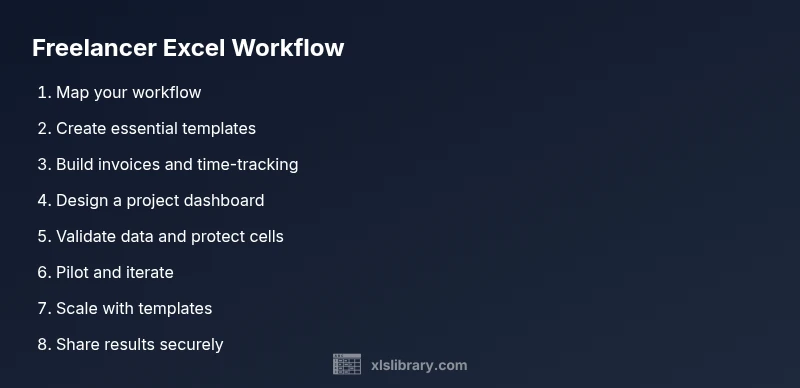
- 1
Map your freelance workflow
Inventory your typical projects from inquiry to delivery. Identify each milestone, deliverable, and touchpoint. Map data you’ll need in Excel to support each phase. This step creates the blueprint for your templates and dashboards.
Tip: Document typical client deliverables and time checkpoints so your templates cover real use cases. - 2
Create essential templates
Build three core templates: proposals/estimates, invoices/time-tracking, and a project milestones tracker. Ensure consistent formatting, named ranges, and easy data entry. Link templates so a single data entry feeds multiple outputs.
Tip: Use a common color scheme and consistent column order to reduce confusion across templates. - 3
Build a client-ready invoice template
Design an invoice that pulls line items from your time-tracking sheet, calculates totals automatically, and exports to PDF. Include a short memo section for client notes and a clean, professional layout.
Tip: Lock formulas or protect critical cells to prevent accidental edits by clients. - 4
Add time-tracking and milestones
Create a dedicated sheet to log hours by project, task, and date. Connect it to the invoice template so billable hours roll up automatically. Add milestone dates to a timeline view for quick client updates.
Tip: Validate dates and hours to catch entry errors early. - 5
Design a project dashboard
Build a compact dashboard that shows status, hours billed, revenue, and upcoming milestones. Use charts sparingly to keep it readable and ensure the data source is the same workbook used for other templates.
Tip: Use slicers to tailor views for each client. - 6
Add data validation and protections
Apply data validation to key fields (dates, hours, rates) and protect critical cells. Create a separate data-entry sheet to minimize risk. Document validation rules for future reference.
Tip: Avoid complex chained formulas on input cells to reduce errors. - 7
Validate data quality with checks
Add a lightweight audit sheet that flags missing fields, inconsistent totals, or misaligned dates. Run weekly checks before sharing with clients to catch issues early.
Tip: Set up a one-button refresh process to run all checks. - 8
Pilot and iterate with real projects
Test the system on a real client engagement, collect feedback, and refine templates accordingly. Update your templates with learnings from every project to improve accuracy and speed.
Tip: Schedule a quick post-mortem after each pilot to capture improvements.
People Also Ask
Do I need advanced Excel skills to start as a freelancer?
No. Start with core templates, basic formulas, and simple dashboards. As you gain experience, gradually add more advanced techniques like lookup functions and automation.
You don’t need advanced Excel skills to begin. Start with templates and essential formulas, then grow as you work on more complex projects.
Which templates should I build first?
Start with a proposal/estimate template, an invoice/time-tracking workbook, and a milestone tracker. These form the backbone of client-facing deliverables and billing.
Begin with proposals, invoices, and milestone trackers—these are the most frequently used templates with clients.
How can I share Excel work with clients securely?
Share via secure links with restricted access and password protection where possible. Export final deliverables as PDFs and keep editable files in a controlled workspace.
Protect your files with passwords when possible and share final work as PDFs to reduce editing risk.
Can I automate tasks without using VBA?
Yes. Use built-in functions, Power Query for data imports, and simple named ranges. For more automation, consider VBA or macros in controlled environments.
Automation can be done with functions and Power Query. VBA is optional for more complex tasks.
What are common mistakes freelancers make in Excel?
Overcomplicating templates, missing data validation, poor naming conventions, and failing to back up templates. Keep it lean and well-documented.
Avoid overcomplicating templates and always validate data before sharing with clients.
Where can I learn more about Excel for freelancers?
You can find more resources, templates, and tutorials in XLS Library’s guides and templates library. Practice with real-world data to reinforce concepts.
Check out XLS Library for practical guides and templates.
Watch Video
The Essentials
- Create reusable templates to save time
- Use data validation to reduce entry errors
- Build a client-focused dashboard for quick updates
- Protect sensitive data and maintain clear access control
- Iterate templates based on real project feedback