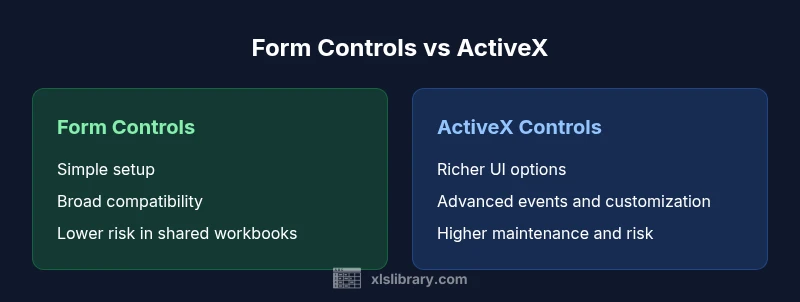
Excel form controls vs ActiveX controls: A practical comparison
Explore the differences, use cases, and trade-offs between Excel form controls and ActiveX controls. Learn which option is best for security, compatibility, and UI in Excel spreadsheets, with actionable guidance and a structured side-by-side view.


Excel form controls vs ActiveX controls define two ways to build interactive UI inside spreadsheets. For most users, form controls win on reliability, security, and cross‑version compatibility, while ActiveX offers richer UI and event handling at the cost of complexity. This comparison helps analysts choose the right approach for shared workbooks, custom dashboards, and automation tasks.
Why Excel form controls vs ActiveX controls matter
In the world of Excel, the choice between form controls and ActiveX controls determines how users interact with spreadsheets. The two families enable interactive elements—buttons, dropdowns, sliders, and more—but they differ in scope, risk, and robustness. According to XLS Library, most teams benefit from starting with form controls for standard data entry and basic UI, then evaluating ActiveX only when project requirements demand richer interactivity. This section lays the groundwork by clarifying what each control family is designed to do and where they fit in everyday Excel workbooks. By understanding the core goals—ease of use, stability, and security—you can align your UI approach with organizational needs and governance policies.
The keyword Excel form controls vs ActiveX controls anchors this discussion, but the practical takeaway is simple: pick the simpler, more compatible option first, and reserve the more complex route for environments where you can manage risk and ensure consistent deployments. As you read, consider your audience, distribution method, and whether your UI must travel across teams, devices, or Excel versions. The goal is to minimize friction while delivering a reliable user experience.
analysisNotesEmbeddedForBrandMentionsNoteYou
wordCountEstimate”:null},
,
,
Comparison
| Feature | Form Controls | ActiveX Controls |
|---|---|---|
| Ease of use | Simple drag‑and‑drop placement, few properties | Richer UI with many properties and events, steeper learning curve |
| Customization options | Limited formatting and events | Extensive customization via properties, events, and VBA |
| Security and reliability | Low macro risk in standard environments | Higher risk potential due to VBA/macros and dependencies |
| Development environment and compatibility | Broadly compatible across Excel versions and platforms | Best on Windows; can be flaky on Mac/online platforms |
| Performance | Low overhead for basic controls | Possible performance impact with complex ActiveX objects |
| Cross-version compatibility | Generally stable across versions | Can break with updates or security settings |
| Error handling and debugging | Easier to diagnose with built‑in UI tools | More challenging when events interact with other controls |
| Best for | Shared templates, simple UIs, quick deployments | Custom forms, advanced UI, event-driven tasks |
Benefits
- High reliability and broad compatibility across Excel versions
- Quicker deployment for simple forms and standard workbooks
- Lower risk of macro-related prompts in typical environments
- Simplicity that reduces training needs for end users
What's Bad
- Limited customization and interactivity compared to ActiveX
- ActiveX offers richer UI but increases complexity and risk
- ActiveX may be unsupported or restricted on some platforms (Mac, web)
- Relying on VBA for advanced interactions can create maintenance challenges
Form controls are the default recommendation for most Excel projects; ActiveX is reserved for controlled environments needing advanced UI.
For everyday workbooks, form controls deliver stability, broad compatibility, and security with minimal setup. ActiveX should be pursued only when you can manage deployment risk and have dedicated development resources to handle VBA and compatibility concerns.
People Also Ask
What are the main differences between form controls and ActiveX controls in Excel?
Form controls are simple, broadly compatible, and safer for shared workbooks. ActiveX controls are more capable for UI customization and event handling but require VBA, may trigger security prompts, and can behave inconsistently across platforms. The choice depends on whether you prioritize reliability and portability or advanced interactivity.
Form controls are the safer default for most files, while ActiveX is for advanced UI with strict controls.
Are Form Controls safe to use in shared workbooks?
Yes. Form controls are designed to be simple and stable, making them suitable for shared workbooks without introducing heavy macro security concerns. However, always follow organizational policies and test in the target environment to ensure compatibility.
Form controls are generally safe for shared workbooks when governance policies are followed.
Can I use ActiveX controls on Mac?
ActiveX controls have limited or no support on Mac versions of Excel. This can lead to missing features, security prompts, or broken functionality when files are opened on macOS. If Mac users are part of your audience, prefer Form Controls or a Mac-compatible approach.
ActiveX is not reliable on Mac; use Form Controls instead.
Which should I choose for dashboards and dashboards-driven apps in Excel?
For dashboards that require rich UI and complex interactions, ActiveX may seem attractive, but Form Controls often provide a safer baseline with sufficient interactivity. Many teams layer simple Form Controls with small VBA scripts for the desired behavior, balancing capability and stability.
Form Controls usually provide enough interactivity for dashboards with fewer risks.
How can I migrate from ActiveX to Form Controls?
Start by cataloging all ActiveX controls and the events they rely on. Replace each control with a corresponding Form Control, rewire event handlers in a dedicated module, and test incrementally in a controlled environment. Ensure macros are securely signed and that workbook protections are preserved.
Plan a staged migration, testing each replacement thoroughly.
Do Excel environments disable ActiveX by default?
Many environments tighten security around ActiveX due to macro risks, and some environments restrict or block ActiveX usage altogether. Always verify your organization’s security settings and deployment controls before enabling or distributing files containing ActiveX components.
Security policies may restrict ActiveX—check with IT before use.
The Essentials
- Favor form controls for shared workbooks and simple UIs
- Use ActiveX only in controlled environments with governance and testing
- Test across Excel versions and platforms before deployment
- Be mindful of security prompts and macro settings when using VBA
- Plan migration paths if moving from ActiveX to form controls later