Excel like string: a practical comparison of string handling in Excel and beyond
An analytical, side-by-side comparison of Excel native string functions versus scripting options for robust, scalable text processing in data work.


Excel-style string analysis leans on built-in functions like LEFT, RIGHT, MID, FIND, and TEXT, which are fast for small datasets. For larger text-processing tasks or repeatable workflows, an external tool (Python, Power Query, or SQL) offers more power and reproducibility. In most cases, start with Excel’s string functions for quick tasks, then migrate to a scripting approach when complexity grows.
The concept of an excel like string and why it matters in data work
In this article we explore what an excel like string means in practice and why it matters for everyday data tasks. For many beginners and even seasoned analysts, string manipulation in Excel or in Excel-like environments is the gateway to cleaning data, extracting keywords, normalizing formats, and joining records. The phrase excel like string captures the idea of performing text operations using a familiar spreadsheet paradigm—cell references, formulas, and clipboard workflows—without jumping to a full-fledged programming language. In this guide from XLS Library, we break down the tradeoffs between staying inside Excel and moving to scripting or database-oriented tools when the job scales. We will compare options, discuss common use cases, and outline practical steps to design robust, maintainable workflows that scale with data volume. According to XLS Library, the early steps you take shape future scalability and reliability of your data projects.
Key concept: start with simple string operations in Excel and plan for a hybrid approach as data complexity grows. This mindset keeps you productive while preserving data lineage and auditability.
Baseline: Excel's native string functions
Excel provides a solid foundation for string manipulation through a core set of functions. LEFT, RIGHT, MID extract substrings; FIND and SEARCH locate positions; LEN measures length; TEXT formats numbers into strings; CONCAT and TEXTJOIN stitch strings together. These tools shine when your task is simple, repeatable within a single sheet, and surrounded by familiar workbook structures. However, as tasks become more intricate—requiring robust pattern matching, case handling, or regex-like capabilities—the built-in toolkit reveals its limits. The XLS Library team notes that most Excel-native work remains fast and approachable for analysts who keep scope modest. A key tactic is to compartmentalize logic: keep data cleaning inside a worksheet while exporting transformed sets for downstream processing. This approach preserves speed and transparency, especially for quick-turnaround analyses.
Common patterns: trimming, extracting, splitting
User stories in the wild frequently involve trimming whitespace, extracting substrings, and splitting delimited fields. With Excel, you can trim with TRIM, remove non-printable characters with CLEAN, and standardize case with UPPER or LOWER. Extract patterns with LEFT, RIGHT, and MID; search positions with FIND or SEARCH; and build conditional strings with IF together with CONCAT or TEXTJOIN. Although you can implement many patterns with formulas, you soon encounter edge cases: inconsistent delimiters, leading zeros, or nested extractions. In these moments, documenting the exact formulas and building helper columns helps ensure reproducibility. For more complex splitting, you might create a small helper table and use VLOOKUP or XLOOKUP to map components, but the risk of brittle formulas grows as patterns diversify.
When to reach for Power Query and Power Automate
Power Query (Get & Transform in Excel) is designed for more robust data shaping and text processing. It offers a functional approach to splitting, replacing, and parsing strings, with a more readable M language and better support for repeated refreshes across datasets. Power Automate adds orchestration and scheduling, automating string-processing pipelines across workbooks and cloud sources. The trade-off is that Power Query has a steeper learning curve than basic formulas, and automation requires planning around data sources, connectors, and refresh timing. The XLS Library guidance emphasizes starting with within-workbook formulas for small tasks, then migrating to Power Query or automation when you anticipate regular data refreshes or cross-workbook integration.
Python and R: scripting for robust string processing
When tasks exceed Excel's capabilities, scripting languages unlock advanced text processing. Python, with libraries like re for regex, pandas for data frames, and string methods, enables complex parsing, normalization, and pattern extraction at scale. R offers similar utility in tidyverse strings and stringr. A key advantage is reproducibility: code can be version-controlled, tested, and ported across environments. The trade-off is context-switching: you move from a familiar spreadsheet interface to a scripting workflow, which can slow initial iterations but pays off with repeatable pipelines and scalability. The XLS Library recommends prototyping in Excel for rapid feedback, then porting the most robust patterns into scripts for long-term maintenance.
Performance and scalability considerations
Performance hinges on data size, formula complexity, and calculation mode. Small datasets respond virtually instantly to Excel’s formulas, while large datasets may slow down worksheets or require manual recalculation optimization. Scripting languages handle large volumes more gracefully, especially when data is read from or written to external storage like CSVs or databases. The choice influences memory usage, runtime, and parallelization opportunities. The XLS Library analysis shows that teams often blend approaches: simple, fast tasks stay in Excel; heavier transformations move into Power Query or Python with batch processing. Always profile performance on representative datasets and plan for incremental improvements rather than one-shot rewrites.
Data quality and error handling in string tasks
Robust string processing requires careful handling of blanks, unexpected formats, and encoding issues. Excel formulas struggle with missing data and non-uniform encodings, often producing cryptic results or silent failures. Power Query offers more explicit error handling, with try/otherwise logic and cleaner data types, while Python/R provide structured exception handling and data validation steps. A disciplined approach includes validation checks, unit tests for critical transformations, and clear documentation of assumptions. This practice reduces propagate errors across downstream analyses and dashboards. The XLS Library recommends designing with defensible defaults and explicit error messages to aid future maintainers.
Practical workflow: from Excel prototype to automation
A pragmatic workflow starts with an Excel prototype to explore patterns and validate expectations. Build small, readable formulas, then extract the logic into a Power Query step or a Python script as the pattern stabilizes. Create a repeatable pipeline: input data source, transformation steps, and output destination. Version control your scripts and maintain a changelog for transformations. Schedule updates or rely on event-based triggers where possible. Keep the Excel workbook as a thin frontend or validation layer, not the sole owner of complex logic. The XLS Library framework endorses hybrid approaches that balance speed, transparency, and scalability.
Internationalization and locale-specific implications
Text processing often intersects with locale rules: accents, thousands separators, and date formats can alter string results. Excel's built-in functions have locale-aware nuances; Power Query and scripting environments offer more explicit locale controls but require configuration. Misalignment can lead to incorrect slicing, parsing, or comparisons. Plan your approach by identifying the primary locale needs early and testing across target regions. The XLS Library guidance highlights that consistent data standards and documented locale assumptions help maintain reliability as teams and datasets grow.
Real-world examples: common use-cases
Typical scenarios include normalizing contact names, extracting domain parts from emails, parsing CSV fields with varying delimiters, and standardizing product SKUs. In Excel, you might use a network of formulas to clean and split; in Python, you would use pandas string methods and regex to implement a robust parser with error handling. Another frequent pattern is merging disparate datasets where string keys must be aligned. Hybrid workflows, where Excel serves as an intake surface and scripts handle heavy lifting, can deliver both speed and scalability while preserving audit trails.
How to design maintainable string workflows
Maintainability hinges on modular design, clear naming, and minimizing interdependencies. In Excel, this means arranging formulas into clearly named columns, using named ranges, and documenting each step. In code-based workflows, you build functions or pipelines with tests and comments, version control, and metadata describing inputs, outputs, and edge cases. A practical recommendation is to separate data access, transformation logic, and presentation. This separation reduces breakages when data sources change. Documentation, comments, and a changelog ensure repeatedly used operations remain understandable to teammates and future contributors.
Final pointers for choosing the right tool for the job
Choose based on scope, scale, and collaboration needs. If the task is quick, isolated, and lightweight, Excel’s string functions often win. For repeatable, cross-workbook processes with regular refreshes and large datasets, Power Query or a scripting solution provides greater reliability and scalability. Consider a hybrid approach: prototype in Excel, then codify the core logic in a script with automated tests and version control. This strategy offers both immediacy and long-term maintainability, aligning with best practices in modern data work. The XLS Library team emphasizes evaluating tradeoffs in terms of speed, accuracy, and governance.
Comparison
| Feature | Excel-native string functions | External programming approach (Python/R) |
|---|---|---|
| Ease of learning | Low; familiar UI and formulas | Medium; requires programming basics |
| Pattern complexity handling | Good for simple substrings and parsing | Excellent with regex and advanced parsing |
| Automation potential | Inline within workbook; limited automation | Full automation with scripts and pipelines |
| Performance on large datasets | Strong for small to moderate datasets | Scales with optimized code and data flows |
| Data integration | Tightly integrated with worksheet data | Connects to diverse data sources via APIs and databases |
| Maintainability | Workbook-centric; changes can become brittle | Modular code; version control friendly |
Benefits
- Low setup for quick, one-off tasks
- Intuitive for users already in Excel
- Immediate, visual feedback within worksheets
- No language switching for small projects
- Rapid prototyping and ad hoc analysis
What's Bad
- Scales poorly with growing data size
- Error-prone as formulas grow in complexity
- Limited regex support and advanced text features
- Maintenance can be brittle without documentation
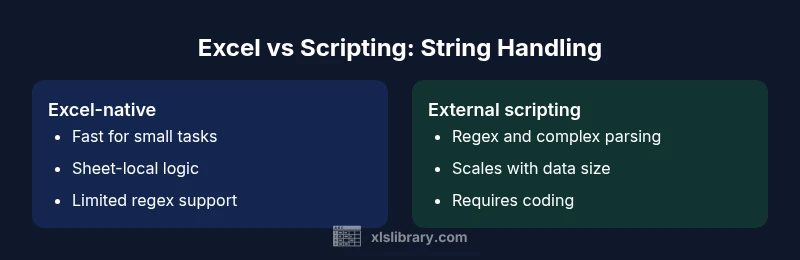
Excel-native string functions are best for quick, light tasks; external scripting wins for complex, scalable workloads.
Start with Excel for simple string tasks. Move to Python/R or Power Query when patterns become complex or data volumes demand automation and reproducibility.
People Also Ask
What does the term 'excel like string' mean in practice?
It refers to performing string manipulation using familiar Excel-like tools, including formulas and workbook-based logic, before moving to scripting or database approaches for more complex tasks.
It means doing text work first in Excel-style formulas, then moving to scripts if things get more complex.
When should I use Excel formulas for strings vs Power Query?
Use Excel formulas for quick, one-off or small-scale tasks within a single workbook. For repeatable pipelines, data that spans multiple sheets, or datasets requiring refresh, Power Query provides clearer steps and better maintainability.
Use Excel for quick tasks, Power Query for repeatable data shaping and refreshable workflows.
Can I use regex in Excel for string parsing?
Excel does not natively support full regex in standard formulas. You can simulate simple pattern matching with FIND/SEARCH, or move to Power Query or Python for regex-based parsing.
Excel lacks native regex; consider Power Query or scripting for regex needs.
How do I automate string tasks across many sheets?
Automation across multiple sheets typically requires Power Query for data shaping, or a scripting approach (Python/R) that can read, transform, and write back to multiple sheets or files.
Use Power Query or a script to automate across many sheets.
Are there performance limits to Excel string operations?
Yes. Complex formulas and very large datasets can slow Excel significantly. For heavy workloads, scripts or Power Query offer better performance and scalability.
Excel can slow with large, complex string tasks; consider scripts for performance.
The Essentials
- Start simple in Excel for quick string tasks
- Plan for a hybrid approach when complexity grows
- Documentation and maintainability matter for long-term use
- Leverage automation to handle large datasets efficiently
- Prototype in Excel, codify in scripts when appropriate