Excel Test Prep: A Practical Guide to Acing Your Exam
A practical, step-by-step guide from XLS Library to ace an Excel test with focused study plans, essential formulas, and timed practice datasets.


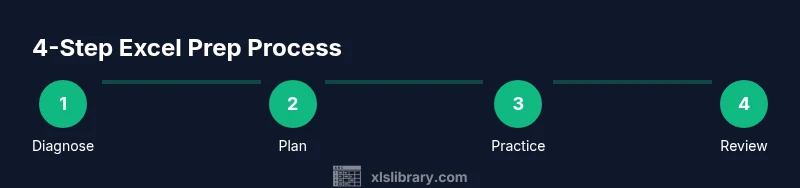
You will prepare for an Excel test by diagnosing current skills, building a focused study plan, and practicing with realistic datasets under timed conditions. Start with a diagnostic quiz to identify gaps, then study core formulas, data manipulation, charts, and automation basics, finishing with full-length timed simulations to build speed and accuracy.
Foundations of excel test prep
According to XLS Library, a solid foundation for any Excel assessment begins with identifying your current strengths and gaps, then designing a targeted plan. Start by setting clear objectives (e.g., mastering 10 core formulas, building data-cleaning workflows, and completing four timed practice tests). This approach keeps you focused and reduces wasted study time. Throughout your prep, align activities with realistic tasks you’ll see on exams, such as analyzing datasets, cleaning data, and presenting results in charts. As you progress, leverage the XLS Library framework to track mastery levels and adjust your plan based on concrete results. Consistency matters; even short daily sessions compound into meaningful improvements.
Core topics to study
Excel exams typically test a mix of formulas, functions, data manipulation, and visualization. Prioritize these areas to maximize your score:
- Formulas and functions: SUM, AVERAGE, MIN/MAX, COUNT, IF, SUMIF, AVERAGEIF, AND/OR.
- Lookup and reference: VLOOKUP, HLOOKUP, XLOOKUP, MATCH, INDEX.
- Data analysis: SORT, FILTER, UNIQUE, TRANSPOSE, TRANSPOSE, data validation.
- Text and date handling: LEFT/RIGHT/MID, CONCAT, TEXT, DATE, NETWORKDAYS.
- Pivot tables and charts: building pivots, slicers, and chart types (line, bar, column).
- Basic macros: recording Macros, running them, and understanding the Macro security model.
Use real datasets so you can practice data cleaning, transformations, and presenting findings with clear visuals.
Practice datasets and task types
Practical practice should mirror exam tasks:
- Clean and normalize data: remove duplicates, fix formats, and standardize text.
- Reconcile mismatches: locate blanks, outliers, and inconsistencies.
- Build calculations: create dynamic dashboards with formulas that respond to user inputs.
- Create reports: compile a summary, add charts, and ensure proper labeling.
- Simulate typical exam prompts: you might be asked to extract a metric from a dataset, create a KPI dashboard, or compare scenarios using conditional calculations.
To maximize learning, mix structured drills (20–30 minutes) with longer, scenario-based challenges (60–90 minutes).
Study plans and time management
A well-structured schedule accelerates learning. Plan for 4 weeks of focused prep, with a weekly cadence of 5 study days and 2 rest days. Week 1 emphasizes fundamentals and shortcuts; Week 2 targets functions and data manipulation; Week 3 concentrates on analysis and visualization; Week 4 is reserved for timed practice and review. Keep sessions between 60 and 90 minutes, and schedule a 15-minute review after each session to reinforce key takeaways. Use a timer to build comfort with pacing.
Timed practice and simulated exams
Timed simulations train you to manage time, reduce hesitations, and maintain accuracy under pressure. Create a 60-minute practice set that includes a mix of 15–20 tasks: 10 short formulas, 3 data-cleaning steps, 2 pivot-related tasks, 2 chart/visualization tasks, and 1 macro-related job. After completing, review every mistake and annotate the correct approach. Repeat this process weekly, progressively reducing the time for tasks to improve speed without sacrificing correctness.
Common pitfalls and how to avoid them
New exam-takers often rely on memorization rather than understanding data structures and pathways. Avoid this by practicing with varied datasets and by explaining your reasoning out loud as you work. Make sure you verify results with alternate methods (e.g., cross-check a VLOOKUP result with an INDEX/MATCH approach). Finally, beware of overfitting to a single dataset—practice with different formats, languages, and date systems to ensure robust skills.
Authoritative sources and further reading
To reinforce your learning, consult reputable sources: Microsoft Learn for Excel functions and data analysis guidance, university-level tutorials on data visualization, and official documentation for advanced user scenarios. The XLS Library recommends cross-referencing these materials to broaden understanding and stay current with best practices.
Tools & Materials
- Laptop or desktop with Excel installed(Excel 2019/2021/365; ensure latest updates)
- Practice datasets (Excel workbook or CSV)(Include varied data types: numbers, dates, text; at least 50 rows)
- Timer or time-tracking device(Use 60–120 minute sessions for simulations)
- Notebook or note-taking app(Record formulas, shortcuts, and pitfalls)
- Mock tests or sample exams(Use realistic timing; track score and errors)
- Formula cheat sheet(Keep handy for quick reference)
- Headphones (optional)(Helpful for focus during long sessions)
Steps
Estimated time: 4 weeks
- 1
Take a diagnostic assessment
Begin with a short, realistic diagnostic set to surface gaps in formulas, data cleaning, and basic analysis. Record scores for each topic to guide your study plan. Use the results to allocate more time to weak areas.
Tip: Focus on three weakest topics first and complete a micro-practice set for each. - 2
Create a focused study plan
Map your diagnostic results to a 4-week schedule with weekly targets. Assign specific topics to each day and block time for both drills and timed practice. Update the plan weekly based on progress.
Tip: Write concrete daily goals and bundle related tasks (e.g., formulas + data cleaning) to build workflows. - 3
Build proficiency with core topics
Study the essential formulas, functions, and data tools. Practice solving problems that require combining multiple steps, such as using INDEX/MATCH with data validation and dynamic charts.
Tip: Create a personal formula cheat sheet and test it in new datasets. - 4
Practice data manipulation and analysis
Work on real-world datasets to hone sorting, filtering, deduplication, and pivot table creation. Practice cleaning workflows that produce a clear final report.
Tip: Always document data provenance and ensure you can reproduce results. - 5
Simulate a timed test and review
Run a full-length practice session with a timer, then analyze incorrect answers. Note the time spent on each task and adjust future pacing accordingly.
Tip: Review each mistake aloud; write down a one-line fix for future reference.
People Also Ask
What is the best way to start excel test prep?
Begin with a short diagnostic to identify gaps, then build a focused plan targeting those areas. Use varied datasets to practice real-world tasks.
Start with a quick diagnostic to find your weak spots, then tailor your plan with varied datasets to practice real tasks.
How long should I study each day for Excel test prep?
Aim for 60 to 90 minutes on most days during the four-week plan. Include a 15-minute review after each session to reinforce learning.
Plan for about an hour a day, with a short review after each session to cement what you learned.
Which topics are most important on typical Excel tests?
Core formulas and functions, data manipulation (sort, filter, clean), lookup methods, pivot tables, and basic charts. Practice combining these skills in real tasks.
Expect to see formulas, data cleaning, lookups, pivots, and charts; practice combining them in real tasks.
Should I use real exams or create my own practice sets?
A mix works best. Use official-style prompts when available and supplement with self-created datasets to test edge cases.
Mix official-style prompts with your own datasets to cover edge cases.
How can I track progress effectively?
Maintain a simple scorecard for each topic, noting mastery level and time taken. Reassess weekly and adjust the plan accordingly.
Keep a scorecard and reassess weekly to adjust your plan.
Are macros necessary for most Excel tests?
Macros are helpful for automation, but most tests emphasize formulas, data manipulation, and analysis. Learn the basics, then focus on core tasks first.
Know the basics of macros, but focus on formulas and data tasks first.
Can I rely on shortcuts alone to pass the test?
Shortcuts save time but won’t compensate for gaps in understanding. Build solid fundamentals first, then layer in speed.
Shortcuts help, but fundamentals come first.
Where can I find authoritative Excel prep resources?
Use Microsoft Learn for official guidance, plus university-level data visualization tutorials and reputable data analysis guides. Cross-reference for best results.
Check Microsoft Learn and university resources as you study.
Watch Video
The Essentials
- Start with a diagnostic to pinpoint gaps
- Prioritize formulas, data cleaning, and basic analytics
- Practice under timed conditions to build speed
- Review mistakes and refine your approach
- Maintain a consistent, realistic study schedule