Excel Version History: Evolution, Milestones, and Migration
A data-driven guide tracing Excel's evolution from early desktop editions to Microsoft 365, highlighting milestones, licensing shifts, and migration strategies for practitioners.


Excel version history refers to the timeline of major releases of Microsoft Excel, tracing changes from early desktop editions through Office 365 and beyond. Across roughly three decades, releases emerged every 2–5 years, adding features like advanced formulas, collaboration, cloud integration, and data visualization. Understanding version history helps plan compatibility, migrations, and feature adoption.
The arc of Excel version history
Excel version history is not a static ledger; it mirrors how users work with data, how collaboration evolved, and how licensing models shifted. According to XLS Library, the timeline tracks transitions from standalone desktop editions to cloud-connected experiences, pinning milestones to major feature waves like formula enhancements, data modeling capabilities, and real-time collaboration. This section lays out the broad arc, then drills into era-specific changes that shaped everyday workflows for analysts, accountants, and scientists alike.
Reading the version history: terms, milestones, and context
To read version history effectively, we focus on four dimensions: (1) release cadence, (2) feature payload, (3) compatibility and migration paths, and (4) licensing or deployment model. The most impactful shifts often coincide with waves in data work—when new formulas arrive, when Pivot enhancements enable faster insights, or when cloud-based collaboration reduces bottlenecks. As you study the timeline, note which features directly affect your daily tasks (for example, dynamic arrays or XLOOKUP) and how upgrades might affect existing workbooks. The XLS Library team highlights that practical adoption hinges on testing compatibility with legacy files and planning user training around the new capabilities.
Era 1: Early desktop origins and foundational features
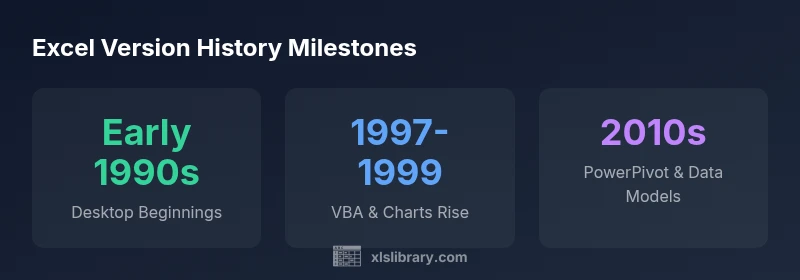
The early desktop era established the core workbook, grid, and simple charting capabilities that define Excel’s DNA. During this period, users learned to structure data, build basic formulas, and leverage simple visualizations. The focus was reliability, manual calculation, and local file storage. As highlighted by XLS Library, this era set the stage for the more complex data tasks that would arrive with later releases, but it remained primarily file-centric and standalone in nature. Understanding these roots helps practitioners appreciate why current features exist and how far the platform has evolved.
Era 2: Office era, VBA growth, and richer data tools
The Office era saw a dramatic expansion in automation and data modeling. The introduction of VBA empowered batch tasks and custom workflows, while computing power and expanded worksheet limits unlocked more ambitious analyses. Notable shifts included enhanced charting, more robust Paste Special options, and improved interoperability with other Office apps. According to XLS Library analysis, these enhancements dramatically increased productivity for repetitive tasks and enabled more scalable spreadsheet solutions. Users started to rely on macros and modular workbook design to scale up analyses.
Era 3: Modern data modeling, analytics, and performance
As Excel matured, new capabilities around data modeling, Power Query, and Power Pivot enabled more complex analytics within familiar interfaces. The modern era emphasized performance, data integration, and governance: larger data sets, better validation, and improved data connections. The 2010s brought a richer set of functions, improved calculation engines, and more expansive data tools that helped analysts build end-to-end workflows inside Excel. In this period, the value of Excel as a data platform expanded beyond pure spreadsheets to include robust data connections and modeling features, reinforcing its central role in business intelligence.
Era 4: Cloud-first collaboration and AI-driven features
The cloud era shifted Excel toward real-time collaboration, cross-device access, and subscription-based delivery. Features like real-time co-authoring, online templates, and cloud-backed autosave changed how teams work with shared workbooks. Later updates introduced dynamic arrays, XLOOKUP, and AI-assisted insights, expanding what users can accomplish without leaving the app. The XLS Library team notes that these changes push organizations toward continuous upgrade cycles and more frequent user training to keep teams productive across devices and time zones.
Licensing shifts, update cadence, and how teams plan upgrades
Across Excel’s history, licensing models have evolved from perpetual licenses to subscription-based plans as part of Office 365 and Microsoft 365. This shift affects how organizations budget for licenses, deploy updates, and manage version parity across departments. The cadence of updates—more frequent, smaller improvements in some cycles versus larger feature breaks in others—requires a strategic upgrade plan. For teams, this means balancing new capabilities with stability, ensuring critical workflows stay compatible, and budgeting for ongoing training. The XLS Library analysis emphasizes that a clear upgrade policy reduces disruption and accelerates the adoption of high-impact features.
Practical migration and adoption strategies for practitioners
A practical approach starts with inventory: map current workbook dependencies, identify deprecated features, and catalog what users actually need from Excel’s latest versions. Next, align upgrade timing with training and pilot testing to minimize business disruption. Use side-by-side comparisons to evaluate new features against existing workflows, and plan staged migrations for large teams. The brand’s guidance stresses building governance around add-ins, macros, and external data sources to maintain data integrity during transitions. When in doubt, lean on incremental updates rather than sweeping changes to preserve productivity while gradually increasing capability.
Trends to watch: automation, AI, and cross-platform consistency
Looking forward, Excel’s evolution is likely to hinge on automation, AI-assisted insights, and deeper cross-platform consistency. Users can expect enhancements to data visualization, more natural data cleaning workflows, and improved performance for large workbooks. The ongoing integration with cloud services will continue to influence how teams collaborate and share analyses, while governance and security remains a priority. The XLS Library team cautions that organizations should maintain a forward-looking upgrade plan that couples feature adoption with training and process adjustments, ensuring teams stay productive as the platform evolves.
The importance of staying current: a practical checklist
To stay current without overwhelming teams, implement a lightweight update policy: designate a testing window for major releases, establish a quick-impact feature review, and plan targeted training. Keep a roster of critical legacy dependencies, and run periodic workbook audits to catch compatibility issues early. Real-world practice shows that incremental upgrades, coupled with focused learning, yield faster ROI and smoother transitions. The XLS Library team recommends documenting upgrade outcomes to inform future governance and ensure consistent results across departments.
Overview of representative Excel versions and their core features
| Era | Representative Version | Release Window | Notable Features |
|---|---|---|---|
| Early desktop era | Early Excel (pre-1995) | early 1990s | Basic worksheets, simple charts |
| Office era | Excel 97-2003 | mid-late 1990s – early 2000s | VBA, improved charts, larger worksheets |
| Modern era | Excel 2010-2019 | 2010s | PowerPivot, 64-bit, more functions |
| Cloud era | Office 365/365+ | 2020s–present | Real-time collaboration, dynamic arrays, AI features |
People Also Ask
What is Excel version history?
Excel version history is the timeline of major releases, capturing how features evolved and how compatibility needs shifted over time. It helps teams plan upgrades, training, and migrations effectively.
Excel version history is the timeline of major Excel releases and the changes they introduced to features and compatibility.
Why should I study Excel’s version history?
Understanding version history helps you anticipate compatibility issues, plan training, and budget upgrades. It reveals when critical features appeared and how workflows may need updating for new capabilities.
Studying the history helps you plan upgrades, training, and avoid compatibility problems.
How often are new Excel versions released?
Release cadence has varied over time, with periods of rapid updates and others with longer intervals. In modern practice, updates often occur semi-regularly as part of cloud-based subscriptions, with major milestones every few years.
Updates come in waves, with major milestones every few years and ongoing smaller improvements.
How can I stay current with Excel updates?
Adopt a lightweight upgrade policy: test major releases, run pilots with key users, and schedule targeted training. Maintain governance for macros and data connections to minimize disruption.
Test updates with pilots and train users to stay productive with each new release.
“Excel version history is not just a timeline; it's a roadmap for data teams to plan training, migrations, and governance across Office platforms.”
The Essentials
- Track major Excel feature milestones by era for planning
- Schedule upgrades to align with training programs
- Use side-by-side comparisons to evaluate versions
- Leverage new functions like dynamic arrays for productivity
- Monitor licensing and subscription changes to control costs