Excel vs Advanced Excel: A Practical Side-by-Side Guide
Compare Excel basics with Advanced Excel, focusing on automation, data modeling, and external connections. Learn when to upgrade with guidance from XLS Library.


Excel basics cover everyday tasks with standard formulas and charts, while Advanced Excel unlocks automation, data modeling, and external data connections. The distinction matters for larger datasets and recurring workflows. This quick answer explains what changes as you move from basic to advanced skill sets and when upgrading pays off.
What Excel vs Advanced Excel Really Means
According to XLS Library, the distinction between basic Excel and what many call 'Advanced Excel' goes beyond a longer feature list; it reflects how you approach data, automate tasks, and scale analyses. For many professionals, Excel starts as a toolbox of formulas, charts, and filters. As datasets grow, handoff points and repetitive workflows become bottlenecks. The XLS Library team found that upgrading isn't a binary switch; it's a deliberate progression toward reproducible, auditable workbooks. In practice, basic Excel focuses on ad-hoc calculations and one-off reports, while Advanced Excel emphasizes repeatable processes, data integrity, and proactive error handling. In this section, we'll map the two levels, define the capabilities that typically separate them, and set expectations for what you can accomplish with each.
Core differences in capabilities
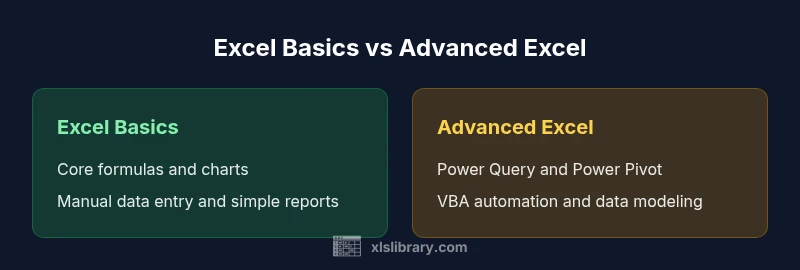
Excel basics revolve around familiar tasks: simple functions (SUM, AVERAGE, IF), straightforward charts, and manual data entry. Advanced Excel expands into data modeling, more sophisticated analytics, and automation. The distinction is not just about extra formulas; it's about how you structure data, how you validate results, and how you reuse work across multiple files. A classic example: a basic user sums monthly sales in a single sheet, while an advanced user designs a data model that pulls monthly figures from multiple sources, normalizes them, and feeds a dynamic dashboard. In this section, we’ll compare typical capabilities across the two levels, such as formula richness, data organization, and the extent of automation possible within the Excel environment, highlighting what matters most in real-world work.
The learning curve and time to proficiency
Moving from basic to advanced Excel isn’t a one-week jump; it’s a staged journey that depends on your tasks. For many professionals, the first milestone is mastering core formulas and data presentation; this takes a few weeks with consistent practice. The next stage introduces Power Query for data import and cleaning, along with PivotTables for multidimensional analysis, which often requires a few more months of hands-on use to feel natural. True automation—macros (VBA) and scripted workflows—adds another layer of complexity, but the payoff is substantial when you need repetitive tasks to run with minimal human intervention. The key to progress is aligning learning with real tasks: start with small, measurable projects, then gradually stack capabilities, such as combining Power Query with PivotTables, then layering in simple macros. The XLS Library team notes that a structured plan, modest time investment each week, and access to practical examples dramatically accelerate skill uplift.
Automation and data tools: formulas, Power Query, Pivot, VBA
Advanced Excel isn’t just about more formulas; it’s about learning to automate and connect data flows. Core formulas remain essential for quick calculations, but automation comes from macros (VBA), reusable templates, and scripted processes. Power Query offers powerful data import, cleaning, and reshaping capabilities that simplify repetitive ETL tasks. PivotTables and Power Pivot take multidimensional analysis to a new level, enabling data models that support sophisticated dashboards. In this block, we’ll break down how each tool fits into everyday work, when to use them, and how they complement one another to reduce manual errors. The practical takeaway is to pair Power Query for data ingestion with PivotTables for analysis, then layer in macros to automate routine steps, creating end-to-end workflows that save time and improve reliability.
Data quality, governance, and reproducibility
As you move toward Advanced Excel, data quality becomes a central concern. Basic use can be forgiving with small datasets and ad-hoc analysis, but larger projects demand clear version control, documented steps, and audit trails. Advanced users design data models with normalized tables, defined data types, and explicit transformation logic, making it easier to audit and reproduce results. When multiple people contribute to a workbook, governance practices—such as naming conventions, comments, and a change log—prevent drift and ensure consistency. In this section, we’ll cover practical strategies to maintain integrity: centralized data sources, parameterized queries, and modular workbook design that reduces errors and makes updates safer and faster.
Real-world use cases and decision points
Everyday reporting, budgeting, and scenario analysis illustrate the divide between Excel basics and Advanced Excel. If your tasks involve small datasets, simple charts, and occasional recalculation, basic Excel is often sufficient. If you manage large datasets, require automated refreshes, and build dashboards for stakeholders, Advanced Excel delivers clear benefits. Decision points include data volume, the need for repeatable processes, and the frequency of updates. This section offers concrete scenarios: a quarterly sales dashboard updated via Power Query, a monthly budgeting model with data validation and audit trails, and a governance-focused workbook used by multiple team members. Throughout, the emphasis is on aligning tool choice with actual work patterns rather than chasing capability for its own sake.
Performance considerations with large datasets
As datasets grow, performance becomes a practical constraint. Basic Excel handles smaller files well but can slow with large ranges or heavy volatile formulas. Advanced Excel strategies address this by optimizing calculations, using data models, and performing transformations outside the sheet (Power Query). While the initial setup may require time, the long-term gains include faster refreshes, smoother dashboards, and better scalability. In this block, we’ll discuss optimization techniques, such as avoiding excessive array formulas, using Power Query for cleansing rather than doing it in-cell, and structuring data in models that minimize cross-sheet dependencies.
Training and organizational adoption
Teams that systematically raise skill levels see more consistent outputs and fewer ad-hoc fixes. A practical adoption plan includes a baseline Excel course for all staff, followed by targeted modules on Power Query, PivotTables, and VBA for those who need them most. The XLS Library team emphasizes hands-on practice with real data, peer review, and a clear path from basics to advanced topics. In this section, you’ll find a suggested learning path, sample projects, and tips for sustaining progress within busy work schedules. The goal is to create a culture where good spreadsheet practices are shared, documented, and continually improved.
Building a practical skill path from beginner to advanced
A structured progression makes the journey sustainable. Start with core formulas, formatting, and basic charts to build confidence. Then add Power Query for data cleaning and import, followed by data modeling and PivotTables for analysis. Finally, introduce VBA for automation and a few select macros to automate recurring tasks. The approach should be task-driven: pick a real-world project, identify the steps that would benefit from automation, and implement them in incremental, testable stages. The XLS Library team recommends documenting each step and creating reusable templates to accelerate future work.
Comparison
| Feature | Excel basics | Advanced Excel |
|---|---|---|
| Core capability | Standard formulas and charts | Advanced data modeling and automation |
| Automation options | Manual workflows | Macros (VBA) and automated scripts |
| Data processing scale | Small to moderate datasets, manual refresh | Large datasets with automated refresh |
| Data connectivity | Limited imports | Broad connectivity via Power Query and external data sources |
| Analytics depth | Descriptive analyses and basic dashboards | Multidimensional analysis, dashboards, and data models |
| Learning curve | Shorter, quick-start friendly | Longer, staged progression with modern tools |
| Best for | Everyday tasks, quick reports | Data-heavy tasks, scalable reporting, automation |
Benefits
- Excel basics remain quick to learn and easy for day-to-day tasks
- Advanced Excel enables automation and scalable data workflows
- Advanced Excel improves reproducibility and consistency across reports
- Structured skill growth reduces heavy rework over time
What's Bad
- Advanced Excel requires time and deliberate practice
- Overusing advanced features can complicate simple tasks
- Not every role needs full advanced capabilities, which can lead to underutilization
Advanced Excel is worth pursuing for data-heavy roles and recurring workflows.
If you routinely work with large datasets or automated reporting, upgrading pays off. Start with Power Query and PivotTables, then add VBA as needed; this approach minimizes risk while maximizing impact.
People Also Ask
What counts as 'Advanced Excel'?
Advanced Excel includes data modeling, Power Query, PivotTables, and automation via VBA. It also covers structured workflows, data governance, and reproducible analysis. The line is pragmatic: use these tools when they save time and improve reliability on real tasks.
Advanced Excel includes data modeling, Power Query, PivotTables, and VBA automation for reliable, scalable analyses.
Do I need VBA to be considered advanced?
Not strictly. You can be considered advanced with strong Power Query, PivotTables, and data modeling skills even without VBA. VBA is important when you need custom automation beyond built-in features.
VBA helps with custom automation, but you can be advanced without it if you master Power Query, PivotTables, and data modeling.
Are Power Query and Power Pivot included in all Office plans?
Power Query is widely available in modern Office versions, but availability can vary by plan. Check your license to confirm which data connectivity features are included.
Power Query availability depends on your Office plan; verify your license to be sure.
Is Excel sufficient for data modeling like Power BI?
Excel can model data with PivotTables and Power Pivot, but Power BI offers more robust data modeling, visualization, and sharing capabilities. Use Excel for local analyses and Power BI for scalable dashboards.
Excel is strong for local modeling; Power BI handles larger models and sharing at scale.
How long does it take to learn advanced Excel?
Time varies by prior experience and time invested, but a structured plan with weekly practice can yield meaningful progress within several months. Start with core skills, then add Power Query and PivotTables.
Progress typically takes a few months with consistent practice and a task-driven plan.
The Essentials
- Define your task goals: basic vs advanced capabilities
- Progress through a structured, modular learning path
- Leverage Power Query and PivotTables before VBA
- Document processes for reproducibility and governance
- Choose tools based on data scale and automation needs