How to Change Row Height in Excel
Learn how to adjust row height in Excel with manual drag, precise Row Height values, AutoFit, and tips for wrapped text and merged cells. Practical steps for beginners and pros.


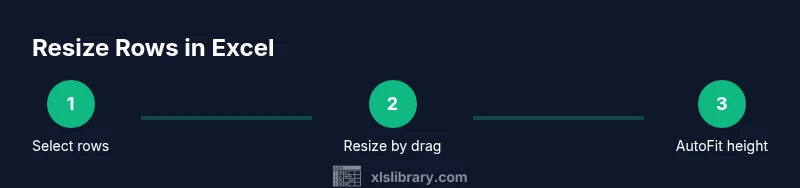
To change row height in Excel, select the row(s), then drag the bottom edge of the row header to resize. For precise control, go to Home > Format > Row Height and enter a numeric value. You can also double-click the boundary to AutoFit to content. These methods work for standard worksheets, including wrapped text and simple data.
Understanding Row Height and Why It Matters
If you’re wondering how to change row height in Excel, you’re not alone. Row height determines how much vertical space each row occupies, which directly affects readability and print layout. When data wraps or includes a long formula result, default heights can hide content or truncate numbers. According to XLS Library, mastering row height is a foundational skill that helps you present data cleanly and professionally. In this article, we’ll explore what controls height and how to approach adjustments with confidence.
What Affects Row Height
Row height is not just a number in a cell property; it is a dynamic attribute that responds to how content fits inside the row. Wrapped text, long formulas, and inserted images all push a row to grow taller to accommodate the content. Merged cells can complicate height adjustments, sometimes keeping rows taller than expected or causing inconsistent sizing across adjacent rows. The choice of font, font size, and zoom level also influences perceived height. Understanding these factors helps you plan height adjustments before you start changing values.
Quick Methods to Change Row Height
Excel provides several reliable ways to resize rows. You can resize by dragging the row boundary for a quick tweak, or use a precise numeric height via the Row Height dialog. AutoFit automatically adjusts height to fit the tallest content in the row. Each method serves different scenarios: quick tweaks, exact formatting, or dynamic data that changes over time. The goal is to keep data readable without wasting space.
Dragging to Resize: Manual Adjustment
The simplest method is to drag. Move your cursor to the bottom edge of the row header until it becomes a double-headed arrow, then click and drag to the desired height. This approach is fast when you’re visually assessing how much space a row needs. Pro tip: hold the Shift key while dragging to adjust multiple rows in uniform height, ensuring a neat, consistent look across a block of data.
Setting an Exact Height with Row Height
For precise control, use the Row Height command. Select the target row(s), then go to the ribbon: Home > Format > Row Height. Enter a numeric value in points, and press OK. This is ideal when you need consistent height for a report, a template, or printing where exact margins matter. If you’re unsure, start with a moderate value and adjust after a quick preview.
AutoFit: Fit Content Automatically
AutoFit is a powerful option when your data changes frequently. To AutoFit, double-click the row boundary, or use the menu: Home > Format > AutoFit Row Height. AutoFit examines the cell contents and expands the row just enough to reveal wrapped text or tall formulas. This technique keeps your sheet adaptable while maintaining readability. If AutoFit overshoots due to images or merged cells, adjust manually or split content into separate rows.
Special Cases: Wrapped Text, Merged Cells, and Data Tables
Wrapped text can dramatically increase row height, so consider adjusting wrap settings (Home > Alignment > Wrap Text) if you want to control height more predictably. Merged cells complicate resizing because the height may apply to multiple rows; unmerge before a precise adjustment. In data tables, be mindful that Excel sometimes manages height differently in tables versus standard ranges. Always verify the final appearance in both Normal View and Page Layout View.
Troubleshooting and Best Practices
If a row won’t resize as expected, check for merged cells, hidden rows, or conditional formatting that affects layout. Use Zoom and Page Layout View to preview how the final document will appear when printed. Keep a small set of standard heights for consistency, and save a copy before experimenting with large-scale height changes. Regular checks, especially before sharing or printing, help ensure your data remains legible and professional.
Tools & Materials
- Computer with Microsoft Excel installed(Office 365 or Excel 2019+ for best compatibility)
- Active workbook with sample data(Include wrapped text or long formulas to test height changes)
- Mouse or trackpad(Needed for dragging row boundaries)
- Keyboard(Helpful for shortcuts (e.g., Alt, H, O, I in some versions))
- Printer or Print Preview access(Optional for verifying page breaks and margins)
Steps
Estimated time: 5-15 minutes
- 1
Select target row(s)
Click the row header(s) to select a single row or multiple rows. This ensures height changes apply consistently. If you need non-adjacent rows, hold Ctrl while selecting.
Tip: Use Ctrl+A to select the entire sheet if you plan a uniform height across all rows. - 2
Resize manually by dragging
Hover over the bottom boundary of the row header until the cursor becomes a double-headed arrow, then click and drag to the desired height. Release when satisfied.
Tip: Dragging works best for quick visual adjustments; release before crossing into another row's boundary. - 3
Set an exact height via Row Height
With the rows selected, go to Home > Format > Row Height, enter a numeric value, and press OK. This locks the height to a precise measurement.
Tip: If you’re unsure, start around 15–20 points and adjust after a quick preview. - 4
AutoFit to content
Double-click the row boundary to AutoFit, or choose Home > Format > AutoFit Row Height. Excel will adjust height to fit the tallest cell content.
Tip: AutoFit is ideal after data updates; recheck when wrapping or merging changes occur. - 5
Apply to multiple rows at once
Select multiple rows before resizing to apply a uniform height. This is especially useful for clean tables and consistent print layouts.
Tip: Use the same height across the block to maintain visual balance. - 6
Address wrapped text and merged cells
If text wraps, height will increase. If rows contain merged cells, you may need to unmerge first or adjust heights carefully.
Tip: Prefer unmerging for precise height control unless you require merged layout for presentation. - 7
Preview before finalizing
Check Normal and Page Layout views, and use Print Preview to ensure content fits on the page.
Tip: Small height adjustments can prevent awkward page breaks. - 8
Save changes
Save your workbook after adjusting heights to preserve your formatting choices.
Tip: Create a backup before applying large-scale height changes.
People Also Ask
Can I adjust the height for all rows in a worksheet at once?
Yes. Select the entire sheet (Ctrl+A) and resize using drag, Row Height, or AutoFit. This applies the same height to every row.
You can resize all rows at once by selecting everything and adjusting the height.
What happens if I wrap text in a cell?
Wrapping text often increases row height to fit the content. You may need to adjust height or wrap settings to control the result.
Wrapped text can make rows taller, so you might want to adjust height after enabling wrap.
Is AutoFit always exact?
AutoFit adjusts height to fit the tallest content in each row, but may need manual tweaks if you have merged cells or images.
AutoFit is usually accurate, but merged cells or images can require manual tweaks.
How do I reset row height to default?
Select the rows and set Row Height to 15 (Excel’s default height) or use the standard reset option in your version. Save after applying.
You can reset by setting a standard default height, then saving.
Do row height changes affect print layout?
Yes. Row height changes can alter page breaks and margins. Always preview in Page Layout or Print Preview.
Row height can affect print layout, so check Preview before printing.
What if a row won’t resize with drag?
Check for hidden rows, frozen panes, or protected sheets. Also look for merged cells that may prevent height changes.
If dragging fails, look for hidden rows or protection that might block changes.
Watch Video
The Essentials
- Select rows and resize using drag or Row Height for precision
- AutoFit adapts height to content automatically
- Wrapped text and merged cells require special handling
- Always preview before printing to ensure layout integrity
- Apply consistent heights across multiple rows for clean boards