How to Get Excel in Python: A Practical Guide
Learn how to get Excel data into Python, read and write .xlsx files with pandas and openpyxl, and automate common tasks. This practical guide covers setup, libraries, workflows, and best practices for Excel automation in Python.


With this guide you will learn how to get Excel in Python: install the right libraries, read and write .xlsx files, and perform common data operations. You will need Python 3.8+, pip, and an Excel file to begin. By the end you can load sheets into pandas, modify data, and save results back to Excel.
Why Excel and Python pair well for data work
Excel remains a ubiquitous data source in many organizations. When you combine it with Python, you unlock scalable data processing, automation, and reproducible workflows. The XLS Library team has found that teams that bridge Excel with Python gain faster turnaround on data cleaning, report generation, and ad‑hoc analysis. This synergy lets you pull Excel data into pandas dataframes for complex transformations, then push results back to Excel for sharing with stakeholders. By learning this workflow you reduce manual edits, lower error rates, and create repeatable processes that survive changes in personnel or requirements. In short, Python acts as the engine while Excel remains the familiar interface for data input and dissemination.
Key takeaway: understanding how to move between Excel and Python empowers you to automate routine tasks and focus on analysis rather than manual data wrangling.
boldDescription_placeholder true-flag? : false
Tools & Materials
- Python 3.8+(Download from python.org and ensure it’s added to PATH.)
- Pip(Included with Python; upgrade if needed using python -m pip install --upgrade pip.)
- Virtual environment (venv)(Create an isolated environment: python -m venv venv && source venv/bin/activate.)
- Code editor or IDE(VS Code, PyCharm, or any editor you prefer.)
- Pandas(Install with: pip install pandas openpyxl.)
- OpenPyXL(Required to read/write .xlsx when using pandas with engine='openpyxl'.)
- Sample Excel file(Have a test .xlsx file ready to practice reading and writing.)
- Optional: Jupyter Notebook/Lab(Helpful for interactive exploration and tutorials.)
Steps
Estimated time: 60-90 minutes
- 1
Set up your Python environment
Install Python 3.8+ and create a dedicated virtual environment to avoid conflicts with system packages. This ensures reproducible results across machines.
Tip: Activate the environment each session to keep dependencies consistent. - 2
Install core libraries
Install pandas and openpyxl to handle Excel files. Use pip install pandas openpyxl and verify installations with import pandas as pd and import openpyxl in Python.
Tip: If you see a version mismatch, pin compatible versions like pandas==x.y.z and openpyxl==a.b.c. - 3
Prepare your script
Create a new Python file (e.g., excel_python.py) and import pandas as pd. This keeps the example simple and focused on Excel I/O and data operations.
Tip: Keep file paths absolute during development to avoid path issues. - 4
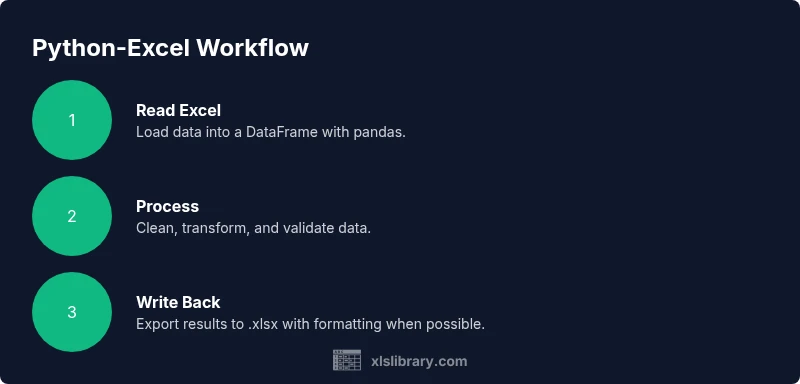
Read an Excel file into a DataFrame
Use pd.read_excel('path/file.xlsx', engine='openpyxl') to load sheets into a dataframe for manipulation.
Tip: If your file has multiple sheets, specify sheet_name or read all siblings at once. - 5
Modify data in memory
Perform typical operations like filtering, aggregation, or column transformations using pandas methods.
Tip: Chained operations save time but test on a copy first to prevent data loss. - 6
Write results back to Excel
Export DataFrame to Excel with df.to_excel('path/output.xlsx', index=False). OpenPyXL handles modern Excel formats well.
Tip: Set index=False to avoid an extra index column in your output. - 7
Handle multiple sheets
Use sheet_name='Sheet1' or sheet_name=None to read/write across multiple sheets as needed.
Tip: When exporting, you can pass a dict of DataFrames to to_excel to create multiple sheets. - 8
Validate and troubleshoot
Check for missing values, data types, and boundary cases before sharing results. Use df.info() and df.describe(include='all').
Tip: Print a sample with df.head() to verify a successful read.
People Also Ask
What is the best library to get Excel data into Python?
For .xlsx files, pandas paired with openpyxl is the most common and recommended approach because it combines powerful data manipulation with reliable Excel I/O. If you just need simple cell access, openpyxl alone is suitable.
For most tasks, pandas with openpyxl is the best starting point for Excel in Python.
Can I read password-protected Excel files with Python?
Password-protected files require credentials and may need specialized handling. Many libraries cannot bypass protection, so the password must be provided to read the data.
Password protection in Excel makes reading with Python more complex and isn’t always possible without the password.
Is reading large Excel files memory-efficient in Python?
Large files can consume a lot of memory. Use chunksize with read_excel, or process with Dask or PyArrow, to manage memory usage effectively.
Yes, for very large files you should read in chunks or use a library designed for out-of-core computation.
Do I need Excel installed to read Excel files with Python?
No. Python libraries read the Excel file formats directly (.xlsx, .xls) without needing Excel installed on your machine.
You don’t need Excel installed to read or write Excel files with Python.
Can I preserve formatting when writing back to Excel?
Python libraries support basic cell values and formatting through libraries like openpyxl, but preserving complex formatting and charts can be limited and may require custom scripting.
You can format some cells, but charts and advanced formatting are harder to preserve.
How do I read multiple sheets at once?
Use sheet_name=None to read all sheets as a dictionary of DataFrames, or pass a list of sheet names to read_specific sheets.
You can easily read one or all sheets by using sheet_name parameters.
Watch Video
The Essentials
- Learn to read Excel into pandas efficiently
- Write results back to Excel with minimal boilerplate
- Handle multiple sheets and data types with clear parameters
- Prioritize data validation before sharing results