How to Name a Range in Excel: A Practical Step-by-Step Guide
Learn how to name a range in Excel with practical steps, rules, and best practices. Named ranges improve formula readability and workbook reliability for all users.


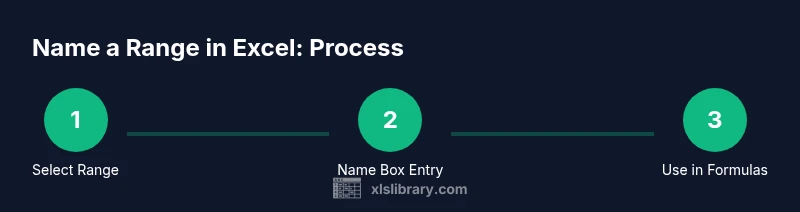
According to XLS Library, naming a range makes formulas clearer and more maintainable. To name a range in Excel: 1) select the cells you want included, 2) click the Name Box to the left of the formula bar, 3) type the name (no spaces, not starting with a number), 4) press Enter to save. Use the name in formulas like =SUM(salesQ1) for clarity.
Why Named Ranges Improve Excel Work
Named ranges make formulas easier to read and maintain. According to XLS Library, giving a name to a cell or block of cells turns hard-to-read references like A2:A10 into meaningful labels. This reduces errors when you come back to a workbook after weeks away. In practice, named ranges help you create reusable building blocks for dashboards, budgets, and schedules. They also support better collaboration, since teammates can understand what a range represents at a glance. In short, named ranges are a best practice for anyone who builds models in Excel. Beyond readability, they enable consistent data validation, dynamic named ranges with OFFSET, and easier auditing for complex spreadsheets.
How Named Ranges Interact with Formulas
A named range acts as a fixed reference in formulas, expanding or contracting with the cells it covers. When you reference a named range, Excel substitutes the actual cell addresses with the name, making formulas easier to interpret. For example, =SUM(salesQ1) communicates intent far better than =SUM(B2:B31). This readability is especially valuable in teams and dashboards. According to XLS Library analysis, using meaningful names reduces misinterpretation and speeds up audits, especially in large workbooks with many formulas.
Scope and Names: Workbook vs Worksheet
Named ranges can have either workbook-wide scope or worksheet-level scope. A workbook-scoped name is accessible from any sheet, while a sheet-scoped name is visible only on its own tab. When naming ranges, consider future use: if you plan to copy the sheet into another workbook, workbook-level names stay consistent, but sheet-level names may need adjustment. Understanding scope helps prevent broken references when ki tting data from multiple sheets.
Best Practices for Naming Conventions
Choose descriptive, unambiguous names that reflect the data, such as Sales_Q1 or RevenueMargin. Avoid spaces; use underscores or camelCase to separate words. Start names with a letter or underscore (not a number) and avoid Excel reserved words. Keep names reasonably short to reduce typing effort, but long enough to be meaningful. Consistency is key: adopt a naming schema and apply it across all named ranges in a workbook. This discipline pays off when you later share the file with colleagues or when building templates.
How to Create a Named Range: Quick Guide
Creating a named range is faster than you think. Start by selecting the target cells, then open the Define Name dialog if you prefer more control. The fastest path is using the Name Box: type a name, press Enter, and you’re done. For more control, use Formulas > Define Name to set the scope, comment, and refers to range in one place. Either method yields a reusable reference for your formulas.
STEP-BY-STEP: Name a Range in Excel
- Select the range you want to name.
- Click the Name Box to the left of the formula bar.
- Type a descriptive name (avoid spaces; start with a letter or underscore).
- Press Enter to save.
- Test the name in a simple formula, e.g., =SUM(name_range).
- If you need to adjust scope or rename, use Name Manager. This block-by-block workflow minimizes mistakes and ensures consistent references across your workbook.
Using Named Ranges in Common Functions
Named ranges work with most Excel functions that accept a range. Common examples include SUM, AVERAGE, MAX, MIN, and VLOOKUP. When you replace a traditional range with a named range, your formulas become more self-explanatory. This improves readability for others and reduces the cognitive load when reviewing formulas. For conditional logic, named ranges can simplify complex criteria references.
Named Ranges and Data Validation
You can use named ranges as the source for data validation lists, which makes validation rules easier to maintain. If the list grows, simply update the named range and all dependent validation rules update automatically. This practice helps maintain data integrity and ensures consistency across a workbook.
Renaming, Deleting, and Managing Named Ranges
Over time you may rename or delete named ranges. Use the Name Manager to review all defined names, adjust their scope, or remove unused ones. Be mindful that deleting a named range used in formulas will cause those formulas to break until you update them. Regular housekeeping keeps workbooks reliable and readable.
Practical Case Study: Inventory Tracking Workbook
Imagine a workbook used to manage inventory with multiple sheets for products, suppliers, and stock levels. By naming ranges for product IDs, quantities, and lead times, the formulas read like natural language: =SUM(Stock_Qty) and =VLOOKUP(Product_ID, ProductList, 3, FALSE). This approach reduces errors and makes it easier for teammates to audit stock levels and reorder points.
AUTHORITY SOURCES
- https://learn.microsoft.com/en-us/office/troubleshoot/excel/named-range
- https://support.microsoft.com/en-us/office/name-a-range-3b8b0ae9-3f1f-4d2b-9f3d-2c8f8d8a5b3c
- https://www.excel-easy.com/tutorial/named-range.html
Tools & Materials
- Excel-enabled computer (Windows or macOS)(Office 365 or Excel 2016+; ensure you can access the Name Box and Name Manager)
- Data workbook to practice on(Have a sheet with a contiguous range to name (or create sample data))
- Notes on naming conventions (optional)(Keep track of naming rules you plan to apply for consistency)
- Internet access (optional)(Useful if you want to consult official docs or examples online)
Steps
Estimated time: 15-20 minutes
- 1
Select the range to name
Choose the cells that will comprise the named range. The range should be contiguous for most simple use cases, but you can name non-contiguous blocks using the Name Manager. Selecting the right scope at this stage prevents later refactors.
Tip: Double-check the range includes every needed cell and no extra cells. - 2
Open the Name Box
The Name Box is the fastest way to create a named range. It sits to the left of the formula bar. If you prefer, you can also open Formulas > Define Name for additional options.
Tip: If you don’t see the Name Box, switch to a different worksheet view or enable formula bar visibility. - 3
Enter a descriptive name
Type a clear, alphanumeric name with underscores if needed. Do not use spaces or start with a number. Aim for a name that conveys what the range contains, like Revenue_Q1 or Stock_Qty.
Tip: Avoid generic names like 'Data' which don’t communicate the content of the range. - 4
Save the name
Press Enter to save the name. Check that the scope is set to Workbook (unless you specifically want a sheet-level name).
Tip: If necessary, switch to Name Manager to adjust scope after creation. - 5
Test the named range
In a simple cell, type =SUM(yourName) or =AVERAGE(yourName) to verify the reference returns expected results. This helps catch typos early.
Tip: If Excel reports an error, use the Name Manager to verify the exact defined name. - 6
Manage and refine as needed
Open Name Manager to edit, rename, or delete named ranges. Regular cleanup prevents conflicts and keeps formulas readable.
Tip: Consider avoiding frequent renames to minimize ripple effects across formulas.
People Also Ask
What is a named range in Excel?
A named range is a cell or group of cells given a descriptive name for easier reference in formulas and data validation. It replaces hard-coded cell addresses with readable labels like Sales_Q1. This improves readability and reduces errors when editing complex workbooks.
A named range is a label for a cell or range that makes formulas easier to read.
Are there naming restrictions in Excel?
Names cannot contain spaces and should start with a letter or underscore. They should not be identical to Excel reserved words, and they should be descriptive. While you can use numbers inside names, avoid starting with a number to prevent confusion.
Names can’t have spaces, should start with a letter or underscore, and should be descriptive.
Can named ranges be used in all formulas?
Yes. Named ranges can be used anywhere a range reference is allowed, including SUM, AVERAGE, VLOOKUP, and conditional functions. They make formulas easier to read and maintain.
Named ranges can be used in most formulas just like ordinary cell references.
How do I edit or delete a named range?
Open the Name Manager to edit the name, adjust its scope, or delete it. If a named range is used in formulas, those formulas will update automatically once the change is saved.
Use Name Manager to edit or delete named ranges; formulas update automatically.
What mistakes should I avoid when naming ranges?
Avoid spaces and starting with numbers. Use descriptive terms, maintain consistent scope, and don't reuse names for different ranges. Regularly clean up unused names to prevent confusion.
Don’t use spaces or numbers at the start; keep names descriptive and unique.
Do named ranges affect performance?
Named ranges themselves have negligible impact on performance. They mainly affect readability and maintainability. Use them thoughtfully to keep formulas clean without overcomplicating your workbook.
Named ranges don’t slow Excel noticeably; they mainly help readability and maintenance.
Watch Video
The Essentials
- Name ranges for clarity and reuse.
- Use named ranges in formulas to improve readability.
- Maintain consistent scope across the workbook.
- Avoid spaces and reserved words in names.
- Manage and prune names with Name Manager.