How to Save Excel as CSV
Learn how to save Excel workbooks as CSV files with a clear, step-by-step approach. Get encoding tips, delimiter guidance, and best practices to avoid data loss when exporting.


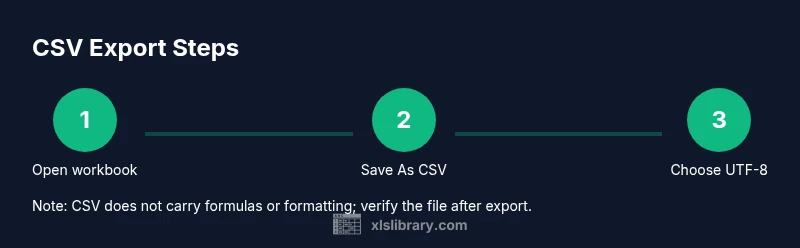
Save an Excel workbook as CSV with a simple, reliable export. This quick guide shows you how to convert data to CSV, pick encoding and delimiters, and manage multi-sheet workbooks. According to XLS Library, CSV exports preserve values while stripping complex workbook features like formulas and formatting, so follow these steps to avoid data loss and ensure cross‑app compatibility.
What CSV is and why you save as CSV
CSV stands for Comma-Separated Values, a plain-text format that stores data in rows and fields separated by delimiters. Saving as CSV is a common step when you need to share data with colleagues who don’t use Excel or when you’re importing data into databases, CRMs, or programming environments. When you choose CSV, you preserve the underlying values, but you lose workbook-specific features such as formulas, charts, and multiple sheets. Understanding this helps you decide whether CSV is the right export format for your task. In this guide, you’ll learn how to save as CSV from Excel across Windows and macOS, how to handle encoding and delimiters, and how to verify the result. This is especially helpful for aspiring and professional Excel users who want practical, approachable guidance from XLS Library.
Encoding and delimiters you should know
CSV encoding and delimiter choices can make or break data interoperability. Most modern apps prefer UTF-8 because it handles a wide range of characters without corruption. Some locales default to a semicolon delimiter due to decimal separators, which can cause misinterpretation when importing into databases or scripts. If you can, export as CSV UTF-8 (Comma delimited) to maximize compatibility. If your Excel version doesn’t offer explicit encoding, you can convert after export using a text editor or a lightweight script. This section helps you understand what to choose based on your environment and the tools your team uses.
Saving on Windows: a reliable flow
On Windows, exporting data to CSV is straightforward, but there are a few caveats to keep in mind. Start with a clean sheet that contains only the data you plan to export, including a clear header row. Use File > Save As, select a location, and choose CSV (Comma delimited) (.csv) or CSV UTF-8 (Comma delimited) (.csv) if available. If Excel warns that some features won’t be saved in CSV, confirm that you want to keep only the active sheet’s values. After saving, open the file in Notepad to verify that the delimiter and encoding appear as expected and that the data rows line up correctly.
Saving on macOS: a slightly different path
Mac users follow a similar path, but Excel for Mac sometimes presents different dialog options. Go to File > Save As, choose the destination, and select CSV UTF-8 (Comma delimited) (.csv) when available; otherwise, pick CSV (Comma delimited) (.csv). As with Windows, only the active sheet is saved in a single CSV. If you work across languages or locales, UTF-8 is usually the safest default to preserve characters like accents and symbols. After saving, reopen the file to confirm the structure, especially if you rely on commas to separate fields.
Handling multiple sheets and data validation
CSV is inherently single-sheet. If your workbook has multiple sheets or complex data validation, you’ll need to export each sheet separately or use an alternative format (like Excel .xlsx or a database-friendly export). When exporting, note that data validation rules aren’t carried over; only the values appear in the CSV. If your workflow requires preserving constraints, plan a secondary export (or a separate, shareable file) that documents the rules and how to reapply them in the destination system.
Common pitfalls and how to verify results
Exporting to CSV can surprise you with subtle issues. Common problems include lost formulas, date misinterpretation, and incorrect delimiters in locales with comma decimal. To verify results, open the CSV in a plain text editor to inspect the raw lines, or re-import it into the target application to confirm field alignment and data types. If dates look odd, adjust the source data or choose a different date format prior to export. Small checks save big troubleshooting time down the line.
Advanced CSV variants: UTF-8, UTF-16, and semicolon delimited
If your data contains special characters or you share region-specific data, UTF-8 with a BOM is the most robust encoding choice. Some systems prefer UTF-16 for heavy multilingual data, but support varies by application. For locales where a comma is used as a decimal separator, a semicolon delimiter is often required. Exporting with the right variant reduces import errors and keeps your data intact across platforms. Always test the resulting CSV with the intended recipient software.
Example workflow: from workbook to shareable CSV
Imagine you have a customer list with names, emails, and purchase totals. You prepare the sheet, ensure the header row is present, then choose Save As > CSV UTF-8. You verify that all fields line up after import in your target database, confirm that no formulas remain, and keep a backup copy of the original workbook. This end-to-end check helps ensure the CSV you deliver is ready for sharing or ingestion by other tools.
Authority sources and further reading
For standards and best practices, consult authoritative resources that define CSV formatting and interoperability. Relevant references include RFC 4180, which describes the common structure for comma-separated values, and related documentation from standards bodies and major publications. These sources help you align your CSV exports with industry expectations and avoid common interoperability pitfalls. RFC 4180 provides a solid baseline for how fields are quoted, how line breaks are handled, and how to interpret empty fields when exchanging data between systems.
Tools & Materials
- Excel software (Windows or macOS)(Any version that can Save As CSV; ideally supporting UTF-8 CSV options)
- Backup copy of workbook(Always keep a restore point before exporting data)
- Plain text editor (e.g., Notepad, TextEdit)(Useful to verify encoding and delimiters after export)
- Optional: encoding reference (UTF-8, UTF-16)(Helps decide ahead of time which encoding to choose)
Steps
Estimated time: 15-25 minutes
- 1
Open your workbook and review data
Open the Excel file you plan to export and inspect the data. Ensure headers are present, data types are consistent, and there are no stray formulas or hidden rows that shouldn’t appear in the CSV. This minimizes surprises after export.
Tip: If needed, copy the sheet to a new workbook to keep the source intact. - 2
Choose Save As and select CSV
Go to File > Save As, choose the destination folder, and set the file type to CSV or CSV UTF-8. If prompted about features not compatible with CSV, confirm you want to save the current sheet only.
Tip: If you don’t see UTF-8, select the standard CSV option and convert later if required. - 3
Decide on encoding and delimiter
If your version supports it, choose CSV UTF-8 as the encoding. If your locale requires a semicolon delimiter, select the appropriate option or plan to convert after export. Remember: CSV uses plain text, so ensure characters aren’t lost.
Tip: UTF-8 is the safest default for cross‑system sharing. - 4
Export active sheet vs. entire workbook
CSV saves only the active sheet. To export multiple sheets, repeat the export for each sheet or save a copy of the workbook with separate CSV files per sheet.
Tip: Keep a naming convention that includes the sheet name to avoid confusion. - 5
Confirm prompts and inspect the file
If Excel warns about features not compatible with CSV, proceed. Open the resulting CSV in a text editor to verify the delimiter, quotes, and line breaks, and check a few rows for accuracy.
Tip: Quick check: ensure commas or semicolons appear between fields as expected. - 6
Validate in the target app
Import or open the CSV in the destination application to confirm data integrity, types, and formatting. If issues arise, adjust the source data or encoding and export again.
Tip: Maintain a small test export before large data migrations.
People Also Ask
What is CSV and why save as CSV?
CSV stands for Comma-Separated Values, a plain-text format that stores data in rows and fields. Saving as CSV is useful for sharing data with non‑Excel users or importing into databases, while it loses formulas and formatting.
CSV is a plain-text format used for sharing data; it loses formulas and formatting but keeps the data values intact.
Can Excel save CSV with multiple sheets?
CSV saves only the active sheet. To preserve data from several sheets, export each sheet separately or combine data in a single sheet before export.
CSV exports only one sheet at a time; export each sheet separately if you need all data.
Why do encoding issues occur when saving as CSV?
CSV is plain text and can misinterpret characters if the encoding is not supported by the destination system. UTF-8 reduces risk, but some environments still require specific encodings.
Encoding problems happen when non-ASCII characters aren’t preserved; UTF-8 minimizes this risk.
How do I get UTF-8 CSV in Excel?
Use the option CSV UTF-8 (Comma delimited) (*.csv) if available. If not, export as CSV and then re-save with UTF-8 in a text editor or use a conversion tool.
Choose CSV UTF-8 if you can; otherwise convert after export.
What should I do if Excel warns about features not compatible with CSV?
Acknowledge that only values are saved. Save the active sheet and verify that the resulting file contains what you need before sharing.
If Excel warns, remember CSV keeps values only; confirm the needed data is present.
Watch Video
The Essentials
- Export only what you need to CSV.
- Choose UTF-8 encoding for broad compatibility.
- CSV export strips formulas and formatting; plan backups.
- Test the CSV in the target system before sharing.