How to tell if an Excel sheet is protected
Learn practical steps to determine if an Excel sheet is protected, identify protected features, and safely unprotect with permission. Clear guidance for Windows and Mac, plus tips and common pitfalls.


To tell if an Excel sheet is protected, try to edit a cell: if editing is blocked and you see messages about protected cells, the sheet is protected. Common indicators include a Protect Sheet option in the Review tab and locked cells that cannot be changed without unprotecting the sheet (password required if set).
What protection means in Excel and why it matters
In Excel, sheet protection is a feature that restricts edits to cells, formulas, or layout. It is commonly used to preserve the integrity of complex worksheets that contain important calculations or design elements. According to XLS Library, understanding when and why protection is applied helps you work more efficiently and reduces the risk of accidental changes. When a sheet is protected, users can still view data, but certain actions—such as editing locked cells, formatting, or inserting rows—may be blocked unless permission is granted. Distinguishing between threadbare protections (like formatting restrictions) and full protection is crucial for collaboration and data governance. This awareness is especially important in shared workbooks and team environments where multiple people rely on consistent outputs.
Learn the signs and how to verify protection without breaking workflow. By the end of this section, you’ll be able to explain what sheet protection does, differentiate between workbook and sheet protections, and recognize how protection interacts with features like data validation and formulas. The practical takeaway is that protection decisions should balance security with usability, ensuring that essential edits remain possible for authorized users while guarding critical data.
If you frequently work with sensitive spreadsheets, this knowledge helps you communicate clearly with teammates and file owners, reducing confusion and downtime when edits are required.
note1nullabletrue
Tools & Materials
- Computer or device with Microsoft Excel installed(Prefer the latest version for accurate protection features; Windows or macOS both supported.)
- Backup copy of the workbook(Always work on a copy when testing protection or attempting unprotect actions.)
- Password or password recovery plan(Have permission documented; do not attempt to bypass security without authorization.)
- Notepad or digital note app(Record any passwords or steps you perform for auditing.)
- Stable internet connection (optional)(Useful if you need to reference online help or policy documents.)
Steps
Estimated time: 30-60 minutes
- 1
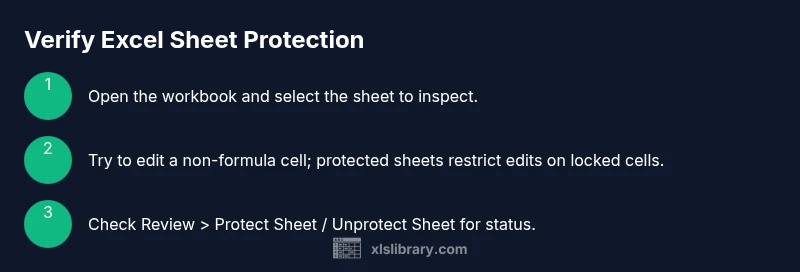
Open the workbook and inspect the sheet
Launch Excel and navigate to the sheet you want to inspect. If you can read data but cannot edit cells, that’s an initial clue that the sheet may be protected. Check whether any cells show a different formatting or locked state, which could indicate protection is active.
Tip: If editing is blocked across multiple cells, focus on a single unlocked-looking cell to confirm behavior. - 2
Look for explicit protection in the UI
Go to the Review tab and look for Protection-related options such as Protect Sheet or Unprotect Sheet. If Unprotect Sheet is visible, the sheet is currently protected. If Protect Sheet is shown, the sheet is not protected for editing by default. Not all Excel versions label things the same way, but the Review tab is the common anchor.
Tip: If you don’t see the Protection group, the sheet might be protected through a different mechanism or the workbook protection settings may apply. - 3
Attempt a simple edit to test
Click a random non-formula cell and try to type. If you can’t type or see a lock icon on the cell, protection is likely active. Also attempt a basic delete of a non-critical cell to gauge what editing is allowed or blocked.
Tip: If you can edit the cell but cannot edit the formula bar, the protection may limit certain actions rather than all editing. - 4
Check for password prompts
If you attempted to unprotect and Excel asks for a password, the sheet is protected with a password. If you know the password, enter it to regain editing rights. If you don’t, you’ll need to obtain permission from the file owner.
Tip: Never guess passwords—document permission requests and follow your organization's security policy. - 5
Verify related protections (workbook level)
Protection can exist at the workbook level (structure or windows) as well as the sheet level. Go to File > Info > Protect Workbook to see if structure or windows protection is enabled. This affects multiple sheets and overall access.
Tip: Workbook protection is a separate layer; ensure you review both sheet and workbook protections when diagnosing access issues. - 6
Cross-check with source and permissions
If you’re part of a team, confirm who owns the workbook and what protections are in place. Request the owner to unprotect or grant editing rights as needed. Document the permission status to avoid future access issues.
Tip: Clear ownership reduces confusion during audits or updates. - 7
Consider protected-view or shared workbooks
Some environments enable Protected View or share workbooks in a mode that restricts edits. Check for indicators like read-only status or collaboration prompts, which can mimic sheet protection in behavior.
Tip: Protected View should not be confused with an actual sheet protection; distinguish by checking protection options directly. - 8
Test with a copy before changing anything
Always work on a copy when testing protections or attempting unprotect actions. This preserves the original data state and reduces risk of accidental loss.
Tip: Keep a log of what you attempted and the outcomes for audit trails. - 9
Plan for restoration or alternatives
If you cannot unprotect due to a missing password, consider contacting the file owner or restoring a known-good version from backups. In some cases, policy-driven controls may require formal access requests.
Tip: Document the outcome and update access records for future use.
People Also Ask
How can I tell if a sheet is protected without editing anything?
The quickest check is to attempt a small edit. If you can’t edit and you see a Protect Sheet option in the Review tab, protection is active. You can also look for a password prompt when trying to unprotect.
Try editing a cell—if it won’t allow changes and you’re prompted to unprotect, the sheet is protected.
Can a workbook be protected even if the sheet isn’t?
Yes. A workbook can have protected structure or windows, which prevents adding or removing sheets or changing window arrangement, even if individual sheets aren’t protected. Check Protect Workbook in the Review tab or File > Info.
Workbook protection affects the workbook as a whole, not just one sheet.
What should I do if I forgot the password to unprotect a sheet?
If you forgot the password, you must contact the file owner or administrator. Do not attempt to bypass protections. They may reset permissions or provide a new password according to policy.
If you don’t have the password, reach out to the owner for access.
Is there a way to tell if a sheet is protected via a hidden option or macro?
Protection can be implemented by hidden options or macros. Look for VBA code or macros that enforce protection, and review the workbook’s macros to understand how protection is applied.
Hidden protections are typically controlled by macros rather than standard UI options.
What is the difference between Protect Sheet and Protect Workbook?
Protect Sheet restricts editing within a specific worksheet, while Protect Workbook restricts structural changes like adding/removing sheets. Both features live under the Review tab in most Excel versions.
Sheet protection guards edits on one sheet; workbook protection governs the entire file structure.
Watch Video
The Essentials
- Check editing ability first to assess protection
- Differentiate sheet vs workbook protection for accurate diagnosis
- Use the Review tab as your primary inspection hub
- Always test on a copy and document permissions
- Seek owner approval for unprotecting and edits