How to Use Excel Effectively: A Practical Guide 2026
Discover practical, step-by-step strategies to use Excel effectively—from data organization and formulas to dashboards and automation. A hands-on guide by XLS Library.


By the end of this guide you will confidently use Excel effectively—organizing data, building reliable formulas, and automating repetitive tasks. You'll learn a practical workflow for clean data, strong analysis, and repeatable reporting, with shortcuts and best practices to save time. This approach emphasizes clarity, accuracy, and practical application for everyday work.
Why Excel Mastery Matters
Excel remains the backbone of everyday data work across industries. Mastering Excel empowers you to organize, analyze, and report data quickly, reducing errors and increasing credibility of your work. In this guide, you’ll learn a practical workflow you can apply from day one. According to XLS Library, building a solid data foundation is the first step toward scalable analysis. Start with clear objectives and consistent data structures to avoid rework later.
- Establish a clear objective for each workbook to guide structure and formulas.
- Use consistent headers and data types to prevent misinterpretation later.
- Save time with templates and reusable blocks you can copy across projects.
Officially, Excel benefits teams by cutting manual data handling and enabling faster decision-making, a point echoed in XLS Library's guidance. A practical approach begins with a simple plan and a well-structured data table that scales as your needs grow.
Setting Up Your Workbook for Efficiency
A well-organized workbook reduces errors and makes it easier to find and update data. Start with a clean folder structure and a single source of truth for the dataset. Use a named workbook, logical sheet names, and a dedicated cover sheet that explains purpose and inputs. Convert raw data into a proper table (Ctrl+T) to enable dynamic ranges and automatic filtering.
- Create a separate data sheet for raw inputs, a calculation sheet for formulas, and a dashboard sheet for visuals.
- Name sheets clearly (e.g., Data_Sales, Calculations, Dashboard) and keep a consistent naming convention.
- Use data validation to limit incorrect entries and maintain data integrity.
The XLS Library team emphasizes the value of upfront planning. A well-structured workbook pays dividends by making future edits fast and predictable, especially when teams collaborate across time zones and devices.
Essential Formulas and Functions You'll Use Daily
Core formulas form the backbone of most Excel tasks. Start with SUM, AVERAGE, and COUNTIF to summarize data, then add IF and VLOOKUP/XLOOKUP to perform conditional analysis. Don’t forget to use relative and absolute references correctly to copy formulas across rows without breaking results. Learn to nest functions to solve more complex questions, like calculating a running total with a condition or extracting a maximum value from a filtered dataset.
- SUM, AVERAGE, MAX, MIN for basic statistics.
- COUNTIF/COUNTIFS for conditional counts.
- IF/IFS for decision logic; XLOOKUP for resilient lookups.
- CONCAT/ TEXTJOIN for string manipulation and readability.
A practical tip is to build small, testable formulas first and then expand. This minimizes debugging time and helps you understand how each part contributes to the final result. The XLS Library guidance notes that a few well-chosen functions beat a sprawling web of ad-hoc formulas every time.
Data Organization and Cleaning Best Practices
Data cleanliness is the foundation of reliable analysis. Always start with headers that describe each column, ensure consistent data types, and remove duplicates. Use Excel Tables to enforce consistent ranges and enable structured references. Apply data validation to prevent invalid inputs, and leverage conditional formatting to spot anomalies at a glance. Keep an audit trail by preserving raw data in a separate sheet.
- Convert data ranges into Excel Tables to simplify formulas and copying.
- Use consistent formats for dates, numbers, and text to avoid surprises.
- Validate inputs (e.g., drop-down lists) to protect downstream calculations.
The result is a dataset you can trust, which makes downstream tasks like pivoting, charting, and reporting much more dependable. XLS Library highlights that data hygiene is not optional; it’s the engine behind accurate insights.
Automating Repetitive Tasks with Shortcuts and Automation
Speed up your workflow with keyboard shortcuts, templates, and automation where appropriate. Start with essential shortcuts (Ctrl+C, Ctrl+V, Ctrl+Z, Ctrl+Arrow keys) to reduce mouse fatigue. Create templates for recurring reports and use named ranges to simplify formulas. For repetitive refinements, record macros or explore simple VBA for small automations that save minutes per task.
- Build a personal keyboard shortcut cheat sheet for your most-used actions.
- Create a template workbook for monthly reports with prebuilt dashboards.
- Use macros to automate data import, formatting, and basic calculations.
Automation elevates consistency and frees time for analysis. The XLS Library approach encourages starting small: automate one reliable, low-risk task at a time to build confidence and a reproducible process.
Building Reusable Dashboards and Reports
Dashboards turn raw data into actionable insights. Start by linking charts to a clean data table and using pivot tables to summarize key metrics. Keep layouts concise with clear labels, a logical flow, and consistent color coding. Use slicers and filters to enable interactive exploration, but avoid clutter by showing only essential visuals. Documentation on the dashboard’s data sources and update frequency helps teammates reuse and trust the report.
- Use a single source of truth for the dashboard data.
- Include a short narrative or KPI name near each chart for context.
- Maintain a fixed layout so stakeholders know where to find information quickly.
A well-constructed dashboard reduces back-and-forth and accelerates decision-making. The XLS Library perspective is that dashboards should be practical, not ornamental, focusing on readability, accuracy, and timely updates.
Common Pitfalls and How to Avoid Them
Even experienced users fall into common traps, such as overcomplicating formulas, relying on hard-coded references, or skipping data validation. Avoid clutter by organizing data in clean tables, using named ranges, and documenting every major step. Regularly audit formulas to ensure they remain correct after data updates. Finally, resist the urge to automate everything—prioritize tasks with stable inputs and predictable outputs to avoid introducing errors.
- Don’t hard-code numbers inside formulas; use cell references or named ranges.
- Keep your dataset for raw data separate from intermediate calculations.
- Always test your dashboards with new data to catch edge cases early.
The goal is reliability, not complexity. The XLS Library guidance emphasizes building repeatable processes that withstand changes in data and personnel.
Tools & Materials
- Computer or device with Excel installed(Office 365 or latest Excel version; desktop or web access)
- Sample dataset(A clean dataset formatted as a table for practice)
- Keyboard shortcuts cheat sheet(Core shortcuts: Ctrl+C, Ctrl+V, Ctrl+Z, Ctrl+Arrow, Ctrl+Shift+L)
- Template workbook for dashboards(Starter workbook to replicate dashboards in Step 6)
- Notebook or notes app(Capture formulas and workflow notes)
- External data source access (optional)(If you want practice with live data connections)
Steps
Estimated time: 60-90 minutes
- 1
Define objective and success metric
Clarify what you want to achieve with the workbook and how success will be measured. Write a one-sentence objective and a concrete metric to track progress.
Tip: A clear metric helps you validate the model’s usefulness. - 2
Set up a clean data table
Create a data table with headers, consistent data types, and a single source of truth. Convert to an Excel Table (Ctrl+T) for dynamic ranges and easy expansion.
Tip: Use a dedicated Data sheet and a separate Dashboard sheet. - 3
Name ranges and build core formulas
Define named ranges for frequently used metrics and start with reliable formulas (SUM, AVERAGE, COUNTIF). Practice with a simple scenario before expanding.
Tip: Use absolute references where the formula should stay fixed. - 4
Apply validation and clean data
Set up data validation rules (dropdowns, date ranges) to prevent bad inputs. Use conditional formatting to visually spot anomalies.
Tip: Test edge cases to ensure inputs remain within bounds. - 5
Create a basic dashboard
Insert charts and a pivot table; link visuals to the data table. Keep layout minimal with clear labels and a logical flow.
Tip: Keep the dashboard up-to-date by refreshing data regularly. - 6
Automate and maintain
Record a macro for a repetitive task or save the workbook as a template for recurring reports. Document steps for future you.
Tip: Comment formulas and macros to aid future edits.
People Also Ask
What are the essential steps to start using Excel more effectively?
Begin with a clear objective, set up clean data tables, and progressively build formulas and dashboards. Maintain data integrity with validation and documentation. This foundation supports scalable analysis and repeatable reporting.
Start with a clear goal, organize your data, and add reliable formulas and dashboards for consistent results.
Which formulas should a beginner master first?
Master SUM, AVERAGE, COUNTIF for basic summaries; use IF or IFS for decision logic; XLOOKUP for robust lookups. Build small, testable examples to understand how each function interacts with your data.
Learn SUM, AVERAGE, COUNTIF first, then add IF and XLOOKUP as you grow.
How can I protect data while sharing workbooks?
Protect sensitive sheets and the workbook structure; hide or remove formulas as needed; use password protection for external sharing and maintain a clean data source.
Protect sheets and the structure, and consider password protection when sharing externally.
How do I create a simple dashboard in Excel?
Link charts and pivot tables to a clean data table, use slicers for interactivity, and keep the layout uncluttered with clear legends and labels.
Link visuals to your data, add slicers, and keep the layout simple and readable.
Should I upgrade to Excel 365 for automation features?
Upgrading provides enhanced collaboration and automation features, including dynamic arrays and advanced data types; consider your needs and team workflow before upgrading.
If you need collaboration and newer automation features, Excel 365 can be beneficial.
Watch Video
The Essentials
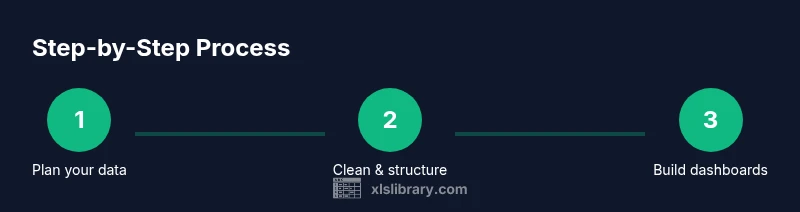
- Plan before you build to prevent rework.
- Structure data in clean tables for reliable analyses.
- Master a core set of formulas and shortcuts.
- Create reusable dashboards for consistent reporting.