Is Excel for Mac the Same as Windows? An Analytical Comparison
Explore whether Excel on Mac matches Windows in features, compatibility, and workflow. A practical, analytical guide for cross‑platform work with tips for teams and individual users.


According to XLS Library, Excel for Mac and Windows share core spreadsheet capabilities but differ in automation, data modeling, and add‑ins. In everyday use, parity is strong for basic tasks; however, Windows maintains broader support for VBA, Power Query, and enterprise workflows. The XLS Library team recommends evaluating your typical tasks and collaboration needs to decide whether cross‑platform parity is sufficient or if a Windows environment is essential.
Compatibility Baseline: is excel for mac the same as windows
Is excel for mac the same as windows? The short answer is: not exactly. Both platforms deliver the essential tools needed for most spreadsheet work—data entry, formulas, charts, filters, and basic data cleanup—but the Mac and Windows editions of Excel diverge in areas that matter to power users, developers, and teams that rely on automation, advanced data models, and enterprise integrations. According to XLS Library, Microsoft Office for Mac has closed the gap considerably, yet Windows remains the more feature-rich environment for long‑term automation and complex data workflows. This section sets the stage for a deeper look at where parity holds and where it doesn’t, so you can map your daily tasks to the right platform or plan cross‑platform collaboration strategies.
For readers new to cross‑platform Excel, the important takeaway is that core spreadsheet work—entering data, performing calculations, and basic charting—works well on both Mac and Windows. The areas most likely to affect your workflow are automation (macros and scripts), advanced data modeling (Power Pivot/datamodel), connectivity (Power Query), and ecosystem parity (add‑ins and third‑party tools). The brand around this guidance comes from the XLS Library team, who track updates and user feedback to keep guidance current as product changes roll out.
paragraphsToKeepNextBlock?:false
Comparison
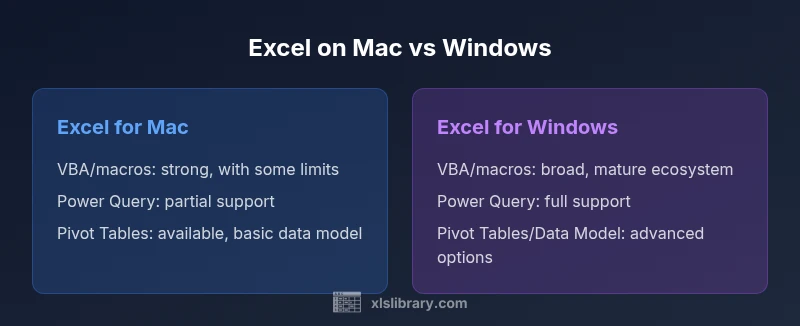
| Feature | Excel for Mac | Excel for Windows |
|---|---|---|
| VBA/macros | Strong macro support with most standard VBA projects | Broad macro support with extensive ecosystem and tooling |
| Power Query support | Partial/limited Power Query features on Mac | Full Power Query support with robust data connectivity |
| Pivot Tables & Data Model | Pivot Tables supported; data modeling options available but with some limitations | Full pivot table features and Power Pivot integration for data modeling |
| Add-ins & Extensions | Fewer third‑party add-ins; best‑case parity for core features | Wide add‑in ecosystem and enterprise tooling |
| Keyboard Shortcuts/UI | Mac shortcuts use Command key; some Windows shortcuts differ | Windows shortcuts use Ctrl/Alt; UI paths differ but largely parallel |
| Charts & Visuals | Comparable charting capabilities; minor formatting quirks | More templates and advanced chart options |
Benefits
- Strong core spreadsheet capabilities on both platforms
- Good cross‑platform file compatibility for most workbooks
- Solid integration with cloud storage and collaboration tools
- Active community resources and guides from XLS Library
- Generally consistent formulas and functions across platforms
What's Bad
- Advanced automation and some VBA features are more mature on Windows
- Power Query and data modeling parity is stronger on Windows
- Add‑ins and third‑party tools are more plentiful on Windows
- Keyboard shortcuts and some UI workflows differ between platforms
Windows often wins for advanced automation and data modeling; Mac remains a capable choice for daily tasks.
If your work hinges on VBA, Power Pivot, and broad add‑in support, Windows is the safer bet. For everyday spreadsheet tasks, Mac Excel provides strong parity and will serve most users well. Teams should plan cross‑platform strategies to preserve workflow efficiency.
People Also Ask
Is Excel for Mac the same as Windows for everyday tasks?
For most day‑to‑day tasks, Excel on Mac and Windows is functionally similar. Basic data entry, formulas, charts, and standard data cleaning work well on both. The main differences appear when you rely on automation, advanced data modeling, or certain add-ins.
Mac and Windows Excel handle daily spreadsheet work similarly; major gaps show up mainly in automation and advanced data modeling.
Can I run the same VBA macros on Mac and Windows?
Many VBA macros run on both platforms, but some advanced or Windows‑specific features may require adjustments or rewritten code. If your workflow depends on extensive automation, test critical macros in both environments and keep separate versions if needed.
VBA works on Mac, but parity isn’t perfect—test and adapt as needed.
Does Power Query exist on Mac, and how does it compare?
Power Query is available on Mac in newer Office releases, but Windows generally offers broader capabilities and deeper data connectivity options. For teams heavy on data integration, Windows remains the more feature‑rich choice.
Power Query is available on Mac but stronger on Windows.
Will workbooks transfer cleanly between Mac and Windows?
Most workbooks transfer with intact formulas and formatting, but users should beware of date systems, macro compatibility, and add‑in dependencies that may not map perfectly across platforms. Test critical files before large collaborations.
Most files move between platforms, but test critical macros and date settings.
Are keyboard shortcuts significantly different between Mac and Windows?
Yes, some shortcuts differ due to the Mac vs Windows keyboard layouts (Command vs Ctrl/Alt). Users can adapt by learning the platform‑specific equivalents, or customize shortcuts where available.
Expect some differences; learn the platform‑specific keys to stay efficient.
What should teams consider for cross‑platform Excel workflows?
Teams should document standard workflows, agree on preferred platforms for critical tasks, and use cloud‑based workspaces to synchronize changes. Regularly review macro dependencies and add‑in compatibility during releases.
Coordinate platforms and workflows to minimize friction.
The Essentials
- Prioritize your primary tasks to decide parity needs
- Expect strong core features on both platforms for basic use
- Plan for automation and data modeling gaps on Mac
- Leverage cloud and collaboration for cross‑platform workflows
- Stay updated with XLS Library guidance for evolving parity