London Excel: Practical Mastery for City Data
A complete, step-by-step guide to using Excel effectively for London-focused data tasks, with templates, dashboards, and data-cleaning practices tailored to city contexts. Learn practical techniques for boroughs, transport, budgets, and more.


Master London Excel with practical, city-focused techniques that translate raw data into clear decisions. This guide covers essential formulas, dashboards, and templates tailored to London contexts such as borough data, transportation, and budgets. The XLS Library team created practical, ready-to-use patterns that speed learning for aspiring and professional Excel users.
Why London Excel matters
According to XLS Library, Excel remains one of the fastest paths to turning London's data into clear, actionable insights. Whether you’re analyzing commuting patterns, housing demand, or small-business performance, Excel gives you the flexibility to clean, model, and visualize data without needing specialized software. This guide explains why mastering London-specific Excel techniques matters for both aspiring analysts and seasoned professionals who serve clients, councils, and teams across the city. City data often arrives from multiple sources with inconsistent formats, and a thoughtful Excel workflow can unite those pieces into a single, trustworthy narrative.
Key points to keep in mind include handling varied data sources, standardizing formats, and delivering dashboards that speak to London stakeholders. You’ll see how standardized practices reduce errors and accelerate delivery. The aim is to help you turn raw numbers into decisions that matter to London-based teams and communities.
Core concepts for London Excel
London Excel workbooks share common patterns that speed up analysis. Start with a well-structured data model: separate raw data, a clean intermediate layer, and a presentation layer for dashboards. Use table objects for all lists so formulas automatically propagate when you add new rows. In London-specific work, incorporate currency formats (GBP) and date formats that align with UK regional settings to avoid misinterpretation of values.
Next, design with the audience in mind. Stakeholders in London often want quick insights about neighborhoods, routes, or budgets. Build dashboards with clear KPIs, consistent color schemes, and simple filters such as Borough, Year, and Quarter. Finally, adopt templates for recurring tasks—monthly reports, project trackers, and budget reconciliations—so you can start from a proven baseline rather than reinventing the wheel.
As you practice, document assumptions, data sources, and limitations. A concise data dictionary reduces miscommunication across teams and time zones. The result is a repeatable, scalable approach you can apply to new city datasets with minimal friction.
Practical workflows and templates
In real-world London data tasks, time saved is money earned. Use these practical workflows and templates to accelerate your work:
- City budget template: track expenditures by department, compare against planned budgets, and visualize variance with sparklines.
- Borough comparison workbook: slice data by Borough to compare performance across neighborhoods using pivot tables and charts.
- Transport rider template: analyze ridership by route, day, and time of day; forecast trends with simple trendlines.
Templates are most powerful when they’re modular. Keep input sheets untouched and drive calculations from a clean data model. Use named ranges for essential inputs so formulas stay readable. Finally, set up a consistent naming convention for sheets, tables, and fields to prevent chaos when you scale to new projects.
Examples of real-world use: a local council could monitor service levels; a small business could track sales by street or district; a university department could compare grant outcomes over several years. With London Excel, you’ll build a toolkit that supports numerous civic, commercial, and educational tasks.
Data cleaning and validation for London data
Clean data is the foundation of credible analysis. Begin by removing duplicates and standardizing city identifiers (for example, Borough names and postcodes) so comparisons are meaningful. Normalize currency values to GBP and ensure dates follow UK formats (dd/mm/yyyy) or use a robust ISO standard when importing from external sources.
Validation rules are your safety net. Create data validation lists for key fields (e.g., Borough, Quarter) to prevent typos. Use Power Query or Excel’s built-in transform tools to correct common issues, such as leading/trailing spaces and inconsistent capitalization. Document the cleaning steps in a changelog so teammates understand what was changed and why.
Finally, set up a lightweight data model with relationships between tables (e.g., Transactions, Geography, Time). A well-modeled workbook makes it easier to produce accurate dashboards and reduces the risk of stale or inconsistent results.
Building dashboards for London datasets
Dashboards summarize the story behind the numbers. Start with a clear objective (for example, “Compare service levels across London Boroughs for 2025”). Choose visuals that communicate fast: bar charts for borough comparisons, line charts for trends, and heat maps for regional intensity. Use slicers to let viewers filter by Borough, Year, or Quarter. Add a KPI card that highlights the current performance against targets.
Design consistency matters more than flashy graphics. Use a single color palette aligned with your brand or city branding, and ensure fonts are legible at smaller sizes. Build the dashboard on a dedicated sheet that pulls data from your clean data model, so you can refresh with a single click. Finally, prepare a concise narrative to accompany the visuals, including a short bullet list of what changes in the data imply for policy or operations in London.
Common pitfalls and how to avoid them
Even experienced Excel users stumble in city-focused projects. Common pitfalls include overcomplicating formulas, failing to account for data refresh needs, and neglecting data provenance. To avoid these issues, favor simple, auditable formulas; document every step; and test the workbook with a sample of edge cases (e.g., missing Boroughs or unusual date values). Another frequent mistake is exporting dashboards without checking accessibility for non-technical stakeholders—always test on a mobile screen and with a colleague who isn’t steeped in the data.
By anticipating these traps, you’ll keep your London Excel projects reliable, adaptable, and easy to share across teams.
Tools & Materials
- Laptop with Excel 365 or later(Ensure access to Power Query and Data Model features)
- Stable internet connection(Required for online data sources and templates)
- London-focused data templates(Reusable workbook templates for city data)
- UK regional settings(GBP currency, dd/mm/yyyy date format)
- Color palette and font guidelines(For consistent dashboards)
Steps
Estimated time: 60-90 minutes
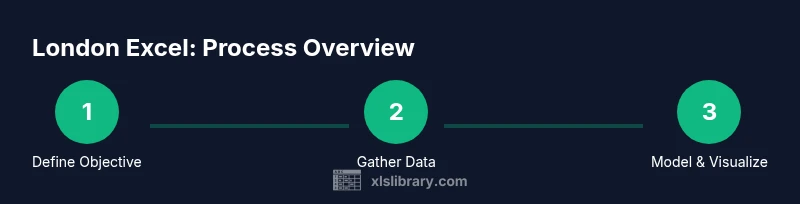
- 1
Define objective
Clearly state what you want to learn or demonstrate with London data (e.g., compare borough performance in 2025). This gives your workbook focus and reduces scope creep.
Tip: Write the objective in one sentence and keep it visible in the workbook. - 2
Gather data sources
Collect data from reliable sources (city dashboards, open data portals, or internal systems). Record source names and dates for provenance.
Tip: Create a sources sheet with a simple table and links. - 3
Standardize data
Normalize date formats, currency to GBP, and borough names to a canonical list. Use Power Query for repeatable transformations.
Tip: Apply transformations in a dedicated query and preserve the raw data. - 4
Build a data model
Create tables for Transactions, Geography, and Time; establish relationships so cross-filtering works correctly.
Tip: Use named ranges or Power Query to load clean tables into the Data Model. - 5
Create core calculations
Develop core KPIs, aggregates, and simple trend lines. Keep formulas readable and documented.
Tip: Comment complex formulas and use named measures where possible. - 6
Design the dashboard
Assemble visuals that tell a story: borough comparisons, trends, and regional intensity. Add slicers for quick filtering.
Tip: Test visuals at different screen sizes to ensure readability. - 7
Validate and iterate
Cross-check results with a subset of data; adjust data models if mismatches appear; gather feedback from a non-analyst.
Tip: Keep a changelog of changes and rationales. - 8
Share and maintain
Publish the workbook with a brief user guide. Plan periodic data refreshes and template updates as city data evolves.
Tip: Set up data validation and access controls to prevent accidental edits.
People Also Ask
What is London Excel?
London Excel refers to applying practical Excel techniques to city data tasks, using boroughs, budgets, and transport examples to demonstrate core skills. It emphasizes data standardization, clean models, and effective dashboards for city contexts.
London Excel means using practical Excel techniques for city data tasks, with boroughs, budgets, and transport examples to illustrate core skills.
Which Excel features are essential for London data?
PivotTables, charts, Power Query, and data models are essential for analyzing city data. These features help you summarize, transform, and present insights clearly to London stakeholders.
Key features include PivotTables, charts, Power Query, and data models to analyze city data effectively.
How do I handle GBP currency and UK date formats in Excel?
Set the workbook to United Kingdom regional settings, format cells for GBP currency, and use dd/mm/yyyy date formats. When importing data, apply consistent transformations to prevent misinterpretation.
Use UK regional settings, format GBP currency, and standardize dates to dd/mm/yyyy for consistency.
Are there recommended templates for London dashboards?
Yes. Start with modular templates for city budgets, borough comparisons, and transport analysis. Templates save time and ensure consistency across projects and teams.
There are modular templates for budgets, boroughs, and transport dashboards to keep things consistent.
How long does it take to learn London Excel?
Learning pace varies. A focused practice plan over several weeks can build strong foundations in data modeling, dashboards, and data cleaning for London contexts.
Learning depends on practice, but a structured plan over weeks builds solid skills.
Where can I find more resources for London Excel?
Look to XLS Library’s comprehensive guides, templates, and tutorials that focus on practical Excel techniques and city-data use cases.
Check XLS Library for guides and templates focused on practical Excel and city data.
Watch Video
The Essentials
- Define a clear objective for city data tasks.
- Standardize data and maintain a clean data model.
- Build modular templates for recurring tasks.
- Validate results with a lightweight data audit.
- Share dashboards with accessible narratives for impact.