Model Excel: Build Practical Financial Models in Excel
Learn how to build a robust financial model in Excel with structured layouts, key formulas, and scenario analysis. This XLS Library guide covers workbook layout, validation checks, and governance to ensure reliable forecasting and clear communication.


By the end of this guide you will be able to build a practical financial model in Excel, using a structured worksheet layout, essential formulas, and scenario analysis. You’ll learn how to plan inputs, build calculations, and audit results to ensure reliability and clarity for stakeholders. We’ll cover layout and version control.
What is an Excel model and why use model excel
An Excel model is a structured workbook that translates business assumptions into forward-looking numbers. In the context of model excel, a well-built model serves as a living calculator where inputs drive outputs through transparent formulas and data links. According to XLS Library, a strong model starts with a clear scope, a defined separation of inputs, calculations, and outputs, and a disciplined approach to data integrity. A practical Excel model supports forecasting revenue, managing costs, evaluating projects, and communicating findings to stakeholders. This guide targets aspiring and professional Excel users seeking practical, approachable methods to develop durable models that survive real-world changes. You’ll learn why modular design, explicit assumptions, and robust checks matter for credible decision-making.
Core components of a robust Excel model
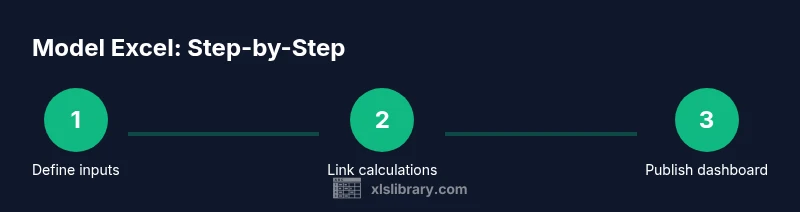
A robust model consists of three core layers: inputs, calculations, and outputs. The inputs sheet collects assumptions, scenarios, and reference data; calculations perform the math and logic; outputs present results via dashboards and reports. Add a light-weight control sheet to log assumptions and version history. Use named ranges to simplify formulas and reduce breakage when you reorganize sheets. In this block we’ll unpack each element, explain how they interact, and show practical examples to help you build a model excel that is easy to audit and update.
Laying out your workbook for clarity
Structure matters: a clean workbook reduces errors and speeds up updates. Start with a dedicated Input sheet, a Calculation sheet, and a Dashboard/Output sheet. Name ranges clearly (e.g., baseRevenue, growthRate) and avoid hard-coded constants inside formulas. Maintain a separate Assumptions log with version timestamps. Apply a consistent color scheme: blue for inputs, green for outputs, and gray for auxiliary data. Use tables instead of broad ranges for dynamic references, and keep formulas modular so you can swap one calculation without affecting others. Finally, document every significant assumption directly on the sheet with comment anchors or a hidden change log.
Essential formulas you’ll rely on
Excel models depend on a mix of aggregations, lookups, and logical tests. Core functions include SUM, AVERAGE, and SUMPRODUCT for aggregations; IF/IFS for branching logic; VLOOKUP or XLOOKUP (prefer XLOOKUP for clarity) to fetch inputs; INDEX-MATCH as an alternative. For date-based calculations, use YEAR, MONTH, and DATEDIF. Validate inputs with conditional formatting and data validation. Build calculations with named ranges to keep formulas readable, and avoid layering too many nested functions. Finally, use dynamic array features (FILTER, SORT) if your version supports them, to simplify dashboards.
Building a simple revenue forecast model (hands-on example)
Let’s walk through a basic revenue forecast as a practical example of model excel. Start by defining inputs: baseRevenue, annualGrowthRate, churnRate, and seasonality. Create a calculation block where annual revenue for year n is previous year revenue times (1 + growth) minus churn. Link inputs to formulas instead of hard-coding values. Populate a 5-year forecast on the Calculation sheet and feed the results to the Dashboard. Include a sensitivity check by adjusting growthRate within a small range and observing the impact on yearly revenue. Throughout, reference inputs via named ranges and maintain a separate assumptions log noting any changes. This hands-on approach helps you see how a model translates assumptions into forecasts and supports scenario planning.
Adding scenario analysis and sensitivity testing
Scenario analysis lets you test multiple futures quickly. Use data tables or the What-If Analysis tools in Excel to vary key inputs (growth, discount rate, or margins) and capture outputs in a single view. A one-variable data table is a simple way to see how changing one input affects total revenue; a two-variable table offers more nuance. For more advanced users, GOAL SEEK helps identify the input needed to hit a target output. Ensure your inputs are validated and your results are presented clearly on the dashboard, with annotations explaining assumptions.
Auditing, testing, and quality controls
A credible model includes built-in checks. Use IFERROR to catch calculation errors, and build sanity checks such as revenue ≥ cost, or year-over-year growth within plausible bounds. Use trace precedents/dependents to see which cells feed or rely on a given formula. Regularly export a model audit log: capture who changed what and when. Keep a change log on the Assumptions sheet and freeze essential inputs to prevent accidental edits. Finally, protect sensitive sheets or cells and implement version labels so colleagues understand the model’s status.
Collaboration and version control for models
Excel models live in teams, so collaboration requires discipline. Maintain a single source of truth file name, use a clear versioning convention (ModelName_v1, v2, etc.), and store files in a shared drive with access controls. Document changes in a brief changelog, and use sheet-level protection for critical areas. Use comments to record rationale for changes within formulas, and keep the dashboard readable for non-technical stakeholders. If you use Power Query or external data connections, document data sources and refresh schedules to avoid stale inputs.
Next steps and resources
With the framework above, you can start building your own model excel today. Practice with a simple forecast, then expand to include scenarios, dashboards, and governance. Revisit inputs and formulas periodically, and keep your documentation up to date. The XLS Library team recommends starting with a clean template and incrementally adding features as you gain confidence. For deeper learning, consult authoritative resources and sample templates, and share your experiences with peers to accelerate improvement.
Tools & Materials
- Excel software (Office 365, Excel 2019/2021)(Any modern Excel version with formula support and data validation)
- Structured workbook template(Separate sheets for Inputs, Calculations, Outputs; clear naming)
- Sample data sources (CSV, Excel tables, or API feeds)(Use for testing connections and imports)
- Data validation lists and drop-downs(To constrain inputs and reduce errors)
- Named ranges dictionary(Helps readability and maintenance)
- Model documentation notes(An embedded guide or changelog on the Assumptions sheet)
Steps
Estimated time: 90-120 minutes
- 1
Define scope and inputs
Clarify the business question the model will answer and list all required inputs and assumptions. Create an input sheet with named ranges for each key parameter.
Tip: Write the model question first and list inputs you need before building formulas. - 2
Create a clean input sheet with named ranges
Set up a dedicated sheet for inputs, organize by category (drivers, constraints, constants), and name each cell or range for easy reference in calculations.
Tip: Avoid embedding values in formulas; reference named inputs instead. - 3
Build the calculation backbone
Develop the core calculation logic on a separate sheet, linking all outputs to the inputs. Keep formulas modular to simplify auditing.
Tip: Test a single calculation in isolation to verify correctness before expanding. - 4
Create outputs and dashboards
Assemble key metrics on a Dashboard sheet. Use charts and conditional formatting to highlight trends and risks.
Tip: Keep the dashboard readable; prioritize decisions over data density. - 5
Add data validation and error handling
Implement data validation rules and IFERROR wrappers to prevent incorrect results from invalid inputs.
Tip: Show friendly messages for invalid inputs and explain required formats. - 6
Incorporate scenario analysis
Set up one- and two-variable data tables or What-If analyses to explore different futures.
Tip: Label scenarios clearly and keep a log of assumptions. - 7
Audit and verify results
Trace precedents/dependents, add sanity checks, and capture an audit trail of changes.
Tip: Run periodic checks to catch drift after updates. - 8
Protect and share the model
Lock critical cells, protect sheets, and share with version-controlled filenames.
Tip: Document the model’s usage rules for collaborators. - 9
Document and version control
Maintain a concise change log and version history so teams understand updates and decisions.
Tip: Use a consistent naming scheme and store backups.
People Also Ask
What is an Excel model?
An Excel model is a structured workbook that translates business assumptions into forecasted numbers. It links inputs to calculations and displays results, helping you test scenarios and support decisions.
An Excel model is a structured workbook that translates assumptions into forecasted numbers to support decision making.
How should I structure the workbook?
Organize with separate Input, Calculation, and Output sheets, and use named ranges for all inputs. Keep dashboards concise and document assumptions for future updates.
Structure with inputs, calculations, and outputs, using named ranges and clear documentation.
What is the best way to handle scenario analysis?
Use data tables or What-If Analysis to vary key inputs and observe outputs. Label scenarios clearly and maintain an assumptions log.
Use data tables and What-If Analysis to test different futures and keep notes.
How can I protect sensitive model data?
Lock critical cells, protect worksheets, and control access to the file. Maintain a version history so changes are auditable.
Lock critical parts of the model and control access, keeping a change history.
How often should I update a model?
Update inputs when new data arrives or assumptions change. Re-run checks and refresh dashboards after updates.
Update inputs when needed, then re-run checks and refresh dashboards.
Can Excel handle large, complex models?
Excel can handle sizable models with good design practices, modular calculations, and data connections. If performance wanes, simplify formulas or move data processing to Power Query where appropriate.
Yes, with good design and modular calculations; consider Power Query for heavy data loads.
Watch Video
The Essentials
- Plan inputs before calculations
- Separate input, calculation, and output layers
- Validate results with checks and data validation
- Document assumptions and maintain a change log
- Version-control your model and protect critical cells