MS Excel Download: Safe Steps to Get Excel
Learn how to download MS Excel safely from official sources, compare Office options, and install the desktop or mobile app with step-by-step guidance from XLS Library.


MS Excel download options include the desktop Excel app as part of Office/365 or a standalone license, plus Excel Online. This quick guide shows how to obtain Excel safely from official sources, compare plans, and install on Windows or macOS. By following official download paths, you’ll minimize security risks and get access to updates, features, and support from XLS Library.
What downloading MS Excel means for you
According to XLS Library, the ms excel download landscape includes desktop Excel as part of Office/365, a standalone license, and the free-to-use Excel Online option. Understanding these choices helps you pick the right path for your needs, whether you work offline on Windows or
How to choose the right download option
- Desktop Excel via Office 365/Office Home & Student: full-featured, offline access, updates via a subscription.
- Excel Online: free to use in a browser with a Microsoft account and online storage.
- Standalone Excel license: a one-time purchase for a specific version (Windows or
Installing and activating after download
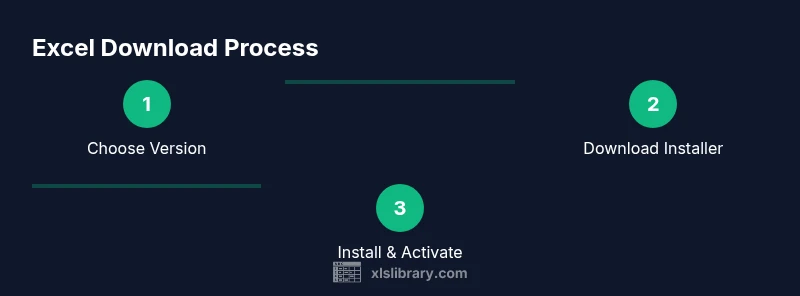
After you download the installer from the official source, run it and follow the prompts to install. Sign in with your Microsoft account to activate the license, then customize settings like default save location and privacy options. If you’re switching from an older version, consider exporting templates or customizing your ribbon for a smoother transition. Ensure you enable automatic updates to keep macros, formulas, and security patches current.
Security, updates, and common issues
Always verify the download URL matches the official Microsoft site to avoid counterfeit installers. Keep your system updated, enable automatic updates in Excel, and watch for phishing emails prompting you to install code. If you encounter activation errors, sign in again or contact official support for verification. Use a trusted antivirus and back up important templates and workbooks before upgrading.
Tools & Materials
- Stable internet connection(High-speed (5 Mbps+) recommended)
- Windows PC or macOS device(Ensure the OS is up to date)
- Microsoft account(Needed to sign in and activate Excel)
- Official download link(From Microsoft or licensed provider)
- Payment method (if choosing paid plan)(Only needed for subscriptions or one-time purchases)
Steps
Estimated time: 15-25 minutes
- 1
Identify download option
Compare Office 365/Office subscriptions, standalone Excel licenses, and Excel Online to decide which fits your workflow and budget.
Tip: Choose official sources to avoid counterfeit software. - 2
Prepare your Microsoft account
Make sure you have an active Microsoft account ready to sign in after download. This accelerates activation and license validation.
Tip: If you don’t have one, create it on the official Microsoft site. - 3
Visit the official download page
Go to the official Microsoft Office download page or your licensed provider’s site and locate Excel.
Tip: Verify the URL starts with https://www.microsoft.com. - 4
Select the correct version
Choose desktop Office 365, Office Home & Student, or a standalone Excel if available. Ensure compatibility with your OS (Windows or macOS).
Tip: Check system requirements for your OS and RAM. - 5
Download the installer
Click download and save the installer to your computer. Avoid rushing through prompts; read each step carefully.
Tip: If prompted, decline bundled software to reduce bloat. - 6
Install and activate
Run the installer, follow on-screen prompts, then sign in with your Microsoft account to activate Excel.
Tip: After installation, check for updates and enable automatic updates.
People Also Ask
What’s the difference between Excel Online and the desktop app?
Excel Online is web-based and free with a Microsoft account; the desktop app requires a license and offers offline access and more features.
Excel Online is free and web-based; the desktop app requires a license and runs offline.
Is a Microsoft 365 subscription required to download Excel?
Not necessarily. Excel can be purchased as part of Office suites or used as a standalone license; Excel Online is free with a Microsoft account.
You don’t have to subscribe to Microsoft 365 unless you want the desktop features.
Can one license cover multiple devices?
License terms vary by plan. Office 365 subscriptions typically cover multiple devices; standalone licenses may be device-specific.
One license may cover multiple devices only if your plan allows it.
Is there a free trial for Excel?
Microsoft offers trial periods for Office 365 plans; check the official page for current terms.
There are trials, but terms can change; verify on Microsoft.
Where can I download Excel safely?
Always use the official Microsoft download page or an authorized provider to avoid counterfeit software.
Download from the official site to stay protected.
What are the system requirements for desktop Excel?
Check the official Microsoft requirements page for RAM, OS version, disk space, and other specs.
See the official requirements page for exact specs.
Watch Video
The Essentials
- Identify the right download option for your needs.
- Download only from official sources to protect your device.
- Complete installation and sign in to activate Excel.
- Choose between desktop and online versions based on your workflow.