Free Online Excel Training: Learn Excel Fast Today
Discover free online Excel training with practical, step-by-step lessons. The XLS Library team guides aspiring and professional users through data tasks, formulas, dashboards, and automation.


Learn how to find and use free online Excel training, then apply it to real-world tasks. This guide highlights reputable sources, essential topics (formulas, data cleaning, dashboards), and strategies to evaluate course quality and accelerate skill-building. Created by XLS Library to help aspiring and professional Excel users master practical data skills.
What free online Excel training covers
Free online Excel training typically covers core skills: navigating the interface, building and auditing formulas, organizing data with tables, using filters and lookups, creating charts and dashboards, data cleaning and validation, and basic automation with simple macros or shortcuts. According to XLS Library, beginners benefit most from courses that combine short, hands-on lessons with downloadable practice files. This balance helps you translate theory into practice, by letting you reproduce real-world tasks on your own datasets. You’ll often encounter videos, guided exercises, quick quizzes, and project-based labs. The best programs also provide activity checklists, progress tracking, and forums where you can ask questions. In addition to free resources, consider supplemental dashboards templates and sample datasets to broaden your scope. By the end of a well-structured free course, you should be able to build reliable spreadsheets, apply common functions (SUM, AVERAGE, VLOOKUP or XLOOKUP), and design simple dashboards that communicate insights clearly.
How to choose a high-quality free Excel course
Look for courses that emphasize practice over theory, provide downloadable files, and include a clear learning path. Check reviews and the length of the course; ideal beginner tracks run 5–12 hours total, with spaced practice. Prefer content from reputable institutions or platforms that publish curricula and outcomes. Verify that the course covers essential topics: formulas and functions, data cleaning with filtering and removing duplicates, data validation, basic analytics (pivot tables), and dashboards. Ensure there are hands-on labs, not just lecture videos. If possible, sample the first lesson to test pacing and clarity. Finally, ensure you can access the materials without a paid upgrade. Our approach at XLS Library emphasizes practical exercises, real-world datasets, and a modular design that lets you re-take sections as needed.
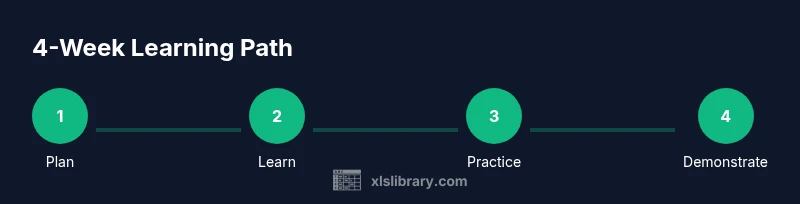
Practical study plan: 4 weeks to competency
A structured, time-bound plan helps maximize free resources. Week 1 covers navigation, basic formulas, and cell formatting. Week 2 dives into functions (SUM, AVERAGE, IF, VLOOKUP/XLOOKUP) and simple data validation. Week 3 focuses on data cleaning, sorting, filtering, and pivot tables. Week 4 builds dashboards and introduces lightweight automation (macros or recording actions). Allocate 3–4 hours weekly, with 1–2 hours of hands-on practice and 1 hour for review. Use a journal to log what you learned and which tasks you could automate. The XLS Library recommendation is to test skills with mini-projects that resemble real work tasks, such as budgeting or inventory tracking.
Hands-on practice: projects and datasets
Practice is the fastest path to mastery. Start with a small budget-tracking workbook, then expand to an inventory list with a searchable table and basic pivot. Move on to a mock sales dashboard using data filters, slicers, and simple charts. Use downloadable practice files whenever available, and substitute your own data to reinforce learning. Save versions before making major changes, and document each step with notes on formulas used and why the approach was chosen. This habit makes it easier to translate skills into on-the-job tasks and to showcase your progress in a portfolio.
Avoiding common pitfalls and staying motivated
Free courses can overwhelm if you try to cram too much at once. Avoid skipping hands-on labs, and resist the urge to memorize formulas without understanding the logic. Maintain a steady pace, take short breaks between topics, and review frequently. Create a simple accountability loop: weekly goals, a brief self-check, and a small project to demonstrate what you learned. Finally, keep a learning log of mistakes and what you would do differently next time. Staying motivated is easier when you see tangible improvements in your spreadsheets and dashboards.
Tools & Materials
- Computer with internet access(Stable connection; prefer wired for consistent streaming)
- Spreadsheet software (Excel Online or desktop)(Prefer latest version for features; Excel Online is free)
- Notebook or digital notes app(For practice summaries and formula notes)
- Sample datasets (CSV/Excel)(Small-to-moderate data sizes for practice tasks)
Steps
Estimated time: 4 weeks total (~8-12 hours)
- 1
Define learning goals
Clarify what you want to achieve (e.g., mastery of formulas, data cleaning, dashboards). Set a measurable target for the 4-week period to stay motivated and on track.
Tip: Write your goals down and review them weekly. - 2
Identify free resources
Search for reputable platforms offering free Excel courses and tutorials with hands-on labs. Filter for beginner-friendly content and practical exercises that show real-world tasks.
Tip: Prioritize courses with downloadable practice files and checklists. - 3
Create a weekly plan
Allocate specific time blocks (e.g., 3–4 hours per week) for watching lessons and practicing in a workbook. Use a simple checklist to track completed topics.
Tip: Schedule your study times in a calendar to stay consistent. - 4
Practice with real datasets
Work on realistic tasks (budgeting, inventory, sales tracking). Replicate steps with your own data and document formulas used.
Tip: Save versions often and annotate what each formula accomplishes. - 5
Test and reflect
At the end of each week, complete a mini-project and reflect on what went well and what needs improvement. Adjust the plan accordingly.
Tip: Identify knowledge gaps early to prevent plateauing. - 6
Consolidate and apply
Summarize learned techniques in a personal cheatsheet and build a small portfolio of Excel projects you can showcase.
Tip: Seek feedback from peers or communities to strengthen your approach.
People Also Ask
Where can I find free Excel training online?
There are multiple platforms offering free Excel courses, tutorials, and labs. Look for beginner-friendly content with practical exercises and downloadable files.
Many reputable sites offer free Excel courses with hands-on labs to get you started.
Do free courses cover advanced topics like dashboards?
Some free courses introduce dashboards, data validation, and basic analytics. For in-depth topics, supplement with paid content or official certificates.
Some free courses touch dashboards; you can expand with additional resources.
How long does it take to complete a free Excel course?
Completion times vary; most beginner tracks take several hours to a dozen hours depending on depth. Plan a few hours per week.
Most free courses take several hours, usually spread over a few weeks.
Can I get a certificate from free Excel training?
Some platforms offer certificates for free or with a small fee; verify if the certificate is issued after completion.
Certificates may be available on some platforms; check the terms.
What if I learn best with hands-on projects?
Seek courses that include mini projects and downloadable practice files to reinforce learning.
Choose courses with hands-on projects and files you can download.
How can I stay motivated while learning for free?
Set small, achievable goals, celebrate weekly progress, and join an online community for accountability.
Set small goals and join a community for accountability.
Watch Video
The Essentials
- Define clear goals and track progress
- Prioritize hands-on practice and real datasets
- Choose resources with downloadable files and labs
- Document methods and build a portfolio
- Review and adapt your plan weekly