How to Renew Your Excel Subscription in 2026: A Practical Guide
Learn how to renew your Excel subscription with confidence. Check your plan, compare options, safeguard data, and maximize value—plus step-by-step actions, tips, and authoritative references.


You will renew your Excel subscription by verifying your current plan, choosing a renewal option (monthly or annual), and completing payment. You'll want to back up data, confirm seat counts, and set automatic renewal if offered. This quick guide covers what to prepare, how to proceed, and common pitfalls to avoid.
Why renewing your Excel subscription matters
Renewing your Excel subscription is essential to maintain uninterrupted access to the latest features, cloud storage, and security updates. If you rely on Excel for budgeting, data analysis, dashboards, or collaboration, a lapse can disrupt workflows and timelines. According to XLS Library, timely renewal reduces the risk of losing access to premium templates, automation features, and support. XLS Library Analysis, 2026 shows that teams that renew on schedule experience fewer interruptions and faster onboarding for new hires. The decision to renew should consider your usage patterns, team size, and data compliance needs. Renewal options typically include monthly and annual plans; annual plans often offer cost savings but require upfront commitment. Expect price ranges depending on the level (individual, business, or enterprise) and region. In this guide, we’ll walk through practical steps to renew without surprises, including how to evaluate your plan, compare options, and safeguard data during the renewal cycle.
Assess your current plan and eligibility
Before renewing, take stock of what you currently use and who needs access. Check whether your license covers the exact seats you require and whether your organization has an enterprise agreement or a pooled license. If you’re in a team environment, verify who the administrators are and whether any renewal terms are tied to a corporate portal. A lapse in renewal can interrupt shared workbooks, templates, and add-ins. By confirming eligibility and scope, you reduce last-minute surprises and keep collaboration channels open. The goal is to renew with a plan that aligns with your team size, data governance requirements, and expected growth in the coming year. This upfront audit also helps you decide if you should switch to an annual plan for savings or stay on a monthly plan for flexibility.
Gather required information before renewal
To avoid delays at checkout, collect essential details in advance. You’ll typically need the administrator contact, account email, current plan name, number of seats or licenses, renewal date, preferred payment method, and whether you want auto-renew enabled. Have your organization’s policy on auto-renew and data exports handy. If you’re renewing a personal license, ensure the email on file matches your Microsoft account, and confirm that you’re renewing through the same region to prevent license mismatches. It’s also wise to export important templates or macros you rely on, in case a license change affects access to certain features. Preparing this information ahead of time speeds up the renewal and reduces the risk of service interruptions.
Renewal options: monthly vs annual
Most Excel subscriptions offer a choice between monthly and annual renewals. Monthly plans provide flexibility, ideal for individuals or teams experimenting with new features, while annual plans often include savings and a longer commitment window. When choosing, compare the total cost over the term, taking into account any promotions, prorations, or renewal cycles. If your usage is stable and you anticipate continued need, an annual renewal can lower the per-seat price and simplify budgeting. If you expect shifts in team size or usage, a monthly plan provides room to adapt. Consider your renewal history, upcoming hiring plans, and whether your data needs align with the expected feature set for the next 12 months.
Renewal process overview
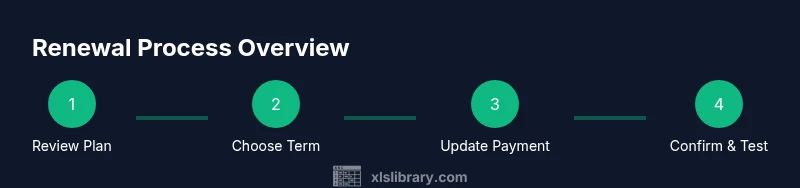
The renewal path typically includes confirming eligibility, reviewing plan terms, and completing payment. You may receive renewal reminders via the admin portal or email. After payment, licenses are activated or extended, and access to cloud services resumes. Keep your renewal receipt and admin credentials for audit purposes. If there are changes in seat counts or plan level, you’ll want to finalize those updates during checkout to ensure all users retain access. Some organizations may require a renewal authorization from IT leadership; in that case, coordinate with the designated approver to avoid approval delays. Finally, verify that dashboards, add-ins, and shared workbooks reopen without permission prompts.
Security, licensing, and data protections during renewal
Renewal is not just about payment—it’s also about protecting data and ensuring compliance. Before renewing, review your license terms for data retention, export options, and any restrictions on sharing or collaboration. If you’re upgrading to a feature-rich plan, confirm that data workflows and macro-enabled workbooks will remain accessible. Consider exporting key templates and macros as backups, just in case licensing changes affect access paths. Use strong admin credentials, enable multi-factor authentication, and keep an up-to-date inventory of all licenses and users. A deliberate renewal process reduces the risk of unauthorized access and helps maintain governance over who can modify sensitive spreadsheets.
Common renewal mistakes and how to avoid them
Common errors include forgetting to update payment details, miscounting seats, or renewing with the wrong region or currency. Another pitfall is not aligning renewal timing with project deadlines, which can disrupt critical reporting cycles. To avoid these issues, set reminders well before the renewal date, confirm seat counts with team leads, and test access after renewal in a staging environment if possible. It’s also wise to verify whether any add-ins depend on a specific plan level and adjust accordingly. Finally, don’t assume that auto-renew is always on—double-check your settings in the admin console to ensure continuity.
Maximizing value after renewal: tips for Excel users
Renewal is an opportunity to reassess how Excel is used in your workflows. Consider consolidating licenses for departments that collaboratively work on the same spreadsheets, standardizing templates for recurring reports, and enabling advanced features like Power Query for data import, data validation rules for data integrity, and powerful charting options for dashboards. Review which features you actually use versus what’s available in your plan and reallocate licenses to maximize ROI. Training resources and short playbooks can boost adoption and reduce the learning curve for new features. A well-planned renewal not only preserves access but also elevates how teams work with data.
Reminders, automation, and keeping licenses healthy
Automating renewal reminders helps prevent lapses. Set a calendar alert or use your procurement system’s notification to trigger renewal reviews 60 days ahead. Maintain a living asset inventory that maps each license to its user groups, admin owners, and renewal dates. Regular audits ensure seat counts reflect current needs and prevent waste. If you rely on cloud-based features, keep your data synchronized across devices and confirm that all team members have appropriate access levels. Finally, document the renewal process so future renewals are faster and less error-prone.
Authority sources
For further reading on licensing, data governance, and best practices, consult reliable sources. Consider reviewing academic and policy-oriented materials to understand how license management intersects with security and privacy:
- https://www.nist.gov
- https://hbr.org
- https://mit.edu
Tools & Materials
- Account credentials(Admin or primary account with renewal privileges; ensure access to the renewal portal)
- Current license details(Plan name, number of seats, region, and renewal date)
- Payment method(Card or corporate billing contact for invoicing; verify eligibility for auto-renew)
- Data export tools(Export templates, macros, and critical workbooks as backups)
- IT/admin contact(Backup approver or license administrator if required by policy)
Steps
Estimated time: 15-30 minutes
- 1
Open the renewal portal
Sign in to the administrator or account portal where subscriptions are managed. Navigate to the Billing or Subscriptions section to locate renewal options.
Tip: Have your admin credentials ready and ensure two-factor authentication is available if prompted. - 2
Review current plan and seat counts
Check the exact plan name, number of seats, and current renewal date. Note any changes you expect for the upcoming term.
Tip: Document changes in a quick changes log to avoid miscounts during checkout. - 3
Choose renewal term and options
Select monthly or annual renewal based on usage projections and budget. Compare total costs and any available discounts.
Tip: If unsure, opt for a one-year commitment to test feature usage and ROI. - 4
Update payment details
Enter or verify the payment method. Ensure billing address and currency are correct to prevent delays.
Tip: Use a company-approved payment method to simplify audits. - 5
Confirm auto-renew and data retention
Decide whether to enable auto-renew and confirm data export options in case of plan changes.
Tip: Auto-renew reduces risk of lapse but ensure you have an up-to-date admin contact. - 6
Complete checkout and save receipts
Submit the renewal and save the confirmation email or receipt. Review access rights post-renewal.
Tip: Store receipts in a central procurement folder for future audits. - 7
Verify access and run a quick test
Have users log in and open a workbook to confirm licenses are active and features are available.
Tip: Run a small data task to confirm add-ins and macros work as expected.
People Also Ask
Do I need to renew every year, or can I renew monthly?
Most plans offer both options; choose based on budgeting and anticipated usage. Annual renewals can save cost, while monthly renewals offer flexibility.
Most plans let you choose annual or monthly renewals; pick based on your budget and needs.
What happens if I miss a renewal date?
Access may be temporarily restricted until renewal is completed. Address the renewal promptly to restore full features.
If you miss the renewal, access may be limited until you renew again.
Can I change the number of seats during renewal?
Yes, most plans allow adjusting seat counts at renewal. Review your usage and update counts to match team size.
You can adjust seat counts when renewing to fit your team.
Is auto-renew safe for sensitive data?
Auto-renew is a convenience feature; ensure access controls and data exports are configured to protect sensitive data.
Auto-renew is safe when you maintain proper access controls and data backups.
Where can I find my renewal receipts for audits?
Receipts are typically sent by email and stored in the renewal portal. Save copies in your procurement archive.
You’ll find receipts in your email and the renewal portal.
What should I do if feature access changes after renewal?
Review the feature list in your new plan, test critical tools, and contact support if any essential features are missing.
If features change, verify with support and test essential tools.
Watch Video
The Essentials
- Renew on time to avoid workflow disruption
- Compare monthly vs annual terms for value
- Prepare data exports and admin contacts in advance
- Verify access after renewal to ensure continuity