Save as PDF for Excel: A Practical Step-by-Step Guide
Learn how to save an Excel workbook as a PDF, including when to export a full workbook versus a single sheet, how to adjust print settings, and tips to ensure a polished, share-ready PDF.


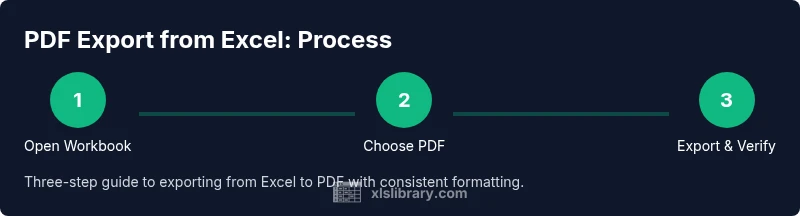
By the end of this guide, you will be able to save an Excel workbook as a PDF with confidence. You’ll learn when to export the full workbook versus a single sheet, adjust page setup for crisp printing, and verify the resulting file before sharing. This practical process helps preserve layout and formatting across devices.
Why export to PDF from Excel matters in modern workflows
Exporting to PDF is a reliable way to share Excel data while preserving layout, fonts, and visuals. When you save as a PDF, you create a static snapshot of your workbook that looks the same on any device, whether it's a colleague's laptop, a client’s tablet, or a printed report. For budgeting templates, dashboards, and formatted reports, PDFs prevent accidental edits and formatting shifts. For professionals, a well-prepared PDF reflects your work with clarity and consistency. The XLS Library team emphasizes that a well-formatted PDF can reduce back-and-forth and ensure your message comes through exactly as intended.
Understanding print settings and formatting for PDFs
PDF export is not just a click-and-go action; it requires deliberate page setup. Start with Orientation (Portrait vs Landscape), then choose Margins (Normal, Narrow, Wide) and Scaling (Fit All Columns on One Page, Fit Sheet on One Page). Page Breaks, Print Area, and Gridlines all influence how content appears in the PDF. For charts and large tables, you may want to adjust row heights or font sizes to avoid cramped layouts. In practice, you’ll preview with Print Preview or Page Break Preview and adjust until the PDF renders cleanly on a standard page size like A4 or Letter. When you’re happy with the preview, you’re ready to export.
When to export the entire workbook vs just a sheet
Sometimes you need a single sheet, other times the whole workbook tells the complete story. If your workbook contains multiple dashboards, you may prefer exporting each sheet separately and sending multiple PDFs, or you can export the entire workbook as a single PDF if your audience expects a single file. Consider your recipient’s needs and your document structure. If your workbook contains hidden sheets with sensitive data, ensure they are hidden or excluded prior to exporting. Consistency across sheets is critical, so standardize fonts, header rows, and footers before exporting.
Location of export options across Windows and macOS
In Windows, you typically access PDF export via File > Save As and choose PDF from the Save as type dropdown, then select the location. On macOS, you can use File > Export as PDF or, in some versions, File > Print and Save as PDF. The interface may vary across Office 365 online or standalone versions, but the core workflow remains the same: pick PDF as the format, choose the export scope, adjust settings, and save. If you use Excel Online, you’ll often rely on the browser’s Print to PDF feature. Practice in both environments to become fluent.
Common issues and fixes before exporting
Exporting a workbook to PDF can reveal layout issues you didn’t see on screen. Common problems include hidden rows, unadjusted margins, or charts that extend beyond the printable area. Fix these by cleaning up the print area, adjusting column widths, and setting a consistent font size. Ensure print titles (headers) repeat on each page if you’re exporting many pages. If images appear blurry, try embedding high-resolution images or increasing the DPI in your PDF settings. Finally, check that the PDF is not password-protected unless required by policy.
How to verify and share your PDF after export
After saving, open the PDF and inspect every page as a reviewer would. Look for alignment issues, cut-off text, and missing data in headers or footers. Use a PDF viewer to verify links, table of contents, and bookmarks if you created them. When you’re satisfied, share the file via email, cloud storage, or a secure link. For official reports, add a simple cover page with your name, date, and a brief description so recipients understand the document’s purpose at a glance.
Best practices for reusable exports and standards
Develop a reusable export routine by creating an Excel template that predefines margins, headers, footers, and page orientation. Save the template and reuse it for future PDFs to ensure consistency across reports. Document the exact steps in a short checklist so teammates can replicate the process. If you need to export on a schedule, consider automating the workflow with macros or Office Scripts to reduce manual errors and save time.
Tools & Materials
- Microsoft Excel (Windows or macOS)(Use a modern version for best PDF export support; ensure it’s up to date)
- PDF printer or built-in PDF export capability(Windows often has 'Microsoft Print to PDF'; macOS includes export to PDF in the print menu)
- Backup copy of the workbook(Always keep an original before exporting to avoid data loss)
- PDF viewer/editor(Helpful for quick verification and minor edits)
- Internet connection (optional)(Needed if using online Excel or cloud-synced workbooks)
Steps
Estimated time: 8-15 minutes
- 1
Open workbook and verify layout
Open the Excel file and review the current layout. Check print areas, margins, and any hidden rows or columns that could affect the PDF. Ensure fonts are legible and charts fit within the page boundaries.
Tip: Use Page Layout > Print Preview to catch issues before exporting. - 2
Open Save As or Export options
Go to File > Save As (or File > Export, depending on your version) and choose a location. Select PDF as the format from the dropdown list to begin the export process.
Tip: On Mac, Export as PDF is often found under File > Export as PDF or Print > Save as PDF. - 3
Choose export scope
Decide whether to export the Entire Workbook, the Active Sheet, or a selected set of sheets. This choice determines how many pages will appear in the PDF.
Tip: If sharing a single document with dashboards, consider exporting the Entire Workbook for completeness. - 4
Configure page setup
Adjust Orientation, Margins, and Scaling. Use Fit to Page options to ensure content fits on the desired number of pages. Review headers/footers and repeat titles if needed.
Tip: Set a consistent font size (e.g., 10-12 pt) to improve readability in the PDF. - 5
Save the PDF
Click Save and choose your file name. Allow Excel to finish the process and confirm the file is created at the chosen location.
Tip: Keep the file name descriptive (e.g., Project_Report_Q1_2026.pdf). - 6
Verify and share
Open the generated PDF and inspect pages for alignment, data integrity, and readability. Share via email or a secure link, and consider adding a brief cover page.
Tip: Check that bookmarks or a table of contents work if you created them.
People Also Ask
Is Save as PDF available in all versions of Excel?
Most modern Excel versions on Windows and macOS include built-in PDF export. Excel Online may rely on the browser's print-to-PDF option. If you can't find the feature, check for the latest Office updates or use the Print to PDF workaround.
Most modern Excel apps support PDF export; if not, use your browser's print-to-PDF option for online versions.
Can I export only a portion of a workbook as PDF?
Yes. You can export a selection or specific sheets by choosing the appropriate option in the Save As or Print dialog, or by selecting sheets before exporting.
Yes, export just what you need by selecting the range or specific sheets.
How do I export multiple worksheets into one PDF?
Choose Entire Workbook in the Save As dialog to create a single PDF containing all sheets, or export sheets separately if you need modular documents.
Choose Entire Workbook to merge all sheets into one PDF.
Will formulas or interactive features survive the export?
PDFs are static. Formulas, hyperlinks (if not rendered as text), and interactivity do not survive the export.
PDFs are static; formulas and interactive features don’t carry over.
What should I check before sharing the PDF?
Preview the PDF, verify margins, headers, and charts render correctly, and ensure no sensitive data is included. Add a brief cover page if needed.
Preview the PDF and verify it’s ready to share.
Can I automate PDF exports with macros or scripts?
Yes. You can automate exports with VBA or Office Scripts, and even combine with Power Automate for scheduled or event-driven exports. Keep security settings in mind when distributing automated outputs.
Automation is possible with VBA or Office Scripts, plus Power Automate.
Watch Video
The Essentials
- Plan which sheets to export before exporting.
- Preview Page Layout and Print Preview to ensure accurate results.
- Choose Entire Workbook when sharing a single, comprehensive PDF.
- Verify the PDF visually before distributing to others.
- Use templates and automation to ensure consistent exports.