Spread Sheet Mastery: A Practical Excel How-To Guide
A comprehensive, practical guide to building, cleaning, and analyzing data in a spread sheet. Learn structure, formulas, validation, charts, collaboration, and automation for everyday business tasks.


By the end, you’ll be able to create and manage a practical spread sheet in Excel or a compatible tool. You’ll set up a workbook, structure data, use essential formulas, apply formatting and validation, and build charts for insights. You’ll also learn basic data cleanup and automation to save time.
What is a spread sheet and why it matters
A spread sheet is a grid-based tool to store, organize, and analyze data. In practice, a spread sheet becomes a living document that can grow from a simple list into a powerful data model with tables, formulas, and charts. According to XLS Library, the most effective spreadsheets follow consistent structure, clear labeling, and documented assumptions. The XLS Library Team emphasizes that a well-designed spread sheet isn't just a pretty table; it's a reproducible toolkit that helps you answer questions quickly. This guide uses practical, task-focused instructions to help you build, refine, and reuse spread sheets for everyday work. You’ll learn how to plan your workbook, choose a data model, enter clean data, and start deriving insights with formulas and visuals. Throughout, you’ll see examples drawn from common business scenarios—budgets, project trackers, inventory lists, and data-cleaning workflows. By the end, you’ll feel confident organizing data in a spread sheet and turning it into actionable information.
Setting Up Your First Workbook
Before entering data, map out the workbook's structure. Decide how many sheets you need, name them clearly (e.g., Data, Calculations, Dashboard), and establish a data dictionary that defines each column’s meaning, type, and allowed values. Start with a clean file name and a versioning system to track changes. According to XLS Library insights, a consistent template reduces rework and makes collaboration smoother. Create a header row with concise column titles, and choose data types (text, numbers, dates) to minimize validation errors later. In the first pass, keep the dataset small and progressively expand as you test formulas and visualizations. This upfront planning pays dividends when you scale the spread sheet for real-world use.
Data Entry Best Practices
Accurate data entry is the backbone of any spread sheet. Use a consistent format for dates, currencies, and units, and avoid free-form text in numeric columns. Employ drop-down menus and data validation to prevent invalid entries. Create a starter data entry sheet with sample rows to test validations and formulas. As noted by industry guides, a well-structured data entry process reduces cleaning time downstream and improves the reliability of analytics. Regularly backup the workbook during data-entry sessions and keep a short data dictionary visible in the workbook.
Formulas and Functions Essentials
Formulas bring numbers to life in a spread sheet. Start with basic functions like SUM, AVERAGE, and COUNT to summarize data. Use conditional logic with IF statements to handle thresholds and categories, and leverage VLOOKUP or INDEX-MATCH for table lookups. As your data model grows, combine functions to create concise, reusable calculations. Remember to anchor references with absolute and mixed references when needed, so copying formulas across rows and columns remains correct. Practice with a small example dataset to see how results update in real time as you modify inputs.
Data Cleaning and Validation
Clean data before analysis: remove duplicates, standardize text (capitalize, trim spaces), and ensure consistent date formats. Data validation enforces rules at the point of entry, preventing errors that ripple through calculations. Use conditional formatting to highlight anomalies, such as out-of-range values or missing fields. A simple rule like 'dates must be after 2000' helps catch erroneous entries early. For ongoing maintenance, create a lightweight data-cleaning routine that you can run on new data imports, so your spread sheet remains reliable over time.
Sorting, Filtering, and Data Integrity
Sorting and filtering are powerful for exploring datasets, but they can also distort understanding if misapplied. Keep a separate, labeled copy or a snapshot of the data before applying filters, so you can reproduce or audit results. Use structured references and named ranges to keep formulas robust when you reorganize columns. When in doubt, test a small subset of data and compare results after applying sorts or filters to ensure integrity remains intact.
Visualizing Data: Charts and Dashboards
Convert numeric results into visuals that support quick decision making. Start with simple charts (bar, line, pie) that reflect the underlying data story. Use consistent colors, clear labels, and avoid clutter. For dashboards, pull key metrics into a dedicated sheet with compact visuals and summary numbers. Ensure charts update automatically when underlying data changes. A well-designed spread sheet dashboard communicates insights at a glance and reduces the need for lengthy reports.
Collaboration, Version Control & Sharing
Spreadsheet work often involves teams. Use a standardized workbook template, enable commenting for feedback, and implement a clear version control approach. If possible, store files in a shared location with controlled access and track changes through a revision history. Regularly review shared workbooks for conflicts and ensure that only designated editors modify calculation cores. Establish a checklist for releases to avoid accidental overwrites of formulas or data.
Automation Basics: Macros and Simple Scripts
Automation can save time on repetitive tasks. Learn the basics of recording macros for common sequences (formatting, data import, or re-calculation) and writing small VBA scripts or scripts in your spreadsheet app to handle routine chores. Start with a single, repeatable task and expand gradually. Document each automation step so teammates can understand and reuse it. As with any automation, test thoroughly in a copy of your workbook before deploying.
Verdict
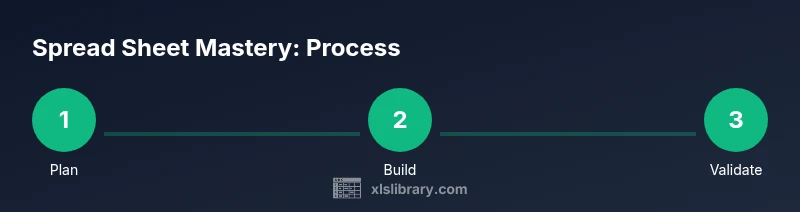
A well-structured spread sheet is more than a collection of numbers. It’s a repeatable process: plan, build, validate, visualize, and share. By adopting a consistent layout, clear data definitions, and thoughtful automation, you build a reliable tool that scales with your needs. The XLS Library approach emphasizes reproducibility and clarity—your spreadsheets should tell a story as much as they house data.
Authority Sources
- https://ocw.mit.edu (MIT OpenCourseWare – data analysis and spreadsheet-related coursework)
- https://www.nist.gov/topics/data-analysis (NIST – data analysis practices and standards)
- https://www.bls.gov (BLS – data handling and analysis basics)
Tools & Materials
- Computer with spreadsheet software (Excel, Google Sheets, or compatible apps)(Prefer latest version; ensure offline editing if needed)
- Sample dataset (CSV or Excel file)(Include clear headers and a mix of data types)
- Data dictionary document(Defines each column's purpose, type, and allowed values)
- Notepad or comments tool(Use for quick notes on data assumptions)
- Backup storage (cloud or external drive)(Schema: weekly backups and versioned files)
- Keyboard shortcuts cheat sheet(Boost speed during data entry and editing)
Steps
Estimated time: 60-90 minutes
- 1
Define workbook objective
State the questions the spread sheet should answer. List core metrics and decide the data sources. Write a brief data dictionary for the first sheet.
Tip: Write down expected outputs before you start; this guides structure. - 2
Create structure and naming
Add essential sheets (Data, Calculations, Dashboard). Name ranges and set a consistent naming convention for columns and sheets.
Tip: Avoid spaces in sheet names; use underscores or camelCase. - 3
Enter and validate data
Input data with initial checks. Apply data validation rules (dates, numbers, dropdowns) to prevent errors at entry.
Tip: Enable a visible data dictionary pane in the workbook. - 4
Build core calculations
Create basic formulas (SUM, AVERAGE, MAX, MIN) and add essential lookups (INDEX-MATCH). Test with sample rows.
Tip: Use absolute references where needed to copy formulas safely. - 5
Clean data and ensure integrity
Remove duplicates, standardize text, and verify date formats. Add conditional formatting to flag anomalies.
Tip: Run a quick audit by filtering for blanks or outliers. - 6
Visualize and share
Create charts and a compact dashboard. Link visuals to the data range so they update automatically.
Tip: Limit the dashboard to a single page view for quick decisions.
People Also Ask
What is a spread sheet, and why should I use one?
A spread sheet is a grid-based tool for storing, organizing, and analyzing data. It supports calculations, formatting, and visualization to reveal insights. This guide shows practical steps to build reliable workbooks.
A spread sheet is a grid-based tool for organizing data and performing calculations to reveal insights.
How do I start a spread sheet for a new project?
Begin with a clear objective, create sheets for data, calculations, and dashboards, and set up a simple data dictionary. Use consistent headers and validation rules from the start.
Start with a clear objective, set up data, calculations, and dashboard sheets, and use consistent headers.
Which formulas should I learn first?
Learn SUM, AVERAGE, MAX, and MIN for basic summaries, then step into IF statements and lookup functions like INDEX-MATCH for dynamic data retrieval.
Start with sum and average, then learn basic lookup and conditional formulas.
What are common mistakes in spread sheets?
Inconsistent data formats, hard-coded values in formulas, and skipping data validation lead to errors and unreliable analyses.
Common mistakes include inconsistent data formats and skipping validation.
How can I share a spread sheet effectively?
Use a shared template, enable comments, and maintain versioned backups. Track changes and restrict editing rights for critical formulas.
Share via a controlled template, enable comments, and track changes.
Watch Video
The Essentials
- Plan before you touch data to avoid rework
- Structure and naming improve collaboration
- Validation and cleaning save time on analysis
- Charts turn numbers into insights