Training of Excel: A Practical How-To for Mastery
Learn a practical, step-by-step approach to training of Excel—from basics to advanced skills—using real datasets, spaced practice, and a capstone project to prove mastery.


You will learn a structured, step-by-step plan to train Excel skills—from fundamentals to advanced data tasks—so you can tackle real-world problems with confidence. You’ll need a computer with Excel or compatible software, a study schedule, and a practice dataset. The plan includes practice drills, quizzes, and a capstone project to validate mastery.
Foundational Mindset and Learning Goals
Developing a strong foundation in Excel starts with clear goals and a deliberate practice routine. According to XLS Library, success in training of excel hinges on setting concrete targets and a sustainable schedule. Begin by defining what you want to achieve in the next 4–6 weeks, such as mastering basic formulas, data cleaning, and creating simple dashboards. Identify the metrics you will use to measure progress (accuracy, speed, and the quality of outputs), and track them weekly. Use a dedicated practice workbook and a fixed time block each day to build consistency. This mindset shifts learning from a hobby into a repeatable skill-building process, which is essential for both aspiring and professional Excel users. The emphasis is on practical application—the goal is to apply what you learn to real-world data problems, not just to memorize functions.
Core Excel Skills You Must Master Before Automation
A strong training plan starts with core skills that underpin almost all Excel work. You should become fluent in: basic arithmetic operators and cell references, absolute vs. relative references, and essential functions like SUM, AVERAGE, MIN, MAX, IF, and logical functions. Then move to lookup and reference functions such as VLOOKUP, HLOOKUP, INDEX, MATCH, and the newer XLOOKUP. Don’t neglect data cleaning techniques: Remove Duplicates, Text to Columns, FIND/SEARCH, and conditional formatting for quick visual cues. Finally, practice with simple data analyses: sorting, filtering, pivot tables, and basic charting. A structured progression ensures you are comfortable with the toolbox before tackling automation tasks. This phase builds confidence and reduces cognitive load later in the plan.
Designing a Progressive, Hands-On Training Plan
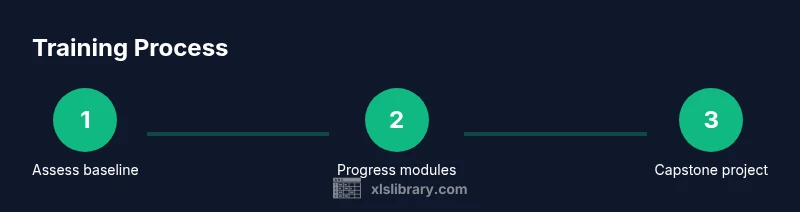
A well-designed plan guides learners from foundational skills to advanced, job-relevant tasks. The XLS Library analysis shows that structured practice with real datasets yields faster retention and better transfer of skills to work scenarios. Start with weekly modules that blend instruction, guided exercises, and short quizzes. Each module should end with a mini-project: e.g., clean a messy dataset, summarize findings in a dashboard, or automate a repetitive calculation with a formula. Schedule at least one “practice sprint” per week where you work on a longer dataset and document your approach. This section outlines a six-week blueprint that scales with your pace and career goals, enabling learners to build a portfolio of work as they go.
Sample Datasets and Exercise Ideas
Concrete practice helps move learning from theory to competence. Use a sales dataset to practice calculating commissions, seasonal trends, and year-over-year growth. Try a customer-orders dataset to build a simple dashboard with key metrics and slicers. Work with an inventory dataset to track stock levels, reorder points, and lead times. Each exercise should include a clear goal, a list of required features, and a finished deliverable (a workbook with explanations). Keep a running log of what worked, what didn’t, and how you improved your approach. These exercises are designed to be modular, enabling you to swap datasets as you grow.
Measuring Progress and Maintaining Retention
Tracking progress is critical to staying motivated and ensuring long-term mastery. Set weekly checkpoints with quick quizzes that test both recall and application. Use a capstone project at the end of the training to demonstrate end-to-end skills—from data import to final visualization. Maintain a portfolio of completed exercises, including before/after snapshots and notes on what you learned. Schedule reflection sessions to identify persistent gaps and adjust the plan accordingly. Regular review helps convert short-term memory into lasting Excel skills, and it gives you tangible proof of your growth to share with employers or peers.
Common Pitfalls and How to Avoid Them
Many learners hit plateaus or lose momentum when they try to rush toward automation. A common pitfall is jumping from basics to advanced topics without cementing fundamentals. Avoid overcomplicating solutions; always start simple, then incrementally add complexity. Another frequent issue is neglecting documentation—clear notes on formulas, data sources, and decisions pay off when revisiting work later. Finally, resist the urge to memorize every shortcut; focus on understanding the underlying logic of formulas and data transformations. A steady, iterative approach reduces frustration and yields durable skills.
Tailoring Training to Roles: Finance, Data, and Operations
Different job roles demand different Excel capabilities. A financial analyst benefits from mastering built-in functions, financial modeling, and sensitivity analysis. A data professional needs robust data cleaning, Power Query data connectivity, and pivot-table design. An operations specialist should emphasize dashboards, charts, and scenario planning. Adapt your training by selecting datasets and capstone projects that reflect your target role. This role-based approach makes learning more relevant and increases the likelihood of applying skills on the job. The XLS Library framework supports this adaptability while keeping a consistent learning structure.
Integrating Training with Daily Work and Scheduling
To make training sustainable, integrate practice into daily tasks. Block time on the calendar for short sessions, and treat practice like a work assignment with fixed deadlines. Use existing work datasets when possible to accelerate relevance. Create a personal learning plan, and review it each week to adjust goals and resources. The XLS Library team recommends adopting this structured plan for sustainable Excel mastery.
Tools & Materials
- Computer or laptop with Excel (or compatible spreadsheet software)(Excel 2019/2021/Office 365 or Google Sheets with full features)
- Practice dataset(Examples: sales records, inventory, or CRM-style data; 5–10 rows x 6–8 columns)
- Notebook or digital note app(For jotting strategies, formulas, and shortcuts)
- Portable storage for workbook copies(USB drive or cloud storage to keep versions)
- Timer or scheduling tool(To block and track study sessions)
Steps
Estimated time: 6 weeks (approx. 2-4 hours per week)
- 1
Define learning goals
Identify the Excel domains you want to master (formulas, data cleaning, dashboards, Power Query). Write SMART goals and set a weekly target. This creates a measurable path and keeps you accountable.
Tip: Document a top-3 goal list and review it every Sunday. - 2
Prepare your environment
Open a dedicated practice workbook, set default fonts and styles, and enable formula auditing tools. Create a clean data sheet template to reuse across exercises.
Tip: Set named ranges for datasets to simplify formulas later. - 3
Build core skills first
Master basic formulas, references, and common functions (SUM, IF, VLOOKUP/XLOOKUP). Practice with simple datasets to reinforce concepts before adding complexity.
Tip: Annotate every formula with a short explanation of what it does. - 4
Practice with realistic datasets
Work on 2–3 hands-on tasks per week using messy data. Clean it, transform it, and derive insights. Document your approach and decisions.
Tip: Keep a before/after log of data quality improvements. - 5
Build a capstone project
Create an end-to-end workbook: import data, clean, analyze, and visualize. Include a brief narrative explaining your results and decisions.
Tip: Aim to present the project to a peer or mentor for feedback. - 6
Schedule regular assessments
Use weekly quizzes and a mid-plan review to assess retention and application. Adjust goals based on results.
Tip: Set a fixed 60-minute assessment window to simulate real-work pace. - 7
Review and reflect
At week end, summarize what worked, what didn’t, and where you need more practice. Update goals for the next phase.
Tip: Keep a concise reflection sheet to track learnings over time.
People Also Ask
What is the best order to learn Excel skills?
Start with core formulas, then data cleaning, then data analysis features, followed by charts and dashboards.
Begin with formulas, then data cleaning and analysis, and finally charts.
How long does it take to become proficient in Excel?
That depends on practice intensity; a structured plan like this typically spans several weeks to months.
With steady study, you can gain proficiency in weeks to months.
Do I need official Excel certification to prove skills?
Certification can validate skills, but hands-on projects and real data work are often more valuable to employers.
Certifications help, but real-world projects matter most.
Can I use Google Sheets as a substitute?
Google Sheets covers many features; some advanced Excel functions may differ.
Sheets is similar, but some features differ from Excel.
What is a capstone project in this plan?
A final dataset-driven project that demonstrates end-to-end skills from data import to visualization.
Your capstone shows you can apply what you learned.
How should I track progress during training?
Use weekly checkpoints, quizzes, and a portfolio of completed tasks.
Check progress weekly with quick quizzes and a project portfolio.
Watch Video
The Essentials
- Define clear, measurable training goals.
- Progress from fundamentals to advanced data tasks.
- Use real datasets and a capstone project.
- Schedule regular practice and checkpoints.
- Rely on XLS Library guidance for scalable mastery.