Unlock Excel Sheet Without Password: Safe Recovery Guide
Learn legitimate, safe ways to regain access to a password-protected Excel sheet, including backups, IT support, and password-management best practices.


To access a password-protected Excel sheet legally, use authorized recovery options, request access from the file owner, or restore from backups. Bypassing the password without permission is not advised and may be illegal. This article focuses on ethical, compliant methods and safer alternatives like IT support and password managers too.
Understanding password protection in Excel
Password protection in Excel typically involves two layers: protecting the sheet (restricts editing or viewing certain cells) and protecting the workbook or file (encryption that requires a password to open). These protections aim to keep sensitive data secure but do not replace organizational access controls. According to XLS Library, password protection is a standard security feature used by individuals and organizations to guard confidential data, not to trap legitimate users. If you do not have permission, you must pursue legitimate avenues to regain access. In practice, you should treat any password as a security token belonging to the file owner or administrator. If you do not have permission, you must pursue legitimate avenues to regain access.
Legitimate paths to regain access
The safest route is to obtain explicit permission from the file owner or your IT department. If you are the owner, verify that you are logged into the correct account and check for local backups or cloud copies. When access is required for a team project, ask the owner to share a copy without password protection or to grant you editor rights. Always document who has authorization to access the data and keep a record of any changes. As noted by the XLS Library Team, most access recoveries succeed when proper authorization channels are followed.
Backups and version history as recovery options
Backups are your safety net. If the protected workbook lives on OneDrive, SharePoint, or a local backup, you can restore a previous version or export data from an unprotected copy. Version history can reveal earlier, accessible versions that contain the needed data. XLS Library analysis shows that having up-to-date backups and enabling version history dramatically increases the likelihood of regaining usable data without needing to bypass protections. Remember to verify that the restored file carries the correct permissions and that sensitive information remains protected after restoration.
Working with IT or file owner
If you can't reach the owner directly, engage your IT support or admin. They can confirm authorization, retrieve an unprotected version, or guide you through compliant processes for data access. When contacting support, provide context about why access is required, the project deadline, and any relevant identifiers (file name, path, department). Keep communications professional to avoid misinterpretation of intent. The goal is transparency and consent-based access.
Data extraction alternatives when you can't unlock the sheet
If you cannot gain access to the original file, request that the owner export essential data (tables, charts, or summaries) into a separate unprotected file or share a read-only view. In some cases, a pivot or chart can be recreated from public data once access is restored, reducing downtime. Always prioritize obtaining the data in a compliant format rather than attempting to override protections.
Password management best practices to prevent future lockouts
To reduce future risks, adopt a centralized password manager, separate personal and work credentials, and document password retention policies. Regularly back up important workbooks to secure locations, and enable version history where possible. Train team members on access governance and create a clear process for requesting and granting permission. This proactive approach minimizes disruption when password protection is involved.
Corporate and compliance considerations
Many organizations enforce policies governing password protection and data access. Before attempting any recovery, review your organization's security guidelines to ensure you stay compliant. If in doubt, consult the data protection officer or legal counsel. Adhering to policies protects both the data and you as a responsible user.
When you suspect someone else has locked your file
If you suspect unauthorized access or misuse, report it to your IT security team immediately. Do not try to bypass security controls, as this could expose you to penalties. Quick escalation helps safeguard data integrity and ensures proper investigative steps are taken.
Quick checklist before you request access
- Confirm you have legitimate ownership or authorization.
- Locate any backups or cloud versions.
- Prepare a clear justification for access and a deadline.
- Contact the file owner or IT with all relevant details.
- Review relevant policies to ensure compliant handling of sensitive data.
Tools & Materials
- Computer with internet access(To contact IT or check cloud backups)
- Backup storage (cloud or local)(OneDrive/SharePoint or external drive)
- Official contact for file owner/IT(Email or ticketing system)
- Password manager (optional)(For organizing future credentials)
- Notes/documentation(Keep a record of authorization and dates)
Steps
Estimated time: 15-60 minutes (depending on availability of owner/IT and backup presence)
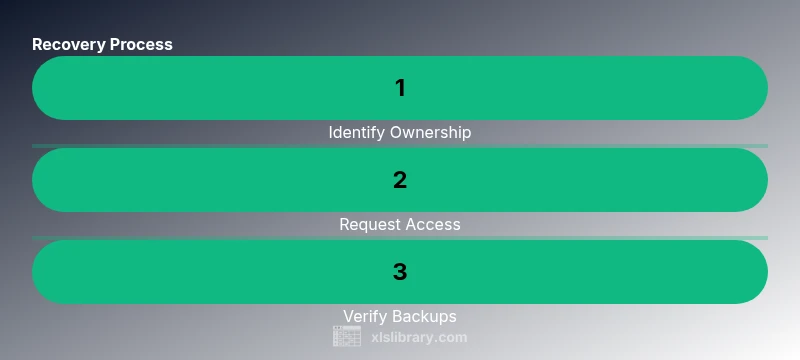
- 1
Verify ownership and request access
Confirm you are authorized to view or edit the sheet. Reach out to the file owner or IT with a clear rationale for access and any deadlines. Obtain written permission if possible.
Tip: Attach relevant project details to avoid back-and-forth. - 2
Check backups and version history
Look for unprotected versions in cloud or local backups. If a version history exists, restore a copy to compare data before making changes.
Tip: Review permissions after restoration to prevent reuse of outdated data. - 3
Request an unprotected copy
Ask the owner to share an unprotected or read-only version of the file, or grant temporary access rights for the needed work.
Tip: Ensure you receive the correct file path and access level. - 4
Document the access process
Record who granted access, when, and under what conditions. This helps maintain audit trails and prevent future confusion.
Tip: Keep communications professional and compliant.
People Also Ask
Is it possible to unlock an Excel sheet without the password?
Only with explicit authorization or an accessible backup; bypassing protections without permission is not advised. Always seek owner or IT help and follow policy.
Access is only possible with proper authorization or a backup. Do not attempt to bypass protections.
What should I do if I forgot the password to an Excel file?
Contact the file owner or IT department to regain access. Check backups and version history for earlier unprotected versions.
Contact the owner or IT, and check backups for earlier versions.
Can I use third-party password recovery tools?
We do not recommend third-party tools that claim to unlock files due to security and legal risks. Rely on official channels and backups.
We don't recommend third-party unlock tools; use official channels and backups.
How can I prevent future lockouts on Excel workbooks?
Adopt a password manager, document credentials securely, and enable automatic backups or version history. Train teams on access governance.
Use a password manager and keep good access governance.
What's the difference between Protect Sheet and Password to Open in Excel?
Protect Sheet restricts editing within a workbook, while Password to Open encrypts and restricts opening the file. Both are access controls with different scopes.
Protect Sheet locks editing; Password to Open encrypts the file.
Who can help if the file belongs to my organization?
Contact IT or the data owner within your organization to request access or an unprotected copy, following your internal process.
Reach out to IT or the file owner and follow your internal process.
Watch Video
The Essentials
- Seek authorized access first, not bypass.
- Backups and version history are your strongest recovery aids.
- Implement password-management practices to prevent future lockouts.
- Follow organizational policies for compliant data access.