What Do I Need to Run Excel? A Practical Guide
Discover the essential hardware, software, and licensing needed to run Excel smoothly, with practical guidance on OS compatibility, RAM, storage, and cloud features for modern workflows.


To run Excel, you need a modern, supported device, a compatible operating system, and a valid Office license or access to Excel Online. Ensure adequate RAM for your typical workloads, sufficient storage for files, and up-to-date software. For cloud features and collaboration, a reliable internet connection helps, but offline work remains possible with the desktop Excel. This baseline supports both basic tasks and more advanced needs as data and models grow.
System prerequisites: hardware and software basics
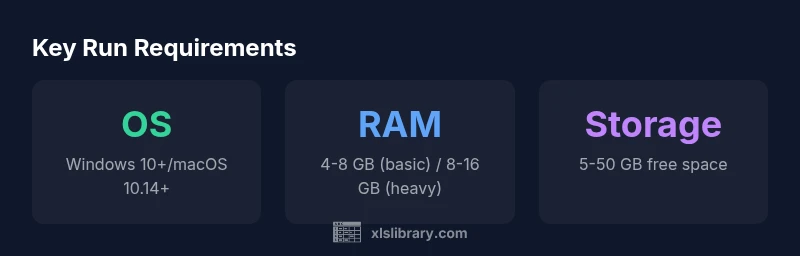
Understanding what do.i need to run excel starts with a practical baseline: a reasonably current computer, a supported operating system, and a properly licensed Excel. In practice, Excel runs on Windows and macOS, with the web version accessible from any modern browser. The XLS Library team found that most users can start with modest specs, but performance scales with data size and features used (formulas, pivot tables, macros). In this section we outline concrete, reality-grounded requirements and how to verify them before installing. First, pick a device that meets minimum OS requirements: Windows 10 or newer, macOS 10.14 or later, or using Excel for the web on any current browser. Next, ensure you have enough RAM to handle typical worksheets. A minimum baseline is commonly 4 GB for light tasks, while 8 GB or more makes large datasets and multiple add-ins smoother. Storage is often overlooked; plain Excel files are small, but workbooks with images, Power Query data connections, or large datasets can grow. Keep at least a few tens of gigabytes free and consider using an SSD for faster load times. Finally, plan for licensing: a current Microsoft 365 subscription or a one-time Office purchase provides the full desktop app; Excel Online adds convenience for collaboration without local installation. This balance of hardware, OS, and licensing is the foundation for reliable Excel use.
Licensing and editions: choosing the right Excel version
Licensing is a critical but often overlooked piece of the puzzle. The desktop Excel app is commonly bundled with Microsoft 365 or Office licenses, while Excel Online offers a free, browser-based option with a Microsoft account. The XLS Library analyses indicate that most everyday users can start with a standard Office plan and upgrade as needed based on data size, features, and collaboration requirements. If your work involves macros (VBA), Power Query, or substantial data modeling, the desktop edition is typically necessary. Excel Online shines for light tasks and real-time collaboration, but it may lack some advanced features. When selecting a license, match it to your typical workload, data sensitivity, and whether you need offline access. Educational or student discounts may apply; enterprise arrangements offer additional governance and security controls. In short, align licensing with task complexity, collaboration needs, and compliance requirements.
Installation and setup: from download to first run
Getting started with Excel involves verifying your system, obtaining the correct license, and installing the software. Start by logging into your Microsoft account and selecting the appropriate Office package if you’re setting up a new device. During installation, choose between 32-bit and 64-bit options based on your hardware and add-ins; 64-bit is generally recommended for large datasets. After installation, sign in to activate the license, enable automatic updates, and configure OneDrive or SharePoint for cloud work if you plan to use Excel Online features or real-time collaboration. Finally, review privacy and security settings to control data sharing and add-ins. A simple post-install checklist—update status, create a test workbook, and verify file associations—helps ensure a smooth first run and reduces onboarding friction for new users.
Performance and workflow optimization
Performance hinges on more than raw specs. Close unused applications to free RAM, disable unnecessary add-ins, and keep Excel and your operating system updated to leverage efficiency improvements. For large workbooks with complex formulas, consider enabling hardware acceleration if available and using 64-bit Excel where possible to handle bigger memory spaces. Organize data into clean, well-structured worksheets and utilize named ranges to simplify formulas. When working with external data, Power Query connections should be refreshed judiciously to balance up-to-date data with startup time. Regularly converting heavy data sources to Power Pivot or data model-enabled structures can dramatically improve responsiveness and reduce recalculation times. Finally, store frequently used templates in a centralized location to streamline onboarding and maintain consistency across teams.
Storage, file formats, and data management
Excel workbooks come in multiple formats, with .xlsx as the standard for most users. If you require automation or macros, .xlsm is the preferred format. CSVs are excellent for data interchange, but they lose formulas and formatting. For collaborative environments, enabling AutoSave and saving to OneDrive or SharePoint simplifies sharing and version history. When handling sensitive data, consider encrypting files and implementing password protection for control over access. Regular backups are essential; keep a local copy and an offsite or cloud backup to mitigate data loss. Understanding the trade-offs between compatibility, functionality, and security helps you choose the right format for each task and avoid surprises when sharing files with teammates or clients.
Online vs offline: collaboration and cloud features
The choice between Excel Desktop and Excel Online often boils down to collaboration needs and access scope. Desktop Excel provides the richest feature set, including advanced data modeling, macros, and offline work. Excel Online, accessed through a browser, supports co-authoring, simplified sharing, and automatic cloud backups, but some advanced features may be missing or limited. If your team relies on real-time collaboration, ensure everyone uses a compatible cloud storage setup and understands version history. For offline scenarios, ensure desktop installations are configured to work without internet access, and plan for occasional data synchronization when connectivity resumes. Balancing offline reliability with cloud-enabled collaboration typically yields the best productivity outcomes for most teams.
Troubleshooting and maintenance
Even a well-planned setup encounters hiccups. Start with practical checks: confirm the license status, verify internet connectivity for cloud features, and ensure there is enough RAM and disk space. Common issues include slow startup, frequent recalculation, and errors in linked data sources. Resolve these by updating software, repairing the Office installation, and reviewing add-ins to disable or remove problematic ones. For data integrity problems, use built-in tools such as Inspect Workbook and Recovery options, and maintain version control through OneDrive or SharePoint. If problems persist, consult official support resources or seek guidance from the XLS Library community to determine whether issues are due to system configuration, data size, or specific workbook structures.
Baseline run requirements for Excel desktop and online use
| Requirement | Details | Notes |
|---|---|---|
| Operating system | Windows 10/11, macOS 10.14+ (or newer) | Official support varies by version |
| RAM | 4-8 GB minimum; 8-16 GB for larger workbooks | Performance scales with data size |
| Storage | 5-50 GB free space | Larger datasets require more space |
| Licensing | Office 365 or Office license; Excel Online available | Cloud features require internet |
| Internet connectivity | Optional offline; essential for real-time coauthoring | Offline mode supported on desktop |
People Also Ask
Do I need internet to run Excel?
You can run Excel desktop offline, but many collaboration features and Excel Online require internet access. If you work with others on shared files, an internet connection greatly enhances productivity.
Offline use is possible with the desktop app, but for real-time collaboration, an internet connection is helpful.
What is the minimum hardware to run Excel?
At minimum, a modern computer with 4 GB RAM can handle basic tasks, but 8 GB or more improves performance with larger files. Ensure sufficient storage for your typical workbooks.
A basic setup uses 4 GB of RAM, but 8 GB or more is better for larger data.
Is Excel Online enough for advanced work?
Excel Online covers most everyday tasks and collaboration needs, but advanced features like VBA macros and certain Power Query capabilities are better supported in the desktop app.
Online is great for collaboration and standard tasks, but for heavy automation, use the desktop version.
What license do I need for the full Excel app?
Full access typically requires a Microsoft 365 subscription or a one-time Office purchase. Excel Online is available with a free Microsoft account, but its features are more limited.
A Microsoft 365 or Office license unlocks the desktop app; the online version is free with limits.
Can I run Excel on a Mac or Chromebook?
Excel runs on macOS with the desktop app or via Excel Online in the browser. Chromebooks can use Excel Online; the desktop app is not natively supported on Chrome OS.
MacBooks can run Excel desktop; Chromebooks use Excel Online.
How much storage should I plan for Excel workbooks?
Plan for enough local or cloud storage to accommodate your typical workbook sizes, plus versions and backups. Large datasets and templates can add up quickly over time.
Reserve space for your usual workbook sizes and backups.
“Reliable Excel use starts with a clear baseline of hardware, licensing, and workflow needs. Start small, then scale up as your data grows.”
The Essentials
- Assess OS and hardware baseline before installation
- Choose licensing that matches your workflow and data needs
- Prefer 64-bit Office for large datasets and add-ins
- Balance offline capability with cloud collaboration
- Plan storage and backups to prevent data loss