What Excel Version Do I Have? How to Check Your Excel Edition
Learn how to identify your exact Excel version on Windows, Mac, and the web. This guide covers built-in checks, version naming, and best practices to ensure workbook compatibility across devices and teams.


The quickest way to learn what excel version do i have is to open Excel and go to File > Account > About Excel. On Windows you’ll see the product name and build number; on Mac, about Excel shows the edition and build as well. If you’re on Microsoft 365, updates can arrive automatically, so your version can shift over time. Note the exact build for advanced troubleshooting and compatibility checks.
Why knowing what Excel version you have matters
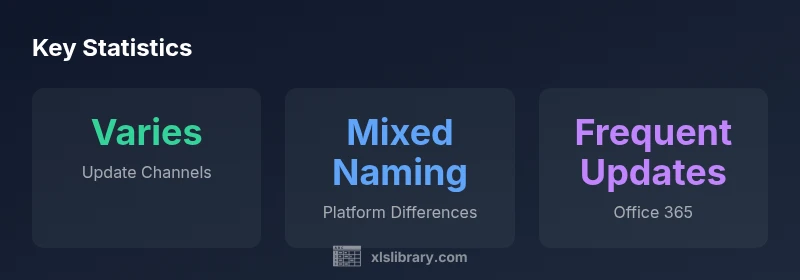
Understanding the exact Excel version you have is foundational for compatibility, feature availability, and collaboration. If you’re dealing with complex workbooks that rely on newer functions or VBA features, knowing your version helps you avoid surprises when sharing files with teammates or clients. According to XLS Library, many users encounter subtle issues when working across devices because different update channels or platform differences cause features to appear or disappear. The XLS Library team found that teams with a clear version-tracking habit experience fewer cross-compatibility hiccups and faster onboarding for new hires.
In practical terms, the question what excel version do i have isn’t just about numbers; it’s about knowing which features you can rely on, what security fixes are included, and how your workbook will behave when opened on another device. For analysts and power users, this information informs everything from formula availability and dynamic array behavior to scripting and macros. In short, your version is the baseline for your entire Excel toolkit.
How to identify the Excel version on Windows
Locating your version on Windows is straightforward. Start Excel, then navigate to File > Account (or Help in some older builds). Under Product Information you’ll find the Edition (e.g., Microsoft 365 Apps for enterprise) and the Build Number (e.g., 16.0.XXXXX.XXXXX). If you’re using a corporate install, your update channel (Monthly, Semi-Annual) may influence how often you get new features. For many teams, documenting the build number alongside the edition reduces confusion when distributing shared workbooks. This is particularly important when features rely on newer functions such as LET, LAMBDA, or dynamic arrays.
If you see a label like Microsoft 365 Apps for enterprise, that signals a subscription model rather than a one-time purchase. In such cases, Excel updates are more frequent, and staying aware of the current build is essential for compatibility with colleagues who might be on a different update cycle.
How to identify the Excel version on macOS and mobile
On macOS, open Excel and choose Excel > About Excel from the menu bar. The dialog lists the edition and the build number, similar to Windows, but with macOS-specific naming nuances. For iPad and mobile apps, look for About in the app’s settings; these platforms commonly show the subscription type (e.g., Microsoft 365 Apps) and the last update date. When collaborating with Windows users, remember that some features appear or behave differently between platforms, so cross-platform testing is prudent.
Keep in mind that mobile builds tend to lag slightly behind desktop builds in feature parity. If you manage teams across devices, log each user’s platform and version to anticipate incompatibilities before critical deadlines.
What the version naming means: Office, 365, and standalone products
Excel uses several naming conventions that can be confusing at first glance. A perpetual license (e.g., Office 2021) is a one-time purchase with fixed features, while Microsoft 365 (formerly Office 365) is a subscription that receives ongoing updates. The exact label you see in About Excel will hint at your licensing model: perpetual editions show the product line and year, while subscription editions show Microsoft 365 Apps for ... plus a build number. This distinction matters because newer features appear in subscription builds sooner and may require updates to stay in parity with colleagues using the latest release.
Understanding these distinctions helps you judge whether your workbook features are guaranteed to work across teams, and guides you in planning upgrades or policy changes for your organization.
Practical scenarios: troubleshooting version mismatches in workbooks
A version mismatch can create subtle issues: formulas not evaluated as expected, new function names returning errors, or VBA code failing due to security policy. When you encounter a problem, verify both the local Excel version and the workbook’s compatibility mode. If a macro runs in one environment but not another, check the VBA references and the Office build. In shared files, it’s prudent to agree on a minimum supported version and update schedule, so everyone operates on a supported baseline. The XLS Library team recommends maintaining a short compatibility matrix for common teams and projects.
If you distribute a workbook that uses new features, provide an accessible note describing the required version to avoid surprises for downstream users.
Best practices for staying up to date and managing versions in teams
Establish a simple version-tracking habit: keep a one-page sheet with each user’s platform, edition, channel, and last update date. When possible, standardize on an update channel that matches your team’s cadence to minimize feature gaps. Consider setting organizational policies that require quarterly checks and automatic reminders to review the current build in use. For administrators, centralize update controls to prevent divergent configurations. These practices can save time, reduce errors, and improve collaboration across teams that rely on Excel workbooks daily. As you implement these practices, remember that clear documentation and regular audits are the best safeguards against version-related surprises.
Workbook version check contexts
| Context | Where to check | Notes |
|---|---|---|
| Windows desktop | File > Account > About Excel | Shows product name and build |
| Mac | Excel > About Excel | Shows edition and build; macOS naming varies by release |
| Office Online / Web | Help > About | Limited visibility; may not always show a full build |
| Deployment channels | Admin center / Update Options | Impact on how often features arrive |
People Also Ask
What is the quickest way to check my Excel version?
Open Excel, go to File > Account > About Excel, and note the edition and build number. This fast check works on Windows, Mac, and the web where available.
Open Excel, click File, then Account, and look for About Excel to see your edition and build.
Is there a difference between Excel 2019 and Microsoft 365?
Yes. Excel 2019 is a perpetual license with fixed features, while Microsoft 365 receives ongoing updates and new features. Check your label in About Excel to see which model you’re using.
Excel 2019 is a one-time purchase; Microsoft 365 gets ongoing updates with new features.
Can two people have different Excel versions on the same device?
Yes. Different user accounts or separate installations can run different builds or editions. Centralize version governance to minimize compatibility issues for shared workbooks.
Definitely—different users can have different versions on one device; coordinate versions for team files.
How do I update Excel?
If you’re on Microsoft 365, updates are delivered through your update channel. In Windows, use Windows Update or Office Update options inside Excel’s Account page to trigger updates.
Use Office Update in Excel to fetch the latest features; channels determine cadence.
Where can I find the build number for my Excel installation?
Go to File > Account > About Excel. The build number appears with the edition, helping you confirm compatibility for advanced features.
See About Excel to find the build number and edition.
Does Excel Online show a full version like desktop apps?
Excel Online presents feature availability and update status differently than desktop apps; expect differences in some advanced features and VBA support.
Online shows features differently; not always the same as desktop.
“Knowing your exact Excel version helps you troubleshoot features, plan updates, and ensure compatibility across teams.”
The Essentials
- Identify your Excel version via File > Account > About Excel
- Distinguish perpetual vs. subscription naming to understand update cadence
- Expect platform differences; test critical workbooks on all used devices
- Document your build numbers for team-wide compatibility
- Establish a simple version-tracking process to prevent surprises